A plugin package is a shared package component based on an HSP and is used to extend the functionality of a host app (the app that loads and runs the plugin). Plugins are typically created by third-party developers or host app developers to provide additional features or services for the host app. For example, professional design software can use plugins to provide custom capabilities for different industries. Plugins rely on system capabilities to run, such as ArkTS APIs and Ability components. If a plugin does not rely on system capabilities, you can continue to use the app's existing plugin packaging method instead of packaging the plugin as an HSP. A plugin cannot run independently and requires the runtime environment and functionality provided by the host app.
Required Permission
To use plugins, the host app must request the ohos.permission.kernel.SUPPORT_LOCAL_PLUGIN permission. For details, see Declaring Permissions.
"requestPermissions":[
    {
      "name" : "ohos.permission.kernel.SUPPORT_LOCAL_PLUGIN"
    }
  ]
Developing an App Plugin
This section describes how to configure a project, configure signing, and build and package an app plugin in DevEco Studio, helping you quickly build an HSP plugin package that can be integrated into a host app.
[h2]Configuring the Project
-
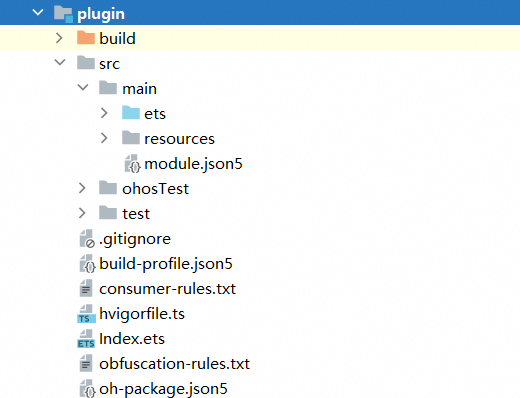
A plugin package is essentially a dynamic shared package (HSP). Create a plugin module in the project by referring to Creating an HSP Module.
-
In app.json5, set bundleType to appPlugin to identify the current package as an app plugin package. bundleName specifies the bundle name of the plugin.
{ "app": { "bundleName": "com.example.plugin", "vendor": "example", "versionCode": 1000000, "versionName": "1.0.0", "buildVersion": "1", "icon": "$media:layered_image", "label": "$string:app_name", "bundleType": "appPlugin" } } -
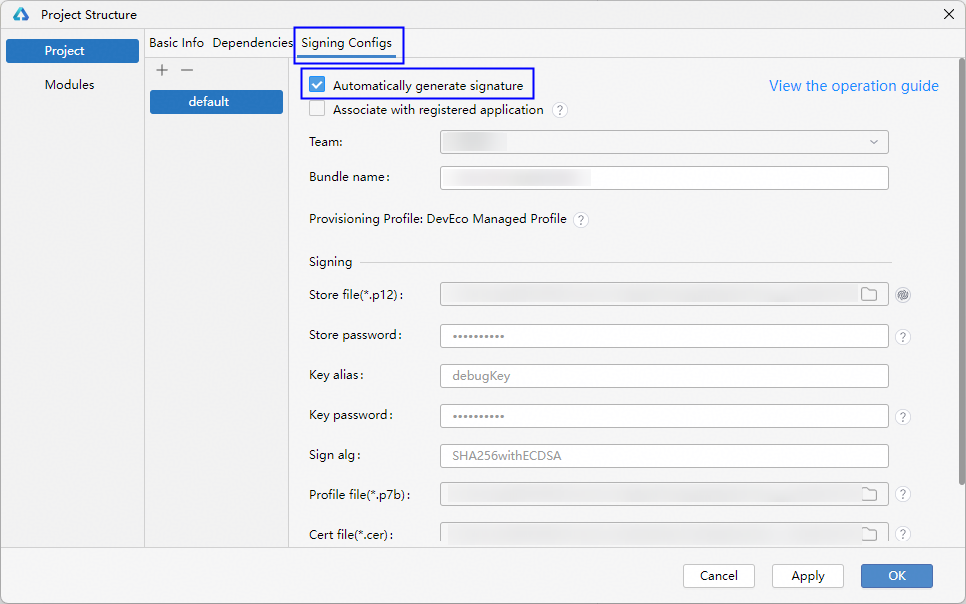
In DevEco Studio, choose File > Project Structure from the menu bar and select Automatically generate signature on the Signing Configs page.
[h2]Building and Packaging the Plugin
-
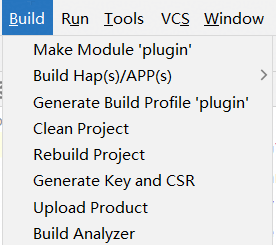
Select the plugin module directory in the project and choose Build > Make Module ${libraryName} from the DevEco Studio menu bar to build the plugin.
-
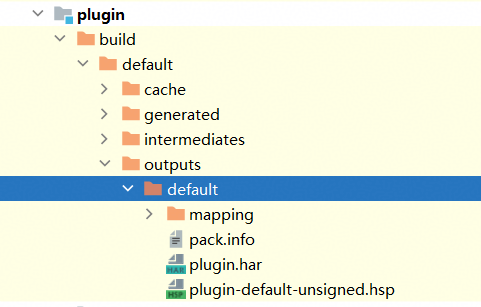
After the build is complete, the corresponding output is generated in the project directory.
Using an App Plugin
This section describes how a host app installs, updates, and uninstalls app plugins and integrates plugin capabilities by calling plugin APIs.
[h2]Installing or Updating a Plugin
-
Place the plugin HSP in a directory accessible to the host app, such as /storage/Users/currentUser or the host app's sandbox directory.
-
Request the ohos.permission.kernel.SUPPORT_LOCAL_PLUGIN permission in the requestPermissions field of the host app's module.json5 file.
-
Call installLocalPlugin in the host app to install the plugin, as shown in the following example:
import { pluginBundleManager } from '@kit.AbilityKit';
import { BusinessError } from '@kit.BasicServicesKit';

let pluginPaths: Array<string> = ['/storage/Users/currentUser/plugin.hsp'];

pluginBundleManager.installLocalPlugin(pluginPaths)
  .then(() => {
    console.info('installLocalPlugin success');
  }).catch((err: BusinessError) => {
  console.error(`installLocalPlugin errData is errCode:${err.code}  message:${err.message}`);
});

- After a plugin is updated, the host app must reload the plugin or restart for the update to take effect.
- If the plugin HSP is placed in /storage/Users/currentUser, the host app must also request the ohos.permission.READ_WRITE_USER_FILE permission.
[h2]Querying Plugins
Call getAllLocalPluginInfoForSelf in the host app to query plugin information.
import { pluginBundleManager } from '@kit.AbilityKit';
import { BusinessError } from '@kit.BasicServicesKit';

pluginBundleManager.getAllLocalPluginInfoForSelf().then((data): void => {
  console.info('getAllLocalPluginInfoForSelf plugin data is' + JSON.stringify(data));
}).catch((err: Error): void => {
  const businessErr = err as BusinessError;
  console.error(`getAllLocalPluginInfoForSelf errData is errCode:${businessErr.code}  message:${businessErr.message}`);
});
[h2]Uninstalling a Plugin
Call uninstallLocalPlugin in the host app to uninstall a plugin.
import { pluginBundleManager } from '@kit.AbilityKit';
import { BusinessError } from '@kit.BasicServicesKit';

let pluginBundleName = "com.example.plugin";

pluginBundleManager.uninstallLocalPlugin(pluginBundleName)
  .then(() => {
    console.info('uninstallLocalPlugin success');
  }).catch((err: BusinessError) => {
  console.error(`uninstallLocalPlugin errData is errCode:${err.code}  message:${err.message}`);
});