Overview
Window orientation adaptation aims to solve the problem of window orientation in different app scenarios. Take a video app on a bar phone as an example. The home page of the app is usually displayed in portrait mode, while the full-screen video playback page is usually displayed in landscape mode. The core strategy is to dynamically adjust the display policy of the app window orientation (hereinafter referred to as the window rotation policy) to ensure improved user experience in different user interaction scenarios.
This topic covers the following content:
- Prerequisites and constraints: describe the meaning of the window orientation and specify how to select a more appropriate window rotation policy against the backdrop of diversified device forms.
- Enumerated window rotation policies: describe the enumerated values of window rotation policies and parse the behavior mapping of each value on different device forms, helping you understand the underlying adaptation logic of the system.
- Implementation principles: describe the technical implementation mechanism and core process of configuring a window rotation policy for a page.
- Typical scenarios:
- App home page: general page window rotation policy.
- Game app: window rotation policy that supports locking in portrait or landscape orientation.
- Gallery: window rotation policy that supports auto-rotation to four orientations and is controlled by the rotation switch in the control panel.
- Individual stock details page & candlestick chart page: window rotation policy that is switched based on scenarios on the app combination page.
- Video details page & full-screen playback page: window rotation policy that is switched based on user behavior on the same page.
Prerequisites and Constraints
Before you get started, you are advised to learn about window manager, window rotation, display management, one-time development for multi-device deployment, and component navigation.
The landscape/portrait mode switching enables an app to display content in either landscape mode or portrait mode. It dynamically adjusts the window orientation within the app logic to accommodate orientations of different pages. For example, for an app that supports video playback on a bar phone, the home page is displayed in portrait mode, while the full-screen playback page is displayed in landscape mode.
As device forms become increasingly diversified, the rotation feature of app pages has been evolved from partial adaptation to full support. Therefore, selecting a proper rotation policy is critical to app development.
Currently, there are four display orientations in HarmonyOS, as shown in the following figure.

Basic definitions:
Based on the physical screen size of the device, the display orientation of the device is defined as follows:
- Portrait (PORTRAIT): The screen height is greater than the width, and the charging port faces downward when the user holds the device in the forward direction (portrait mode by default).
- Reverse portrait (PORTRAIT_INVERTED): The screen height is greater than the width, but the equipment is upside down, that is, the charging port faces upward.
- Landscape (LANDSCAPE): The screen width is greater than the height, and the charging port faces rightward when the user holds the device in the forward direction (landscape mode by default).
- Reverse landscape (LANDSCAPE_INVERTED): The screen width is greater than the height, but the equipment is upside down, that is, the charging port faces leftward.
Distinguishing methods:
The system provides the @ohos.display module to obtain the current orientation and rotation angle of the screen (that is, rotation of Display). The screen orientation directly corresponds to the preceding four enumerated values, and the rotation angle indicates the clockwise rotation degree of the screen relative to the default orientation. The following table lists the mapping between the rotation angle and the screen orientation (using a common bar phone as an example).
Return Value of the Screen Rotation Angle | Degree | Screen Orientation |
|---|---|---|
0 | 0° | Portrait (PORTRAIT) |
1 | 90° | Reverse landscape (LANDSCAPE_INVERTED) |
2 | 180° | Reverse portrait (PORTRAIT_INVERTED) |
3 | 270° | Landscape (LANDSCAPE) |
Understanding Window Rotation Policies
The window rotation policies provides 18 options (see Orientation). You can preset a rotation policy to control the window orientation of an app in different scenarios. To help you quickly understand these policies, the following describes the meanings and effects of the 18 enumerated values.
[h2]Fixed Orientation Policies
A fixed orientation policy means that the app window is locked in a specific display orientation (such as portrait or landscape) when the app is started or the page is redirected, and does not automatically rotate with the physical orientation of the device. The following five types of fixed orientation policies are available.
Name | Value | Description |
|---|---|---|
PORTRAIT | 1 | Portrait. |
LANDSCAPE | 2 | Landscape. |
PORTRAIT_INVERTED | 3 | Reverse portrait. |
LANDSCAPE_INVERTED | 4 | Reverse landscape. |
LOCKED | 11 | Locked mode, where the window orientation is consistent with the current screen orientation (see Orientation). |
Take a tri-fold phone in G state as an example. The following figures show the effects of the initial window orientation.
Initial Orientation | Enumerated Value | App Startup Effect for a Device in Portrait Mode | App Startup Effect for a Device in Landscape Mode |
|---|---|---|---|
Portrait | PORTRAIT |
|
|
Reverse portrait | PORTRAIT_INVERTED |
|
|
Landscape | LANDSCAPE |
|
|
Reverse landscape | LANDSCAPE_INVERTED |
|
|
Locked mode | LOCKED |
|
|


[h2]Auto-rotation Policies
An auto-rotation policy allows an app window to automatically adjust its display orientation based on the physical orientation of the device (determined by the gravity sensor) and may be affected by the rotation lock switch in the system control panel.

The rotation switch of the control panel is used to control whether the screen can be rotated. When the rotation lock icon is highlighted, the screen is locked and cannot be rotated. When the rotation lock icon is gray, the screen is unlocked and can be rotated.
For example, if you want the window to follow the rotation control of the control panel, including landscape, portrait, reverse landscape, and reverse portrait modes, you can set the rotation mode to AUTO_ROTATION_RESTRICTED.
If you do not want the window to follow the rotation control of the control panel, you can set the rotation mode to AUTO_ROTATION. In this case, the rotation of the app is not affected by the rotation lock in the control panel. The same applies to other rotation modes.
Auto-rotation not controlled by the control panel
The auto-rotation policies not controlled by the control panel include the following three types.
Name | Value | Description |
|---|---|---|
AUTO_ROTATION | 5 | Automatically rotates with the sensor to four orientations: portrait, landscape, reverse portrait, and reverse landscape. This rotation is not controlled by the rotation switch in the control panel. |
AUTO_ROTATION_PORTRAIT | 6 | Automatically rotates with the sensor to two orientations: portrait and reverse portrait. This rotation is not controlled by the rotation switch in the control panel. |
AUTO_ROTATION_LANDSCAPE | 7 | Automatically rotates with the sensor to two orientations: landscape and reverse landscape. This rotation is not controlled by the rotation switch in the control panel. |
Take a tri-fold phone in G state as an example. The following figures show the effects of the auto-rotation policies that are not controlled by the control panel.
Enumerated Value | Effect | |
|---|---|---|
Free rotation (portrait/reverse portrait/landscape/reverse landscape) | AUTO_ROTATION |
|
Portrait rotation (portrait/reverse portrait) | AUTO_ROTATION_PORTRAIT |
|
Landscape rotation (landscape/reverse landscape) | AUTO_ROTATION_LANDSCAPE |
|


The rotation switch in the control panel is used to control whether the screen can be rotated. When the rotation lock icon is highlighted, the screen is locked and cannot be rotated. When the rotation lock icon is gray, the screen is unlocked and can be rotated.
For example, if you want the window to follow the rotation control of the control panel, including landscape, portrait, reverse landscape, and reverse portrait modes, you can set the rotation mode to AUTO_ROTATION_RESTRICTED.
If you do not want the window to follow the rotation control of the control panel, set the rotation mode to AUTO_ROTATION. In this case, the rotation of the app is not affected by the rotation lock of the control panel. The same applies to other rotation modes.
Auto-rotation controlled by the control panel
The auto-rotation policies controlled by the control panel include the following four types.
Name | Value | Description |
|---|---|---|
AUTO_ROTATION_RESTRICTED | 8 | Automatically rotates with the sensor to four orientations: portrait, landscape, reverse portrait, and reverse landscape. This rotation is controlled by the rotation switch in the control panel. |
AUTO_ROTATION_PORTRAIT_RESTRICTED | 9 | Automatically rotates with the sensor to two orientations: portrait and reverse portrait. This rotation is controlled by the rotation switch in the control panel. |
AUTO_ROTATION_LANDSCAPE_RESTRICTED | 10 | Automatically rotates with the sensor to two orientations: landscape and reverse landscape. This rotation is controlled by the rotation switch in the control panel. |
AUTO_ROTATION_UNSPECIFIED | 12 | Automatically rotates with the sensor, under the restriction of the rotation switch in the control panel. The orientation that can be rotated to is determined by the system. |
Take a tri-fold phone in G state (that is, the triple-screen display state when the tri-fold phone is fully unfolded) as an example. The following figures show the effects of the auto-rotation policies that are controlled by the control panel.
Free rotation (portrait/reverse portrait/landscape/reverse landscape) | AUTO_ROTATION_RESTRICTED |
|
Portrait rotation (portrait/reverse portrait) | AUTO_ROTATION_PORTRAIT_RESTRICTED |
|
Landscape rotation (landscape/reverse landscape) | AUTO_ROTATION_LANDSCAPE_RESTRICTED |
|
Automatically rotates with the sensor, under the restriction of the rotation switch in the control panel. The orientation that can be rotated to is determined by the system. | AUTO_ROTATION_UNSPECIFIED |
|


Auto-rotation with a preferred orientation
The rotation policy with a preferred orientation allows an app to temporarily switch to a specified orientation (such as portrait or landscape) when the app is started or an API is called. After that, the app automatically rotates with the device sensor. The auto-rotation is controlled by the rotation lock switch in the control panel. In addition, the orientation that can be rotated to is affected by the system's determination of the current device form. The following four types are available.
Name | Value | Description |
|---|---|---|
USER_ROTATION_PORTRAIT | 13 | Temporarily rotates to portrait mode, and then automatically rotates with the sensor, under the restriction of the rotation lock in the control panel. The specific orientations available for rotation are determined by the system. |
USER_ROTATION_LANDSCAPE | 14 | Temporarily rotates to landscape mode, and then automatically rotates with the sensor, under the restriction of the rotation lock in the control panel. The specific orientations available for rotation are determined by the system. |
USER_ROTATION_PORTRAIT_INVERTED | 15 | Temporarily rotates to reverse portrait mode, and then automatically rotates with the sensor, under the restriction of the rotation switch in control panel. The orientation that can be rotated to is determined by the system. |
USER_ROTATION_LANDSCAPE_INVERTED | 16 | Temporarily rotates to reverse landscape mode, and then automatically rotates with the sensor, under the restriction of the rotation switch in control panel. The orientation that can be rotated to is determined by the system. |

The orientation that can be rotated to is determined by the system: When the auto-rotation switch is turned on, the specific orientation (such as portrait, landscape, and reverse landscape) to which the window can be rotated is automatically determined by the system based on the current device form (such as a bar phone, foldable in unfolded state, or tablet) to provide the optimal experience. On a specific device, orientations that are not suitable for the user will be disabled. For example, on a bar phone, the window can rotate to the portrait, landscape, or reverse landscape mode, but cannot rotate to the reverse portrait mode.
[h2]Following the Home Screen Display Policies
This policy is applicable to apps that adapt to multiple device forms (such as phones, tablets, and foldables). It enables apps to automatically inherit the rotation policy of the system home screen, providing consistent rotation experience that meets user expectations on different devices. For example, in an app that adapts to both phones and tablets, if you want the app to rotate with the home screen on a tablet but remain locked in portrait mode on a phone, you can use this policy. This eliminates the need to write complex rotation logic for different devices.
This policy simplifies multi-device adaptation. You do not need to configure rotation behavior for each device type separately. The system automatically manages the orientation of the app window based on the home screen status. For details about the implementation, see Following the Home Screen Rotation Policies.
Name | Value | Description |
|---|---|---|
FOLLOW_DESKTOP | 17 | Follows the rotation mode of the home screen, where the window will rotate if the home screen rotates and will not rotate if the home screen does not. |
Different service pages of an app need to be configured with proper window rotation policies to provide the best user experience.
To correctly select a rotation policy, you can match the rotation policy based on whether auto-rotation is supported, the supported rotation direction, and the preset initial direction. For details, see the following table.
Whether Auto-rotation Is Supported | Supported Orientation | Preset Initial Orientation | Window Rotation Policy |
|---|---|---|---|
Fixed orientation | N/A | Portrait | PORTRAIT |
N/A | Landscape | LANDSCAPE | |
N/A | Reverse portrait | PORTRAIT_INVERTED | |
N/A | Reverse landscape | LANDSCAPE_INVERTED | |
Controlled auto-rotation
| Portrait/Reverse portrait | N/A | AUTO_ROTATION_PORTRAIT_RESTRICTED |
Landscape/Reverse landscape | N/A | AUTO_ROTATION_LANDSCAPE_RESTRICTE | |
A maximum of four orientations are supported, but the rotation is determined by the system.
| N/A | AUTO_ROTATION_UNSPECIFIED | |
Portrait | USER_ROTATION_PORTRAIT | ||
Landscape | USER_ROTATION_LANDSCAPE | ||
Reverse portrait | USER_ROTATION_PORTRAIT_INVERTED | ||
Reverse landscape | USER_ROTATION_LANDSCAPE_INVERTED | ||
Following the orientation of the home screen | N/A | N/A | FOLLOW_DESKTOP |
The preceding table can also be abstracted into the following decision-making logic, as shown in the figure.
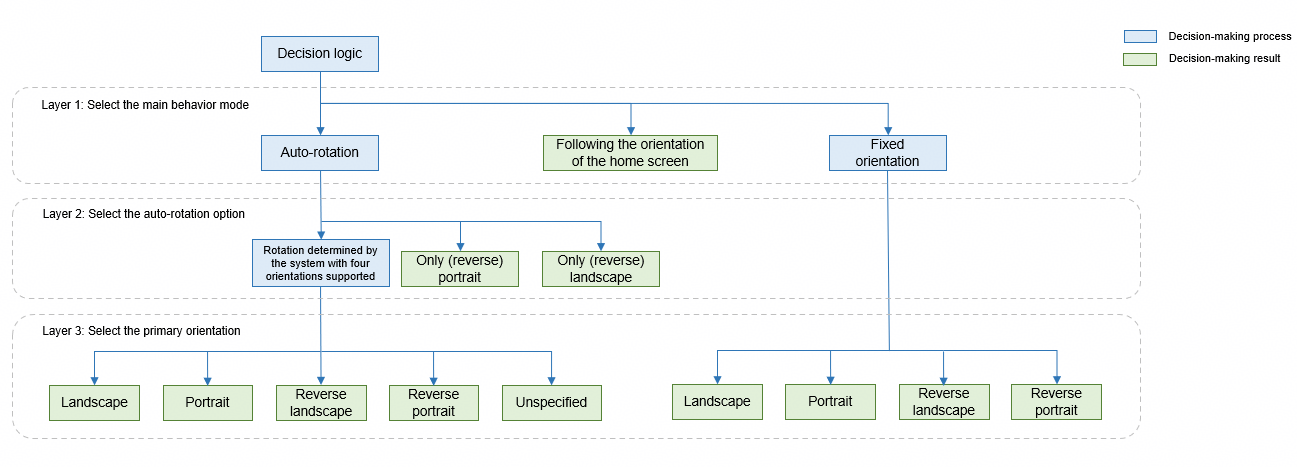

The auto-rotation policy that is not restricted by the control center is not recommended and therefore is not included in the table. If this policy is required in specific scenarios, you can directly use it in Auto-rotation Policies.
Window policy tool class
To improve the usability of window rotation policy selection, we provide a set of tool classes for selecting window rotation policies based on the preceding policy decision-making logic figure. Three usage modes are supported.
- Directly obtain the policy value through chain property access.
If you need to hardcode the policy value in the code, you can use the OrientationPresets constant in the tool class and perform three-level chain calling to obtain the rotation policy enumeration. The following is an example:
@Component export struct Home { windowObj: window.Window | undefined = undefined; // ... aboutToAppear(): void { this.tabBarsInfo.setTabList(TabBarsInfo); try { this.windowObj = (this.getUIContext().getHostContext() as common.UIAbilityContext).windowStage.getMainWindowSync() } catch (err) { Logger.error(`Invoke set preferred orientation failed, code is ${err.code}, message is ${err.message}`) } // Use the WindowOrientationHelper tool to directly obtain the rotation strategy enumeration through chained calls. this.windowObj?.setPreferredOrientation(WindowOrientationHelper.presets.FOLLOW_DESKTOP) .catch((err: BusinessError) => { Logger.error(`Invoke set preferred orientation failed, code is ${err.code}, message is ${err.message}`) }); // ... } aboutToDisappear() { // Use the WindowOrientationHelper tool to directly obtain the rotation strategy enumeration through chained calls. this.windowObj?.setPreferredOrientation(WindowOrientationHelper.presets.FIXED.UNSPECIFIED) .catch((err: BusinessError) => { Logger.error(`Invoke set preferred orientation failed, code is ${err.code}, message is ${err.message}`) }); } // ... build() { // ... } } - Dynamically select a rotation policy using a function selector.
If you have determined the main behavior mode in a specific UI scenario and only need to refine the policy based on conditions, you can use this method. The following is an example:
@Component export struct PortraitModeGame { windowObj: window.Window | undefined = undefined; // ... aboutToAppear(): void { try { this.windowObj = (this.getUIContext().getHostContext() as common.UIAbilityContext).windowStage.getMainWindowSync() } catch (err) { Logger.error(`Invoke set preferred orientation failed, code is ${err.code}, message is ${err.message}`) } // Obtain the PORTRAIT rotation strategy enumeration through the function selector. this.windowObj?.setPreferredOrientation(WindowOrientationHelper.fixed('PORTRAIT')) .catch((err: BusinessError) => { Logger.error(`Invoke set preferred orientation failed, code is ${err.code}, message is ${err.message}`) }); // ... } // ... build() { // ... } } - Dynamically select a rotation policy using a general selector.
If you need to dynamically determine all rotation parameters in a specific UI scenario, you can use the select method to define the input parameters of the policy selector. The following is an example:
@Component
export struct VideoDetail {
  windowObj: window.Window | undefined = undefined;
  // ...

  aboutToAppear() {
    // ...

    // Dynamically select an appropriate rotation strategy through a selector.
    this.windowObj?.setPreferredOrientation(WindowOrientationHelper.select({
      mode: 'autoRotate',
      range: 'ALL_ORIENTATIONS',
      preferred: 'UNSPECIFIED'
    }))
      .catch((err: BusinessError) => {
        Logger.error(`Invoke set preferred orientation failed, code is ${err.code}, message is ${err.message}`)
      });
  }

  onFullScreenChange(): void {
    if (this.isFullScreen) {
      if (this.isClick) {
        if (this.widthBp === WidthBreakpoint.WIDTH_SM || this.widthBp === WidthBreakpoint.WIDTH_LG ||
          this.heightBp === HeightBreakpoint.HEIGHT_LG) {
          // Dynamically select an appropriate rotation strategy through a selector.
          this.windowObj?.setPreferredOrientation(WindowOrientationHelper.select({
            mode: 'autoRotate',
            range: 'LANDSCAPE_ONLY'
          }))
            .catch((err: BusinessError) => {
              Logger.error(`Invoke set preferred orientation failed, code is ${err.code}, message is ${err.message}`)
            });
        }
      }
    } else {
      // Dynamically select an appropriate rotation strategy through a selector.
      this.windowObj?.setPreferredOrientation(WindowOrientationHelper.select({
        mode: 'autoRotate',
        range: 'ALL_ORIENTATIONS',
        preferred: 'UNSPECIFIED'
      }))
        .catch((err: BusinessError) => {
          Logger.error(`Invoke set preferred orientation failed, code is ${err.code}, message is ${err.message}`)
        });
    }
  }


  private onWindowSizeChange: (windowSize: window.Size) => void = () => {
    if (this.isClick) {
      return;
    }
    if (this.widthBp === WidthBreakpoint.WIDTH_SM) {
      this.isFullScreen = false
      // Dynamically select an appropriate rotation strategy through a selector.
      this.windowObj?.setPreferredOrientation(WindowOrientationHelper.select({
        mode: 'autoRotate',
        range: 'ALL_ORIENTATIONS',
        preferred: 'UNSPECIFIED'
      }))
        .catch((err: BusinessError) => {
          Logger.error(`Invoke set preferred orientation failed, code is ${err.code}, message is ${err.message}`)
        });
    }

    if (this.widthBp === WidthBreakpoint.WIDTH_MD && this.heightBp === HeightBreakpoint.HEIGHT_SM) {
      this.isFullScreen = true;
    }
  };

  async aboutToDisappear() {
    // ...
    // Dynamically select an appropriate rotation strategy through a selector.
    this.windowObj?.setPreferredOrientation(WindowOrientationHelper.select({
      mode: 'autoRotate',
      range: 'ALL_ORIENTATIONS',
      preferred: 'UNSPECIFIED'
    }))
      .catch((err: BusinessError) => {
        Logger.error(`Invoke set preferred orientation failed, code is ${err.code}, message is ${err.message}`)
      });
    // ...
  }


  build() {
    // ...
  }

}
In the tool class, the input parameter type of the select method is OrientationConfig, which is classified into three subtypes based on the logic: AutoRotateConfig, FollowDesktopConfig, and FixedConfig. For example, for AutoRotateConfig, which uses three-layer abstract dimensions, you need to add the range and preferred fields to the configuration to determine the window rotation policy that meets the scenario requirements. The OrientationConfig type is defined as follows:
/**
 * Orientation Type (used uniformly for fixed orientation and preferred orientation of auto rotation)
 */
export type WindowOrientationType =
  | 'UNSPECIFIED' // Unspecified (lock current orientation for fixed mode, no preferred orientation for auto rotation)
    | 'PORTRAIT'
    | 'LANDSCAPE'
    | 'PORTRAIT_INVERTED'
    | 'LANDSCAPE_INVERTED';

/**
 * Auto Rotation Range
 */
export type AutoRotateRange =
  | 'LANDSCAPE_ONLY' // Landscape only (including forward and reverse landscape)
    | 'PORTRAIT_ONLY' // Portrait only (including forward and reverse portrait)
    | 'ALL_ORIENTATIONS'; // All orientations (support all directions)

// ...
/**
 * Fixed Orientation Configuration
 */
export interface FixedConfig {
  mode: 'fixed';
  orientation?: WindowOrientationType; // Omitted or 'UNSPECIFIED' means lock current orientation
}

/**
 * Auto Rotation Configuration
 */
export interface AutoRotateConfig {
  mode: 'autoRotate';
  range: AutoRotateRange; // Rotation range
  preferred?: WindowOrientationType; // Preferred orientation (valid only when range = 'ALL_ORIENTATIONS')
}

/**
 * Follow Desktop Configuration
 */
export interface FollowDesktopConfig {
  mode: 'followDesktop';
}

/**
 * Union type of window rotation strategy configuration
 */
export type OrientationConfig = FixedConfig | AutoRotateConfig | FollowDesktopConfig;
For details about how to use the preceding tool classes, see the cases in typical scenarios in this guide.
Configuring a Rotation Policy for an App
To meet the flexible and ever-changing UI interaction requirements, the system supports app-level, window-level, and page-level window policy configuration solutions, and provides window rotation policy configurations for subwindows and floating windows.
You can set the initial window rotation policy of an app by configuring the orientation attribute in the module.json5 file of the HAP, which affects the startup orientation of the entire app.
orientation is used to configure the window display status when the app starts. If the app needs to be started in the default landscape or portrait mode, set this field accordingly.
For details about the supported parameters, see the enumerated values of orientation under abilities in the module.json5 file.
{
  "module": {
    // ...
    "abilities": [
      {
        "name": "EntryAbility",
        // ...
        "orientation": "unspecified",
        // ...
      }
    ],
    // ...
  }
}
You can configure the default rotation policy based on service requirements.
- For an app, which is in portrait mode on a bar phone or a bi-fold phone in folded state, and is rotatable by default on a tablet or a bi-fold phone in unfolded state, you are advised to set the default rotation policy to FOLLOW_DESKTOP.
- For an app in portrait mode, you are advised to set the default rotation policy to PORTRAIT.
- For an app in landscape mode (such as a MOBA game), which is displayed in landscape mode by default when it starts, the following situations may occur:
- Only the landscape mode is supported. You are advised to set the default rotation policy to LANDSCAPE.
- Both landscape and reverse landscape modes are supported. You are advised to set the default rotation policy to AUTO_ROTATION_LANDSCAPE or AUTO_ROTATION_LANDSCAPE_RESTRICTED (whether the rotation is controlled by the rotation switch in the control panel).
- For a rotatable app, you are advised to set the default rotation policy to AUTO_ROTATION_RESTRICTED.

In scenarios where rotation lock needs to be controlled through the control panel, you can select a rotation policy field that ends with RESTRICTED.
The fields end with this word indicate that the rotation behavior is controlled by the switch in the control panel. When the switch is turned on, the app does not rotate with the device. When the switch is turned off, the app rotates with the device.
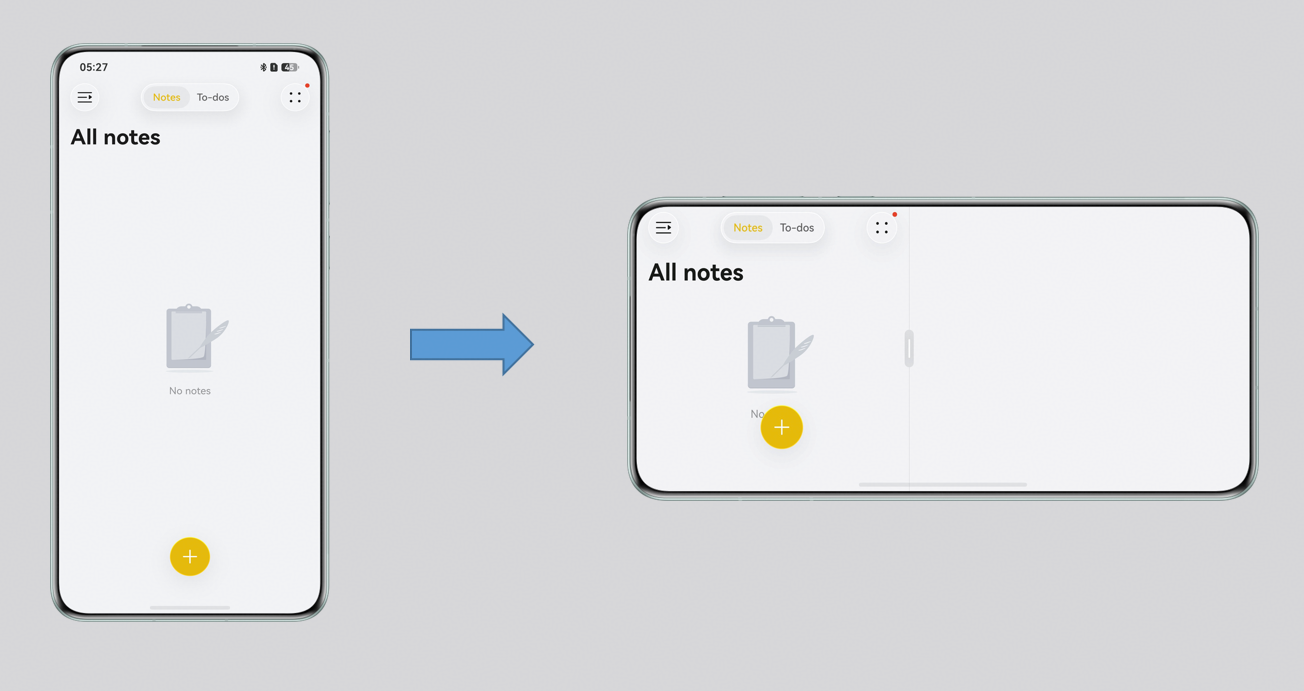
Take the following file manager app as an example. When the rotation lock is disabled, the app page automatically switches between landscape and portrait modes as the phone rotates. When the rotation lock is enabled, the app page does not rotate. In this case, you need to set the rotation policy to AUTO_ROTATION_RESTRICTED.
[h2]Window-Level Configuration
It applies to the entire app component window, defines the screen rotation policy of the window, and takes effect for route redirection implemented based on the Navigation component and Router module. Once configured, the configuration takes effect for all pages in the window unless it is explicitly modified.
1. You can call the window.setPreferredOrientation() method in onWindowStageCreate() to set the default orientation of the entire app window.
setWindowOrientation(orientation: window.Orientation): void {
  this.mainWindow.setPreferredOrientation(orientation)
    .then(() => {
      hilog.info(0x0000, 'testLog', `Succeeded in setting window orientation.`);
      // Update window orientation.
      this.mainWindowInfo.orientation = orientation;
    })
    .catch((err: BusinessError) => {
      hilog.error(0x0000, 'testLog', `Failed to set window orientation. Code: ${err.code}, message: ${err.message}`);
    });
}
2. If the window rotation policies of the pages in the app are inconsistent, perform this step. When a page is displayed, call window.setPreferredOrientation() in aboutToAppear to define the window rotation policy for the current page. When a page is closed, call window.setPreferredOrientation() in aboutToDisappear to restore the window rotation policy for the page to be displayed.
@StorageLink('mainWindow') mainWindow?: window.Window = undefined;
public lastOrientation?: window.Orientation;

aboutToAppear(): void {
  if (this.mainWindow === undefined) {
    return;
  }
  this.lastOrientation = this.mainWindow!.getPreferredOrientation();
  this.mainWindow!.setPreferredOrientation(window.Orientation.LANDSCAPE);
}

aboutToDisappear(): void {
  this.mainWindow!.setPreferredOrientation(this.lastOrientation)
}
Typical scenarios include video and image apps.
Switching between landscape and portrait modes on the video playback window

It applies to the currently displayed page (NavDestination component) and takes effect only for route redirection implemented based on the Navigation component. It allows you to dynamically adjust the window rotation policy for different pages based on service requirements. During page route redirection, the system automatically switches to the window rotation policy corresponding to the next page to be displayed.
The NavDestination component provides the preferredOrientation attribute, which allows you to configure the window rotation policy for each page independently without affecting each other. During page redirection, the window rotation policy, which is set through preferredOrientation, is automatically updated to the one corresponding to the next page. When the previous page is returned, the window rotation policy, which is set through preferredOrientation, is automatically updated to the one corresponding to the previous page.
[h2]Solution Comparison
Window Rotation Policy Configuration Solution | Advantages | Disadvantages | Applicable Scenario |
|---|---|---|---|
App level |
| If the window rotation policies of pages in the app are inconsistent, the window rotation policy cannot be switched. In this case, the window-level or page-level window policy is required. |
|
Window level |
| If the window rotation policies of pages are inconsistent, you need to set the window rotation policy when a page is displayed and closed. |
|
Page level |
|
|
|
In the app rotation scenario, the system controls the size of the app's main window, whereas the app itself manages the sizes and positions of its subwindows. If subwindows exist, it is advisable to adjust their sizes and positions when the app rotates. Otherwise, the subwindows may become truncated during rotation, as shown in the following figure. (The default rotation policy for bar phones is UNSPECIFIED. If the rotation lock is disabled, the app will not rotate. To enable the app to rotate with the device, you can set its rotation policy to AUTO_ROTATION via the orientation field under abilities of the module.json5 file.)
Portrait Display Before Rotation | Landscape Display After Rotation (Before Adjustment) |
|---|---|
|
|


Implementation
The system provides the following APIs for listening for device window size changes and setting the sizes and positions of app subwindows:
- on('windowSizeChange') is used to enable the listening for window size changes, and its callback will be triggered when the window is rotated.
- resize() is used to change the window size. If the window is rotated, you should adjust the widths and heights of its subwindows in a timely manner.
- moveWindowTo() is used to move the window position. If the window is rotated, you should adjust the positions of its subwindows in a timely manner.
To adjust the subwindow size based on the app rotation orientation, you can use the on('windowSizeChange') API to listen for window size changes and call the resize() and moveWindowTo() APIs in the callback function to adjust the subwindow sizes and positions, respectively.
You can call the setFollowParentWindowLayoutEnabled() API to specify whether the layout of the subwindow or modal window follows its main window. If set to follow, the subwindow or modal window will not require additional adaptation after rotation.
import { window } from '@kit.ArkUI';
import { BusinessError } from '@kit.BasicServicesKit';
import { hilog } from '@kit.PerformanceAnalysisKit';

const SUB_WINDOW_LEFT_OFFSET: number = 50;
const SUB_WINDOW_TOP_OFFSET: number = 500;
const TAG: string = 'subWindowAdaptWhenRotate';
const DOMAIN: number = 0x0000;

@Entry
@Component
struct Index {
  public mainWindow: window.Window | undefined = undefined;
  public subWindow: window.Window | undefined = undefined;

  aboutToAppear(): void {
    // create subWindow
    this.createSubWindow();

    this.mainWindow = AppStorage.get('mainWindow');
    if (!this.mainWindow) {
      return;
    }
    this.mainWindow.on('windowSizeChange', () => {
      this.adjustSubwindowSizeAndPosition();
    })
  }

  private adjustSubwindowSizeAndPosition(): void {
    if (!this.subWindow) {
      hilog.error(DOMAIN, TAG, 'subWindow is null');
      return;
    }
    let subwindowRect: window.Rect | null = null;
    try {
      subwindowRect = this.subWindow.getWindowProperties().windowRect;
    } catch (error) {
      hilog.warn(0x000, 'testTag', `getWindowProperties failed, code: ${error.code}, message: ${error.message}`);
    }
    let newWidth: number = subwindowRect!.height;
    let newHeight: number = subwindowRect!.width;
    let newX: number = subwindowRect!.top;
    let newY: number = subwindowRect!.left;
    this.subWindow.resize(newWidth, newHeight)
      .then(() => {
        hilog.info(DOMAIN, TAG, 'Succeeded in changing the window size')
      }).catch((err: BusinessError) => {
      hilog.error(DOMAIN, TAG, `Failed to change the window size. Cause code: ${err.code}, message: ${err.message}`);
    });

    this.subWindow.moveWindowTo(newX, newY)
      .then(() => {
        hilog.info(DOMAIN, TAG, 'Succeeded in moving the window');
      }).catch((err: BusinessError) => {
      hilog.error(DOMAIN, TAG, `Failed to move the window. Cause code: ${err.code}, message: ${err.message}`);
    });

  }

  // ...
}
Effect
The following demonstrates the effects of setting the size and position of an app's subwindows across different rotation orientations based on sample code. The subwindows exhibit distinct sizes and positions in portrait and landscape modes.
Portrait Display Before Rotation | Landscape Display After Rotation |
|---|---|
|
|


By default, the floating window is in portrait mode. However, for games and video apps run in landscape mode, the horizontal floating window provides better experience. You can add landscape or landscape_auto to the preferMultiWindowOrientation attribute under the abilities tag in the module.json5 configuration file to declare that your app supports the horizontal floating window or horizontal split-screen mode.
{
  "module": {
    // ...
    "abilities": [
      {
        "name": "EntryAbility",
        // ...
        "preferMultiWindowOrientation": "landscape_auto",
        // ...
      }
    ],
    // ...
  }
}
In this scenario, the multi-window layout can be dynamically changed to the horizontal layout, and APIs (enableLandscapeMultiWindow() and disableLandscapeMultiWindow()) need to be used.
private windowClass = (this.getUIContext().getHostContext() as common.UIAbilityContext).windowStage.getMainWindowSync()

aboutToAppear(): void {
  this.windowClass.enableLandscapeMultiWindow();
}

aboutToDisappear(): void {
  this.windowClass.disableLandscapeMultiWindow();
}
For example, when a video or game app is in landscape mode and the floating window is enabled, the page does not adapt to the landscape mode, leading to incomplete display or a poor viewing experience.
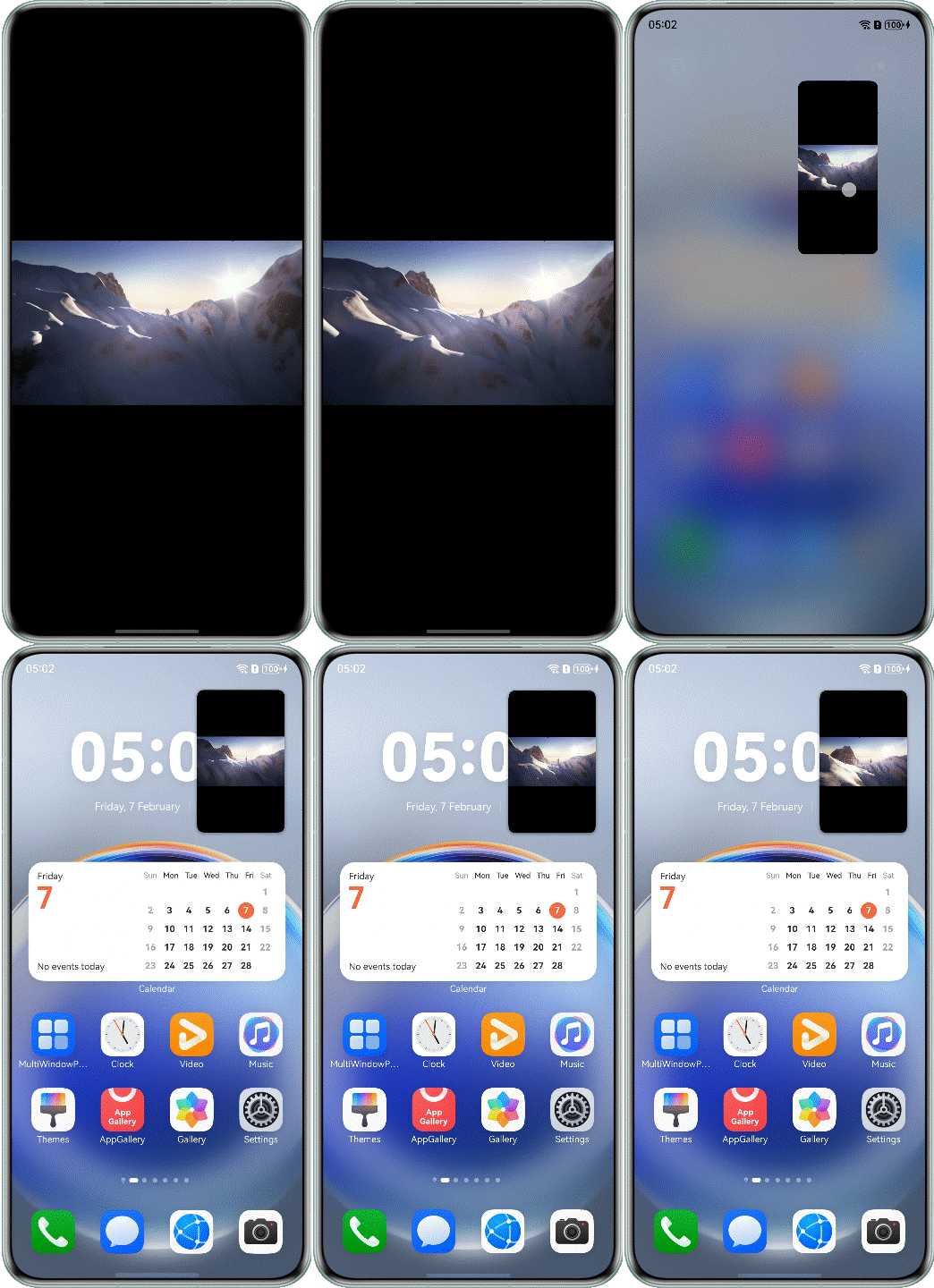
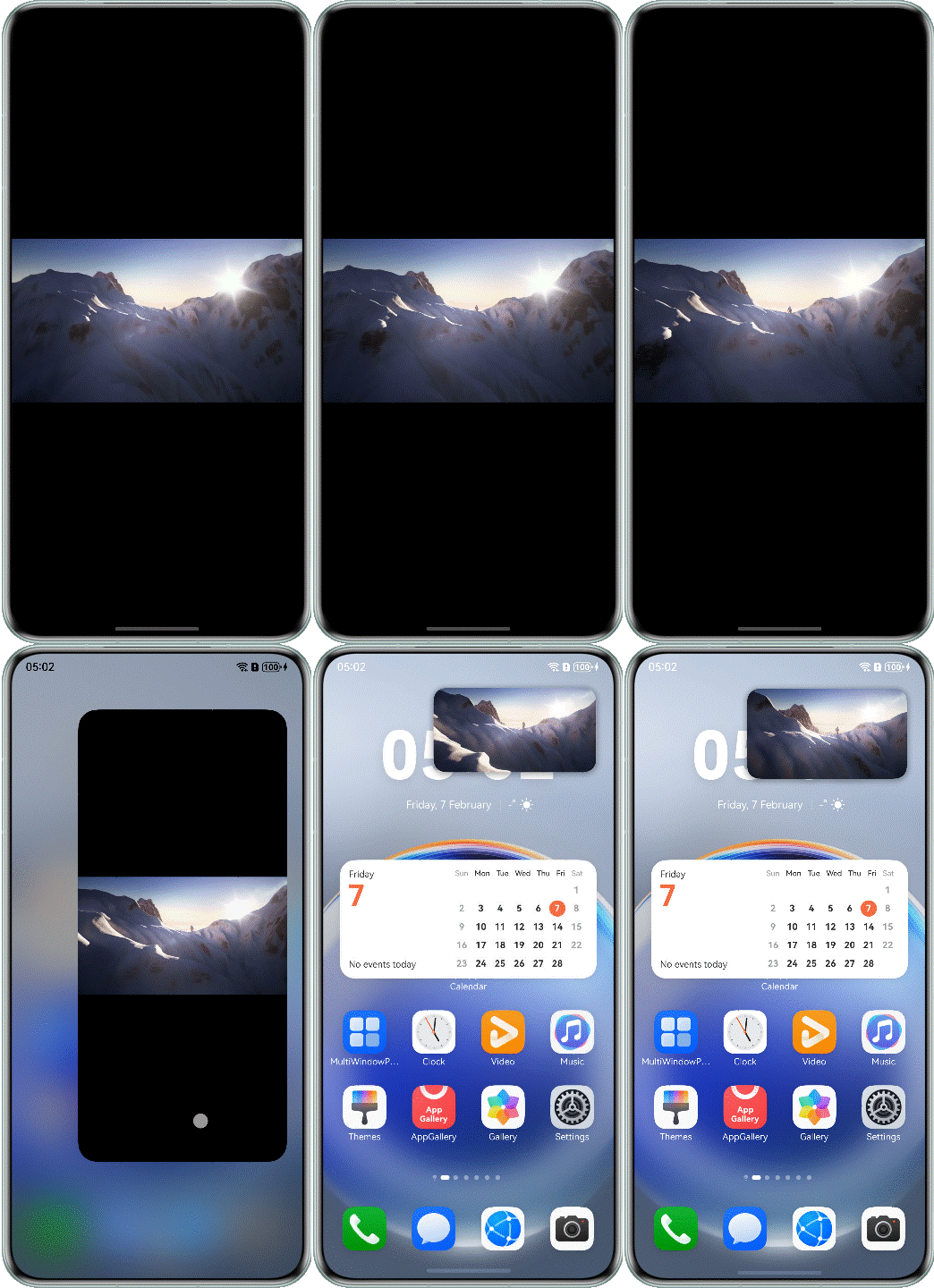
The following figure shows the effect after optimization.
Configuring Rotation Policies for Multiple Devices
With the diversification of devices, some pages of an app need to be configured with different window rotation policies based on the device type to achieve the best user experience. To help you quickly adapt to different devices, we provide window rotation policies for multiple devices.
- Different devices have different restrictions on the use of rotation policies.
In the following specific scenarios, the window rotation policies defined by developers may significantly reduce user experience due to different product definitions and usage scenarios. Therefore, the priority of the window rotation policies configured by the system is higher than that of the window rotation policies configured by the app. In this case, the actual window orientation of the app is scheduled by the system, and the window rotation policies defined by developers will be overwritten and do not take effect.
Device
Pura X in Folded State
PC
Vision
Wearable
Specific display orientation
Follows the screen orientation.
Effect


- Different interaction scenarios have different restrictions on the use of rotation policies.For example, in the following scenarios, the freeform window mode does not support the portrait mode, and the floating window is in portrait mode by default. However, for games and video apps running in landscape mode, the horizontal floating window provides a better experience.
Usage Scenario
Split Screen
Multitask View
Freeform Window
Global Annotation
Task List View
Specific display orientation
Automatically rotates with the sensor to four orientations: portrait, landscape, reverse portrait, and reverse landscape. This rotation is controlled by the rotation switch in the control panel.
Follows the screen orientation.
Locks the current window orientation after global annotation is enabled using a stylus.
Locks the current window orientation.
Effect


- For the same page, you may want to apply different rotation policies on different devices. For example, the video details page can only be displayed in portrait mode on a bar phone by default, but you may want it to be able to rotate freely to four orientations on a foldable phone in unfolded state.
- Due to differences in device forms, you may want your app to have different startup orientations on different devices.
[h2]Following the Home Screen Rotation Policies
The following table lists the home screen rotation policies supported by mainstream HarmonyOS devices.
Device Type | Phone | Widescreen Foldable Phone (Pura X Series) | Large Widescreen Foldable Phone (Pura X MAX Series) | Bi-fold Phone (Mate X Series) | Tri-fold Phone (Mate XT Series) | Tablet | PC |
|---|---|---|---|---|---|---|---|
Rotation supported | Unsupported | Internal screen: No External screen: No | Internal screen: Yes External screen: No | Internal screen: Yes External screen: No | F state (single-screen display): No M state (dual-screen display): Yes G state (triple-screen display): Yes | Supported | Window rotation policies cannot be configured for an app. |
For some apps, the portrait mode is used by default on a bar phone. However, on a tablet or a foldable device, the auto-rotation policy must be supported. If setPreferredOrientation is called in the lifecycle of an ability, a rotation animation may occur when the app starts. Therefore, you can set the orientation attribute in the module.json5 configuration file to FOLLOW_DESKTOP so that the app follows the rotation mode of the home screen.
[h2]Implementing a Responsive Rotation Policy
For different device forms, you may want to use different rotation policies for the same page of an app. In this case, you need to listen for window size changes of the device and work with the system breakpoints to implement the responsive rotation policy. For details about the mapping between breakpoints and devices, see Responsive Layout.
1. In the onWindowStageCreate lifecycle of EntryAbility, use the on('windowSizeChange') method to listen for window size changes. In the callback, use getWindowWidthBreakpoint() and getWindowHeightBreakpoint() to obtain the stored changes of horizontal and vertical breakpoints in real time, and work with each page to implement the responsive rotation policy.
export default class EntryAbility extends UIAbility {
  uiContext?: UIContext;
  onWindowSizeChange: (windowSize: window.Size) => void = () => {
    let widthBp: WidthBreakpoint = this.uiContext!.getWindowWidthBreakpoint();
    AppStorage.setOrCreate(CommonConstants.WIDTH_BREAK_POINT, widthBp);
    let heightBp: HeightBreakpoint = this.uiContext!.getWindowHeightBreakpoint();
    AppStorage.setOrCreate(CommonConstants.HEIGHT_BREAK_POINT, heightBp);
  }

  // ...

  onWindowStageCreate(windowStage: window.WindowStage): void {
    // ...

    windowStage.loadContent('pages/Index', (err) => {
      // ...

      windowStage.getMainWindow().then((data: window.Window) => {
        try {
          this.uiContext = data.getUIContext();
        } catch (err) {
          Logger.error(`Invoke set preferred orientation failed, code is ${err.code}, message is ${err.message}`)
        }

        let widthBp: WidthBreakpoint = this.uiContext!.getWindowWidthBreakpoint();
        AppStorage.setOrCreate(CommonConstants.WIDTH_BREAK_POINT, widthBp);

        let heightBp: HeightBreakpoint = this.uiContext!.getWindowHeightBreakpoint();
        AppStorage.setOrCreate(CommonConstants.HEIGHT_BREAK_POINT, heightBp);

        data.on('windowSizeChange', this.onWindowSizeChange);
      }).catch((err: BusinessError) => {
        hilog.error(0x0000, 'testTag', `Error occured, error code: ${err.code}, error message: ${err.message}`);
      })

    });
  }

  // ...
}
2. In the aboutToAppear lifecycle of the page where the responsive rotation policy needs to be implemented, use the on('windowSizeChange') method to listen for window size changes and obtain the window size change information of the device in real time in the callback.
@Component
export struct VideoDetail {
  windowObj: window.Window | undefined = undefined;
  // ...

  aboutToAppear() {
    try {
      this.windowObj = (this.getUIContext().getHostContext() as common.UIAbilityContext).windowStage.getMainWindowSync()
    } catch (err) {
      Logger.error(`Invoke set preferred orientation failed, code is ${err.code}, message is ${err.message}`)
    }

    // ...
    this.windowObj?.on('windowSizeChange', this.onWindowSizeChange);

    // ...
  }
  // ...
}
Cancel the listening by calling aboutToDisappear().
async aboutToDisappear() {
  // ...
  this.windowObj?.off('windowSizeChange')
}
3. In the windowSizeChange callback method of the page, ensure that a proper window rotation policy is configured for different devices during page switching based on the global changes of horizontal and vertical breakpoints.
@Component
export struct VideoDetail {
  // ...
  @StorageLink(CommonConstants.WIDTH_BREAK_POINT) widthBp: WidthBreakpoint = WidthBreakpoint.WIDTH_SM;
  @StorageLink(CommonConstants.HEIGHT_BREAK_POINT) heightBp: HeightBreakpoint = HeightBreakpoint.HEIGHT_SM;
  // ...

  // ...

  private onWindowSizeChange: (windowSize: window.Size) => void = () => {
    if (this.isClick) {
      return;
    }
    if (this.widthBp === WidthBreakpoint.WIDTH_SM) {
      this.isFullScreen = false
      // Dynamically select an appropriate rotation strategy through a selector.
      this.windowObj?.setPreferredOrientation(WindowOrientationHelper.select({
        mode: 'autoRotate',
        range: 'ALL_ORIENTATIONS',
        preferred: 'UNSPECIFIED'
      }))
        .catch((err: BusinessError) => {
          Logger.error(`Invoke set preferred orientation failed, code is ${err.code}, message is ${err.message}`)
        });
    }

    if (this.widthBp === WidthBreakpoint.WIDTH_MD && this.heightBp === HeightBreakpoint.HEIGHT_SM) {
      this.isFullScreen = true;
    }
  };

  // ...

  build() {
    // ...
}
On a foldable device, use the display.on('foldStatusChange', callback()) method to listen for the folding status, and use @StorageLink('isHalfFolded') to save and update the global variable in real time.
@Component
export struct VideoPlayer {
  // ...
  @StorageLink('isHalfFolded') isHalfFolded: boolean = false;
  // ...
  private onFoldStatusChange: Callback<display.FoldStatus> = (data: display.FoldStatus) => {
    this.foldStatus = data;
    if (canIUse('SystemCapability.Window.SessionManager')) {
      if (data === display.FoldStatus.FOLD_STATUS_EXPANDED || data === display.FoldStatus.FOLD_STATUS_FOLDED ||
        data === display.FoldStatus.FOLD_STATUS_EXPANDED_WITH_SECOND_EXPANDED ||
        data === display.FoldStatus.FOLD_STATUS_FOLDED_WITH_SECOND_EXPANDED) {
        let widthBp: WidthBreakpoint = this.getUIContext().getWindowWidthBreakpoint();
        AppStorage.setOrCreate(CommonConstants.WIDTH_BREAK_POINT, widthBp);
        let heightBp: HeightBreakpoint = this.getUIContext().getWindowHeightBreakpoint();
        AppStorage.setOrCreate(CommonConstants.HEIGHT_BREAK_POINT, heightBp);
      }
      if (data === display.FoldStatus.FOLD_STATUS_FOLDED_WITH_SECOND_EXPANDED && this.isFullScreen) {
        this.windowObj?.setPreferredOrientation(window.Orientation.AUTO_ROTATION_LANDSCAPE_RESTRICTED)
          .catch((err: BusinessError) => {
            Logger.error(`Invoke set preferred orientation failed, code is ${err.code}, message is ${err.message}`)
          });
      } else {
        this.windowObj?.setPreferredOrientation(window.Orientation.AUTO_ROTATION_UNSPECIFIED)
          .catch((err: BusinessError) => {
            Logger.error(`Invoke set preferred orientation failed, code is ${err.code}, message is ${err.message}`)
          });
      }
    }
  };

  aboutToAppear(): void {
    // ...
    if (canIUse('SystemCapability.Window.SessionManager')) {
      try {
        display.on('foldStatusChange', this.onFoldStatusChange);
      } catch (error) {
        let err = error as BusinessError;
        Logger.error('VideoPlayer', `onFoldStatusChange failed, code = ${err.code}, message = ${err.message}`);
      }
    }
  }
  // ...

  build() {
    // ...
}
Optimizing the Performance of Switching Between Landscape and Portrait Modes
When the window rotates, the change in screen size triggers a re-layout of the page. To improve the smoothness of switching between landscape and portrait modes, performance has to be optimized as follows:
Freezing the custom components
When the entire window is rotated, the page layout is re-arranged. As only the playback content needs to be displayed, you can freeze the rest custom components to avoid UI re-rendering caused by rotation. For example, the details information under the video may be designed as a separate component.
@Component({ freezeWhenInactive: true })
  // Added custom component freezing function
struct VideoDetailView {
  build() {
    Scroll() {
      // ...
    }
  }
}
Using autoResize for images
If some oversized images on the rotated page have not been properly cropped, you can set the autoResize attribute to crop the images to a proper size. This attribute sets the component's display area to match the image source size during rendering, which reduces memory usage. For example, if the original image size is 1920 × 1080 px but the display area is 200 × 100 vp, the sampling size is reduced to 200 × 100 vp during decoding.
@Builder
function ImageItem(imageSrc: ResourceStr) {
  Stack({}) {
    Image(imageSrc)
      .width('100%')
      .height('100%')
      .autoResize(true)// Use auto_resize attributes on images
      .borderRadius(8)
      .objectFit(ImageFit.Fill)
      .backgroundColor('#1AFFFFFF')
  }
}
Checking time-consuming operations
Check whether the current page has any redundant OnAreaChange event, blur attribute, or linearGradient attribute. These can be time-consuming and should be optimized based on their necessity.
Typical Scenarios
Based on the five high-frequency scenarios implemented by the window rotation policy, the window orientation changes of multiple devices can be achieved through the window-level configuration.
[h2]App Home Page
The app home page usually supports both landscape and portrait modes. However, the landscape mode on bar phones provides poor user experience. Therefore, bar phones always adopt a portrait mode. For other devices (such as tablets, bi-fold phones in unfolded state, and tri-fold phones in M/G state), both portrait and landscape modes are supported. The experience standards are as follows.
Experience Standard | Portrait Mode Only | Switch-Controlled Free Rotation |
|---|---|---|
Supported device forms | Bar phone, bi-fold phone in folded state, and tri-fold phone in F state | Bi-fold phone in unfolded state, tri-fold phone in M/G state, and tablet |
Effect |
|
|


For the user behavior and experience on the home page of most apps in the market, the FOLLOW_DESKTOP policy is recommended to meet the window rotation policy requirements of apps on different devices. In addition, FOLLOW_DESKTOP supports automatic update of the window rotation policy when the folding status of the same device is changed. For example, the tri-fold phone in F state supports only the portrait mode. When the device is switched to the M state, the rotation mode automatically changes to free rotation and is controlled by the rotation switch in the control panel.
First, you need to set the rotation policy when the app starts. For details, see Configuring the orientation Field in the module.json5 File. For example, to implement multi-development, set this field to follow_desktop to meet the different policies for bar phones and tablets. This field is used to solve the problem that the default rotation policies vary according to different devices.
On the page where you need to implement the landscape/portrait mode switching, use the window orientation setting capability provided by the window to change the window orientation to a landscape or portrait state by calling setPreferredOrientation().
Call getContext to obtain the corresponding UIAbilityContext, obtain the windowStage instance through context, call windowStage.getMainWindowSync to obtain the window instance win, and call setPreferredOrientation() to set the window orientation.
@Component
export struct Home {
  windowObj: window.Window | undefined = undefined;
  // ...

  aboutToAppear(): void {
    this.tabBarsInfo.setTabList(TabBarsInfo);
    try {
      this.windowObj = (this.getUIContext().getHostContext() as common.UIAbilityContext).windowStage.getMainWindowSync()
    } catch (err) {
      Logger.error(`Invoke set preferred orientation failed, code is ${err.code}, message is ${err.message}`)
    }

    // Use the WindowOrientationHelper tool to directly obtain the rotation strategy enumeration through chained calls.
    this.windowObj?.setPreferredOrientation(WindowOrientationHelper.presets.FOLLOW_DESKTOP)
      .catch((err: BusinessError) => {
        Logger.error(`Invoke set preferred orientation failed, code is ${err.code}, message is ${err.message}`)
      });
    // ...
  }

  // ...

  build() {
    // ...
  }
}
[h2]Game App
Game apps usually support only the portrait or landscape mode. For example, tile-matching games support only the portrait mode, while MOBA games support only the landscape mode. The experience standards are as follows.
Experience Standard | Portrait Games Support Only the Portrait Mode | Landscape Games Support Switch-Controlled Landscape Rotation |
|---|---|---|
Supported device forms | Bar phone, bi-fold phone in folded state, tri-fold phone in F/M/G state, and tablet | Bar phone, bi-fold phone in folded state, tri-fold phone in F/M/G state, and tablet |
Effect |
|
|


For game apps, regardless of whether the game is in portrait or landscape mode, the rotation is fixed or supports rotation in only one direction (for example, portrait or reverse portrait). Such apps do not require switch control within the app. Therefore, you only need to configure the corresponding settings in the module.json5 configuration file. Generally, the following situations exist:
Default portrait orientation
If the app supports only the portrait mode by default, you need to set the orientation field to portrait in the module.json5 file. If you want the game to support both portrait and reverse portrait modes, you are advised to set this field to auto_rotation_portrait_restricted.
Default landscape orientation
For landscape games, it is recommended to use the auto_rotation_landscape_restricted policy. The initial window orientation on all devices is landscape or reverse landscape, and the landscape rotation is supported, which is controlled by the rotation switch in the control panel. In addition, when the folding status of a device changes, the landscape or reverse landscape mode is retained.
[h2]Gallery App
Gallery apps usually support the portrait or landscape mode on all devices. However, the reverse portrait mode on bar phones provides poor user experience. Therefore, for bar phones, the window can only rotate to three orientations: portrait, landscape, and reverse landscape, and the rotation is controlled by the switch. For other devices (such as tablets, bi-fold phones in unfolded state, and tri-fold phones in M/G state), the current window orientation is retained, and free rotation is supported, which is also controlled by the switch. The experience standards are as follows.
Experience Standard | Switch-Controlled Rotation to Three Orientations (Portrait, Landscape, and Reverse Landscape) | Switch-Controlled Free Rotation |
|---|---|---|
Supported device forms | Bar phone, bi-fold phone in folded state, and tri-fold phone in F state | Bi-fold phone in unfolded state, tri-fold phone in M/G state, and tablet |
Effect |
|
|


For gallery apps, it is recommended to set the orientation field to AUTO_ROTATION_UNSPECIFIED in the module.json5 file or through setPreferredOrientation() on the page.
[h2]Individual Stock Details Page & Candlestick Chart Page
The individual stock details page usually supports both landscape and portrait modes. However, the landscape mode on bar phones provides poor user experience. Therefore, bar phones always adopt a portrait mode and do not support rotation. For other devices (such as tablets, bi-fold phones in unfolded state, and tri-fold phones in M/G state), the current window orientation is retained, and free rotation is supported, which is controlled by the rotation switch in the control panel. The experience standards are as follows.
Experience Standard | Portrait Mode Only | Switch-Controlled Free Rotation |
|---|---|---|
Supported device forms | Bar phone, bi-fold phone in folded state, and tri-fold phone in F state | Bi-fold phone in unfolded state, tri-fold phone in M/G state, and tablet |
Effect |
|
|


On the individual stock details page, use the window orientation setting capability provided by the window in the aboutToAppear lifecycle. Call setPreferredOrientation() to set the window policy to FOLLOW_DESKTOP, and restore the window rotation policy of the upper-level page in aboutToDisappear.
@Component
export struct StockDetail {
  windowObj: window.Window | undefined = undefined;
  // ...

  aboutToAppear(): void {
    try {
      this.windowObj = (this.getUIContext().getHostContext() as common.UIAbilityContext).windowStage.getMainWindowSync()
    } catch (err) {
      Logger.error(`Invoke set preferred orientation failed, code is ${err.code}, message is ${err.message}`)
    }

    this.windowObj?.setPreferredOrientation(window.Orientation.FOLLOW_DESKTOP)
      .catch((err: BusinessError) => {
        Logger.error(`Invoke set preferred orientation failed, code is ${err.code}, message is ${err.message}`)
      });
  }

  aboutToDisappear() {
    this.windowObj?.setPreferredOrientation(window.Orientation.UNSPECIFIED)
      .catch((err: BusinessError) => {
        Logger.error(`Invoke set preferred orientation failed, code is ${err.code}, message is ${err.message}`)
      });
  }

  build() {
    // ...
  }
}
The candlestick chart page is usually displayed only in landscape mode and supports landscape rotation, which is controlled by the rotation switch in the control panel. The experience standards are as follows.
Experience Standard | Switch-Controlled Landscape Rotation |
|---|---|
Supported device forms | Bar phone, bi-fold phone in folded state, tri-fold phone in F/M/G state, and tablet |
Effect |
|

Sample code
On the candlestick chart page, call window.setPreferredOrientation() in the aboutToAppear() and aboutToDisappear() lifecycles. Set the window rotation policy to AUTO_ROTATION_LANDSCAPE_RESTRICTED when the page is displayed, and restore the window rotation policy to FOLLOW_DESKTOP when the page is returned.
aboutToAppear(): void {
  try {
    this.windowObj = (this.getUIContext().getHostContext() as common.UIAbilityContext).windowStage.getMainWindowSync()
  } catch (err) {
    Logger.error(`Invoke set preferred orientation failed, code is ${err.code}, message is ${err.message}`)
  }

  this.windowObj?.setPreferredOrientation(WindowOrientationHelper.autoRotate("LANDSCAPE_ONLY"))
    .catch((err: BusinessError) => {
      Logger.error(`Invoke set preferred orientation failed, code is ${err.code}, message is ${err.message}`)
    });
}

aboutToDisappear(): void {
  this.windowObj?.setPreferredOrientation(WindowOrientationHelper.followDesktop())
    .catch((err: BusinessError) => {
      Logger.error(`Invoke set preferred orientation failed, code is ${err.code}, message is ${err.message}`)
    });
}
[h2]Video Details Page & Full-Screen Playback Page
The video details page usually supports both landscape and portrait modes. However, the reverse portrait mode on bar phones provides poor user experience. Therefore, for bar phones, the window can only rotate to three orientations: portrait, landscape, and reverse landscape. In landscape mode, the full-screen playback page is automatically displayed, and in portrait mode, the video details page is automatically displayed. For other devices (such as tablets, bi-fold phones in unfolded state, and tri-fold phones in M/G state), the current window orientation is retained, and free rotation is supported, which is controlled by the switch. The experience standards are as follows.
Experience Standard | Switch-Controlled Rotation to Three Orientations (Portrait, Landscape, and Reverse Landscape) | Switch-Controlled Free Rotation |
|---|---|---|
Supported device forms | Bar phone, bi-fold phone in folded state, and tri-fold phone in F state | Bi-fold phone in unfolded state, tri-fold phone in M/G state, and tablet |
Effect |
|
|


The full-screen playback page is displayed only in landscape mode and supports landscape rotation, which is controlled by the rotation switch in the control panel. On a bar phone, when a user taps the full-screen button to enter the full-screen playback page, the window can only rotate to landscape or reverse landscape mode. If the rotation switch is enabled, when the user enters the full-screen playback page in landscape or reverse landscape mode, the window can rotate to portrait, landscape, or reverse landscape mode. When the window rotates to portrait mode, the video details page is displayed. On a bi-fold phone in unfolded state (close to a square), the window can freely rotate to four orientations and the rotation is controlled by the switch. The experience standards are as follows.
Experience Standard | Switch-Controlled Landscape Rotation | Switch-Controlled Free Rotation | Switch-Controlled Landscape Rotation |
|---|---|---|---|
Supported device forms | Bar phone | Bi-fold phone in unfolded state and tri-fold phone in M state | Tri-fold phone in G state and tablet |
Effect |
|
|
|


For video apps, if a video is played in landscape mode, but content on the home page can be displayed only in portrait mode, you need to use setPreferredOrientation to change the window orientation to landscape or portrait when a corresponding page is accessed. For details about the default rotation policy of an app and how to call the setPreferredOrientation method to set the window orientation, see the sample code on the home page.
Take video playback as an example. The orientation can be controlled not only by the system, but also by the user, who can manually set the landscape mode when rotation lock switch is enabled. Note that the following requirements must be met:
- The app rotates with the sensor.
- The app is controlled by the rotation lock switch in the control panel.
- Users can temporarily set the window orientation when using the app, for example, tapping the full-screen button to switch the orientation.
To achieve the preceding effect, you can set the enumeration type through the orientation attribute for the window to implement the rotation function. To support temporary orientation setting, when a user taps the full-screen button, the landscape/portrait mode switching needs to be manually triggered. If the rotation lock is disabled, the window should rotate with the sensor. Therefore, it is recommended that the AUTO_ROTATION_UNSPECIFIED policy be used on the video details page, and the AUTO_ROTATION_LANDSCAPE_RESTRICTED policy be used on the full-screen playback page of the tri-fold phone in unfolded state and the tablet. AUTO_ROTATION_LANDSCAPE_RESTRICTED allows for temporary rotation and enables the window to rotate with the sensor.
On the video details page, set the window orientation to AUTO_ROTATION_UNSPECIFIED.
@Component
export struct VideoDetail {
  windowObj: window.Window | undefined = undefined;
  // ...

  aboutToAppear() {
    try {
      this.windowObj = (this.getUIContext().getHostContext() as common.UIAbilityContext).windowStage.getMainWindowSync()
    } catch (err) {
      Logger.error(`Invoke set preferred orientation failed, code is ${err.code}, message is ${err.message}`)
    }

    // ...

    // Dynamically select an appropriate rotation strategy through a selector.
    this.windowObj?.setPreferredOrientation(WindowOrientationHelper.select({
      mode: 'autoRotate',
      range: 'ALL_ORIENTATIONS',
      preferred: 'UNSPECIFIED'
    }))
      .catch((err: BusinessError) => {
        Logger.error(`Invoke set preferred orientation failed, code is ${err.code}, message is ${err.message}`)
      });
  }

  // ...

  build() {
    // ...
  }

}
Add on('windowSizeChange', callback) (method of listening for window size changes) to the aboutToAppear() lifecycle. When the window size changes, determine the current device's orientation based on the window breakpoints, and switch to the full-screen state or update the window rotation policy.
Listen for the full-screen playback state on the video details page. When a user taps the full-screen playback button, determine the current device's orientation in the callback method onFullScreenChange(), update the window rotation policy, and restore the window rotation policy of the video details page when the user returns to the page.
@Component
export struct VideoDetail {
  windowObj: window.Window | undefined = undefined;
  @StorageLink('isFullScreen') @Watch('onFullScreenChange') isFullScreen: boolean = false;
  // ...

  aboutToAppear() {
    // ...
    this.windowObj?.on('windowSizeChange', this.onWindowSizeChange);

    // ...
  }

  onFullScreenChange(): void {
    if (this.isFullScreen) {
      if (this.isClick) {
        if (this.widthBp === WidthBreakpoint.WIDTH_SM || this.widthBp === WidthBreakpoint.WIDTH_LG ||
          this.heightBp === HeightBreakpoint.HEIGHT_LG) {
          // Dynamically select an appropriate rotation strategy through a selector.
          this.windowObj?.setPreferredOrientation(WindowOrientationHelper.select({
            mode: 'autoRotate',
            range: 'LANDSCAPE_ONLY'
          }))
            .catch((err: BusinessError) => {
              Logger.error(`Invoke set preferred orientation failed, code is ${err.code}, message is ${err.message}`)
            });
        }
      }
    } else {
      // Dynamically select an appropriate rotation strategy through a selector.
      this.windowObj?.setPreferredOrientation(WindowOrientationHelper.select({
        mode: 'autoRotate',
        range: 'ALL_ORIENTATIONS',
        preferred: 'UNSPECIFIED'
      }))
        .catch((err: BusinessError) => {
          Logger.error(`Invoke set preferred orientation failed, code is ${err.code}, message is ${err.message}`)
        });
    }
  }


  private onWindowSizeChange: (windowSize: window.Size) => void = () => {
    if (this.isClick) {
      return;
    }
    if (this.widthBp === WidthBreakpoint.WIDTH_SM) {
      this.isFullScreen = false
      // Dynamically select an appropriate rotation strategy through a selector.
      this.windowObj?.setPreferredOrientation(WindowOrientationHelper.select({
        mode: 'autoRotate',
        range: 'ALL_ORIENTATIONS',
        preferred: 'UNSPECIFIED'
      }))
        .catch((err: BusinessError) => {
          Logger.error(`Invoke set preferred orientation failed, code is ${err.code}, message is ${err.message}`)
        });
    }

    if (this.widthBp === WidthBreakpoint.WIDTH_MD && this.heightBp === HeightBreakpoint.HEIGHT_SM) {
      this.isFullScreen = true;
    }
  };

  // ...

  build() {
    // ...
  }

} [h2]What is the difference between display and window?
- A display (@ohos.display (Display)) refers to a physical or logical display device, serving as the overall area for content display. For example:
- Physical displays: hardware devices such as monitors, phone screens, and projectors
- Logical displays: virtual multi-screen environment such as extended desktop
- A window is an interactive graphical UI area running on a screen and belongs to the software layer. For example:
- Application program windows (such as the browser and folder windows)
- Subwindows such as dialog boxes and toolbars
[h2]What is the definition of display.rotation?
The rotation attribute of Display indicates the clockwise rotation angle of the display device. It is applicable to scenarios closely related to hardware device angles, such as compensating for camera preview angles.
rotation has four values, corresponding to the four orientations shown in the following figure (with a bar phone as an example). If more precise angle information is required, the device's sensor should be utilized.
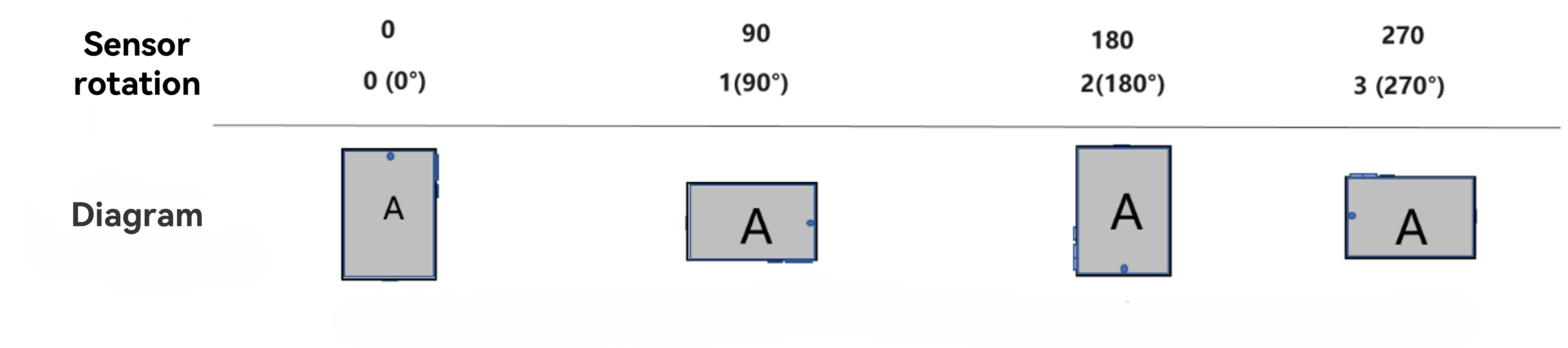
Value | Description |
|---|---|
0 | The clockwise rotation angle of the display device's screen is 0°. |
1 | The clockwise rotation angle of the display device's screen is 90°. |
2 | The clockwise rotation angle of the display device's screen is 180°. |
3 | The clockwise rotation angle of the display device's screen is 270°. |
[h2]What is the difference between display.Orientation and window.Orientation?
- display.Orientation indicates the current screen orientation, which can only be obtained but cannot be set. It objectively reflects the current display status of the screen.
- window.Orientation indicates the window rotation policy that you can set. The system rotates the window based on the preset policy.
To control the display orientation of an app, you should set window.Orientation. For details, see Understanding Window Rotation Policies.
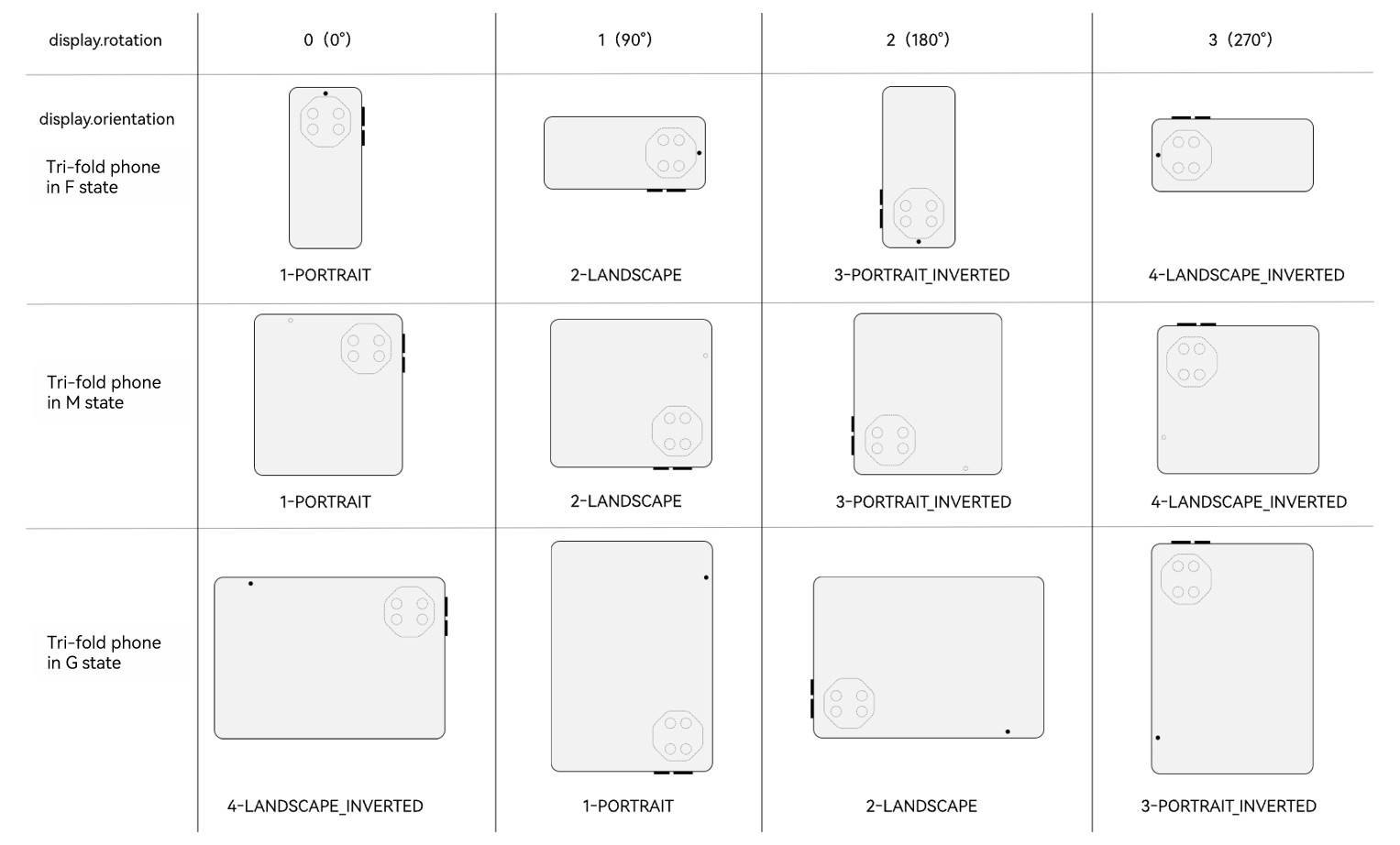
[h2]What is the relationship between display.Orientation and display.rotation?
display.Orientation indicates the current orientation of the screen, and display.rotation indicates the physical rotation angle of the screen relative to the natural orientation. Both display.Orientation and display.rotation are read-only attributes used to describe the current rotation status of the screen. However, they have different definition logic and do not have a fixed mapping relationship in various device forms. Therefore, they cannot be replaced with each other during development. If the APIs are used together, compatibility issues are likely to occur in adaptation scenarios of multi-form devices such as foldables. Take a tri-fold device as an example. When the value of display.rotation is 0, the display orientation may be either portrait or reverse landscape.
[h2]How do I handle the delay in window obtaining using window.getLastWindow?
- The getLastWindow method needs to search and obtain the instance first, which may cause performance loss. As a result, the status bar may not be switched when the landscape or portrait mode has been switched.
- Use windowStage.getMainWindowSync to obtain the window instance.
onWindowStageCreate(windowStage: window.WindowStage): void {
  // ...
  try {
    this.windowUtil = new WindowUtil(windowStage.getMainWindowSync());
  } catch (error) {
    let err = error as BusinessError;
    hilog.error(0x0000, 'TestLog', `Failed to get main window. Code: ${err.code}, message: ${err.message}`);
  }
  AppStorage.setOrCreate('windowUtil', this.windowUtil);

  windowStage.loadContent('pages/Index', (err) => {
    // ...
    this.windowUtil!.setUIContext();
    this.windowUtil!.setImmersiveType(ImmersiveType.IMMERSIVE);
    this.windowUtil!.updateWindowInfo();
  });
}
[h2]When I enter the task center in portrait mode and then launch a landscape-oriented app, the display information retrieved in onPageShow fails to meet expectations. What should I do?
Currently, the display API rules are not clear. You are advised to use the getWindowProperties() API of the window.
[h2]How do I obtain the screen width, height, resolution, and orientation information?
Import the Display module, and then call display.getDefaultDisplaySync() to obtain the default display object, which contains the screen width, height, resolution, and orientation information.
[h2]How do I view the current window rotation policy of an app through logs?
During the joint development of multiple modules and teams, the setting of the window rotation policy may cause unexpected window rotation issues. You need to check whether an unexpected window rotation policy is set by querying logs. The query method is as follows:
- Connect and push the package to the current device.
- Open the Log page, select the current connected device, No filters, the current debugging app, and Debug or Info in sequence from the filter boxes, and enter SetRequestedOrientation in the keyword text box.
- After performing operations on the page, view the system logs and find the log line containing the app package name. In the log, lastReqOrientation indicates the last window rotation policy of the app, and target indicates the target window rotation policy. For details about the numbers, see the following table.

Window orientation in logs
window.orientation | target |
|---|---|
UNSPECIFIED | 0 |
PORTRAIT | 1 |
LANDSCAPE | 2 |
PORTRAIT_INVERTED | 3 |
LANDSCAPE_INVERTED | 4 |
AUTO_ROTATION | 5 |
AUTO_ROTATION_PORTRAIT | 6 |
AUTO_ROTATION_LANDSCAPE | 7 |
AUTO_ROTATION_RESTRICTED | 8 |
AUTO_ROTATION_PORTRAIT_RESTRICTED | 9 |
AUTO_ROTATION_LANDSCAPE_RESTRICTED | 10 |
LOCKED | 11 |
FOLLOW_RECENT | 12 |
AUTO_ROTATION_UNSPECIFIED | 13 |
USER_ROTATION_PORTRAIT | 14 |
USER_ROTATION_LANDSCAPE | 15 |
USER_ROTATION_PORTRAIT_INVERTED | 16 |
USER_ROTATION_LANDSCAPE_INVERTED | 17 |
FOLLOW_DESKTOP | 18 |