Use Cases
AI image recognition provides scenario-based text recognition, subject segmentation, and image search functions by aggregating AI capabilities such as Optical Character Recognition (OCR), subject segmentation, entity recognition, and multi-object recognition. The main switch for AI image recognition is in the basic control API list. If you accept the default interaction and functions of AI image recognition, you only need to use the related enabling APIs provided by the basic controls to turn on the function switch. The APIs described in this document are used together with basic controls to meet your customization requirements, help you implement fine-grained control over the interaction of the AI image recognition function, and obtain analysis results such as text recognition and image segmentation for you to develop extended services. Currently, the supported basic controls include Image, Video, and XComponent. Your customization requires collaboration of the basic controls. For example, to recognize static images, use the Image control; to recognize frames displayed when videos are paused, use the Video control; to recognize images in scenarios such as customized rendering, use the XComponent control.
AI image recognition provides the following functions:
-
Text recognition
A user can press and hold text to select it or continuously press and hold an entity such as a phone number, email address, URL, physical address, or time in the text to trigger a quick operation on the corresponding entity. For example, a user can continuously press and hold a time in the text to trigger the quick operation entry for creating an event.
-
Image search
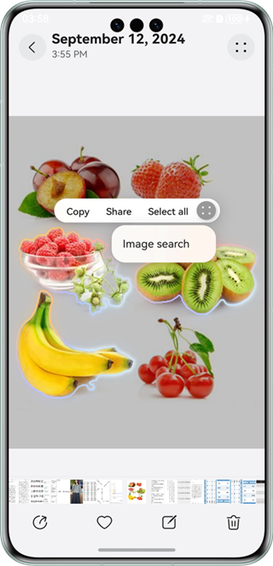
A user can perform image search based on a clipped object. Alternatively, the user can proactively trigger the identification of objects, such as animals, plants, or buildings in an image, mark them with corresponding icons, and tap the icons to perform image search. The search result will be displayed in a modal window.
-
Subject segmentation
A user can press and hold one or multiple subjects to perform subject segmentation. Then, the user can copy or share a subject, select all subjects, or use the subjects for image search.
-
AIButton
AIButton can be used to achieve the following functions: explicit underlining of entities such as a phone number, email address, URL, physical address, and time (showing a quick operation menu after a user taps the entity), image translation (from the image text language to the system language if the two languages are different), and table extraction (if there is a table in an image). When AIButton is set to visible, images are pre-analyzed. AIButton is displayed only when the images contain text and the text region occupies more than 5% of space in the image region.
Here are some suggestions for using AI image recognition:
-
AI image recognition can help users obtain more information from images (for example, long-pressing an image to clip content, select text, or recognize entities). In large image preview scenarios, users tend to be more interested in the content of images. Therefore, you are advised to enable this capability in such scenarios to provide users with the optimal interactive experience.
-
AIButton is used for explicitly reminding users to interact with text on images. Enabling AIButton will trigger image pre-analysis, which causes certain power consumption. It is essential to fully understand your service scenarios, estimate the target users' image content distribution, and balance the image browsing experience with advanced AI image recognition experience. For example, if your service aims to help users efficiently extract text from images, enabling AIButton will enhance users' text extraction experience. However, if your service is more focused on image editing, consider disabling AIButton.
Figure 1 AI image recognition
Constraints
-
Languages supported for text: simplified Chinese, traditional Chinese, English, Uyghur, and Tibetan
-
The minimum image resolution is 100 x 100.
-
Image analysis supports only static non-vector images, which means that SVG and GIF images cannot be analyzed. The image PixelMap can be passed for analysis. Currently, only RGBA_8888 images are supported.
-
The minimum aspect ratio is 1:3 (the height must be less than 3 times of the width) for images to be translated and 1:7 (the height must be less than 7 times of the width) for images to have their text recognized.
-
You can use getImageAnalyzerSupportTypes to check whether the current device supports this capability.
The return format is SupportTypes: [Enumerated value for subject recognition, Enumerated value for text recognition, Enumerated value for object lookup]. For details about the enumerated values, please refer to ImageAnalyzerType.
If SupportTypes: [] is returned, the current device does not support AI image recognition. If other values are returned, the current device supports AI image recognition.
import { visionImageAnalyzer } from '@kit.VisionKit';

@Entry
@Component
struct Index {
  private aiController: visionImageAnalyzer.VisionImageAnalyzerController = new visionImageAnalyzer.VisionImageAnalyzerController();

  build() {
    Row() {
      Button('getTypes')
        .onClick(() => {
          let supportTypes = this.aiController.getImageAnalyzerSupportTypes();
          console.info(`supportTypes: ${JSON.stringify(supportTypes)}`);
        })
    }
  }
}
Development Procedure
-
Add classes related to the AI image recognition control.
import { visionImageAnalyzer } from '@kit.VisionKit'; import { BusinessError } from '@kit.BasicServicesKit'; -
Initialize the VisionImageAnalyzerController object.
private visionImageAnalyzerController: visionImageAnalyzer.VisionImageAnalyzerController = new visionImageAnalyzer.VisionImageAnalyzerController();
private isSupportImageAnalyzer: boolean = false;
-
Check whether the device supports AI image recognition. If yes, subscribe to related events and add the event listener cancellation method.
aboutToAppear(): void { let supportTypes = this.visionImageAnalyzerController.getImageAnalyzerSupportTypes(); if (supportTypes.length > 0) { this.isSupportImageAnalyzer = true; this.registerListener(); } } registerListener(){ this.visionImageAnalyzerController.on('imageAnalyzerVisibilityChange', (visibility: visionImageAnalyzer.ImageAnalyzerVisibility) => { console.info('DEMO_TAG', `imageAnalyzerVisibilityChange result: ${JSON.stringify(visibility)}`) }); this.visionImageAnalyzerController.on('textAnalysis', (text: string) => { console.info('DEMO_TAG', `textAnalysis result: ${JSON.stringify(text)}`); }); this.visionImageAnalyzerController.on('selectedTextChange', (selectedText: string) => { console.info('DEMO_TAG', `selectedTextChange result: ${JSON.stringify(selectedText)}`); }); this.visionImageAnalyzerController.on('subjectAnalysis', (subjects: visionImageAnalyzer.Subject[]) => { console.info('DEMO_TAG', `subjectAnalysis result: ${JSON.stringify(subjects)}`); }); this.visionImageAnalyzerController.on('selectedSubjectsChange', (subjects: visionImageAnalyzer.Subject[]) => { console.info('DEMO_TAG', `selectedSubjectsChange result: ${JSON.stringify(subjects)}`); }); this.visionImageAnalyzerController.on('analyzerFailed', (error: BusinessError) => { console.error('DEMO_TAG', `analyzerFailed result: ${JSON.stringify(error)}`); }); } aboutToDisappear(): void { this.visionImageAnalyzerController.off('imageAnalyzerVisibilityChange'); this.visionImageAnalyzerController.off('textAnalysis'); this.visionImageAnalyzerController.off('selectedTextChange'); this.visionImageAnalyzerController.off('subjectAnalysis'); this.visionImageAnalyzerController.off('selectedSubjectsChange'); this.visionImageAnalyzerController.off('analyzerFailed'); } -
Bind the VisionImageAnalyzerController object to control interactions related to image recognition.
build() {
  Stack() {
    // Replace the image with your own one stored in the resources/base/media directory. The values of types must be a subset of supportTypes defined in the previous step.
    Image($r('app.media.img'), {
      types: [ImageAnalyzerType.TEXT, ImageAnalyzerType.SUBJECT, ImageAnalyzerType.OBJECT_LOOKUP],
      aiController: this.visionImageAnalyzerController
    })
      .width('100%')
      .height('100%')
      .enableAnalyzer(this.isSupportImageAnalyzer ? true: false)
      .objectFit(ImageFit.Contain)
  }.width('100%').height('100%')
}
[h2]Index.ets
import { visionImageAnalyzer } from '@kit.VisionKit';
import { BusinessError } from '@kit.BasicServicesKit';
@Entry
@Component
struct ImageDemo {
  private visionImageAnalyzerController: visionImageAnalyzer.VisionImageAnalyzerController = new visionImageAnalyzer.VisionImageAnalyzerController();
  private isSupportImageAnalyzer: boolean = false;
  aboutToAppear(): void {
    let supportTypes = this.visionImageAnalyzerController.getImageAnalyzerSupportTypes();
    if (supportTypes.length > 0) {
      this.isSupportImageAnalyzer = true;
      this.registerListener();
    }
  }

  registerListener(){
    this.visionImageAnalyzerController.on('imageAnalyzerVisibilityChange', (visibility: visionImageAnalyzer.ImageAnalyzerVisibility) => {
      console.info('DEMO_TAG', `imageAnalyzerVisibilityChange result: ${JSON.stringify(visibility)}`)
    });
    this.visionImageAnalyzerController.on('textAnalysis', (text: string) => {
      console.info('DEMO_TAG', `textAnalysis result: ${JSON.stringify(text)}`);
    });
    this.visionImageAnalyzerController.on('selectedTextChange', (selectedText: string) => {
      console.info('DEMO_TAG', `selectedTextChange result: ${JSON.stringify(selectedText)}`);
    });
    this.visionImageAnalyzerController.on('subjectAnalysis', (subjects: visionImageAnalyzer.Subject[]) => {
      console.info('DEMO_TAG', `subjectAnalysis result: ${JSON.stringify(subjects)}`);
    });
    this.visionImageAnalyzerController.on('selectedSubjectsChange', (subjects: visionImageAnalyzer.Subject[]) => {
      console.info('DEMO_TAG', `selectedSubjectsChange result: ${JSON.stringify(subjects)}`);
    });
    this.visionImageAnalyzerController.on('analyzerFailed', (error: BusinessError) => {
      console.error('DEMO_TAG', `analyzerFailed result: ${JSON.stringify(error)}`);
    });
  }

  aboutToDisappear(): void {
    this.visionImageAnalyzerController.off('imageAnalyzerVisibilityChange');
    this.visionImageAnalyzerController.off('textAnalysis');
    this.visionImageAnalyzerController.off('selectedTextChange');
    this.visionImageAnalyzerController.off('subjectAnalysis');
    this.visionImageAnalyzerController.off('selectedSubjectsChange');
    this.visionImageAnalyzerController.off('analyzerFailed');
  }

  build() {
    Stack() {
      Image($r('app.media.img'), {
        types: [ImageAnalyzerType.TEXT, ImageAnalyzerType.SUBJECT, ImageAnalyzerType.OBJECT_LOOKUP],
        aiController: this.visionImageAnalyzerController
      })
        .width('100%')
        .height('100%')
        .enableAnalyzer(this.isSupportImageAnalyzer ? true : false)
        .objectFit(ImageFit.Contain)
    }.width('100%').height('100%')
  }
}