Symptom
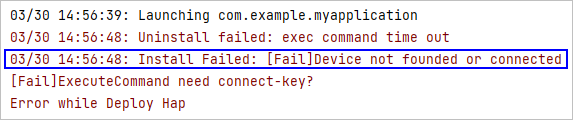
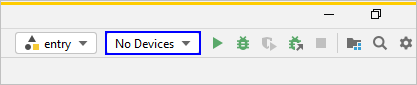
During debugging, the HAP fails to be installed and the error message "Device not founded or connected" is displayed. Alternatively, "No device" is displayed in the DevEco Studio device list.
Possible Causes
- Developer options is disabled on the device.
- The device system does not match the DevEco Studio version.
- The USB cable in use is a charging cable, not a data cable.
- The current USB data port is damaged.
- The hdc process or device is abnormal.
- Scenario 1: After USB debugging is disabled, the USB cable is disconnected, and USB debugging is enabled again, no device could be recognized.
Scenario 2: After wireless debugging is enabled, connect to the device for wireless debugging. Then, disable wireless debugging and enable USB debugging, no device could be recognized.
- The connected device is not supported.
Solution
- Enable Developer options on the device, and enable USB debugging or wireless debugging.
- Make sure the versions that match. For details, see Version Overview.
- Use a USB 2.0 cable to directly connect to the device, without using a docking station.
- Connect the device to a different USB port. Make sure the port drivers are properly installed and up to date.
- Run the following command to stop the hdc process, and then reconnect to the device:
hdc kill
If the issue persists, restart the device and try again.
- Restart the device, connect the device using a USB cable, and enable USB debugging.