Dynamic frame rate adjustment is an important capability for managing the preview effect in live streaming and video applications. This capability allows applications to explicitly control the output frame rate to meet various service requirements at different frame rates.
In certain scenarios, reducing the frame rate can also help in conserving power when the camera is in use.
Constraints
The supported frame rate range and the frame rate setting are subject to the hardware's capabilities. Different hardware platforms may offer different default frame rates.
Development Process
Before using the preview functionality, create a camera session. After the session configuration is complete, the application must commit the configuration and start the session before using the camera functionalities.
The procedure is shown below.
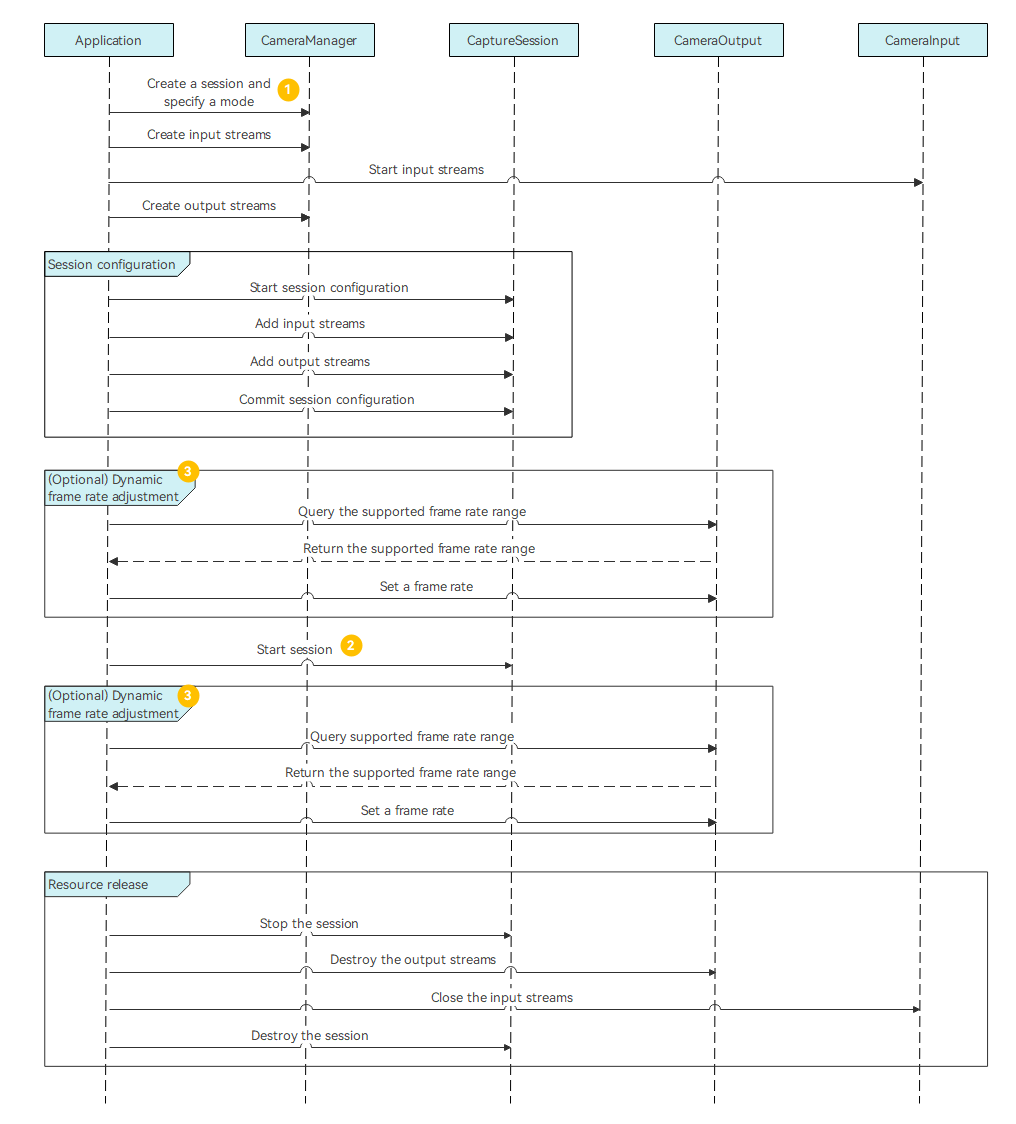
Pay attention to the differences (labeled with numbers in the figure above) between the dynamic adjustment of the preview frame rate and the standard preview process.
When calling OH_CameraManager_CreateCaptureSession to create a session, set the mode to NORMAL_PHOTO or NORMAL_VIDEO.
The frame rate of the preview stream can be adjusted only when the session is in NORMAL_PHOTO or NORMAL_VIDEO mode. For details about the operation, see Creating a Session and Specifying a Mode.
The operation of dynamically adjusting the frame rate can be performed before or after preview is enabled.
Dynamic frame rate adjustment is optional during preview. It involves the following operations:
- Query the supported frame rate range.
- Set a frame rate.
- Obtain the active frame rate.
For details about how to configure sessions and release resources, see Session Management and Preview.
Importing Modules
Import the NDK APIs.
 // Include the NDK header files.
 #include "hilog/log.h"
 #include "ohcamera/camera.h"
 #include "ohcamera/camera_input.h"
 #include "ohcamera/capture_session.h"
 #include "ohcamera/photo_output.h"
 #include "ohcamera/preview_output.h"
 #include "ohcamera/video_output.h"
 #include "ohcamera/camera_manager.h"
Link the dynamic library in the CMake script.
target_link_libraries(entry PUBLIC libohcamera.so libhilog_ndk.z.so)
Creating a Session and Specifying a Mode
Before using preview and other functionalities, call OH_CameraManager_CreateCaptureSession to create a camera session.
When creating the session, call OH_CaptureSession_SetSessionMode to set Camera_SceneMode to NORMAL_PHOTO or NORMAL_VIDEO. The created session is in photo capture or video recording mode.
The following creates a session in NORMAL_PHOTO mode.
Camera_ErrorCode CreateCaptureSession(Camera_Manager *cameraManager, Camera_CaptureSession *captureSession) {
   Camera_ErrorCode ret = OH_CameraManager_CreateCaptureSession(cameraManager, &captureSession);
    if (captureSession == nullptr || ret != CAMERA_OK) {
        OH_LOG_ERROR(LOG_APP, "OH_CameraManager_CreateCaptureSession failed.");
    }
// Set the session mode to NORMAL_PHOTO or NORMAL_VIDEO. The following uses NORMAL_PHOTO as an example.
    ret = OH_CaptureSession_SetSessionMode(captureSession, Camera_SceneMode::NORMAL_PHOTO);
    return ret;
}
Dynamically Adjusting the Frame Rate
Call OH_PreviewOutput_GetSupportedFrameRates to query the frame rate range supported by the current preview output.

When to Call:
This operation must be performed after the session calls OH_CaptureSession_CommitConfig to complete stream configuration.
Restrictions on OH_PreviewOutput_GetSupportedFrameRates:
Once you have used OH_PreviewOutput_GetSupportedFrameRates to set a non-fixed frame rate, further calls to adjust the dynamic frame rate are not allowed.
If you have set a fixed frame rate via OH_PreviewOutput_GetSupportedFrameRates, you may change it to another fixed rate. However, you must ensure the new rate is either a factor or a multiple of the previous one.
Camera_ErrorCode PreviewOutputGetSupportedFrameRates(Camera_PreviewOutput* previewOutput,
    Camera_FrameRateRange** frameRateRange, uint32_t* size) {
    Camera_ErrorCode ret = OH_PreviewOutput_GetSupportedFrameRates(previewOutput, frameRateRange, size);

    if (ret != CAMERA_OK) {
        OH_LOG_ERROR(LOG_APP, "OH_PreviewOutput_GetSupportedFrameRates failed.");
        return CAMERA_INVALID_ARGUMENT;
    }
    for (uint32_t i = 0; i < *size; i++) {
        OH_LOG_DEBUG(LOG_APP, "PreviewOutputGetSupportedFrameRates: SupportedFrameRates min %{public}d", (*frameRateRange)[i].min);
        OH_LOG_DEBUG(LOG_APP, "PreviewOutputGetSupportedFrameRates: SupportedFrameRates max %{public}d", (*frameRateRange)[i].max);
    }
    return ret;
}
Call OH_PreviewOutput_SetFrameRate to dynamically adjust the frame rate.

This operation must be performed after the session calls OH_CaptureSession_CommitConfig to complete stream configuration.
It can be called at any time before or after the session calls OH_PreviewOutput_Start to start preview.
Camera_ErrorCode PreviewOutputSetFrameRate(Camera_PreviewOutput* previewOutput,
    uint32_t minFps, uint32_t maxFps){
    Camera_ErrorCode ret = OH_PreviewOutput_SetFrameRate(previewOutput, minFps, maxFps);
    if (ret != CAMERA_OK) {
        return CAMERA_INVALID_ARGUMENT;
    }
    return ret;
}
(Optional) Call OH_PreviewOutput_GetActiveFrameRate to query the frame rate that has been set and taken effect.
The active frame rate can be obtained only when it is explicitly set by calling OH_PreviewOutput_SetFrameRate.
Camera_ErrorCode PreviewOutputGetActiveFrameRate(Camera_PreviewOutput* previewOutput,
    Camera_FrameRateRange* frameRateRange){
    Camera_ErrorCode ret = OH_PreviewOutput_GetActiveFrameRate(previewOutput, frameRateRange);
    if (ret != CAMERA_OK) {
        return CAMERA_INVALID_ARGUMENT;
    }
    OH_LOG_DEBUG(LOG_APP, "PreviewOutputGetActiveFrameRate: ActiveFrameRate frameRateRange_ min %{public}d", (*frameRateRange).min);
    OH_LOG_DEBUG(LOG_APP, "PreviewOutputGetActiveFrameRate: ActiveFrameRate frameRateRange_ max %{public}d", (*frameRateRange).max);
    return ret;
}