Bundle Manager (bm) is a tool for installing, uninstalling, updating, and querying bundles. It provides basic capabilities for debugging application installation bundles.
Environment Requirements (hdc)
Before using this tool, you need to obtain hdc and run the hdc shell command.
bm Commands
| Name | Description |
|---|---|
| help | Displays the commands supported by the bm tool. |
| install | Installs a bundle. |
| uninstall | Uninstalls a bundle. |
| dump | Displays bundle information. |
| clean | Clears the cache and data of a bundle. This command is available in the user version when Developer options is enabled. |
| get | Obtains the UDID of a device. |
| quickfix | Performs patch-related operations, such as installing or querying a patch. |
| compile | Executes the AOT compilation on a bundle. |
| copy-ap | Copies the .ap file of a bundle to the /data/local/pgo directory for the shell user to read the file. |
| dump-dependencies | Displays the information about the modules on which the bundle depends. |
| dump-shared | Displays the HSP information of a bundle. |
| dump-overlay | Displays overlayModuleInfo of an overlay bundle. |
| dump-target-overlay | Displays overlayModuleInfo of all overlay bundles associated with a target bundle. |
| install-plugin | Installs a plugin. |
| uninstall-plugin | Uninstalls a plugin. |
[h2]userId
Indicates the ID of the current system account. For details, see System Account ID System. For APIs related to system accounts, see @ohos.account.osAccount (System Account Management). The following lists several common system accounts.
-
userId = 100: System account with ID 100. This is the default system account, which is created by the system account management module when the device is started for the first time after delivery. After the account is created, all pre-installed bundles are installed for ID 100.
-
userId = 102: System account with ID 102. This account is created by the system account management module. Only system bundles can create accounts. Bundles installed for account 100 are not displayed for account 102. If necessary, reinstall the bundles for account 102. When account 102 is created, the system installs the pre-installed system bundles for account 102.
-
userId = 0: Shared system account, also called account 0. Unlike the system account, the shared system account is not created by the system account management module. Bundles installed for account 0 are shared by all system accounts and are displayed for each system account. All third-party bundles cannot be installed for account 0.
-
userId = 1: Indicates the enterprise-level public service account. Enterprise-level services and applications are installed and run under this account. To install applications under this account, you need to request the ohos.permission.SUPPORT_INSTALL_ON_U1 permission.
install
bm install [-h] [-p filePath] [-r] [-w waitingTime] [-s hspDirPath] [-u userId] [-d] [-g]
Parameters
| Parameter | Description |
|---|---|
| -h | Used to display help information. |
| -p | Used to specify the path of the HAP or HSP file to be installed. This parameter is optional. For an application with multiple HAPs or HSPs, you can specify the folder path of the HAPs or HSPs. Since API version 22, you can specify the path of the APP file to be installed or the folder path of only one APP. |
| -r | Used to overwrite an existing HAP or HSP file. This parameter is optional. This parameter is not specified by default, indicating that overwrite installation is performed. |
| -s | Used to specify the path of the inter-bundle HSP to be installed. This parameter is mandatory for installing an inter-bundle HSP, and optional in all other scenarios. Since API version 24, the specified directory can contain multiple HSPs with the same bundle name but different module names. In API version 23 and earlier, the directory can contain only one HSP. NOTE Inter‑application HSPs are not open to third‑party applications, and third‑party applications cannot install inter‑application HSPs. |
| -w | Optional parameter. Specifies the wait time of the bm tool when installing a HAP. The minimum wait time is 180s, the maximum wait time is 600s, and the default value is 180s. |
| -u | Used to specify the user. By default, the bundle is installed for the current active user. This parameter is optional. The bundle can be installed only for the current active user or user 0. NOTE If the current active user is 100, the bundle is installed only for user 100 after the bm install -p /data/local/tmp/ohos.app.hap -u 102 command is executed. |
| -d | Used to allow an application to be installed as a downgrade; that is, an earlier version of the application can overwrite a later version. This parameter is optional. Only third-party applications with the signing certificate distribution type set to app_gallery or the signing certificate type set to debug can be downgraded. This parameter is supported since API version 23. |
| -g | Used to automatically grant the user_grant and manual_settings permissions when installing a bundle whose signing certificate is of the debug type. This parameter is optional. This parameter is valid only for the bundles whose signing certificate is of the debug type in developer mode. You can view the type field (signing certificate type) in the profile signature file file. This parameter is also used to revoke the granted user_grant and manual_settings permissions when the signing certificate type of a bundle is updated from debug to release. This parameter is supported since API version 24. |
Example
# Install a HAP.
bm install -p /data/local/tmp/ohos.app.hap
# Install a HAP for user 100.
bm install -p /data/local/tmp/ohos.app.hap -u 100
# Install a HAP in overwrite mode.
bm install -p /data/local/tmp/ohos.app.hap -r
# Install an HSP.
bm install -s xxx.hsp
# Install a HAP and its dependent HSP.
bm install -p aaa.hap -s xxx.hsp yyy.hsp
# Install a HAP and an intra-application shared library simultaneously.
bm install -p /data/local/tmp/hapPath/
# Install a HAP. The waiting time is 180s.
bm install -p /data/local/tmp/ohos.app.hap -w 180
# Install an earlier HAP of the same package name, overwriting the existing application.
bm install -p /data/local/tmp/ohos.app.hap -d
# Automatically grant the user_grant and manual_settings permissions when installing a bundle whose signing certificate type is debug.
bm install -p /data/local/tmp/ohos.app.hap -g
uninstall
bm uninstall [-h] [-n bundleName] [-m moduleName] [-k] [-s] [-v versionCode] [-u userId]
Parameters
| Parameter | Description |
|---|---|
| -h | Used to display help information. |
| -n | Used to uninstall a bundle. This parameter is mandatory. |
| -m | Used to specify the name of an application module to be uninstalled. This parameter is optional. By default, all modules are uninstalled. |
| -k | Used to uninstall a bundle with or without retaining the bundle data. This parameter is optional. By default, the bundle data is deleted along the uninstall. |
| -s | Used to uninstall an HSP. This parameter is mandatory only for the HSP uninstallation. |
| -v | Used to uninstall an HSP of a given version number. This parameter is optional. By default, all shared bundles with the specified bundle name are uninstalled. |
| -u | Used to specify the user. By default, the bundle is uninstalled for the current active user. This parameter is optional. The bundle can be uninstalled only for the current active user or user 0. NOTE If the current active user is 100, the bundle will be uninstalled only for the current active user 100 when the bm uninstall -n com.ohos.app -u 102 command is executed. |
Example
# Uninstall a bundle.
bm uninstall -n com.ohos.app
# Uninstall a bundle for the user 100.
bm uninstall -n com.ohos.app -u 100
# Uninstall a module of a bundle.
bm uninstall -n com.ohos.app -m entry
# Uninstall a shared bundle.
bm uninstall -n com.ohos.example -s
# Uninstall a shared bundle of the specified version.
bm uninstall -n com.ohos.example -s -v 100001
# Uninstall a bundle and retain user data.
bm uninstall -n com.ohos.app -k
dump
bm dump [-h] [-a] [-g] [-n bundleName] [-s shortcutInfo] [-d deviceId] [-l label] [-u userId]
Parameters
| Parameter | Description |
|---|---|
| -h | Used to display help information. |
| -a | Used to display all bundles installed in the system. This parameter is optional. |
| -g | Used to display the names of bundles whose signatures are of the debug type. This parameter is optional. |
| -n | Used to display the details of a bundle. This parameter is optional. |
| -s | Used to display the shortcut information of a bundle. This parameter is optional. |
| -d | Used to display the bundle information on a given device, which is the current device by default. This parameter is optional. |
| -l | Used to display the label value (bundle name) of a bundle. This parameter is optional. It must be used together with the -n or -a parameter. NOTE This command is supported since API version 20. If the command output on Windows contains special characters or garbled Chinese characters, run the chcp 65001 command on the CLI to change the CLI code to UTF-8. |
| -u | Used to display bundle information of a specified user. By default, bundle information of the current active user is displayed. This parameter is optional. The bundle can be queried only for the current active user or user 0. NOTE If the current active user is 100, the bm dump -n com.ohos.app -u 102 command can be used to query only the bundle information of user 100. |
Example
# Display the names of all bundles installed in the system.
bm dump -a
# Display the names of bundles whose signatures are of the debug type in the system.
bm dump -g
# Display the details of a bundle.
bm dump -n com.ohos.app
# Display the details of a bundle as user 100.
bm dump -n com.ohos.app -u 100
# Display the shortcut information of a bundle.
bm dump -s -n com.ohos.app
# Display cross-device bundle information.
bm dump -n com.ohos.app -d xxxxx
# Display the label value of a bundle (bundle name).
bm dump -n com.ohos.app -l
# Display the bundle names and label values of all installed bundles.
bm dump -a -l
clean
bm clean [-h] [-c] [-n bundleName] [-d] [-i appIndex] [-u userId]
Parameters
| Parameter | Description |
|---|---|
| -h | Used to display help information. |
| -c -n | -n is mandatory, and -c is optional. Used to clear the cache data of a specified bundle. |
| -d -n | -n is mandatory, and -d is optional. Used to clear the data directory of a specified bundle. |
| -i | Used to clear the data directory of a bundle clone. This parameter is optional. The default value is 0. |
| -u | Used to clear the data of a specified user. By default, the data of the current active user is cleared. Data can be deleted only for the current active user or user 0. NOTE If the current active user is 100, the data will be cleared only for the current active user 100 when you run the bm clean -c -n com.ohos.app -u 102 command. |
Example
# Clear the cache data of a bundle.
bm clean -c -n com.ohos.app
# Clear the cache data of a bundle for user 100.
bm clean -c -n com.ohos.app -u 100
# Clear the user data of a bundle.
bm clean -d -n com.ohos.app
# Execution result
clean bundle data files successfully.
get
bm get [-h] [-u]
Parameters
| Parameter | Description |
|---|---|
| -h | Used to display help information. |
| -u | Used to obtain the UDID of a device. This parameter is mandatory. |
Example
# Obtain the UDID of a device.
bm get -u
# Execution result
udid of current device is:
23CADE0C
quickfix
bm quickfix [-h] [-a -f filePath [-t targetPath] [-d] [-o]] [-q -b bundleName] [-r -b bundleName]
Note: For details about how to create an .hqf file, see HQF Packing Command.
Parameters
| Parameter | Description |
|---|---|
| -h | Used to display help information. |
| -a -f | -a is optional, and -f is mandatory when -a is specified. Executes the quick fix patch installation command. file-path corresponds to an .hqf file. You can pass in one or more .hqf files or the directory where the .hqf file is located. |
| -q -b | -q is optional, and -b is mandatory when -q is specified. Used to display the patch information based on the bundle name. |
| -r -b | -r is optional, and -b is mandatory when -r is specified. Used to uninstall a disabled patch based on the bundle name. |
| -t | Used to fix a bundle to a specified path. This parameter is optional. |
| -d | Used to select the debug mode for quick fix. This parameter is optional. |
| -o | Used to select the overwrite mode for quick fix. In this mode, the .so file is decompressed and overwritten in the .so directory of the bundle. This parameter is optional. |
Example
# Display patch package information by the bundle name.
bm quickfix -q -b com.ohos.app
# Execution result
# Information as follows:
# ApplicationQuickFixInfo:
#  bundle name: com.ohos.app
#  bundle version code: xxx
#  bundle version name: xxx
#  patch version code: x
#  patch version name:
#  cpu abi:
#  native library path:
#  type:

# Install a quick fix patch.
bm quickfix -a -f /data/app/
# Execution result
apply quickfix succeed.
# Uninstall a quick fix patch.
bm quickfix -r -b com.ohos.app
# Execution result
delete quick fix successfully
dump-dependencies
bm dump-dependencies [-h] [-n bundleName] [-m moduleName]
Parameters
| Parameter | Description |
|---|---|
| -h | Used to display help information. |
| -n | Used to display information about the shared library on which a specified bundle depends. This parameter is mandatory. |
| -m | Used to display information about the shared library on which a specified module of a bundle depends. This parameter is mandatory. |
Example
# Used to display information about the shared library on which a specified module of a bundle depends.
bm dump-dependencies -n com.ohos.app -m entry
compile
bm compile [-h] [-m mode] [-r bundleName] [-a]
Parameters
| Parameter | Description |
|---|---|
| -h | Used to display help information. |
| -a | Used to compile all bundles. This parameter is optional. |
| -m | Used to compile a bundle based on the bundle name. The value can be partial or full. This parameter is optional. |
| -r | Used to check whether a bundle is removed. This parameter is optional. |
Example
# Compile a bundle based on the bundle name.
bm compile -m partial com.example.myapplication
copy-ap
Copies an .ap file to the /data/local/pgo directory of a specified bundle.
bm copy-ap [-h] [-a] [-n bundleName]
Parameters
| Parameter | Description |
|---|---|
| -h | Used to display help information. |
| -a | Used to copy the .ap files related to all bundles. By default, .ap files related to all bundles are copied. This parameter is optional. |
| -n | Used to copy the .ap file related to a specified bundle, which is the current bundle by default. This parameter is optional. |
Example
# Copy the .ap file related to a specified bundle.
bm copy-ap -n com.example.myapplication
dump-overlay
bm dump-overlay [-h] [-b bundleName] [-m moduleName] [-t targetModuleName] [-u userId]
Parameters
| Parameter | Description |
|---|---|
| -h | Used to display help information. |
| -b | Used to display all OverlayModuleInfo about a specified overlay bundle. This parameter is mandatory. |
| -m | Used to query OverlayModuleInfo based on the name of the module with the overlay feature. By default, the name of the main module of the current overlay bundle is used. This parameter is optional. |
| -t | Used to query OverlayModuleInfo information based on the name of the target module. By default, this parameter is left empty. This parameter is optional. |
| -u | Used to query OverlayModuleInfo of a specified user. By default, the information is queried by the current active user. This parameter is optional. The bundle can be queried only for the current active user or user 0. NOTE If the current active user is 100, the bm dump-overlay -b com.ohos.app -u 102 command can be used to query OverlayModuleInfo of user 100 only. |
Example
# Display OverlayModuleInfo of an overlay bundle named com.ohos.app.
bm dump-overlay -b com.ohos.app

# Display OverlayModuleInfo of an overlay bundle named com.ohos.app as user 100.
bm dump-overlay -b com.ohos.app -u 100

# Display OverlayModuleInfo of overlay module libraryModuleName of an overlay bundle named com.ohos.app.
bm dump-overlay -b com.ohos.app -m libraryModuleName

# Display overlayModuleInfo of overlay module entryModuleName of an overlay bundle named com.ohos.app.
bm dump-overlay -b com.ohos.app -t entryModuleName
dump-target-overlay
Displays overlayModuleInfo of all overlay bundles associated with a target bundle.
bm dump-target-overlay [-h] [-b bundleName] [-m moduleName] [-u userId]
Parameters
| Parameter | Description |
|---|---|
| -h | Used to display help information. |
| -b | Used to display all OverlayBundleInfo about a specified bundle. This parameter is mandatory. |
| -m | Used to display OverlayModuleInfo based on a specified bundle name and module name. By default, OverlayModuleInfo of the main module of the current bundle is displayed. This parameter is optional. |
| -u | Used to query OverlayModuleInfo of a specified user. By default, the information is queried by the current active user. This parameter is optional. The bundle can be queried only for the current active user or user 0. NOTE If the current active user is 100, when you run the bm dump-target-overlay -b com.ohos.app -u 102 command to query all associated OverlayBundleInfo in the target bundle com.ohos.app, only the OverlayModuleInfo of the current active user 100 is returned. |
Example
# Display OverlayBundleInfo of an overlay bundle named com.ohos.app.
bm dump-target-overlay -b com.ohos.app

# Display OverlayBundleInfo of an overlay bundle named com.ohos.app as user 100.
bm dump-target-overlay -b com.ohos.app -u 100

# Display OverlayModuleInfo of the overlay module named entry in an overlay bundle named com.ohos.app.
bm dump-target-overlay -b com.ohos.app -m entry
install-plugin
bm install-plugin [-h] [-n hostBundleName] [-p filePath]
Parameters
| Parameter | Description |
|---|---|
| -h | Used to display help information. |
| -n | Used to specify the bundle name of the bundle for which the plugin is installed. This parameter is mandatory. |
| -p | Used to specify the plugin file path. This parameter is mandatory. |
Example
# Install a plugin.
bm install-plugin -n com.ohos.app -p /data/plugin.hsp

Within the same bundle, installing an identical plugin is treated as an upgrade; downgrades are not supported. After the upgrade, the bundle must be restarted for the new plugin version to take effect.
Installing a plugin with the same name as the host bundle module is not recommended. This operation is not supported currently.
uninstall-plugin
bm uninstall-plugin [-h] [-n hostBundleName] [-p pluginBundleName]
Parameters
| Parameter | Description |
|---|---|
| -h | Used to display help information. |
| -n | Used to specify the bundle name of a bundle. This parameter is mandatory. |
| -p | Used to specify the bundle name of a plugin. This parameter is mandatory. |
Example
# Uninstall a plugin.
bm uninstall-plugin -n com.ohos.app -p com.ohos.plugin
[h2]301 System Account Does Not Exist
Error Message
error: user not exist.
Symptom
The system account does not exist.
Possible Causes
The system account ID does not exist during bundle installation.
Solution
-
Restart the phone and try again.
-
If the installation still fails after you repeat the preceding steps 3 to 5 times, export the log file. You can submit an online ticket for help.
hdc file recv /data/log/hilog/
[h2]304 The HAP File Is Not Installed for the Current System Account
Error Message
error: user does not install the hap.
Symptom
During the uninstallation, the HAP file is not installed for the current system account.
Possible Causes
No HAP file is installed for the current system account.
Solution
Do not uninstall the bundle when no HAP file is installed for the current system account.
[h2]9568319 Signature File Exception
Error Message
error: cannot open signature file.
Symptom
During bundle installation, the signature file fails to be opened. As a result, the installation fails.
Possible Causes
The signature file of the HAP file is abnormal.
Solution
Method 1: Use automatic signing. After the device is connected, sign the application again.
Method 2: Use manual signing. For details, see Manual Signing.
[h2]9568320 The Signature File Does Not Exist
Error Message
error: no signature file.
Symptom
A user attempts to install an unsigned HAP/HSP file.
Possible Causes
The HAP/HSP file is not signed.
Solution
You can choose automatic or manual signing based on the actual scenario. For example, if the Internet is unavailable, manual signing is recommended. For details, see Application Scenarios.

In the products tag of the project-level build-profile.json5 file, the signingConfig field is optional. If this field is missing, the signature will become invalid. For details, see the field description under the products tag.
Method 1: Use automatic signing. After the device is connected, sign the application again.
Method 2: Use manual signing. For details, see Manual Signing.
Method 3: If this error code is reported during application installation, set appWithSignedPkg of packOptions to true in the project-level build-profile.json5 file to ensure that the HAP or HSP in the APP is signed.
[h2]9568321 Failed to Parse the Signature File
Error Message
error: fail to parse signature file.
Symptom
Failed to parse the signature file during installation.
Possible Causes
The signature file of the HAP file is abnormal.
Solution
Method 1: Use automatic signing. After the device is connected, sign the application again.
Method 2: Use manual signing. For details, see Manual Signing.
[h2]9568323 Signature Digest Verification Failed
Error Message
error: signature verification failed due to not bad digest.
Symptom
The signature verification fails during the installation.
Possible Causes
The signature of the HAP file is incorrect.
Solution
Method 1: Use automatic signing. After the device is connected, sign the application again.
Method 2: Manually sign the HAP file. For details, see Signing Your App/Atomic Service Manually.
[h2]9568324 Signature Integrity Verification Failed
Error Message
error: signature verification failed due to out of integrity.
Symptom
The signature verification fails during the installation.
Possible Causes
The signature of the HAP file is incorrect.
Solution
Method 1: Use automatic signing to sign the HAP file after the device is connected.
Method 2: Manually sign the HAP file. For details, see Signing Your App/Atomic Service Manually.
[h2]9568326 Abnormal Signature Public Key
Error Message
error: signature verification failed due to bad public key.
Symptom
The signature verification fails during installation because the signature public key is abnormal.
Possible Causes
The signature of the HAP file is incorrect.
Solution
Method 1: Use automatic signing to sign the HAP file after the device is connected.
Method 2: Manually sign the HAP file. For details, see Signing Your App/Atomic Service Manually.
[h2]9568327 Failed to Obtain the Signature
Error Message
error: signature verification failed due to bad bundle signature.
Symptom
The signature verification fails during the installation because the signature cannot be obtained.
Possible Causes
The signature of the HAP file is incorrect.
Solution
Method 1: Use automatic signing to sign the HAP file after the device is connected.
Method 2: Manually sign the HAP file. For details, see Signing Your App/Atomic Service Manually.
[h2]9568328 No Configuration File Block Found
Error Message
error: signature verification failed due to no profile block.
Symptom
The signature verification fails during installation because the configuration file block is not found.
Possible Causes
The signature of the HAP file is incorrect.
Solution
Method 1: Use automatic signing to sign the HAP file after the device is connected.
Method 2: Manually sign the HAP file. For details, see Signing Your App/Atomic Service Manually.
[h2]9568330 Failed to Initialize the Signature Source
Error Message
error: signature verification failed due to init source failed.
Symptom
The signature verification fails during installation because the signature source fails to be initialized.
Possible Causes
The signature of the HAP file is incorrect.
Solution
Method 1: Use automatic signing to sign the HAP file after the device is connected.
Method 2: Use manual signing. For details, see manual signing.
[h2]9568257 Failed to Verify the Signature File PKCS#7
Error Message
error: fail to verify pkcs7 file.
Symptom
The signature PKCS#7 verification fails during bundle installation.
Possible Causes
- The certificate chain is incomplete or untrusted.
- The signature algorithm does not match.
- The data is tampered with or the signature file is damaged.
- The signature format does not match.
- The private key does not match.
Solution
Method 1: Use automatic signing. After the device is connected, re-sign the application.
Method 2: Use manual signing. For details, see manual signing.
[h2]9568344 The Configuration File Fails to Be Parsed
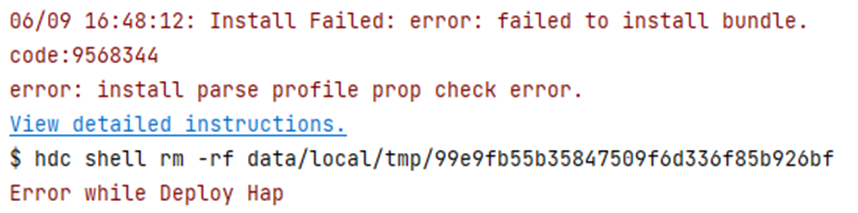
Error Message
error: install parse profile prop check error.
Symptom
When you start debugging or run an application, the error message "error: install parse profile prop check error" is displayed during the installation of the HAP.
Possible Causes
- The bundleName in the app.json5 configuration file and name in the module.json5 configuration file are invalid.
Solution
- Modify the bundleName field in the app.json5 configuration file and the name field in the module.json5 file based on the naming rule.
[h2]9568305 The Dependent Module Does Not Exist
Error Message
error: Failed to install the HAP or HSP because the dependent module does not exist.
Symptom
When an application or service is being debugged or is running, the error message "error: Failed to install the HAP or HSP because the dependent module does not exist." is displayed during the installation of the HAP.
Possible Causes
The HSP module on which the bundle depends is not installed.
Solution
Scenario 1: When the HSP and HAP are in the same project, perform the following steps:
-
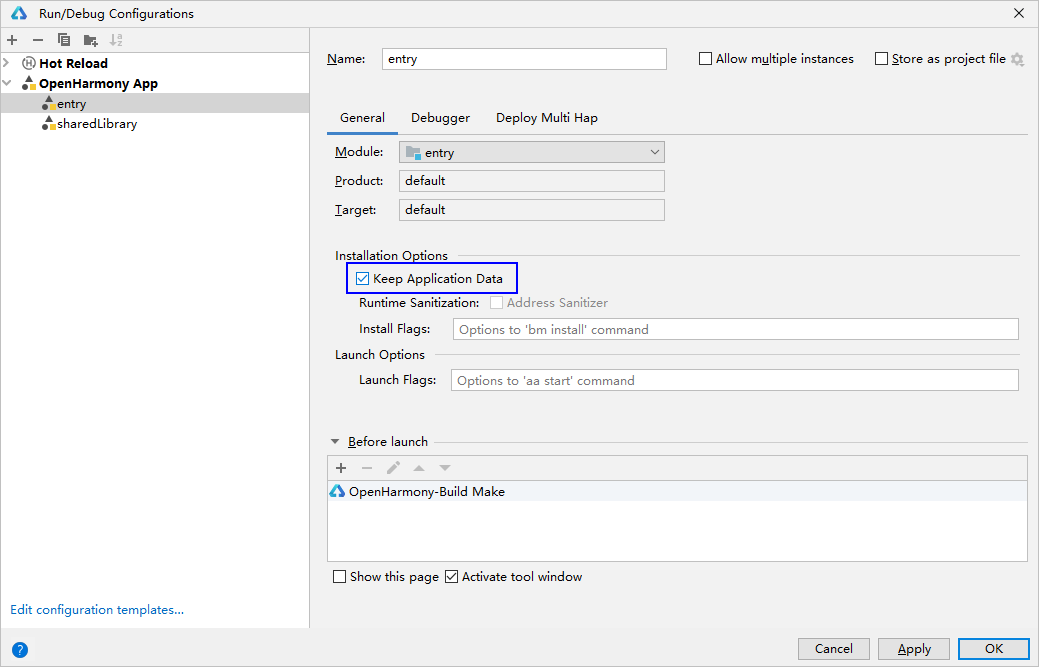
Method 1: Run the bm install -p command to install the dependent HSP module. On the Run/Debug Configurations page of DevEco Studio, select Keep Application Data on the General tab page, and click OK to save the configuration. Then run or debug the bundle again.
-
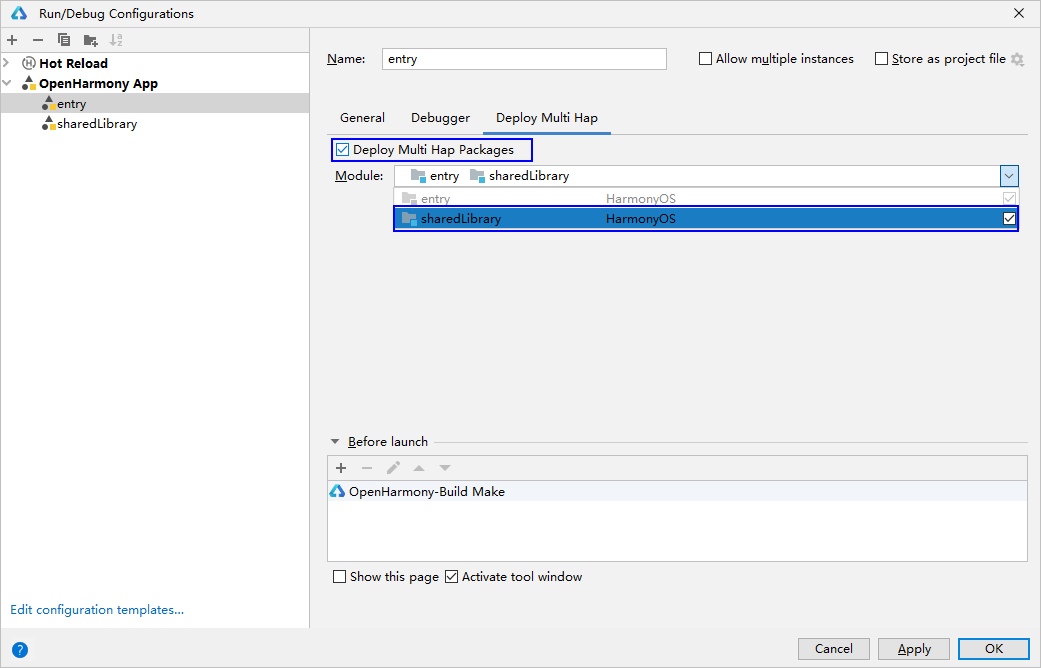
Method 2: On the Run/Debug Configurations page of DevEco Studio, click the Deploy Multi Hap tab, select Deploy Multi Hap Packages, select the dependent module SharedLibrary, and click OK to save the configuration. Then run or debug the bundle again.
-
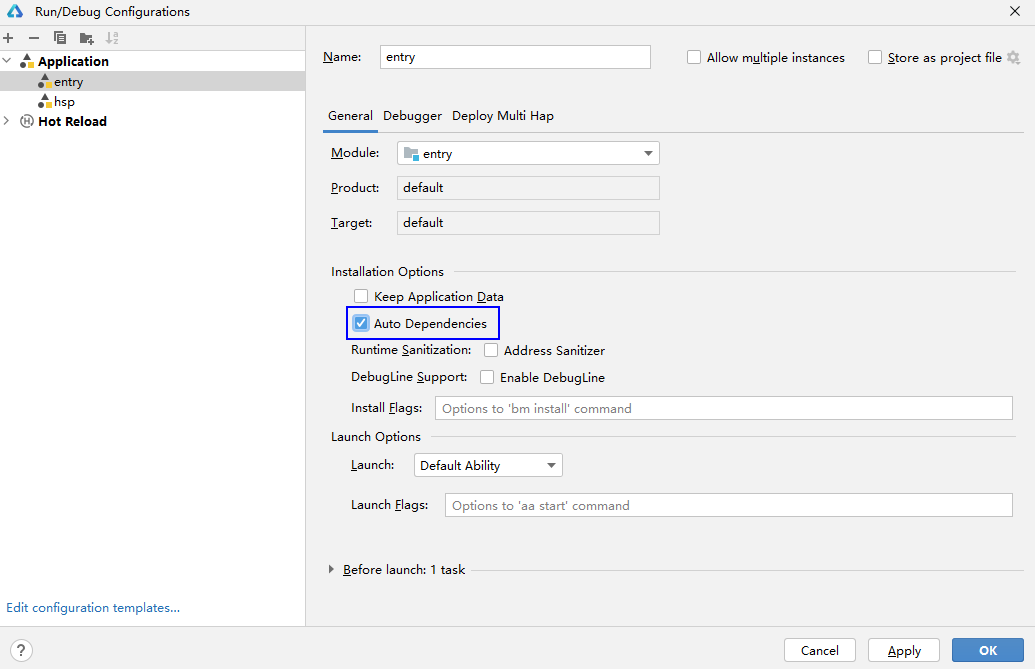
Method 3: Click Run > Edit Configurations and select Auto Dependencies on the General tab. Click OK to save the configuration, and then run or debug the project.
Scenario 2: When the HSP and HAP are not in the same project, perform the following operations:
Before installing the HAP, run the bm install command to install the dependent HSP.
Scenario 3: When the integrated HSP is required, perform the following operations:
If the integrated HSP is required, you need to install the package compiled from the integrated HSP at the same time or in advance when using the hdc tool to install the application. To check whether the integrated HSP is required, perform the following steps:
When DevEco Studio automatically installs and runs an application, check logs in Run. If the remote_hsp directory exists, the integrated HSP is required. The HSP file in the remote_hsp directory is the package generated after the integrated HSP is compiled.

[h2]9568259 Some Fields Are Missing in the Configuration File
Error Message
error: install parse profile missing prop.

Symptom
When you start debugging or run an application, the error message "error: install parse profile missing prop" is displayed during the installation of the HAP.
Possible Causes
Mandatory fields are missing in the app.json5 and module.json5 files.
Solution
-
- Check and add mandatory fields by referring to the app.json5 file and module.json5 file.
-
- Determine the missing fields based on the HiLog.
Run the following command to enable disk flushing:
hilog -w start
Disk location: /data/log/hilog
Open the log and check whether the message "profile prop %{public}s is missing" is displayed. For example, if the message "profile prop icon is missing" is displayed, the icon field is missing.
[h2]9568258 The Release Types of the New Bundle and Existing Bundle Are Different
Error Message
error: install releaseType target not same.

Symptom
When you start debugging or run an application, the error message "error: install releaseType target not same" is displayed during the installation of the HAP.
Possible Causes
- Scenario 1: The value of releaseType in the SDK used by the existing HAP is different from that used by the new HAP.
- Scenario 2: When the bundle has multiple HAPs, the releaseType values in the SDK used by each HAP are different.
Solution
- Scenario 1: Uninstall the existing HAP on the device (for PCs/2-in-1 devices, ensure that the HAP is uninstalled for all users; for phones and tablets, check whether the application has been uninstalled from both PrivateSpace and MainSpace.) and then install the new HAP.
- Scenario 2: Use the same SDK to repackage the HAPs to ensure that the releaseType values of multiple HAPs are the same.
[h2]9568260 Internal Installation Error
Error Message
error: install internal error.
Symptom
An internal error occurs during the installation.
Possible Causes
An internal service error occurs during the installation.
Solution
Restart the device and try again.
[h2]9568261 Failed to Construct the Installer Object
Error Message
error: install host installer failed.
Symptom
Failed to obtain the installer object.
Possible Causes
An internal service error occurs during the installation.
Solution
Restart the device and try again.
[h2]9568262 Application Installation and Parsing Failure
Error Message
error: install parse failed.
Symptom
The application fails to be installed and parsed.
Possible Causes
- The bm install command is used to install the plugin.
- The bm install command is used to install a package whose bundleType is skill.
- skillProfiles is configured in the module.json file of the application to be installed, but the configured skill name and skill directory name are different from name in frontmatter in the SKILL.md file.
Solution
- Use the bm install-plugin command to install the plugin.
- Skill packages cannot be installed using commands. Change the type of the application bundleType.
- Check that the skill name under skillProfiles in the module.json file, the subdirectory name in the skills directory, and the name of frontmatter in the SKILL.md file are the same.
[h2]9568265 Incorrect Internal Parameter During Installation
Error Message
error: install param error.
Symptom
The internal parameter is incorrect.
Possible Causes
The background service is abnormal during the installation. As a result, the parameter changes and does not meet the expectation.
Solution
Restart the device and try again.
[h2]9568270 Incorrect Installation Package Name
Error Message
error: install invalid hap name.
Symptom
The extension of the installation package name is incorrect.
Possible Causes
The extension of the installation package name is not .hap, .hsp, or .hqf.
Solution
Check whether the extension of the installation package name is correct.
[h2]9568276 Application to Be Installed Already Exists
Error Message
error: install already exist.
Symptom
The application already exists. The installation fails because the bundleName is duplicate.
Possible Causes
The bundleName is duplicate.
Solution
Change the bundleName of the application.
[h2]9568267 The entry Module Already Exists
Error Message
error: install entry already exist.
Symptom
The entry module of the bundle to be installed already exists.
Possible Causes
The entry module must be unique for multi-module bundle installation. The name of the module package to be installed is different from that of the existing module package, but both are of the entry type, which violates the entry uniqueness. As a result, the installation fails.
Solution
- Uninstall the existing HAP on the device (for PCs/2-in-1 devices, ensure that the HAP is uninstalled for all users; for phones and tablets, check whether the application has been uninstalled from both PrivateSpace and MainSpace.) and then install the new HAP.
- Ensure that the name of the entry module to be installed is the same as that of the existing entry module, or change the type of the entry module to be installed to feature and try again.
[h2]9568268 Installation State Error
Error Message
error: install state error.
Symptom
The bundle installation state fails to be updated.
Possible Causes
The previous bundle installation package is too large and is not complete when this bundle is installed. As a result, the installation state fails to be updated.
Solution
Wait until the previous bundle is installed and try again.
[h2]9568269 Invalid File Path
Error Message
error: install file path invalid.
Symptom
The passed-in installation package path is invalid.
Possible Causes
- The installation package path does not exist. For example, the spelling is incorrect.
- The length of the installation package path exceeds 256 bytes.
Solution
- Check whether the path of the installation package exists and whether you have the permission to access the path.
- Ensure that the length of the installation package path does not exceed 256 bytes.
[h2]9568322 Signature Verification Fails Because the Bundle Source Is Untrusted
Error Message
error: signature verification failed due to not trusted app source.

Symptom
When you start debugging or run an application, the error message "error: signature verification failed due to not trusted app source" is displayed during the installation of the HAP.
Possible Causes
-
Scenario 1: The release profile is used for signing. However, an application signed by a release certificate cannot be debugged or run.
-
Scenario 2: In the build-profile.json5 file, the configured profile does not match the .cer file.
-
Scenario 3:The signature does not contain the UDID of the debugging device.
Solution
-
Scenario 1: Use the debug profile to re-sign the application.
-
Scenario 2: Ensure that the profile file is generated from the .cer file configured in the certificate. Sign in to AppGallery Connect and choose Certificates, app IDs, and profiles. In the navigation bar on the left, choose Profile. On the Profile page, select the configured profile and verify that the associated certificate matches the configured .cer file.
-
Scenario 3: Use automatic signing to sign the HAP file after the device is connected.
[h2]9568286 The Type of the Signing Certificate Profile of the New Bundle Is Different from That of the Existing Bundle
Error Message
error: install provision type not same.
Symptom
When an application or service is being debugged or is running, the HAP fails to be installed because the type of the profile signature file of the new bundle is different from that of the existing bundle.
Possible Causes
The type in the signing certificate profile of the new bundle is different from that of the existing bundle.
Solution
- Ensure that the type of the signing certificate profile of the new bundle is the same as that of the existing bundle, and install the new HAP.
- Uninstall the existing application on the device (for PCs/2-in-1 devices, ensure that the HAP is uninstalled for all users; for phones and tablets, check whether the application has been uninstalled from both PrivateSpace and MainSpace.) and then install the new HAP.
[h2]9568288 Installation Failure Due to Insufficient Disk Space
Error Message
error: install failed due to insufficient disk memory.
Symptom
Due to insufficient storage space, a file or directory cannot be created during bundle installation.
Possible Causes
The file or directory cannot be created due to insufficient storage space.
Solution
Check the device storage where the bundle is to be installed and free up enough space to meet the installation requirements, then try installing the bundle again. If cleaning up storage on the emulator still fails, try creating a new emulator with more storage space. For details, refer to Creating an Emulator.
[h2]9568289 Installation Fails Because the Permission Request Fails
Error Message
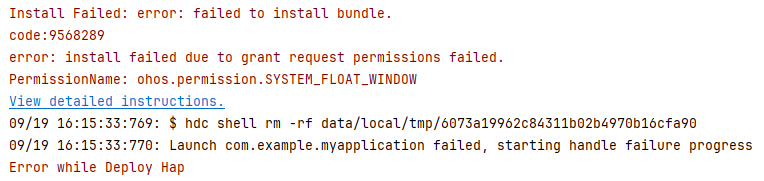
error: install failed due to grant request permissions failed.
Symptom
When an application or service is being debugged or running, an error occurs during the installation of the HAP, and the system displays a message indicating that the request permission fails to be granted. Since API version 18, the specific permission name is printed following the request failure information.
Possible Causes
The APL of the application is normal. However, it uses a system_basic or system_core permission. For details, see Basic Concepts in the Permission Mechanism.
Solution
Check whether the permission exists in the application permissions based on the permission name in the error description.
-
If not, check the description of the API that requires the permission to ensure that the permission can be applied for. For example, among the permissions required by the setDevicePairingConfirmation API, ohos.permission.MANAGE_BLUETOOTH can be applied for only by system applications. In this case, replace it with ohos.permission.ACCESS_BLUETOOTH.
-
If yes, check the requirements in the corresponding permission document and check whether the permission can be applied for. For example, to check restricted permissions, see Requesting Restricted Permissions. Available permissions for enterprise applications can be applied for only by enterprise applications. Third-party applications do not support these permissions.
[h2]9568290 Installation Failure Due to HAP Token Update Failure
Error Message
error: install failed due to update hap token failed.
Symptom
During bundle installation, the bundle token fails to be authorized when HAP is updated.
Possible Causes
During bundle installation or update, the token update API of the ability is called, but the API returns a failure message.
Solution
-
Restart the phone and try again.
-
If the installation still fails after you repeat the preceding steps 3 to 5 times, export the log file. You can submit an online ticket for help.
hdc file recv /data/log/hilog/
[h2]9568291 Installation Failure Due to Singleton Inconsistency
Error Message
error: install failed due to singleton not same.
Symptom
During bundle update, the singleton configuration in the app.json5 file of the existing HAP file is inconsistent with that of the update package. (The singleton configuration is deprecated since API version 9.)
Possible Causes
The singleton configuration in the app.json5 file of the existing HAP file is inconsistent with that of the update package. (The singleton configuration is deprecated since API version 9.)
Solution
Solution 1: Uninstall the existing application package (for PCs/2-in-1 devices, ensure that the application package is uninstalled for all users; for phones and tablets, check whether the application has been uninstalled from both PrivateSpace and MainSpace.) and then install the new application package.
Solution 2: Change the singleton configuration in the update package to be the same as that in the existing package, repack and update the bundle package.
[h2]9568293 Installation Failure Due to SysCap Inconsistency
Error Message
error: install failed due to check syscap filed.
Symptom
The installation fails due to SysCap inconsistency.
Possible Causes
The SysCap configured in multiple HAP/HSP files is inconsistent.
Solution
Check the SysCap configured in multiple HAP/HSP files and ensure that it is consistent.
[h2]9568297 Installation Failed Due to an Earlier SDK Version
Error Message
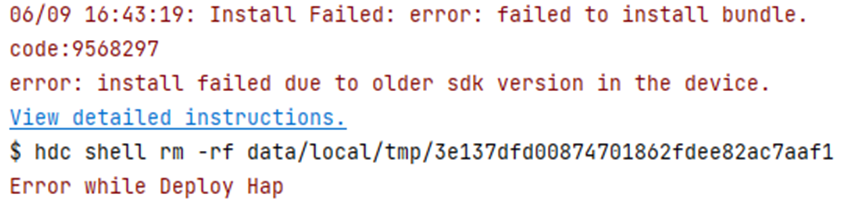
error: install failed due to older sdk version in the device.
Symptom
When you start debugging or run an application, the error message "error: install failed due to older sdk version in the device" is displayed during the installation of the HAP.
Possible Causes
The SDK version used for build and packing does not match the device image version.
Solution
-
Scenario 1: The device image version is earlier than the SDK version for build and packing. Update the device image version. Run the following command to query the device image version:
hdc shell param get const.ohos.apiversion
If the API version provided by the image is 10 and the SDK version used for bundle build is also 10, the possible cause is that the image version is too early to be compatible with the SDK verification rules of the new version. In this case, update the image version to the latest version.
-
Scenario 2: For bundles that need to run on HarmonyOS devices, ensure that runtimeOS has been changed to HarmonyOS.
[h2]9568299 Installation Information Error
Error Message
error: install failed due to ark native file is incompatible.
Symptom
The installation information is abnormal.
Possible Causes
The installation information is empty or abnormal. As a result, the installation fails.
Solution
Restart the device and reinstall the file.
[h2]9568300 Installation Failed Due to Duplicate Bundle Module Names
Error Message
error: moduleName is not unique.
Symptom
During the installation of a multi-module bundle, duplicate module names cause the uniqueness check to fail, so installation is aborted.
Possible Causes
During the installation of a multi-module bundle, a module name conflict occurs.
Solution
Check the name in the module.json5 file of each module and ensure that the names are different. Then, pack the bundle again and install it.
[h2]9568332 Installation Fails Due to Inconsistent Signatures
Error Message
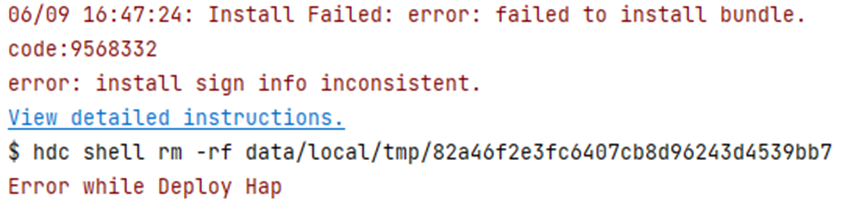
error: install sign info inconsistent.
Symptom
When you start debugging or run an application, the error message "error: install sign info inconsistent" is displayed during the installation of the HAP.
Possible Causes
- The signatures of the application already installed on the device and the newly installed application are inconsistent, or the signatures of multiple packages (HAPs and HSPs) differ. If at least one of the keys or APP ID of the two applications is the same, their signatures are considered consistent. If Keep Application Data is selected in Edit Configurations in DevEco Studio (that is, the application is overwritten and installed without being uninstalled) and the application is re-signed, this error is reported.
- If an application is uninstalled but its data is retained, when an application with the same bundle name is installed later, the consistency of its signature information must be verified. If neither the key nor APP ID of the two signatures is consistent, this error is reported.
Solution
- Uninstall the existing application on the device (for PCs/2-in-1 devices, ensure that the application is uninstalled for all users; for phones and tablets, check whether the application has been uninstalled from both PrivateSpace and MainSpace.) or deselect Keep Application Data and install the new application.
- If the signature inconsistency is caused by HSPs provided by different teams, use integrated HSP. If there are multiple HAPs, ensure that their signatures are the same.
- If a bundle is uninstalled but its data is kept, a new bundle with the same bundle name but different signature information fails to be installed. To install the new bundle, you must first reinstall the uninstalled bundle and uninstall it without retaining the data.
[h2]9568329 The Signature Information Fails to Be Verified
Error Message
error: verify signature failed.

Symptom
The bundleName in the signature information is different from that of the bundle.
Possible Causes
-
Scenario 1: An HSP module provided by a third party is imported, and the HSP is neither an integrated HSP nor an HSP with the same bundle name, causing the bundle name inconsistency.
-
Scenario 2: An incorrect signature file (with the file name extension .p7b) is used for signature, causing the bundle name inconsistency.
Solution
-
Scenario 1: Use an HSP only for the bundle with the same bundle name; use an integrated HSP for bundles with different bundle names. Ask the third party to provide an integrated HSP or an HSP with the same bundle name.
-
Scenario 2: Check the signing process and signing certificate. For details, see Configuring a Debug Signature.
[h2]9568266 Installation Permission Denied
Error Message
error: install permission denied.

Symptom
When you run the hdc install command to install the HAP file, the error message "code:9568266 error: install permission denied" is displayed.
Possible Causes
The hdc install command cannot be used to install the enterprise bundle with a release signature.
Solution
- Run the hdc install command to install and debug the enterprise bundle with a debug signature.
[h2]9568337 Installation Parsing Fails
Error Message
error: install parse unexpected.
Symptom
When a bundle is pushed to a device, an error message is displayed, indicating that the HAP file fails to be opened.
Possible Causes
-
Scenario 1: When you run the hdc file send command, files on the device are damaged due to insufficient storage space.
-
Scenario 2: The HAP file is damaged when it is pushed to the device.
Solution
-
Scenario 1: Check the device storage usage. If the storage space is insufficient, free it up.
-
- Check the MD5 values of the local HAP file and the HAP file pushed to the device. If they are different, the HAP is damaged during the push. In this case, push the file again.
[h2]9568316 The Permission of APL in ProxyData Is Low
Error Message
error: apl of required permission in proxy data is too low.
Symptom
requiredReadPermission and requiredWritePermission of the proxyData tag in the module.json file fail to be verified.
Possible Causes
requiredReadPermission and requiredWritePermission can be configured only when the bundle has the permission level of system_basic or system_core.
Solution
- Check whether the proxyData content defined by the bundle meets the requirements. For details, see proxyData.
[h2]9568315 The URI in Proxy Data Is Incorrect
Error Message
error: uri in proxy data is wrong.
Symptom
uri of the proxyData tag in the module.json file fails to be verified.
Possible Causes
The format of uri does not meet the requirement.
Solution
- Check whether the proxyData content defined by the bundle meets the requirements. For details, see proxyData.
[h2]9568318 Invalid Signature File
Error Message
error: signature file path is invalid.
Symptom
The signature file is invalid.
Possible Causes
The signature file is abnormal or the installation package is damaged.
Solution
Use automatic signing or manual signing to re-sign the application, and then install and debug it.
[h2]9568325 Signature Verification Failed Due to Oversized File
Error Message
error: signature verification failed due to oversize file.
Symptom
The signature verification failed because the file is too large.
Possible Causes
The size of the signature file exceeds the upper limit.
Solution
Use automatic signing or apply for a new signing certificate, and then use manual signing to re-sign the application before installing and debugging it.
[h2]9568336 The Debugging Type of the Bundle Is Different From That of the Installed Bundle
Error Message
error: install debug type not same.
Symptom
The debugging type (the debug field in the app.json file) of the bundle is different from that of the installed bundle.
Possible Causes
You have installed the bundle using the Debug button of DevEco Studio, and then you install the HAP file of the bundle by running the hdc install command.
Solution
- Uninstall the existing application (for PCs or 2-in-1 devices, ensure that the application is uninstalled for all users; for phones and tablets, check whether the application has been uninstalled from both PrivateSpace and MainSpace.) and install the new application.
[h2]9568296 The Bundle Type Is Incorrect
Error Message
error: install failed due to error bundle type.
Symptom
The installation fails because the bundleType tag is incorrect.
Possible Causes
The bundleType of the bundle to be installed is different from that of an existing bundle with the same bundleName.
Solution
-
Method 1: Uninstall the existing application (for PCs or 2-in-1 devices, ensure that the application is uninstalled for all users; for phones and tablets, check whether the application has been uninstalled from both PrivateSpace and MainSpace.) and install the new application.
-
Method 2: Set the bundleType of the bundle to the same as that of the existing bundle.
[h2]9568292 User 0 Can Install Only the Singleton Bundle
Error Message
error: install failed due to zero user can only install singleton app.
Symptom
User 0 can install only bundles with the singleton permission.
Possible Causes
User 0 installs an application with the non-singleton permission.
Solution
- If the bundle does not have the singleton permission, you can directly install the bundle without specifying a user.
hdc shell bm install -p /data/HAP name.hap
[h2]9568263 Installation Version Cannot Be Downgraded
Error Message
error: install version downgrade.
Symptom
The installation fails because versionCode of the bundle to be installed is earlier than that of the existing bundle.
Possible Causes
The versionCode of the bundle to be installed is earlier than that of the existing bundle.
Solution
-
Uninstall the existing application (for PCs or 2-in-1 devices, ensure that the application is uninstalled for all users; for phones and tablets, check whether the application has been uninstalled from both PrivateSpace and MainSpace.) and install the new application.
-
For a third-party application whose certificate distribution type is app_gallery or signing certificate type is debug, you can run the -d command to implement downgrade installation.
hdc shell bm install -p /data/example.hap -d
[h2]9568264 Failed to Verify Signature Consistency During Installation
Error Message
error: install verification failed.
Symptom
The signature consistency verification fails during installation.
Possible Causes
The appIdentifier is inconsistent, causing the installation failure.
Solution
Method 1: If the application can be uninstalled, uninstall the application and then reinstall it. (For PCs or 2-in-1 devices, ensure that the application is uninstalled for all users; for phones and tablets, check whether the application has been uninstalled from both PrivateSpace and MainSpace..)
Method 2: Use a text editor to open the profile, search for the app-identifier field, and modify the appIdentifier in the installation parameters to match the value in the profile.
[h2]9568301 Inconsistent Module Type
Error Message
error: moduleName is inconsistent.
Symptom
The name of the module that is being installed already exists in the system, but the module type is inconsistent. As a result, the installation fails.
Possible Causes
The name of the new bundle already exists in the system, but the module type is inconsistent. As a result, the installation fails.
Solution
Check whether the module name of the new bundle is the same as that of the existing bundle. If they are the same but their types are different, change the value of type in the module.json5 file.
[h2]9568303 Enterprise Device Management Forbidden
Error Message
error: Failed to install the HAP because the installation is forbidden by enterprise device management.
Symptom
The installation failed due to an application control policy.
Possible Causes
There is an application control policy.
Solution
No solution is available for enterprise control. You can submit an online ticket for help.
[h2]9568304 Current Device Type Not Supported
Error Message
error: device type is not supported.
Symptom
The installation fails because the bundle does not support the current device type.
Possible Causes
The bundle does not support the current device type.
Solution
- To adapt to the current device, add the current device type to the value of deviceTypes of the bundle. The value of deviceTypes can be any of the following: phone, tablet, 2in1, tv, wearable, and car.
[h2]9568308 Inconsistent Bundle Type
Error Message
error: install bundleType not same.
Symptom
The installation fails because the bundle types are inconsistent.
Possible Causes
When a multi-HAP bundle is installed, the bundleType properties of two modules are inconsistent.
Solution
Check and ensure that the bundleType properties in the app.json5 file of each module in the multi-HAP bundle are the same.
[h2]9568317 The Multi-Process Configuration of the Bundle Does Not Match the System Configuration
Error Message
error: isolationMode does not match the system.
Symptom
The installation fails because isolationMode of the bundle is not supported by the system.
Possible Causes
-
- The device supports the isolation mode (the value of persist.bms.supportIsolationMode is true), whereas the value of isolationMode in the HAP is nonisolationOnly.
-
- The device does not support the isolation mode (the value of persist.bms.supportIsolationMode is false), whereas the value of isolationMode in the HAP is isolationOnly.
Solution
- Set the value of isolationMode in the HAP configuration file based on the isolation mode of the device.
# Query the value of persist.bms.supportIsolationMode. If errNum is:106 is returned, persist.bms.supportIsolationMode is not configured.
hdc shell
param get persist.bms.supportIsolationMode
# Set persist.bms.supportIsolationMode.
hdc shell
param set persist.bms.supportIsolationMode [true|false]
[h2]9568310 The Compatibility Policies Are Different
Error Message
error: compatible policy not same.
Symptom
The compatibility policy of the new bundle is different from that of the existing bundle.
Possible Causes
- The shared library to be installed has the same bundle name as the existing bundle.
- The bundle to be installed has the same bundle name as the existing shared library.
Solution
- Uninstall the existing application (for PCs or 2-in-1 devices, ensure that the application is uninstalled for all users; for phones and tablets, check whether the application has been uninstalled from both PrivateSpace and MainSpace.) or the shared library and install the new bundle.
[h2]9568391 The Bundle Manager Service Is Stopped
Error Message
error: bundle manager service is died.
Symptom
The bundle manager service is stopped.
Possible Causes
An unknown system exception occurs.
Solution
-
Restart the phone and try again.
-
If the installation still fails after the preceding steps are performed for three to five times, check whether a crash file containing foundation exists in the /data/log/faultlog/faultlogger/ directory of the device.
hdc shell
cd /data/log/faultlog/faultlogger/
ls -ls
-
Export the crash file and log file. You can submit an online ticket for help.
hdc file recv /data/log/faultlog/faultlogger/
hdc file recv /data/log/hilog/
[h2]9568393 The Code Signature Fails to Be Verified
Error Message
error: verify code signature failed.
Symptom
The code signature fails to be verified.
Possible Causes
The bundle does not contain code signature information.
Solution
-
Install the latest version of DevEco Studio and sign the code again.
-
Replace the application signature with one that complies with HarmonyOS signing requirements.
[h2]9568399 Failed to Copy Files
Error Message
error: copy file failed.
Symptom
The file copy operation fails during bundle installation.
Possible Causes
- The source file path or target path is invalid.
- Failed to open the source file.
- Failed to obtain the source file status.
- The size of the source file is invalid.
- Failed to copy the source file.
- You do not have the permission to access the source file.
- Failed to change the file permission.
Solution
-
Restart the phone and try again.
-
If the installation still fails after you repeat the preceding steps 3 to 5 times, export the log file. You can submit an online ticket for help.
hdc file recv /data/log/hilog/
[h2]9568401 The Bundle to Debug Can Run Only on Devices in Developer Mode
Error Message
error: debug bundle can only be installed in developer mode.
Symptom
The bundle to debug can run only on devices in developer mode.
Possible Causes
Developer mode is not enabled on the device.
Solution
- Choose Settings > System and check whether Developer options is available. If not, go to Settings > About and touch the version number for seven consecutive times until the message "Enable developer mode?" is displayed. Touch OK and enter the PIN (if set). Then the device will automatically restart.
- Connect the device to the PC using a USB cable. Choose Settings > System > Developer options and enable USB debugging. In the displayed dialog box, touch Allow.
- Start debugging or run the bundle.
[h2]9568404 Failed to Transfer the Signature Configuration File
Error Message
error: delivery sign profile failed.
Symptom
The installation fails because an exception occurs when the code signature configuration file is transferred.
Possible Causes
- The file path does not exist.
- Failed to create the file path.
- Failed to change the file directory mode.
- Failed to write the configuration file data.
- Failed to change the configuration file mode.
- Failed to add the configuration file data.
Solution
-
Restart the phone and try again.
-
If the installation still fails after you repeat the preceding steps 3 to 5 times, export the log file. You can submit an online ticket for help.
hdc file recv /data/log/hilog/
[h2]9568405 Failed to Delete the Signature Configuration File
Error Message
error: remove sign profile failed.
Symptom
The bundle fails to be uninstalled because the signature configuration file fails to be deleted.
Possible Causes
- The file path does not exist.
- Failed to load the configuration file data.
- You do not have the write permission on the file.
Solution
-
Restart the phone and uninstall the bundle again (for PCs or 2-in-1 devices, ensure that the bundle is uninstalled for all users; for phones and tablets, check whether the application has been uninstalled from both PrivateSpace and MainSpace.).
-
If the uninstallation still fails after you repeat the preceding steps 3 to 5 times, export the log file. You can submit an online ticket for help.
hdc file recv /data/log/hilog/
[h2]9568381 Failed to Delete the Application Process
Error Message
error: uninstall killing app error.
Symptom
The application process fails to be deleted during application uninstallation.
Possible Causes
The process ID is incorrect.
Solution
Restart the device and uninstall the application again.
[h2]9568382 Empty Bundle Name or Module Name During Application Uninstallation
Error Message
error: uninstall invalid name.
Symptom
The bundleName or moduleName parameter is empty during application uninstallation.
Possible Causes
The bundleName or moduleName parameter are empty.
Solution
Restart the device and uninstall the application again.
[h2]9568384 Abnormal bm Tool Process Permission During Application Uninstallation
Error Message
error: uninstall permission denied.
Symptom
The bm tool process permission is abnormal during application uninstallation.
Possible Causes
The bm tool process is abnormal or the permission is lost. As a result, the bm tool does not have the permission to uninstall the application.
Solution
-
Restart the device and uninstall the application again.
-
If the installation still fails after you repeat the preceding steps 3 to 5 times, export the log file. You can submit an online ticket for help.
# Export the log file.
hdc file recv /data/log/hilog/
[h2]9568385 Service Uninstallation Exception
Error Message
error: uninstall bundle mgr service error.
Symptom
The service uninstallation is abnormal.
Possible Causes
An unknown system exception occurs.
Solution
-
Restart your phone and uninstall the bundle again.
-
If the installation still fails after the preceding steps are performed for three to five times, check whether a crash file containing foundation exists in the /data/log/faultlog/faultlogger/ directory of the device.
hdc shell
cd /data/log/faultlog/faultlogger/
ls -ls
-
Export the crash file and log file. You can submit an online ticket for help.
hdc file recv /data/log/faultlog/faultlogger/
hdc file recv /data/log/hilog/
[h2]9568386 The Bundle Cannot Be Found for Uninstallation
Error Message
error: uninstall missing installed bundle.
Symptom
The bundle cannot be found for uninstallation.
Possible Causes
The bundle to be uninstalled is not installed.
Solution
- Check whether the bundle to be uninstalled has been installed.
[h2]9568388 Bundle Uninstall Is Not Allowed by Enterprise Device Management
Error Message
error: Failed to uninstall the HAP because the uninstall is forbidden by enterprise device management.
Symptom
The enterprise device management does not allow the uninstall of this bundle.
Possible Causes
The bundle is set not to be uninstalled.
Solution
- The enterprise device management cancels the uninstallation control of the bundle.
[h2]9568389 Installation Failure Due to an Unknown Error
Error Message
error: unknown.
Symptom
An unknown error occurs.
Possible Causes
The installation fails due to an unknown system error.
Solution
-
Restart the phone and try again.
-
If the installation still fails after you repeat the preceding steps 3 to 5 times, export the log file. You can submit an online ticket for help.
# Export the log file.
hdc file recv /data/log/hilog/
[h2]9568284 Installation Version Not Compatible
Error Message
error: install version not compatible.
Symptom
The installation version is not compatible.
Possible Causes
The version of the installed HSP does not match that of the installed HAP.
When an HSP is installed, the following information is verified:
- bundleName
- Version
- Signature
Solution
- Uninstall the HAP file whose version does not match (ensure that all users have uninstalled the HAP on the PC/2-in-1 device; for phones and tablets, check whether the application has been uninstalled from both PrivateSpace and MainSpace.), and then install the HSP file.
- Change the HSP version to be the same as that of the HAP and install the HSP again.
[h2]9568287 Invalid Number of Entry Modules in the Installation Package
Error Message
error: install invalid number of entry hap.
Symptom
The number of entry modules in the installation package is invalid.
Possible Causes
There are multiple entry modules in the installation package. An bundle can have only one entry module but multiple feature modules.
Solution
- Retain one entry module and change the other entry modules to feature modules (by modifying the type field in module.json5).
[h2]9568281 Inconsistent vendor of Installation Packages
Error Message
error: install vendor not same.
Symptom
The vendor field of the installation package is inconsistent.
Possible Causes
The vendor field of the application in the app.json5 file is inconsistent.
Solution
- If there is only one HAP, the vendor field of the installation package must be the same as that of the existing application. Uninstall the application and reinstall it. (For PCs or 2-in-1 devices, ensure that the application is uninstalled for all users.; for phones and tablets, check whether the application has been uninstalled from both PrivateSpace and MainSpace.)
- If an integrated HSP is included, the vendor field of the integrated HSP must be the same as that of the HAP.
[h2]9568272 Invalid Installation Bundle Size
Error Message
error: install invalid hap size.
Symptom
The size of the installation package exceeds the upper limit.
Possible Causes
The size of the installation package exceeds 4 GB.
Solution
Split the package and ensure that the size of each installation package does not exceed 4 GB.
[h2]9568273 Installation Fails Because the Bundle Cannot Generate the UID
Error Message
error: install generate uid error.
Symptom
The installation fails because the bundle cannot to generate the UID.
Possible Causes
The number of bundles installed on the device exceeds 65,535. As a result, the UID fails to be allocated during bundle installation.
Solution
Uninstall unnecessary bundles and try again. (Ensure that all users have uninstalled unnecessary bundles on the PC/2-in-1 device.; for phones and tablets, check whether the application has been uninstalled from both PrivateSpace and MainSpace.)
[h2]9568274 An Error Occurs During Service Installation
Error Message
error: install installd service error.
Symptom
An error occurs during service installation.
Possible Causes
An exception occurs during service installation.
Solution
- Clear the cache and restart the device.
[h2]9568275 Bundle Manager Service Error
Error Message
error: install bundle mgr service error.
Symptom
A bundle manager service error occurs.
Possible Causes
An exception occurs in the bundle manager service. For example, an exception occurs due to a null pointer.
Solution
Restart the device or try again later.
[h2]9568277 Installation Failure Due to Inconsistent Bundle Names
Error Message
error: install bundle name not same.
Symptom
The installation fails due to inconsistent bundle names.
Possible Causes
The names of installation bundles in the installation path are different.
Solution
Check the names of the installation bundles and ensure that the values of bundleName in the app.json5 configuration files of all installation bundles are the same.
[h2]9568279 Installation Failure Due to Version Inconsistency
Error Message
error: install version name not same.
Symptom
The installation fails because the versions (values of the versionName field) are inconsistent.
Possible Causes
The version names of installation bundles are different.
Solution
Check the versions of the installation bundles and ensure that the values of versionName in the app.json5 configuration files of all installation bundles are the same.
[h2]9568280 Installation Failure Due to Inconsistent minCompatibleVersionCode
Error Message
error: install min compatible version code not same.
Symptom
The installation fails because the values of the minCompatibleVersionCode fields are inconsistent.
Possible Causes
The minCompatibleVersionCode values of multiple installation bundles are different.
Solution
Check the installation bundles and ensure that the values of minCompatibleVersionCode in the app.json5 configuration files of all installation bundles are the same.
[h2]9568282 Installation Failure Due to Inconsistent targetAPIVersions
Error Message
error: install releaseType target not same.
Symptom
The installation fails because the values of the targetAPIVersion fields are inconsistent.
Possible Causes
The targetAPIVersion values of multiple installation bundles are different.
Solution
Check the installation bundles and ensure that the values of targetAPIVersion in the app.json5 configuration files of all installation bundles are the same.
[h2]9568314 The HSP Fails to Be Installed
Error Message
error: Failed to install the HSP because installing a shared bundle specified by hapFilePaths is not allowed.
Symptom
The HSP fails to be installed.
Possible Causes
The HSP is installed by running the "hdc app install ***" command.
Solution
- Run the "hdc install -s ***" command to install the HSP.
[h2]9568349 Passed-in Parameter Error During File Operation
Error Message
error: installd param error.
Symptom
The installation fails because the passed-in parameter is abnormal during file operation.
Possible Causes
The passed-in parameter is invalid or the passed-in directory is empty during the installation.
Solution
-
Restart the phone and try again.
-
If the installation still fails after you repeat the preceding steps 3 to 5 times, export the log file. You can submit an online ticket for help.
# Export the log file.
hdc file recv /data/log/hilog/
[h2]9568351 Installation Failure Due to a File Directory Creation Exception
Error Message
error: installd create dir failed.
Symptom
The installation fails because the file directory cannot be created.
Possible Causes
You do not have the write permission when creating a file directory.
Solution
-
Restart the phone and try again.
-
If the installation still fails after you repeat the preceding steps 3 to 5 times, export the log file. You can submit an online ticket for help.
# Export the log file.
hdc file recv /data/log/hilog/
[h2]9568354 Installation Failure Due to a File Directory Deletion Exception
Error Message
error: installd remove dir failed.
Symptom
The installation fails because the file directory cannot be deleted.
Possible Causes
The directory to be deleted does not exist, or you do not have the write permission on the directory.
Solution
-
Restart the phone and try again.
-
If the installation still fails after you repeat the preceding steps 3 to 5 times, export the log file. You can submit an online ticket for help.
# Export the log file.
hdc file recv /data/log/hilog/
[h2]9568355 Failed to Extract Files from the Installation Bundle
Error Message
error: installd extract files failed.
Symptom
The installation fails because files cannot be extracted from the installation bundle.
Possible Causes
During the installation, the .so file fails to be extracted from the HAP file because the directory for decompressing the .so file cannot be created.
Solution
-
Restart the phone and try again.
-
If the installation still fails after you repeat the preceding steps 3 to 5 times, export the log file. You can submit an online ticket for help.
# Export the log file.
hdc file recv /data/log/hilog/
[h2]9568356 Failed to Rename a Directory During Installation
Error Message
error: installd rename dir failed.
Symptom
The installation fails because the directory name cannot be renamed.
Possible Causes
The directory name contains more than 260 characters, or you do not have the write permission on the directory.
Solution
-
Restart the phone and try again.
-
If the installation still fails after you repeat the preceding steps 3 to 5 times, export the log file. You can submit an online ticket for help.
# Export the log file.
hdc file recv /data/log/hilog/
[h2]9568357 Failed to Clear Files
Error Message
error: installd clean dir failed.
Symptom
The installation fails because files cannot to be cleared.
Possible Causes
You do not have the write permission on the files to be cleared.
Solution
-
Restart the phone and try again.
-
If the installation still fails after you repeat the preceding steps 3 to 5 times, export the log file. You can submit an online ticket for help.
# Export the log file.
hdc file recv /data/log/hilog/
[h2]9568359 The SELinux Fails to be Installed and Set
Error Message
error: installd set selinux label failed.
Symptom
The SELinux fails to be installed and set.
Possible Causes
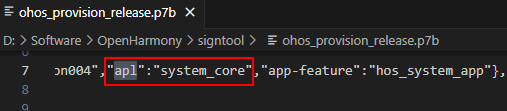
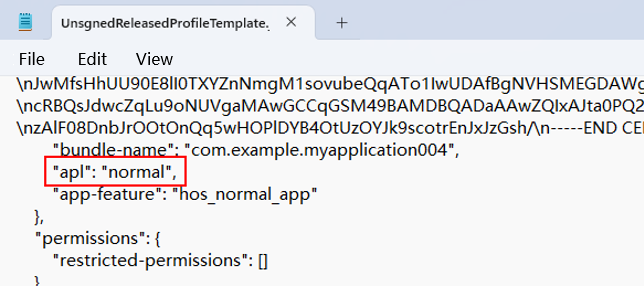
The apl field in the signature configuration file is incorrect. It can be normal, system_basic, and system_core.
Solution
-
Check whether the apl field in the .p7b file is correct.
-
If the apl field is incorrect, modify the apl field in the UnsgnedReleasedProfileTemplate.json file and sign the file again.
[h2]9568360 Error Occurs During Overlay Application Installation
Error Message
error: internal error of overlay installation.
Symptom
An error occurs during overlay application installation.
Possible Causes
The overlay installation package fails to be parsed or an internal error occurs during the installation.
Solution
Method 1: Recompile the overlay application and try again.
Method 2: Restart the device and try again.
[h2]9568361 Failed to Install the Overlay Application Because the Target Bundle Name is Empty
Error Message
error: invalid bundle name of overlay installation.
Symptom
The installation fails because the target bundle name in the overlay application is empty.
Possible Causes
The targetBundleName field in the overlay application is empty.
Solution
Check whether the targetBundleName field in the app.json5 file of the overlay application is configured.
[h2]9568362 Failed to Install the Overlay Application Because the Target Module Name Is Empty
Error Message
error: invalid module name of overlay installation.
Symptom
The installation fails because the target module name in the overlay application is empty.
Possible Causes
The targetModuleName field in the overlay application is empty.
Solution
Check whether the targetModuleName field in the module.json5 file of the overlay application is configured.
[h2]9568398 Installation of Enterprise MDM Bundles and Standard Enterprise Bundles Not Allowed
Error Message
error: Failed to install the HAP because an enterprise normal/MDM bundle cannot be installed on non-enterprise device.
Symptom
The current device prohibits the installation of enterprise MDM bundles or standard enterprise bundles.
Possible Causes
The following two types of bundles in profile signature file cannot be installed on the current device: enterprise_mdm (enterprise MDM bundle) and enterprise_normal (standard enterprise bundle). For details about the distribution types, see ApplicationInfo.appDistributionType.
Solution
Change the distribution type in the profile signing file.
[h2]9568402 Installation of the Release Bundle of the app_gallery Type in the Profile Not Allowed
Error Message
error: Release bundle can not be installed.
Symptom
Do not run the bm command to install release bundles whose type of profile signature file is app_gallery.
Possible Causes
The new bundle is a release bundle whose type of profile signature file is app_gallery.
Solution
- Use the profile signature file whose type is not app_gallery to re-sign the bundle.
- Use the debug certificate to re-sign the bundle.
[h2]9568403 Encryption Check Fails During Installation
Error Message
error: check encryption failed.
Symptom
The encryption check fails during the installation.
Possible Causes
The image version is too early or the lib directory of the HAP contain non-so files.
Solution
- Install a new image version.
- Delete non-so files in the lib directory of the HAP project and re-sign and package the files.
[h2]9568407 Failed to Install the Native Software Package
Error Message
error: Failed to install the HAP because installing the native package failed.
Symptom
The native software package fails to be installed during HAP installation.
Possible Causes
The native software package to be installed in the HAP is damaged.
Solution
- Check the native software package in the HAP, replace the native software package with the correct one, and re-sign and package the software package. For details, see Native Bundle Development.
[h2]9568408 Failed to Uninstall the Native Software Package
Error Message
error: Failed to uninstall the HAP because uninstalling the native package failed.
Symptom
The native software package fails to be uninstalled during HAP uninstall.
Possible Causes
The native software package to be uninstalled is occupied.
Solution
- Check whether any process occupies the native software package. If yes, stop the process and uninstall the native software package again. For details, see Native Bundle Development.
[h2]9568409 Failed to Extract the Native Software Package
Error Message
error: Failed to install the HAP because the extract of the native package failed.
Symptom
The native software package fails to be extracted during the HAP installation.
Possible Causes
The native software package configured in module.json5 does not exist in the HAP.
Solution
- Check the native software package directory in the HAP, input the native software package to be installed again and sign the package, or delete the missing native software package configuration from the module.json5 file. For details, see Native Bundle Development.
[h2]9568410 Failed To Install the HAP Because the Device Is Under Control
Error Message
error: failed to install because the device be controlled.
Symptom
The HAP fails to be installed because the device is under control.
Possible Causes
The device is activated through an unauthorized channel.
Solution
- Check whether the device is obtained from unauthorized channels.
- Activate the device through the normal process.
[h2]9568412 Uninstallation Request Rejected by Application
Error Message
error: The uninstall request is rejected by the application.
Symptom
The uninstallation request is rejected by the application.
Possible Causes
The target application cannot be uninstalled.
Solution
No solution is available. You can submit an online ticket for help.
[h2]9568413 Current Device Not Supported
Error Message
error: check syscap filed and device type is not supported.
Symptom
The device type specified by the deviceTypes tag or the device features specified by the requiredDeviceFeatures tag do not support the installation.
Possible Causes
The device type configured for the application or the device feature configured in the requiredDeviceFeatures tag is inconsistent with that of the device where the application is to be installed.
Solution
Adjust the device type. If the device type is correct, ensure that the requiredDeviceFeatures tag meets the setting requirements.
[h2]9568415 The Encrypted Bundle Whose Signing Certificate Is Debug or Debug Is True in Configuration File Cannot Be Installed
Error Message
error: debug encrypted bundle is not allowed to install.
Symptom
The encrypted bundle whose signing certificate is of the debug type or whose debug attribute of the configuration file is true cannot be installed.
Possible Causes
- An encrypted bundle whose signing certificate is of the debug type has been installed.
- An encrypted bundle whose debug attribute value is true in the configuration file has been installed.
Solution
- Decrypt the encrypted bundle for installation and debugging.
[h2]9568416 The Encrypted Bundle Cannot Be Installed
Error Message
error: Encrypted bundle cannot be installed.
Symptom
The encrypted bundle cannot be installed using the bm command.
Possible Causes
The installed bundle is encrypted.
Solution
- Use automatic signing or manual signing to re-sign the application, and then install and debug it.
[h2]9568417 Failed to Verify the Signature
Error Message
error: bundle cannot be installed because the appId is not same with preinstalled bundle.
Symptom
The new bundle cannot be installed because its bundle name matches that of the uninstalled bundle and its signature information differs.
Possible Causes
Although the pre-installed bundle has been uninstalled, the system still installs the preset bundle before installing the new bundle package. This is because the key in the installation signature information of the pre-installed bundle and APP ID are different from those of the newly installed bundle.
Solution
Method 1: Re-sign the bundle.
Re-sign the application to ensure that at least one of the key in the application signature information or APP ID is consistent with that of the preinstalled application.
If you use DevEco Studio to automatically sign the application, the generated signature information is a random value, which does not match the pre-installed application. As a result, the app fails to be installed. Therefore, you need to use the account that was used to request a release profile to request a debug profile or directly use the release profile to sign the application again. After the signing is complete, reinstall the application.
Method 2: Change the bundle name.
Modify the bundleName of the new bundle to ensure it is different from the pre-installed bundle's bundle name.
[h2]9568418 Failed to Uninstall a Bundle Configured with an Uninstallation Disposed Rule
Error Message
error: Failed to uninstall the app because the app is locked.
Symptom
The bundle cannot be directly uninstalled because it is configured with an uninstallation disposed rule.
Possible Causes
The bundle to be uninstalled is configured with an uninstallation disposed rule.
Solution
- Check whether the bundle is configured with an uninstallation disposed rule. The entity that set the rule is responsible for canceling the rule.
[h2]9568420 Installation of Pre-installed Release Bundles Using bm Not Allowed
Error Message
error: os_integration Bundle is not allowed to install for shell.
Symptom
The pre-installed release bundles cannot be installed.
Possible Causes
The release bundles are installed using the bm tool.
Solution
Check whether the bundle is a pre-installed release bundle. If yes, change the type of the bundle's profile signature file, re-sign the bundle, and install it.
[h2]9568278 Version Codes of Bundles Are Inconsistent
Error Message
error: install version code not same.
Possible Causes
- The version code of the new bundle is different from that of the existing bundle.
- The version codes of multiple bundles to be installed are inconsistent.
Solution
- Ensure that the version of the new bundle is the same as that of the existing bundle, or uninstall the bundle on the device (ensure that the bundle is uninstalled for all users on the PCs or 2-in-1 devices; for phones and tablets, check whether the application has been uninstalled from both PrivateSpace and MainSpace.), and then install the new bundle.
- Ensure that the version codes of all new bundles are the same.
[h2]9568421 The Bundle Fails to Be Installed on the Device Because the Type of the Signing Certificate Profile Is Not Supported
Error Message
error: Failed to install the HAP or HSP because the app distribution type is not allowed.
Symptom
The bundle fails to be installed on the device because the distribution type in the signing certificate profile is not supported.
Possible Causes
The type of the profile signature file is not allowed to be installed on the current device.
Solution
Change the type of the signing certificate profile.
[h2]9568423 Installation Failed Because Profile Does Not Contain UDID Configuration of Current Device
Error Message
error: Failed to install the HAP because the device is unauthorized, make sure the UDID of your device is configured in the signing profile.
Symptom
The HAP cannot be installed on the current device because its profile does not contain the UDID configuration of the current device.
Possible Causes
The bundle's profile signature file is of the debug type, and the UDID of the current device is not configured.
Solution
Method 1: Add the device to the debug certificate by referring to Requesting a Debug Profile or use the release certificate to re-sign the application by referring to Requesting a Release Profile.
Method 2: Use automatic signing to sign the HAP file.
[h2]9568380 Failed to Uninstall System Bundles
Error Message
error: uninstall system app error.
Symptom
Failed to uninstall the system bundle.
Possible Causes
Some system bundles cannot be uninstalled.
Solution
Do not uninstall bundles that cannot be uninstalled.
[h2]9568387 Failed to Uninstall a Module That Is Not Installed
Error Message
error: uninstall missing installed module.
Symptom
The modules that are not installed are being uninstalled.
Possible Causes
The modules being uninstalled are not currently installed.
Solution
Run the bm dump -n to check the bundle configuration and ensure that the module to be uninstalled has been installed.
[h2]9568333 Empty Module Name
Error Message
error: Install failed due to hap moduleName is empty.
Symptom
The installation fails because the module name is empty.
Possible Causes
The module name is empty.
Solution
Check whether the name field of module.json5 is empty.
[h2]9568331 Inconsistent Signature Information
Error Message
error: Install incompatible signature info.
Symptom
The installation fails due to inconsistent signature information.
Possible Causes
The signatures of the bundle's HAPs are inconsistent.
Solution
Re-sign the HAPs to ensure their signatures are consistent. For details, see Configuring a Debug Signature.
[h2]9568334 Duplicate Module Name
Error Message
error: Install failed due to hap moduleName duplicate.
Symptom
The installation fails due to duplicate module names.
Possible Causes
Duplicate module names are detected when multiple modules are installed for the same bundle.
Solution
The names of multiple modules of the same bundle must be the same.
[h2]9568340 Configuration File Missing
Error Message
error: Install parse no profile.
Symptom
The installation fails because the HAP does not have the configuration file.
Possible Causes
Configuration files such as module.json and pack.info are missing.
Solution
Use DevEco Studio to rebuild, pack, and install the bundle.
[h2]9568341 Failed to Parse the Configuration File During Installation
Error Message
error: Install parse bad profile.
Symptom
Failed to parse the configuration file during installation.
Possible Causes
The formats of configuration files such as module.json and pack.info are incorrect.
Solution
Use DevEco Studio to rebuild, pack, and install the bundle.
[h2]9568342 Incorrect Data Type in the Configuration File
Error Message
error: Install parse profile prop type error.
Symptom
The installation fails because the data type in the configuration file is incorrect.
Possible Causes
Configuration files such as module.json and pack.info contain fields with incorrect data types.
Solution
Use DevEco Studio to rebuild, pack, and install the bundle.
[h2]9568345 Excessive String Length or Array Size in Configuration File
Error Message
error: too large size of string or array type element in the profile.
Symptom
The installation fails because the configuration file contains strings or arrays that exceed the allowed length or size.
Possible Causes
Configuration files such as module.json and pack.info contain strings or arrays that exceed the allowed length or size.
Solution
Use DevEco Studio to rebuild, pack, and install the bundle.
[h2]9568346 Failed to Obtain SysCap Information from the Installation Package
Error Message
error: install parse syscap error.
Symptom
Failed to obtain the SysCap information from the installation package during the installation.
Possible Causes
The HAP/HSP file is damaged.
Solution
Try again. If the issue persists, recompile, sign, and pack the HAP/HSP, and then install the new HAP/HSP.
[h2]9568347 Failed to Parse Native SO Files
Error Message
error: install parse native so failed.
Symptom
When you start debugging or running a C++ app/service, the error message "error: install parse native so failed" is displayed during HAP installation.
Possible Causes
The Bundle Binary Interface (ABI) supported by the device does not match that configured in the C++ project.

- If the project has a dependent HSP or HAR module, make sure that one of the ABI types configured for all modules that contain C++ code is supported by the device.
-
If the project depends on a third-party library that includes .so files, make sure the appropriate ABI directory for your device, such as arm64-v8a or x86_64, is present in the oh_modules/third-party-library/libs directory.
For HarmonyOS applications, the SO files of the armeabi-v7a architecture are not supported in DevEco Studio NEXT Developer Beta1 (5.0.3.200) and later versions.
Solution
-
Connect the device or Emulator to DevEco Studio. For details, see Running Your App on a Local Real Device.
-
Run the hdc command to query ABIs supported on this device.
hdc shell
param get const.product.cpu.abilist
-
Based on the query result, check the "abiFilters" configuration of the module-level build-profile.json5 file. The rules are as follows:
- If the list includes one or more of the following, add at least one of them to abiFilters: armeabi-v7a, armeabi, arm64-v8a, x86, and x86_64.
[h2]9568348 Failed to Parse the Ark Native SO File
Error Message
error: Install parse ark native file failed.
Symptom
Failed to parse the ark native SO file during installation.
Possible Causes
The ABIs of the HAPs being installed are inconsistent and do not match those supported by the current device.
Solution
Check whether the ABIs of HAPs are consistent. For details, see 9568347 Failed to Parse Native SO Files.
[h2]9568350 Failed to Obtain the Proxy Object During Installation
Error Message
error: Installd get proxy error.
Symptom
Failed to obtain the proxy object during installation.
Possible Causes
The bundle manager or other services are abnormal.
Solution
-
Restart the phone and try again.
-
If the installation still fails after you repeat the preceding steps 3 to 5 times, export the log file. You can submit an online ticket for help.
# Export the log file.
hdc file recv /data/log/hilog/
[h2]9568435 Bundle Name Does Not Exist
Error Message
error: Host application is not found.
Symptom
The passed-in bundle name does not exist.
Possible Causes
The bundle is not installed.
Solution
Check whether the passed-in bundle exists.
[h2]9568436 Inconsistent HSP Information
Error Message
error: Failed to install the plugin because they have different configuration information.
Symptom
The installation fails because the HSPs have inconsistent bundle information.
Possible Causes
The HSPs of the plugin have different bundle information.
Solution
Check whether the bundle information of HSPs is consistent, including the bundleName, bundleType, versionCode, and apiReleaseType fields in the app.json5 file.
[h2]9568438 Plugin Uninstall Failure Because of Nonexistent Plugin Bundle Name
Error Message
error: The plugin is not found.
Symptom
The plugin does not exist.
Possible Causes
The plugin is not installed in the current bundle.
Solution
Run the bm dump -n command to query bundle information and check whether the passed-in plugin is installed.
[h2]9568439 Plugin Has Same Bundle Name as Bundle
Error Message
error: The plugin name is same as host bundle name.
Symptom
The plugin has the same bundle name as the bundle.
Possible Causes
The plugin has the same bundle name as the bundle.
Solution
Change the plugin's bundle name.
[h2]9568441 U1Enabled Cannot Be Changed for Bundles
Error Message
error: install failed due to U1Enabled can not change.
Symptom
The installation fails because the value of U1Enabled in the signature information is changed.
Possible Causes
The U1Enabled configuration of the allowed-acls field in the bundle's profile signature file is changed. For example:
- The existing bundle has U1Enabled in allowed-acls, but the new bundle does not.
- The existing bundle does not have U1Enabled in allowed-acls, but the new bundle has.
Solution
Method 1: Re-sign the bundle. During signing, configure the ACL permission by referring to automatic signing or the ACL signing configuration guide in manual signing, and ensure that the application to be installed has the same configuration as the installed application.
Method 2: Uninstall the installed application from the device first (for PC/2-in-1 devices, ensure that the application is uninstalled under all users; for phones and tablets, check whether the application has been uninstalled from both PrivateSpace and MainSpace.), and then try to install the application to be installed.
[h2]9568442 Inconsistent U1Enable Configurations
Error Message
error: Install failed due to the U1Enabled is not same in all haps.
Symptom
The installation fails because U1Enabled in the signature information differs between the bundles.
Possible Causes
The profile signature file used for signing the bundle's HAPs are inconsistent. As a result, the U1Enabled in allowed-acls of the signatures are inconsistent.
Solution
Re-sign the HAPs. During signing, configure the ACL permission by referring to automatic signing or the ACL signing configuration guide in manual signing, so that the U1Enabled information of allowed-acls in the signing information of multiple HAP packages is consistent.
[h2]9568445 Only One APP File Can Be Installed at a Time
Error Message
error: only one app can be installed at a time.
Symptom
Only one APP file can be installed at a time. If multiple APP files are installed, the installation will fail. The HAP/HSP and APP files cannot be installed at the same time.
Possible Causes
When the bm install -p command is used to install a bundle, any of the following operations are performed:
- -p specifies multiple APP file paths.
- The path specified by -p contains multiple APP files.
- The path specified by -p contains both APP files and HAP/HSP files.
- -p specifies the APP file path, and -s specifies the inter-application HSP file path.
Solution
Specify only one APP file path at a time, or ensure that the path contains only one APP file. When -p is used to specify the APP file path, do not use -s.
[h2]9568446 APP Decompression Failure
Error Message
error: decompress app failed.
Symptom
The APP file fails to be decompressed during APP installation.
Possible Causes
The APP file format is incorrect.
Solution
Pack the APP again.
[h2]9568447 No Packages Can Be Installed on the Current Device in APP
Error Message
error: no suitable haps or hsps in the app.
Symptom
The APP file to be installed is not applicable to the current device.
Possible Causes
The APP file does not contain the HAP or HSP file that is suitable for the current device.
Solution
To adapt the APP file to the current device, add the current device type to the application device type configuration, and then pack the APP again.
[h2]9568448 Failed to Verify the APP Signature
Error Message
error: verify app signature failed.
Symptom
The APP signature verification fails during the installation.
Possible Causes
The HAP file signature is incorrect or no signature is available.
Solution
Method 1: Use automatic signing. After the device is connected, re-sign the application.
Method 2: Use manual signing. For details, see manual signing.
[h2]9568449 Binary File Verification Failed
Error Message
error: check bin file failed.
Symptom
The binary file fails to be verified during bundle installation.
Possible Causes
- The executableBinaryPaths tag is configured in the **module.json5 ** file of the bundle, but the decompression mode is not configured for the bundle.
- The device does not support bundles configured with the executableBinaryPaths tag.
Solution
- Set the compressNativeLibs tag to true in the module.json5 file of the bundle.
- Use a PC or 2-in-1 device instead.
[h2]9568450 Installation Failed Due to Incorrect Signing Certificate Type for the Bundle
Error Message
error: Failed to install because the bundle must be debug type.
Symptom
The signing certificate type of the bundle must be debug.
Possible Causes
In developer mode, use -g command to grant the permission to the bundle whose signing certificate type is not debug. You can view the type field (signing certificate type) in the profile signature file file.
Solution
Use the debug certificate to re-sign the bundle.