This document provides guidance on enabling capabilities such as association wakeup, system service linkage, on-demand scheduling, and secure authorization management for Huawei ecosystem partners' devices and apps.
Use Cases
Accessory Kit enables Huawei ecosystem partners' devices to deliver a more advanced user experience. For example, seamless data backhaul can be implemented by using Accessory Kit and Share Kit.
Constraints
-
Communications capability dependency
This function requires the following communications capabilities to interact with accessories:
- BLE advertising
- BLE connection
- Wi-Fi connection
-
Permission application
The ohos.permission.ALLOW_ACCESSORY_ACCESS permission is required. This capability is available only to apps that hold this permission and are provided by accessory vendors partnered with Huawei. These vendors must negotiate with Huawei about ecosystem cooperation and pass testing and verification before their apps can apply for this permission. For details about how to apply for the required permission, please refer to Requesting Restricted Permissions.
API Description
For details, please refer to the API reference.
| API | Description |
|---|---|
| showAccessPicker(items: Array<PickerItemInfo>, callback: Callback<AccessEventInfo>): number | Defines the information about the integrated accessory and its associated services. |
| modifyDisplayName(accessoryId: string, displayName: string): number | Changes the display name of an accessory. |
| queryAttachedService(): Array<AttachServiceInfo> | Queries the information about associated accessories and services. |
| detachService(attachId: number, callback: Callback<DetachServiceEvent>): number | Removes an associated accessory or its associated service information. |
| registerConnectListener(attachId: number, stateCallback: Callback<ChannelEventInfo>): number | Registers a connection event listener. |
| unregisterConnectListener(attachId: number): number | Unregisters a connection event listener. |
| connect(connectRequestInfo: ConnectRequestInfo): number | Connects to an accessory. |
| disconnect(attachId: number): number | Disconnects from an accessory. |
[h2]Modules to Import
import { accessoryAccessManager } from '@kit.AccessoryKit';
import { image } from '@kit.ImageKit';
[h2]Integrating an Accessory
-
Configure the briefDesc object to specify the brief description of the app to be woken up.
let briefDesc: accessoryAccessManager.StringResourceInfo = { 'bundleName': 'com.huawei.accessoryDemo', 'moduleName': 'EntryAbility', 'stringResourceId': $r('app.string.EntryAbility_desc').id // Resource ID of the brief description string for the app to be woken up. } -
Define the app wakeup method and information about the app to be woken up.
let wakeupInfo: accessoryAccessManager.WakeupInfo = { 'wakeupType': accessoryAccessManager.WakeupType.START_ABILITY_BY_CALL, // Method for waking up the app. 'bundleName': 'com.huawei.accessoryDemo', // Bundle name of the app to be woken up. 'abilityName': 'EntryAbility', // Name of the capability to be woken up. 'briefDesc': briefDesc // Brief description of the app to be woken up. } -
Define the type of the associated service and corresponding service parameters.
let serviceInfo: Array<accessoryAccessManager.ServiceInfo> = [ { serviceName: accessoryAccessManager.ServiceName.PARTNER_APP_ACCESSORY_COLLABORATION, // Type of the associated service. parameters: { 'serviceName': wakeupInfo, // Base64-encoded guide image for operations on the accessory, which needs to be configured for screenless accessories. It is used to guide users in confirming the service attachment on the accessory during the pairing process. 'pressKeyGuideImage': '', // Message displayed on the phone when users need to confirm the service attachment on a screenless accessory. 'pressKeyGuideBriefDesc': 'Please approach the device and press the button to confirm.', // Small-sized image of the accessory encoded using Base64, which is used to display multiple discovered accessories in a list. 'displayLittleImage': '', // 0 indicates the semi-managed mode. In this mode, the system only displays a dialog to confirm whether to connect to the accessory. If the accessory has already been integrated and the association remains valid (within 365 days), no dialog will appear during reconnection. // 1 indicates the fully-managed mode. In this mode, the system integrates the accessory through a semi-modal dialog. Each time the accessory is integrated, the entire association process must be followed. 'showPickerDialogStyle': 0 } }, { serviceName: accessoryAccessManager.ServiceName.PARTNER_SHARE_SERVICE, // Type of the associated service. parameters: { 'bundleName': 'com.huawei.accessoryDemo' } } ]; -
Define accessory information and the service associated with the accessory.
// An empty image is created here. You can create the required image during development. const color: ArrayBuffer = new ArrayBuffer(96); let bufferArr: Uint8Array = new Uint8Array(color); for (let i = 0; i < bufferArr.length; i++) { bufferArr[i] = 0x80; } let opts: image.InitializationOptions = { editable: true, pixelFormat: image.PixelMapFormat.BGRA_8888, size: { height: 4, width: 6 }, alphaType: image.AlphaType.UNPREMUL } let pixelMap: image.PixelMap | undefined = undefined; image.createPixelMap(color, opts).then((srcPixelMap: image.PixelMap) => { pixelMap = srcPixelMap; }).catch((err: BusinessError) => { // Handle exceptions. }); let items: Array<accessoryAccessManager.PickerItemInfo> = [ { discoveryType: accessoryAccessManager.DiscoveryType.PARTNER_BLE_CONNECT, // Method for discovering the accessory. hasScreen: true, // Indicates whether the device has a screen. bleAddress: 'XXX.XXX.XXX.XXX', // BLE address of the device. bleMtuSize: 1,// Maximum transmission unit (MTU) of BLE. productId: 'productId1',// Product ID. subProductId: 'subProductId',// Sub-product ID. displayName: 'Device with a screen',// Display name of the device. displayImage: pixelMap, // Device image displayed. requestAttachServiceInfo: serviceInfo // Associated service information. } ]; -
Use the PickerItemInfo object constructed in the previous four steps to specify the target accessory to be integrated and its associated service information. Call the showAccessPicker API to integrate the target accessory and its associated services. When the accessory integration status changes, your app is notified through a callback.
Note: Before calling the showAccessPicker API, ensure that the accessory is connectable via BLE (either advertising in a connectable state or already in a BLE-connected state).
After the showAccessPicker API is called, an association dialog is displayed. The current status is returned through the API callback based on the user's choice. During development, you can handle the events based on your service requirements. For details, please refer to Event Callback Data Structure Description for the showAccessPicker API.
let accessoryManager: accessoryAccessManager.AccessManager = new accessoryAccessManager.AccessManager();
let result: number = accessoryManager.showAccessPicker(items, (event: accessoryAccessManager.AccessEventInfo) => {
  if (!event) {
    return;
  }
});
[h2]Renaming an Accessory
Call modifyDisplayName to change the display name of an accessory.
let accessoryId = 'accessoryIdTest';
let deviceName = 'deviceNameTest';
let accessoryManager: accessoryAccessManager.AccessManager = new accessoryAccessManager.AccessManager();
let result: number = accessoryManager.modifyDisplayName(accessoryId, deviceName);
[h2]Removing an Associated Accessory or Its Associated Service Information
Call detachService to remove an associated accessory or its associated service information.
let accessoryManager: accessoryAccessManager.AccessManager = new accessoryAccessManager.AccessManager();
let attachId = 1;
let result: number = accessoryManager.detachService(attachId, (event: accessoryAccessManager.DetachServiceEvent) => {
  if (!event) {
    return;
  }
}); [h2]Registering an Accessory Connection Status Listener
Call the registerConnectListener API to register a connection status listener. When the accessory connection status changes, your app will be notified through a callback.
let attachId = 0;
let connectManager: accessoryAccessManager.ConnectManager = new accessoryAccessManager.ConnectManager();
let result: number =
  connectManager.registerConnectListener(attachId, (event: accessoryAccessManager.ChannelEventInfo) => {
    if (!event) {
      return;
    }
  });
[h2]Unregistering an Accessory Connection Status Listener
Call the unregisterConnectListener API to unregister a connection status listener.
let attachId = 1;
let connectManager: accessoryAccessManager.ConnectManager = new accessoryAccessManager.ConnectManager();
let result: number = connectManager.unregisterConnectListener(attachId);
[h2]Proactively Connecting to an Accessory
Call the connect API to proactively connect to an accessory. Your app will be notified of the connection status through the callback registered by calling registerConnectListener.
let connectAttachId = 1;
let connectManager: accessoryAccessManager.ConnectManager = new accessoryAccessManager.ConnectManager();
let shareDesc: accessoryAccessManager.StringResourceInfo = {
  bundleName: "com.huawei.accessoryDemo",
  moduleName: "EntryAbility",
  stringResourceId: $r('app.string.EntryAbility_desc').id // Resource ID of the brief service description string.
};
let info: accessoryAccessManager.ConnectRequestInfo = {
    attachId: connectAttachId,
    channelType: accessoryAccessManager.ChannelType.PARTNER_WIFI_CHANNEL,// Channel used for accessory connection.
    serviceDesc: shareDesc // Brief description of the service.
  };
let result: number = connectManager.connect(info);
[h2]Disconnecting from an Accessory
Call the disconnect API to disconnect from an accessory. Your app will be notified of the disconnection status through the callback registered by calling registerConnectListener.
let attachId = 1;
let connectManager: accessoryAccessManager.ConnectManager = new accessoryAccessManager.ConnectManager();
let result: number = connectManager.disconnect(attachId);
Sample Code for an Accessory to Proactively Launch the App Screen
After an accessory is successfully integrated for the first time, the app screen associated with the accessory needs to be launched when the accessory proactively connects to the host device again. The development procedure is as follows:
-
Configure the app screen launch mode: In the module.json5 file, configure the information about the screen to be launched. Note: Set launchType to singleton. The following is an example of the configuration:
"abilities":[ { "name": "CalleeAbility", // Custom name. "srcEntry": "./ets/xxx/CalleeAbility.ets", // Actual path. "launchType": "singleton", // Ability startup mode. Set the value to singleton. // Enter the actual project information for the following fields. "description": "$string:EntryAbility_desc", "icon": "$media:layered_image", "label": "$string:EntryAbility_label", "startWindowIcon": "$media:startIcon", "startWindowBackground": "$color:start_window_background", "exported": true, } ] -
Import the UIAbility module.
import { UIAbility } from '@kit.AbilityKit'; -
Register and unregister the wakeup event listener. The following is an example:
Call Callee.on in onCreate to register a wakeup event listener. The value of the method parameter is fixed to AccessoryKitWakeup. After receiving the serialized data, perform subsequent processing.
Call Callee.off in onDestroy to unregister the listener. The value of the method parameter is fixed to AccessoryKitWakeup. You need to perform subsequent processing based on your service requirements.
import { AbilityConstant, UIAbility, Want } from '@kit.AbilityKit';
import { hilog } from '@kit.PerformanceAnalysisKit';
import { window } from '@kit.ArkUI';
import { rpc } from '@kit.IPCKit';
import { backgroundTaskManager } from '@kit.BackgroundTasksKit';

const DOMAIN = 0x0000;

const BACKGROUND_TASK_TAG = 'access_service_background_app';

class MyMessageAble implements rpc.Parcelable {
  attachId: number = 0; // attachId value.
  custData: string = ''; // custData value.

  constructor(attachId: number, custData: string) {
    this.attachId = attachId;
    this.custData = custData;
  }

  // Data serialization method.
  marshalling(messageSequence: rpc.MessageSequence) {
    let name: string = '';
    messageSequence.writeString(name);
    messageSequence.writeInt(this.attachId);
    hilog.info(DOMAIN, BACKGROUND_TASK_TAG, `MyMessageAble marshalling name[${name}]`);
    messageSequence.writeString(name);
    messageSequence.writeString(this.custData);
    hilog.info(DOMAIN, BACKGROUND_TASK_TAG, `MyMessageAble marshalling name[${name}]`);
    return true;
  }

  // Data deserialization method.
  unmarshalling(messageSequence: rpc.MessageSequence) {
    let name: string = messageSequence.readString();
    this.attachId = messageSequence.readInt(); // attachId value.
    hilog.info(DOMAIN, BACKGROUND_TASK_TAG, `MyMessageAble unmarshalling name[${name}]`);
    name = messageSequence.readString();
    this.custData = messageSequence.readString(); // custData value.
    hilog.info(DOMAIN, BACKGROUND_TASK_TAG, `MyMessageAble unmarshalling name[${name}]`);
    return true;
  }
}

// Specify the callback function for receiving data.
function funcCallBack(pdata: rpc.MessageSequence): MyMessageAble {
  hilog.info(DOMAIN, BACKGROUND_TASK_TAG, `Callee funcCallBack is called ${pdata}`);
  let msg = new MyMessageAble(0, '');
  pdata.readParcelable(msg);
  hilog.info(DOMAIN, BACKGROUND_TASK_TAG, `Callee funcCallBack custData[${msg.custData}]`);
  return new MyMessageAble(msg.attachId, 'Callee Response');
}

let method = 'AccessoryKitWakeup';

export default class BackgroundAbility extends UIAbility {
  id: number = 0;
  // Save the notification ID.
  attachId: number = 0;

  onCreate(want: Want, launchParam: AbilityConstant.LaunchParam): void {
    hilog.info(DOMAIN, BACKGROUND_TASK_TAG,
      `onCreate, custData: ${want.parameters?.custData}, callerId: ${want.parameters?.callerId}`);
    hilog.info(DOMAIN, BACKGROUND_TASK_TAG,
      `onCreate, custData: ${JSON.stringify(want)}, launchParam: ${JSON.stringify(launchParam)}`);
    let parameters = want.parameters;
    if (!parameters) {
      hilog.error(DOMAIN, BACKGROUND_TASK_TAG, `${JSON.stringify(parameters)}`);
      return;
    }
    let attachIdObj = parameters['attachId'];
    if (!attachIdObj) {
      hilog.error(DOMAIN, BACKGROUND_TASK_TAG, '%{public}s', 'attachId undefined');
      return;
    }
    let attachId = attachIdObj as number;
    this.attachId = attachId;
    hilog.info(DOMAIN, BACKGROUND_TASK_TAG, '%{public}s', 'end');
    try {
      // Register a listener for system wakeup information through the on API.
      this.callee.on(method, funcCallBack);
    } catch (error) {
      hilog.error(DOMAIN, BACKGROUND_TASK_TAG,
        `Callee.on catch error, error.code: ${error.code}, error.message: ${error.message}`);
    }
  }

  onDestroy(): void {
    hilog.info(DOMAIN, BACKGROUND_TASK_TAG, '%{public}s', 'Ability onDestroy');
    // Unregister the listener for system wakeup information through the off API.
    this.callee.off(method);
    backgroundTaskManager.stopBackgroundRunning(this.context).then(() => {
      hilog.info(DOMAIN, BACKGROUND_TASK_TAG, '%{public}s', 'onDestroy stopBackgroundRunning succeeded');
      // For a continuous task of the upload and download type, the app can use the notification ID returned in res to update the notification, for example, sending a template notification with a progress bar.
    });
  }

  onWindowStageCreate(windowStage: window.WindowStage): void {
    // When the main window is created, set a main page for this ability.
    hilog.info(DOMAIN, BACKGROUND_TASK_TAG, '%{public}s', 'Ability onWindowStageCreate');

    windowStage.loadContent('pages/BackgroundIndex', (err) => {
      if (err.code) {
        hilog.error(DOMAIN, BACKGROUND_TASK_TAG, 'Failed to load the content. Cause: %{public}s', JSON.stringify(err));
        return;
      }
      hilog.info(DOMAIN, BACKGROUND_TASK_TAG, 'Succeeded in loading the content.');
    });
  }

  onWindowStageDestroy(): void {
    // When the main window has been destroyed, free up UI-related resources.
    hilog.info(DOMAIN, BACKGROUND_TASK_TAG, '%{public}s', 'Ability onWindowStageDestroy');
    this.callee.off(method);
    backgroundTaskManager.stopBackgroundRunning(this.context).then(() => {
      hilog.info(DOMAIN, BACKGROUND_TASK_TAG, '%{public}s', 'onWindowStageDestroy stopBackgroundRunning succeeded');
      // For a continuous task of the upload and download type, the app can use the notification ID returned in res to update the notification, for example, sending a template notification with a progress bar.
    });
  }

  onForeground(): void {
    // The ability has been brought to the foreground.
    hilog.info(DOMAIN, BACKGROUND_TASK_TAG, '%{public}s', 'Ability onForeground');
  }

  onBackground(): void {
    // The ability has returned to the background.
    hilog.info(DOMAIN, BACKGROUND_TASK_TAG, '%{public}s', 'Ability onBackground');
  }
}
Event Callback Data Structure Description for the showAccessPicker API
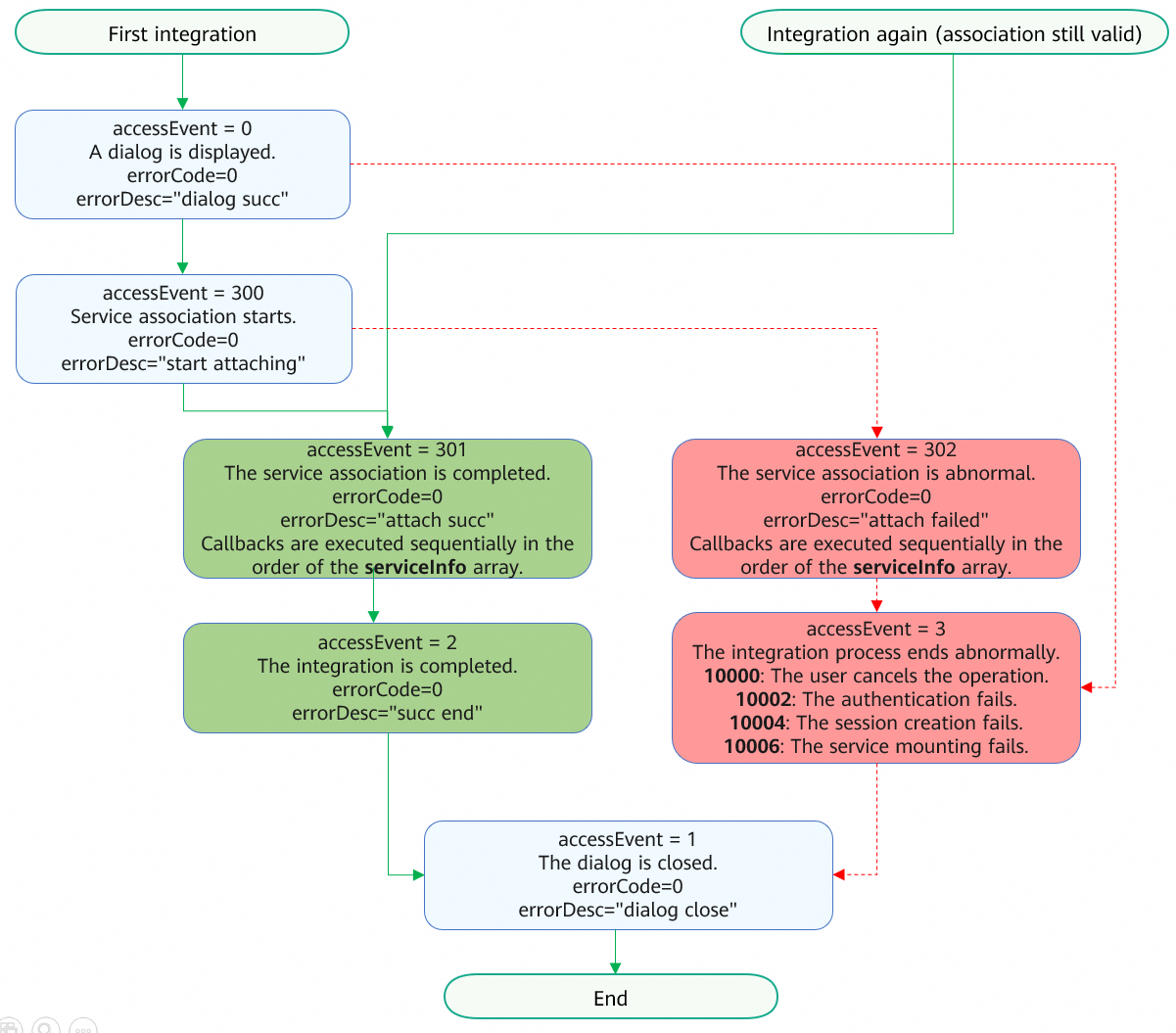
The following figure shows the normal and abnormal integration processes. The green solid line indicates the normal process, while the red dashed line indicates the abnormal process. For details about the callback events, please refer to accessEvent in accessoryAccessManager (Accessory Integration Management).
-
When the value of accessEvent returned by showAccessPicker is 0, the dialog is displayed. The data structure is as follows:
{ "accessEvent": 0, "errorCode": 0, "errorDesc": "dialog succ" } -
When the value of accessEvent returned by showAccessPicker is 1, the dialog is closed. The data structure is as follows:
{ "accessEvent": 1, "errorCode": 0, "errorDesc": "dialog close" } -
When the value of accessEvent returned by showAccessPicker is 2, the integration is complete. The data structure is as follows:
{ "accessEvent": 2, "errorCode": 0, "errorDesc": "succ end" } -
When the value of accessEvent returned by showAccessPicker is 3 and errorCode is 10000, the user has canceled the integration. The data structure is as follows:
{ "accessEvent": 3, "errorCode": 10000, "errorDesc": "user confirm cancel" } -
When the value of accessEvent returned by showAccessPicker is 3 and errorCode is 10002, the authentication fails. In this case, check whether the value of productId is correct. The data structure is as follows:
{ "accessEvent": 3, "errorCode": 10002, "errorDesc": "check hilink error" } -
When the value of accessEvent returned by showAccessPicker is 3 and errorCode is 10004, the session fails to be created. The data structure is as follows:
{ "accessEvent": 3, "errorCode": 10004, "errorDesc": "open session failed" } -
When the value of accessEvent returned by showAccessPicker is 3 and errorCode is 10006, the association fails. The data structure is as follows:
{ "accessEvent": 3, "errorCode": 10006, "errorDesc": "attach failed" } -
When the value of accessEvent returned by showAccessPicker is 300, the service association starts. The data structure is as follows:
{ "accessEvent": 300, "errorCode": 0, "errorDesc": "start attaching" } -
When the value of accessEvent returned by showAccessPicker is 301, the service association has been completed. The following instance shows the callback data for associating the P_ShareService. The data structure is as follows:
{ "accessEvent": 301, "attachServiceInfo": { "attachId": 76, "accessoryInfo": { "accessoryId": "xxxxxxxxxxxxxxxx", "bleAddress": "XX:XX:XX:XX:XX:XX", "displayName": "XXXXX", "productId": "XXXXX" }, "serviceInfo": { "serviceName": "P_ShareService", "parameters": { "wakeupInfo": { "abilityName": "BackgroundAbility", "briefDesc": { "bundleName": "com.xxx.xxx", "moduleName": "entry", "stringResourceId": 16777226 }, "bundleName": "com.xxx.xxx", "wakeupType": 0 } } } }, "errorCode": 0, "errorDesc": "attach succ" } -
When the value of accessEvent returned by showAccessPicker is 301, the service association has been completed. The following instance shows that a third-party service has been associated. The data structure is as follows:
{ "accessEvent": 301, "attachServiceInfo": { "attachId": 76, "accessoryInfo": { "accessoryId": "xxxxxxxxxxxxxxxx", "bleAddress": "XX:XX:XX:XX:XX:XX", "displayName": "XXXXX", "productId": "XXXXX" }, "serviceInfo": { "serviceName": "P_AppAccessoryCollaboration", "parameters": { "wakeupInfo": { "abilityName": "BackgroundAbility", "briefDesc": { "bundleName": "com.xxx.xxx", "moduleName": "entry", "stringResourceId": 16777226 }, "bundleName": "com.xxx.xxx", "wakeupType": 0 } } } }, "errorCode": 0, "errorDesc": "attach succ" } -
When the value of accessEvent returned by showAccessPicker is 302 and serviceName is P_ShareService, the P_ShareService association is abnormal. The data structure is as follows:
{ "accessEvent": 302, "attachServiceInfo": { "attachId": 76, "accessoryInfo": { "accessoryId": "xxxxxxxxxxxxxxxx", "bleAddress": "XX:XX:XX:XX:XX:XX", "displayName": "XXXXX", "productId": "xxxx" }, "serviceInfo": { "serviceName": "P_ShareService", "parameters": { "wakeupInfo": { "abilityName": "BackgroundAbility", "briefDesc": { "bundleName": "com.xxx.xxx", "moduleName": "entry", "stringResourceId": 16777226 }, "bundleName": "com.xxx.xxx", "wakeupType": 0 } } } }, "errorCode": 0, "errorDesc": "attach failed" } -
When the value of accessEvent returned by showAccessPicker is 302 and serviceName is P_AppAccessoryCollaboration, the P_AppAccessoryCollaboration service association is abnormal. The data structure is as follows:
{
  "accessEvent": 302,
  "attachServiceInfo": {
    "attachId": 76,
    "accessoryInfo": {
      "accessoryId": "xxxxxxxxxxxxxxxx",
      "bleAddress": "XX:XX:XX:XX:XX:XX",
      "displayName": "XXXXX",
      "productId": "XXXXX"
    },
    "serviceInfo": {
      "serviceName": "P_AppAccessoryCollaboration",
      "parameters": {
        "wakeupInfo": {
          "abilityName": "BackgroundAbility",
          "briefDesc": {
            "bundleName": "com.xxx.xxx",
            "moduleName": "entry",
            "stringResourceId": 16777226
          },
          "bundleName": "com.xxx.xxx",
          "wakeupType": 0
        }
      }
    }
  },
  "errorCode": 0,
  "errorDesc": "attach failed"
}