The capability of scanning barcodes using the custom UI provides APIs for controlling camera streams. You can customize the scanning UI for your app as needed.

By using the capability of barcode scanning by custom UI, you can achieve the in-app code scanning function. To enhance user experience, you are also advised to integrate the scan-to-access capability so your users can directly go to a specified service page in your app by scanning a barcode via either the code scanning entry on Control Panel or the in-app code scanning entry.
Use Cases
This capability provides the following functions: 1. Call the camera stream control API that can initialize, enable, pause, and release camera streams, as well as scan a barcode again. 2. Obtain the flash light status and turn on or off the flash light. 3. Set the focal point and continuous auto-focus for the camera. 4. Scan 1D codes, 2D codes, and multifunctional codes (for details about specific types, please refer to ScanType) and obtain information including the type, value, and camera preview stream (YUV) of the codes. This capability can be used to scan one or multiple barcodes.
You can integrate this capability to customize the barcode scanning UI, and call the barcode scanning API to implement real-time barcode scanning based on the service process. You are advised to customize by modifying the sample project.
UI design specifications for the barcode scanning UI


For comprehensive scenarios that may include barcode scanning and object recognition, you need to control camera streams by yourself. However, for scenarios that involve only barcode scanning, this level of control is not necessary.
Constraints
-
Since API version 26.0.0, the isCustomScanSupported API can be called to check whether barcode scanning by custom UI is supported on a device in use.
-
Since API version 6.1.0(23), barcode scanning by custom UI is supported on wearables with rear cameras. You can call the getSupportedCameras API to check whether a wearable has a rear camera.
-
The camera permission is required for using this capability.
-
You need to develop the UI for barcode scanning by yourself. For example, in the scenario of scanning multiple barcodes, your app needs to stop camera streams and ask the user to choose a barcode.
Flowchart
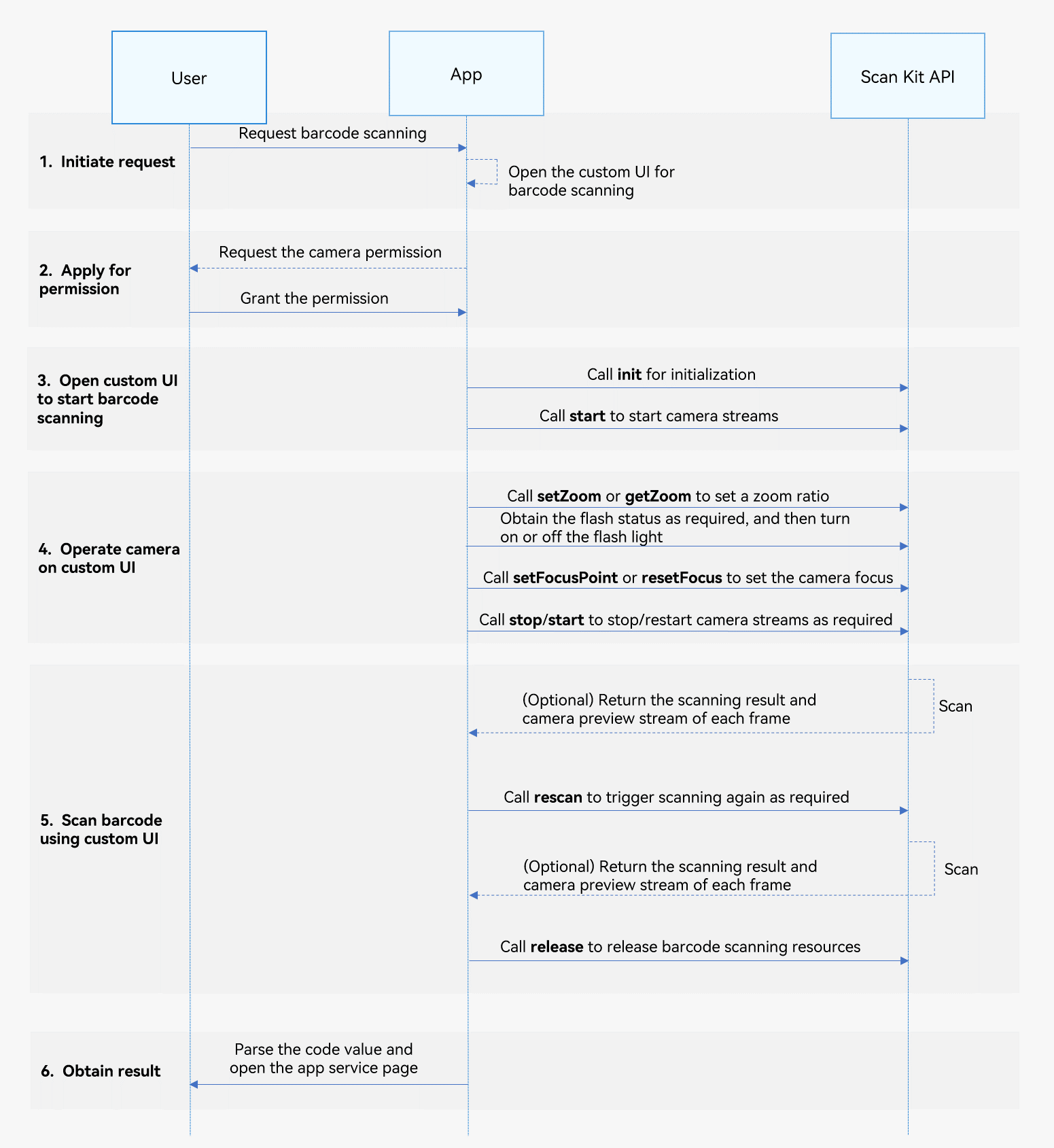
-
Initiate request: A user sends a barcode scanning request to your app, and your defined scanning page is displayed.
-
Apply for permission: Your app requests the camera permission from the user. If the permission is not granted, the barcode scanning function will be unavailable.
-
Open custom UI to start barcode scanning: Your app calls the init API to initialize your custom scanning page and load required resources. Then your app calls the start API to start scanning.
-
Operate camera on custom UI: Your scanning page allows the user to operate camera functions, including adjusting the flash light, zoom ratio, and focal length, and scanning a barcode again. Specific examples are as follows:
- Your app obtains the distance to the barcode image. If the image is too far or too close, your app can call the getZoom API to obtain the zoom ratio and call the setZoom API to set zoom ratio so as to adjust the focal length for scanning.
- Your app obtains the light conditions or calls on('lightingFlash') to obtain the flash turn-on time to determine whether to turn on or off the flash light, and then calls getFlashLightStatus to obtain the flash light status. Based on the obtained information, your app calls openFlashLight or closeFlashLight to turn on or off the flash light as needed to facilitate barcode scanning.
- Your app can call setFocusPoint to set the focus position and call resetFocus to restore the default focus mode as needed to facilitate barcode scanning.
- Your app calls the stop or start API to control camera streams to stop or restart barcode scanning as needed when your app is running in the foreground or background or in other special scenarios.
-
Scan barcode using custom UI: The Scan Kit API returns the result after barcode scanning. The Scan Kit API can also return the camera preview data stream of each frame as required. If your scanning page needs to trigger scanning again without restarting the camera, call the rescan API in the asynchronous callback of the start API. Your app calls the release API to release barcode scanning resources.
-
Obtain the result: The app shows the target service page based on the parsing result to the user.
API Description
Barcode scanning by custom UI provides the init, start, stop, release, getFlashLightStatus, openFlashLight, closeFlashLight, setZoom, getZoom, setFocusPoint, resetFocus, rescan, on('lightingFlash'), and off('lightingFlash') APIs. Some of these APIs use either a callback or promise to return the result. The APIs that use a callback provide the same functions as their counterparts that use a promise. For details about the APIs, please refer to the API Reference.
| API | Description |
|---|---|
| init(options?: scanBarcode.ScanOptions): void | Initializes the custom barcode scanning UI to load resources. No result is returned. |
| start(viewControl: ViewControl): Promise<Array<scanBarcode.ScanResult>> | Starts barcode scanning camera streams to obtain the scanning result. This API uses a promise to return the result asynchronously. |
| stop(): Promise<void> | Pauses barcode scanning camera streams. This API uses a promise to return the result asynchronously. |
| release(): Promise<void> | Releases barcode scanning camera streams. This API uses a promise to return the result asynchronously. |
| start(viewControl: ViewControl, callback: AsyncCallback<Array<scanBarcode.ScanResult>>, frameCallback?: AsyncCallback<ScanFrame>): void | Starts barcode scanning camera streams to obtain the scanning result and camera preview stream (YUV NV21 format based on 4:2:0 sampling). This API uses a callback to return the result asynchronously. |
| getFlashLightStatus(): boolean | Obtains the current camera flashlight status. The return value is of the Boolean type. The value true indicates that the flash light is enabled, and the value false indicates that the flash light is disabled. |
| openFlashLight(): void | Turns on the camera flash light. No result is returned. |
| closeFlashLight(): void | Turns off the camera flash light. No result is returned. |
| setZoom(zoomValue : number): void | Sets a zoom ratio for the device. The zoom precision is up to two decimal places. If the precision exceeds the supported range, only the value within the precision range is retained. No result is returned. |
| getZoom(): number | Obtains the zoom ratio in use. |
| setFocusPoint(point: scanBarcode.Point): void | Sets the camera focus. |
| resetFocus(): void | Sets the focus mode to continuous auto-focus. |
| rescan(): void | Triggers a barcode scanning again. This API is valid only for the asynchronous callback of the start API and is invalid for the promise of the start API. |
| stop(callback: AsyncCallback<void>): void | Pauses barcode scanning camera streams. This API uses a callback to return the result asynchronously. |
| release(callback: AsyncCallback<void>): void | Releases barcode scanning camera streams. This API uses a callback to return the result asynchronously. |
| on(type: 'lightingFlash', callback: AsyncCallback<boolean>): void | Subscribes to the ambient brightness change event. This API uses a callback to return the flash turn-on or turn-off time asynchronously when the light conditions change. This API uses a callback to return the result asynchronously. |
| off(type: 'lightingFlash', callback?: AsyncCallback<boolean>): void | Unregisters the ambient brightness change event. This API uses a callback to return the result asynchronously. |
Development Procedure
You can customize the barcode scanning UI for your app. Then, the custom UI can be used to scan 1D codes, 2D codes, and multifunctional codes to obtain the barcode value, type, position information (coordinates of the upper left and lower right corners of the minimum bounding rectangle of the barcode image), camera preview stream (YUV), etc.
To make it easier for you to integrate the capability, a detailed sample project is provided for your reference.
The following describes how to use the function of barcode scanning by custom UI to start camera streams and obtain the barcode scanning result and camera preview stream (YUV).
-
Request the camera permission for your app. Configure the camera permission in the module.json5 file. For details, please refer to Declaring Permissions.
Permission Description Authorization Method ohos.permission.CAMERA Allows an app to use the camera to scan barcodes. user_grant -
Call the requestPermissionsFromUser API to request user authorization. For details about how to request and verify the permissions, please refer to Requesting User Authorization.
-
Import APIs for barcode scanning using the custom UI and other relevant APIs.
import { scanCore, scanBarcode, customScan } from '@kit.ScanKit'; // Import the required permission application and callback APIs. import { display } from '@kit.ArkUI'; import { AsyncCallback, BusinessError } from '@kit.BasicServicesKit'; import { hilog } from '@kit.PerformanceAnalysisKit'; import { common, abilityAccessCtrl, PermissionRequestResult } from '@kit.AbilityKit'; -
Follow Flowchart to implement barcode scanning by custom UI.

-
When setting viewControl parameters of the start API, ensure that the values of width and height are the same as those of XComponent. The start API will select the optimal resolution out of camera resolutions based on the ratio between the width and height of XComponent. If the ratio differs from the camera resolution ratio greatly, the preview stream experience may be compromised.
Currently, the supported resolution ratios are 16:9, 4:3, and 1:1. In portrait mode, the height of XComponent must be greater than its width, and the ratio between the height and width must be one of the supported resolution ratios. In landscape mode, the width of XComponent must be greater than the height, and the ratio between the width and height must be one of the supported resolution ratios.
-
The width and height of XComponent need to be adapted for specific scenarios. For example, for foldable devices, you need to adjust the width and height of XComponent as needed when the folding status changes. The start API will adapt the camera resolution ratio based on the width and height of XComponent. You can call the display.getDefaultDisplaySync method to obtain the width and height of the device screen. The unit of the obtained values is px and needs to be converted to vp through the px2vp method.
-
Call relevant APIs of barcode scanning by custom UI to start camera streams and obtain the barcode scanning result using a promise.
const TAG: string = '[customScanPage]'; @Entry @Component struct CustomScanPage { @State userGrant: boolean = false // Whether the camera permission has been requested. @State surfaceId: string = '' // ID generated by XComponent. @State isShowBack: boolean = false // Whether the scanning result has been returned. @State isFlashLightEnable: boolean = false // Whether the flash light has been turned on. @State isSensorLight: boolean = false // Light conditions in the current environment. @State cameraHeight: number = 640 // Preview stream height. The default unit is vp. @State cameraWidth: number = 360 // Preview stream width. The default unit is vp. @State offsetX: number = 0 // X-axis offset of the preview stream. The default unit is vp. @State offsetY: number = 0 // Y-axis offset of the preview stream. The default unit is vp. @State zoomValue: number = 1 // Preview stream zoom ratio. @State setZoomValue: number = 1 // Preview stream zoom ratio that is set. @State scaleValue: number = 1; // Screen zoom ratio. @State pinchValue: number = 1; // Two-finger zoom ratio. @State displayHeight: number = 0; // Screen height, in vp. @State displayWidth: number = 0; // Screen width, in vp. @State scanResult: Array<scanBarcode.ScanResult> = []; // Scanning result. private mXComponentController: XComponentController = new XComponentController(); async onPageShow() { // Step 1: Request required permissions from the user. await this.requestCameraPermission(); // Set enableMultiMode to true for scanning multiple barcodes at a time and set it to false for scanning only one barcode at a time. const options: scanBarcode.ScanOptions = { scanTypes: [scanCore.ScanType.ALL], enableMultiMode: true, enableAlbum: true }; // Step 2: Set the image size of the camera preview stream. this.setDisplay(); try { // Step 3: Call the initialization API. customScan.init(options); } catch (err) { hilog.error(0x0001, TAG, `Failed to init customScan. Code: ${err.code}, message: ${err.message}`); } } onPageHide() { // Stop and release camera streams when the scanning UI disappears or is hidden. this.userGrant = false; this.isFlashLightEnable = false; this.isSensorLight = false; try { customScan.off('lightingFlash'); } catch (err) { hilog.error(0x0001, TAG, `Failed to off lightingFlash. Code: ${err.code}, message: ${err.message}`); } this.customScanStop(); try { // Customize the API for releasing camera streams. customScan.release().catch((err: BusinessError) => { hilog.error(0x0001, TAG, `Failed to release customScan by promise. Code: ${err.code}, message: ${err.message}`); }); } catch (err) { hilog.error(0x0001, TAG, `Failed to release customScan. Code: ${err.code}, message: ${err.message}`); } } // Apply for required permissions from the user. async reqPermissionsFromUser(): Promise<number[]> { hilog.info(0x0001, TAG, 'reqPermissionsFromUser start'); const context = this.getUIContext().getHostContext() as common.UIAbilityContext; const atManager = abilityAccessCtrl.createAtManager(); try { const grantStatus: PermissionRequestResult = await atManager.requestPermissionsFromUser(context, ['ohos.permission.CAMERA']); return grantStatus.authResults; } catch (err) { hilog.error(0x0001, TAG, `Failed to requestPermissionsFromUser. Code: ${err.code}, message: ${err.message}`); return []; } } // Apply for the camera permission. async requestCameraPermission() { const grantStatus = await this.reqPermissionsFromUser(); for (let i = 0; i < grantStatus.length; i++) { if (grantStatus[i] === 0) { // If the user has granted the permission, the operation can proceed. hilog.info(0x0001, TAG, 'Succeeded in getting permissions.'); this.userGrant = true; break; } } } // Obtain the screen size when the device is in portrait mode and set the width and height of the preview stream in full screen mode. setDisplay() { try { // The portrait mode is used by default. const displayClass: display.Display = display.getDefaultDisplaySync(); this.displayHeight = this.getUIContext().px2vp(displayClass.height); this.displayWidth = this.getUIContext().px2vp(displayClass.width); const maxLen: number = Math.max(this.displayWidth, this.displayHeight); const minLen: number = Math.min(this.displayWidth, this.displayHeight); const RATIO: number = 16 / 9; this.cameraHeight = maxLen; this.cameraWidth = maxLen / RATIO; this.offsetX = (minLen - this.cameraWidth) / 2; } catch (err) { hilog.error(0x0001, TAG, `Failed to getDefaultDisplaySync. Code: ${err.code}, message: ${err.message}`); } } // Display the scanning result using a toast. showScanResult(data: scanBarcode.ScanResult) { try { // Display the scanning result using a toast. this.getUIContext().getPromptAction().showToast({ message: `originalValue: ${data.originalValue}`, duration: 5000 }); } catch (err) { hilog.error(0x0001, TAG, `Failed to showToast. Code: ${err.code}, message: ${err.message}`); } } initCamera() { this.isShowBack = false; this.scanResult = []; const viewControl: customScan.ViewControl = { width: this.cameraWidth, height: this.cameraHeight, surfaceId: this.surfaceId }; try { // Step 4: Call the scan API to return the scanning result using a promise. customScan.start(viewControl) .then((data: Array<scanBarcode.ScanResult>) => { hilog.info(0x0001, TAG, 'Succeeded in getting ScanResult by promise.'); if (data.length) { // Parse the code value and open the specified app service page. this.scanResult = data; this.isShowBack = true; // Stop camera streams after obtaining the scanning result. this.customScanStop(); } }).catch((err: BusinessError) => { hilog.error(0x0001, TAG, `Failed to start customScan. Code: ${err.code}, message: ${err.message}`); }); } catch (err) { hilog.error(0x0001, TAG, `Failed to start customScan. Code: ${err.code}, message: ${err.message}`); } } customScanStop() { try { customScan.stop().catch((err: BusinessError) => { hilog.error(0x0001, TAG, `Failed to stop customScan. Code: ${err.code}, message: ${err.message}`); }); } catch (err) { hilog.error(0x0001, TAG, `Failed to stop customScan. Code: ${err.code}, message: ${err.message}`); } } // Customize the back button and scanning prompt on the top of the scanning UI. @Builder topTool() { Column() { Flex({ direction: FlexDirection.Row, justifyContent: FlexAlign.SpaceBetween, alignItems: ItemAlign.Center }) { Text('Back') .onClick(() => { this.getUIContext().getRouter().back(); }) }.padding({ left: 24, right: 24, top: 40 }) Column() { Text('Scan 2D Code/1D Code') Text('Point the camera to the 2D code/1D code to scan it.') }.margin({ left: 24, right: 24, top: 24 }) } .height(146) .width('100%') } build() { Stack() { if (this.userGrant) { Column() { XComponent({ id: 'componentId', type: XComponentType.SURFACE, controller: this.mXComponentController }) .onLoad(() => { hilog.info(0x0001, TAG, 'Succeeded in loading, onLoad is called.'); // Obtain surfaceId of XComponent. this.surfaceId = this.mXComponentController.getXComponentSurfaceId(); hilog.info(0x0001, TAG, `Succeeded in getting surfaceId: ${this.surfaceId}`); this.initCamera(); // Call the flash light listening API. customScan.on('lightingFlash', (err, isLightingFlash) => { if (err) { hilog.error(0x0001, TAG, `Failed to on lightingFlash. Code: ${err.code}, message: ${err.message}`); return; } if (isLightingFlash) { this.isFlashLightEnable = true; } else { try { if (!customScan.getFlashLightStatus()) { this.isFlashLightEnable = false; } } catch (err) { hilog.error(0x0001, TAG, `Failed to get flashLightStatus. Code: ${err.code}, message: ${err.message}`); } } this.isSensorLight = isLightingFlash; }); }) .width(this.cameraWidth) .height(this.cameraHeight) .position({ x: this.offsetX, y: this.offsetY }) } .height('100%') .width('100%') } Column() { this.topTool(); Column() { } .layoutWeight(1) .width('100%') Column() { Row() { // Flash light button, which is available only after camera streams are started. Button('FlashLight') .onClick(() => { let lightStatus: boolean = false; try { lightStatus = customScan.getFlashLightStatus(); } catch (err) { hilog.error(0x0001, TAG, `Failed to get flashLightStatus. Code: ${err.code}, message: ${err.message}`); } // Turn on or off the flash light based on the flash light status. if (lightStatus) { try { customScan.closeFlashLight(); setTimeout(() => { this.isFlashLightEnable = this.isSensorLight; }, 200); } catch (err) { hilog.error(0x0001, TAG, `Failed to close flashLight. Code: ${err.code}, message: ${err.message}`); } } else { try { customScan.openFlashLight(); } catch (err) { hilog.error(0x0001, TAG, `Failed to open flashLight. Code: ${err.code}, message: ${err.message}`); } } }) .visibility((this.userGrant && this.isFlashLightEnable) ? Visibility.Visible : Visibility.None) // After scanning is successful, a user can tap the button to scan again. Button('Scan') .onClick(() => { // Restart camera streams to scan the barcode again after the button is clicked. this.initCamera(); }) .visibility(this.isShowBack ? Visibility.Visible : Visibility.None) } Row() { // Set the preview stream zoom ratio. Button('Zoom ratio,Current ratio:' + this.setZoomValue) .onClick(() => { if (!this.isShowBack) { if (!this.zoomValue || this.zoomValue === this.setZoomValue) { this.setZoomValue = this.customGetZoom(); } else { this.customSetZoom(this.zoomValue); setTimeout(() => { if (!this.isShowBack) { this.setZoomValue = this.customGetZoom(); } }, 1000); } } }) } .margin({ top: 10, bottom: 10 }) Row() { // Input the preview stream zoom ratio to be set. TextInput({ placeholder: 'Input zoom ratio' }) .type(InputType.Number) .borderWidth(1) .backgroundColor(Color.White) .onChange(value => { this.zoomValue = Number(value); }) } } .width('50%') .height(180) } // After single-code or multi-code scanning, display the radio button position of the barcode image. After the user taps the radio button, a toast containing barcode image information is displayed. ForEach(this.scanResult, (item: scanBarcode.ScanResult) => { if (item.scanCodeRect) { // scan_selected2.svg is an example resource, which can be placed in the project path src/main/resources/rawfile/. You can replace it to ensure proper compilation and execution. Image($rawfile('scan_selected2.svg')) .width(40) .height(40) .markAnchor({ x: 20, y: 20 }) .position({ x: (item.scanCodeRect.left + item?.scanCodeRect?.right) / 2 + this.offsetX, y: (item.scanCodeRect.top + item?.scanCodeRect?.bottom) / 2 + this.offsetY }) .onClick(() => { this.showScanResult(item); }) } }, (item: scanBarcode.ScanResult) => '' + item?.scanCodeRect?.left + item?.scanCodeRect?.right + 'px'); } // You are advised to set camera streams to the full screen mode. .width('100%') .height('100%') .onClick((event: ClickEvent) => { // Whether the scanning result has been obtained. if (this.isShowBack) { return; } // When the user taps on the screen, obtain the tap position coordinates (x,y) and set the camera focus. const x1: number = event.displayY / (this.displayHeight + 0.0); const y1: number = 1.0 - event.displayX / (this.displayWidth + 0.0); try { customScan.setFocusPoint({ x: x1, y: y1 }); hilog.info(0x0001, TAG, `Succeeded in setting focusPoint x1: ${x1}, y1: ${y1}`); } catch (err) { hilog.error(0x0001, TAG, `Failed to set focusPoint. Code: ${err.code}, message: ${err.message}`); } // Set the focus mode to continuous auto-focus. setTimeout(() => { try { customScan.resetFocus(); } catch (err) { hilog.error(0x0001, TAG, `Failed to reset focus. Code: ${err.code}, message: ${err.message}`); } }, 200); }).gesture(PinchGesture({ fingers: 2 }) .onActionStart(() => { hilog.info(0x0001, TAG, 'Pinch start'); }) .onActionUpdate((event: GestureEvent) => { if (event) { this.scaleValue = event.scale; } }) .onActionEnd(() => { // Whether the scanning result has been obtained. if (this.isShowBack) { return; } // Obtain the two-finger zoom ratio and set the zoom ratio. try { const zoom: number = this.customGetZoom(); this.pinchValue = this.scaleValue * zoom; this.customSetZoom(this.pinchValue); hilog.info(0x0001, TAG, 'Pinch end'); } catch (err) { hilog.error(0x0001, TAG, `Failed to set zoom. Code: ${err.code}, message: ${err.message}`); } })) } public customGetZoom(): number { let zoom: number = 1; try { zoom = customScan.getZoom(); hilog.info(0x0001, TAG, `Succeeded in getting zoom, zoom: ${zoom}`); } catch (err) { hilog.error(0x0001, TAG, `Failed to get zoom. Code: ${err.code}, message: ${err.message}`); } return zoom; } public customSetZoom(pinchValue: number): void { try { customScan.setZoom(pinchValue); hilog.info(0x0001, TAG, `Succeeded in setting zoom.`); } catch (err) { hilog.error(0x0001, TAG, `Failed to set zoom. Code: ${err.code}, message: ${err.message}`); } } } -
Use the function of barcode scanning by custom UI to start camera streams and obtain the barcode scanning result and camera preview stream (YUV) using a callback.
const TAG: string = '[customScanPage]';

@Entry
@Component
struct CustomScanPage {
  @State userGrant: boolean = false // Whether the camera permission has been requested.
  @State surfaceId: string = '' // ID generated by XComponent.
  @State isShowBack: boolean = false // Whether the scanning result has been returned.
  @State isFlashLightEnable: boolean = false // Whether the flash light has been turned on.
  @State isSensorLight: boolean = false // Light conditions in the current environment.
  @State cameraHeight: number = 640 // Preview stream height. The default unit is vp.
  @State cameraWidth: number = 360 // Preview stream width. The default unit is vp.
  @State offsetX: number = 0 // X-axis offset of the preview stream. The default unit is vp.
  @State offsetY: number = 0 // Y-axis offset of the preview stream. The default unit is vp.
  @State zoomValue: number = 1 // Preview stream zoom ratio.
  @State setZoomValue: number = 1 // Preview stream zoom ratio that is set.
  @State scaleValue: number = 1; // Screen zoom ratio.
  @State pinchValue: number = 1; // Two-finger zoom ratio.
  @State displayHeight: number = 0; // Screen height, in vp.
  @State displayWidth: number = 0; // Screen width, in vp.
  @State scanResult: Array<scanBarcode.ScanResult> = []; // Scanning result.
  private mXComponentController: XComponentController = new XComponentController();
  // Return the custom scanning result in a callback.
  private callback: AsyncCallback<scanBarcode.ScanResult[]> =
    (err: BusinessError, data: scanBarcode.ScanResult[]) => {
      if (err && err.code) {
        hilog.error(0x0001, TAG,
          `Failed to get ScanResult by callback. Code: ${err.code}, message: ${err.message}`);
        return;
      }
      // Parse the code value and open the specified app service page.
      hilog.info(0x0001, TAG, 'Succeeded in getting ScanResult by callback.');
      if (data.length) {
        // Parse the code value and open the specified app service page.
        this.scanResult = data;
        this.isShowBack = true;
        // Stop camera streams after obtaining the scanning result.
        this.customScanStop();
      }
    };
  // Return frames in a callback.
  private frameCallback: AsyncCallback<customScan.ScanFrame> =
    (err: BusinessError, frameResult: customScan.ScanFrame) => {
      if (err) {
        hilog.error(0x0001, TAG, `Failed to get ScanFrame by callback. Code: ${err.code}, message: ${err.message}`);
        return;
      }
      hilog.info(0x0001, TAG,
        `Succeeded in getting ScanFrame. byteLength: ${frameResult.byteBuffer.byteLength}, width: ${frameResult.width}, height: ${frameResult.height}`);
    };

  async onPageShow() {
    // Step 1: Request required permissions from the user.
    await this.requestCameraPermission();
    // Set enableMultiMode to true for scanning multiple barcodes at a time and set it to false for scanning only one barcode at a time.
    let options: scanBarcode.ScanOptions = {
      scanTypes: [scanCore.ScanType.ALL],
      enableMultiMode: true,
      enableAlbum: true
    };
    // Step 2: Set the image size of the camera preview stream.
    this.setDisplay();
    try {
      // Step 3: Call the initialization API.
      customScan.init(options);
    } catch (err) {
      hilog.error(0x0001, TAG, `Failed to init customScan. Code: ${err.code}, message: ${err.message}`);
    }
  }

  onPageHide() {
    // Stop and release camera streams when the scanning UI disappears or is hidden.
    this.userGrant = false;
    this.isFlashLightEnable = false;
    this.isSensorLight = false;
    try {
      customScan.off('lightingFlash');
    } catch (err) {
      hilog.error(0x0001, TAG, `Failed to off lightingFlash. Code: ${err.code}, message: ${err.message}`);
    }
    this.customScanStop();
    try {
      // Customize the API for releasing camera streams.
      customScan.release().catch((err: BusinessError) => {
        hilog.error(0x0001, TAG,
          `Failed to release customScan by promise. Code: ${err.code}, message: ${err.message}`);
      });
    } catch (err) {
      hilog.error(0x0001, TAG, `Failed to release customScan. Code: ${err.code}, message: ${err.message}`);
    }
  }

  // Apply for required permissions from the user.
  async reqPermissionsFromUser(): Promise<number[]> {
    hilog.info(0x0001, TAG, 'reqPermissionsFromUser start');
    let context = this.getUIContext().getHostContext() as common.UIAbilityContext;
    let atManager = abilityAccessCtrl.createAtManager();
    try {
      const grantStatus: PermissionRequestResult =
        await atManager.requestPermissionsFromUser(context, ['ohos.permission.CAMERA']);
      return grantStatus.authResults;
    } catch (err) {
      hilog.error(0x0001, TAG, `Failed to requestPermissionsFromUser. Code: ${err.code}, message: ${err.message}`);
      return [];
    }
  }

  // Apply for the camera permission.
  async requestCameraPermission() {
    let grantStatus = await this.reqPermissionsFromUser();
    for (let i = 0; i < grantStatus.length; i++) {
      if (grantStatus[i] === 0) {
        // If the user has granted the permission, the operation can proceed.
        hilog.info(0x0001, TAG, 'Succeeded in getting permissions.');
        this.userGrant = true;
        break;
      }
    }
  }

  // Obtain the screen size when the device is in portrait mode and set the width and height of the preview stream in full screen mode.
  setDisplay() {
    try {
      // The portrait mode is used by default.
      let displayClass = display.getDefaultDisplaySync();
      this.displayHeight = this.getUIContext().px2vp(displayClass.height);
      this.displayWidth = this.getUIContext().px2vp(displayClass.width);
      let maxLen: number = Math.max(this.displayWidth, this.displayHeight);
      let minLen: number = Math.min(this.displayWidth, this.displayHeight);
      const RATIO: number = 16 / 9;
      this.cameraHeight = maxLen;
      this.cameraWidth = maxLen / RATIO;
      this.offsetX = (minLen - this.cameraWidth) / 2;
    } catch (err) {
      hilog.error(0x0001, TAG, `Failed to getDefaultDisplaySync. Code: ${err.code}, message: ${err.message}`);
    }
  }

  // Display the scanning result using a toast.
  showScanResult(data: scanBarcode.ScanResult) {
    try {
      // Display the scanning result using a toast.
      this.getUIContext().getPromptAction().showToast({
        message: `originalValue: ${data.originalValue}`,
        duration: 5000
      });
    } catch (err) {
      hilog.error(0x0001, TAG, `Failed to showToast. Code: ${err.code}, message: ${err.message}`);
    }
  }

  // Initialize camera streams.
  initCamera() {
    this.isShowBack = false;
    this.scanResult = [];
    let viewControl: customScan.ViewControl = {
      width: this.cameraWidth,
      height: this.cameraHeight,
      surfaceId: this.surfaceId
    };
    try {
      // Step 4: Call the scan API to return the scanning result using a callback.
      customScan.start(viewControl, this.callback, this.frameCallback);
    } catch (err) {
      hilog.error(0x0001, TAG, `Failed to start customScan. Code: ${err.code}, message: ${err.message}`);
    }
  }

  // Stop camera streams.
  customScanStop() {
    try {
      customScan.stop().catch((err: BusinessError) => {
        hilog.error(0x0001, TAG, `Failed to stop customScan. Code: ${err.code}, message: ${err.message}`);
      });
    } catch (err) {
      hilog.error(0x0001, TAG, `Failed to stop customScan. Code: ${err.code}, message: ${err.message}`);
    }
  }

  // Customize the back button and scanning prompt on the top of the scanning UI.
  @Builder
  topTool() {
    Column() {
      Flex({ direction: FlexDirection.Row, justifyContent: FlexAlign.SpaceBetween, alignItems: ItemAlign.Center }) {
        Text('Back')
          .onClick(() => {
            this.getUIContext().getRouter().back();
          })
      }.padding({ left: 24, right: 24, top: 40 })

      Column() {
        Text('Scan 2D Code/1D Code')
        Text('Point the camera to the 2D code/1D code to scan it.')
      }.margin({ left: 24, right: 24, top: 24 })
    }
    .height(146)
    .width('100%')
  }

  build() {
    Stack() {
      if (this.userGrant) {
        Column() {
          XComponent({
            id: 'componentId',
            type: XComponentType.SURFACE,
            controller: this.mXComponentController
          })
            .onLoad(() => {
              hilog.info(0x0001, TAG, 'Succeeded in loading, onLoad is called.');
              // Obtain surfaceId of XComponent.
              this.surfaceId = this.mXComponentController.getXComponentSurfaceId();
              hilog.info(0x0001, TAG, `Succeeded in getting surfaceId: ${this.surfaceId}`);
              this.initCamera();
              // Call the flash light listening API.
              customScan.on('lightingFlash', (err, isLightingFlash) => {
                if (err) {
                  hilog.error(0x0001, TAG,
                    `Failed to on lightingFlash. Code: ${err.code}, message: ${err.message}`);
                  return;
                }
                if (isLightingFlash) {
                  this.isFlashLightEnable = true;
                } else {
                  try {
                    if (!customScan.getFlashLightStatus()) {
                      this.isFlashLightEnable = false;
                    }
                  } catch (err) {
                    hilog.error(0x0001, TAG,
                      `Failed to get flashLightStatus. Code: ${err.code}, message: ${err.message}`);
                  }
                }
                this.isSensorLight = isLightingFlash;
              });
            })
            .width(this.cameraWidth)
            .height(this.cameraHeight)
            .position({ x: this.offsetX, y: this.offsetY })
        }
        .height('100%')
        .width('100%')
      }

      Column() {
        this.topTool();
        Column() {
        }
        .layoutWeight(1)
        .width('100%')

        Column() {
          Row() {
            // Flash light button, which is available only after camera streams are started.
            Button('FlashLight')
              .onClick(() => {
                let lightStatus: boolean = false;
                try {
                  lightStatus = customScan.getFlashLightStatus();
                } catch (err) {
                  hilog.error(0x0001, TAG,
                    `Failed to get flashLightStatus. Code: ${err.code}, message: ${err.message}`);
                }

                // Turn on or off the flash light based on the flash light status.
                if (lightStatus) {
                  try {
                    customScan.closeFlashLight();
                    setTimeout(() => {
                      this.isFlashLightEnable = this.isSensorLight;
                    }, 200);
                  } catch (err) {
                    hilog.error(0x0001, TAG,
                      `Failed to close flashLight. Code: ${err.code}, message: ${err.message}`);
                  }
                } else {
                  try {
                    customScan.openFlashLight();
                  } catch (err) {
                    hilog.error(0x0001, TAG,
                      `Failed to open flashLight. Code: ${err.code}, message: ${err.message}`);
                  }
                }
              })
              .visibility((this.userGrant && this.isFlashLightEnable) ? Visibility.Visible : Visibility.None)

            // After scanning is successful, a user can tap the button to scan again.
            Button('Scan')
              .onClick(() => {
                // Restart camera streams to scan the barcode again after the button is clicked.
                this.initCamera();
              })
              .visibility(this.isShowBack ? Visibility.Visible : Visibility.None)
          }

          Row() {
            // Set the preview stream zoom ratio.
            Button('Zoom ratio,Current ratio:' + this.setZoomValue)
              .onClick(() => {
                if (!this.isShowBack) {
                  if (!this.zoomValue || this.zoomValue === this.setZoomValue) {
                    this.setZoomValue = this.customGetZoom();
                  } else {
                    this.customSetZoom(this.zoomValue);
                    setTimeout(() => {
                      if (!this.isShowBack) {
                        this.setZoomValue = this.customGetZoom();
                      }
                    }, 1000);
                  }
                }
              })
          }
          .margin({ top: 10, bottom: 10 })

          Row() {
            // Input the preview stream zoom ratio to be set.
            TextInput({ placeholder: 'Input zoom ratio' })
              .type(InputType.Number)
              .borderWidth(1)
              .backgroundColor(Color.White)
              .onChange(value => {
                this.zoomValue = Number(value);
              })
          }
        }
        .width('50%')
        .height(180)
      }

      // After single-code or multi-code scanning, display the radio button position of the barcode image. After the user taps the radio button, a toast containing barcode image information is displayed.
      ForEach(this.scanResult, (item: scanBarcode.ScanResult) => {
        if (item.scanCodeRect) {
          // scan_selected2.svg is an example resource, which can be placed in the project path src/main/resources/rawfile/. You can replace it to ensure proper compilation and execution.
          Image($rawfile('scan_selected2.svg'))
            .width(40)
            .height(40)
            .markAnchor({ x: 20, y: 20 })
            .position({
              x: (item.scanCodeRect.left + item?.scanCodeRect?.right) / 2 + this.offsetX,
              y: (item.scanCodeRect.top + item?.scanCodeRect?.bottom) / 2 + this.offsetY
            })
            .onClick(() => {
              this.showScanResult(item);
            })
        }
      }, (item: scanBarcode.ScanResult) => '' + item?.scanCodeRect?.left + item?.scanCodeRect?.right + 'px');
    }
    // You are advised to set camera streams to the full screen mode.
    .width('100%')
    .height('100%')
    .onClick((event: ClickEvent) => {
      // Whether the scanning result has been obtained.
      if (this.isShowBack) {
        return;
      }
      // When the user taps on the screen, obtain the tap position coordinates (x,y) and set the camera focus.
      let x1 = event.displayY / (this.displayHeight + 0.0);
      let y1 = 1.0 - event.displayX / (this.displayWidth + 0.0);
      try {
        customScan.setFocusPoint({ x: x1, y: y1 });
        hilog.info(0x0001, TAG, `Succeeded in setting focusPoint x1: ${x1}, y1: ${y1}`);
      } catch (err) {
        hilog.error(0x0001, TAG, `Failed to set focusPoint. Code: ${err.code}, message: ${err.message}`);
      }
      // Set the focus mode to continuous auto-focus.
      setTimeout(() => {
        try {
          customScan.resetFocus();
        } catch (err) {
          hilog.error(0x0001, TAG, `Failed to reset focus. Code: ${err.code}, message: ${err.message}`);
        }
      }, 200);
    }).gesture(PinchGesture({ fingers: 2 })
      .onActionStart(() => {
        hilog.info(0x0001, TAG, 'Pinch start');
      })
      .onActionUpdate((event: GestureEvent) => {
        if (event) {
          this.scaleValue = event.scale;
        }
      })
      .onActionEnd(() => {
        // Whether the scanning result has been obtained.
        if (this.isShowBack) {
          return;
        }
        // Obtain the two-finger zoom ratio and set the zoom ratio.
        try {
          let zoom = this.customGetZoom();
          this.pinchValue = this.scaleValue * zoom;
          this.customSetZoom(this.pinchValue);
          hilog.info(0x0001, TAG, 'Pinch end');
        } catch (err) {
          hilog.error(0x0001, TAG, `Failed to set zoom. Code: ${err.code}, message: ${err.message}`);
        }
      }))
  }

  public customGetZoom(): number {
    let zoom = 1;
    try {
      zoom = customScan.getZoom();
      hilog.info(0x0001, TAG, `Succeeded in getting zoom, zoom: ${zoom}`);
    } catch (err) {
      hilog.error(0x0001, TAG, `Failed to get zoom. Code: ${err.code}, message: ${err.message}`);
    }
    return zoom;
  }

  public customSetZoom(pinchValue: number): void {
    try {
      customScan.setZoom(pinchValue);
      hilog.info(0x0001, TAG, `Succeeded in setting zoom.`);
    } catch (err) {
      hilog.error(0x0001, TAG, `Failed to set zoom. Code: ${err.code}, message: ${err.message}`);
    }
  }
}
-
-
Determine the center point of the barcode image based on scanCodeRect.
-
The following assumes that the phone orientation is portrait, with the charging port facing downwards:
- scanCodeRect contains the coordinates of the four points, based on which your app can draw a rectangular box around the barcode image.
-
Upper left corner coordinates (x, y)
-
Upper right corner coordinates (x, y)
-
Lower left corner coordinates (x, y)
-
Lower right corner coordinates (x, y)
-
- To ensure that the barcode image's center point aligns with the XComponent's coordinates, any offsets on the XComponent's X and Y axes must be applied correspondingly to the barcode image position. For example, if the offset on the x-axis is represented as offsetX and that on the y-axis is represented as offsetY, the coordinates of the center point need to be adjusted as follows:
-
x = (left + right) / 2 + offsetX
-
y = (top + bottom) / 2 + offsetY
-
- scanCodeRect contains the coordinates of the four points, based on which your app can draw a rectangular box around the barcode image.
-
If the device may be rotated, the center point of the barcode image needs to adapt to the screen rotation angle Display.rotation to ensure that the center point is correct at any rotation angle. For details, please refer to the sample project.
For example, in the scenario where the XComponent with the width and height attributes has an x-axis misalignment by offsetX and a y-axis misalignment by offsetY:
- When Display.rotation = 0, the center point coordinates are:
- x = (left + right) / 2 + offsetX
- y = (top + bottom) / 2 + offsetY
- When Display.rotation = 1, the center point coordinates are:
- x = width - (top + bottom) / 2 + offsetX
- y = (left + right) / 2 + offsetY
- When Display.rotation = 2, the center point coordinates are:
- x = width - (left + right) / 2 + offsetX
- y = height - (top + bottom) / 2 + offsetY
- When Display.rotation = 3, the center point coordinates are:
- x = (top + bottom) / 2 + offsetX
- y = height - (left + right) / 2+ offsetY
- When Display.rotation = 0, the center point coordinates are:

For API version 5.0.2(14) and later, the rotation and orientation attributes of the Display object are changed. As a result, the barcode image position needs to be adapted whenever the device is rotated to different angles.
-
For API versions earlier than 5.0.2(14), you can use the rotation or orientation attribute of the Display object to process the barcode image position when the device is rotated to different angles. Adaptations are needed for specific device types.
-
For API version 5.0.2(14) and later, you need to use the rotation attribute of the Display object to process the barcode image position when the device is rotated to different angles for all device types, without the need for any extra adaptations based on device types.
-
Emulator-based Development
Some APIs support Emulator-based development. For details, please refer to Running Your App on the Emulator.
-
Since API version 6.0.0(20), Emulator-based development is available for certain APIs regarding barcode scanning on a custom UI (including init, start, stop, release, and rescan), which are enough for implementing basic functions of this barcode scanning scenario.
-
On the Emulator, barcode scanning on a custom UI supports only 1280 x 720 px. Other resolutions will be converted to 1280 x 720 px.