Push Kit's message frequency control includes scenario-specific, device-based, and test message frequency control, as well as the push rate control. Upon the violation of any frequency control rule, a corresponding receipt status code will be returned.

The message count used in a frequency control rule refers to the number of push requests initiated by an app. This count increments regardless of whether the message is successfully displayed on the device. If a message is not displayed as expected, you are advised to troubleshoot the issue before sending more push requests.
Scenario-Specific Message Frequency Control
To provide better user experience, Push Kit provides different frequency control rules for various push scenarios.
If scenario-specific messages exceed the limits specified by the corresponding frequency control rule, Push Kit will return result code 256 to your message receipt server. For details, please refer to receipt status codes.
The following table lists the frequency control rules.
| Scenario | Frequency Control Rule |
|---|---|
| Notification message | 1. When an app violates policies, restrictions will be enforced based on the penalty frequency. For details, please refer to Notification Violation Penalty Standards. 2. When messages belong to the marketing category (category is set to MARKETING), they will be subject to the app marketing message frequency limits. For details, please refer to Notification Message Frequency Control Rules. (If the message self-classification permission is not enabled, all pushed notification messages will default to the marketing category.) |
| Widget update message | The update frequency is limited per each individual widget under an app. The number of update messages allowed for a single service widget is determined by the app category specified in the HUAWEI AppGallery App Category Examples. For details about the frequency control rules, please refer to ArkTS Widget Push Update. |
| Live view message | The messages of a single live view can be updated for up to 10 times every 5 minutes and 60 times every hour per device. In the ride hailing and live score scenarios, the messages of a single live view can be updated for up to 30 times every 5 minutes and 180 times every hour per device. |
Device-based Message Frequency Control
In addition to the scenario-specific message frequency control, Push Kit limits the total number of messages that can be received by a single app on a single device per day. The message sending frequency will be regulated according to the service scenario and network traffic. In cases where message sending is unnecessary or unreasonable, frequency limits will be applied and Push Kit will send result code 102 to your receipt server. For details, please refer to receipt status codes.
Test Message Frequency Control
To facilitate message testing, you can set pushOptions.testMessage to true to send test messages.
A total of 1000 test messages (shared by all devices) can be pushed for each project per day and are not subject to scenario-specific message frequency control. If 1000 test messages have been sent for a project on a single day, message throttling will be implemented until the next day, and Push Kit will return result code 256 to your message receipt server. For details, please refer to receipt status codes.
Message Push Rate Control
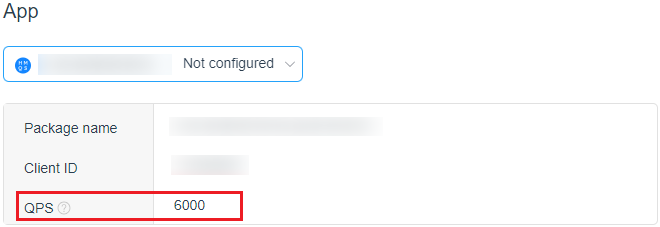
Message push rate refers to the QPS of an app, that is, the number of devices to which an app sends messages per second. If the QPS of an app exceeds the threshold, HTTP response code 503 will be returned. The QPS varies depending on the app type and increases with the number of monthly active users of the app on Huawei devices. To query the QPS threshold of an app, sign in to AppGallery Connect, go to Development and services > Grow > Push Kit > Settings, select the app, and check the QPS threshold.

During periods of high network-wide traffic, system-level traffic control may be triggered, and requests will return HTTP response code 503.