Code Linter checks code in files or folders in a module against best practices and programming rules, which you can configure as instructed in Configuring Code Check Rules.
Of the detected issues, you can fix them manually based on the provided suggestions or have them automatically fixed with a single click.
Configuring Code Check Rules
When a project is created, the code-linter.json5 configuration file is created in the root directory of the project by default. You can configure the code check scope and effective check rules. To use a historical project for development, right-click the project and choose Code Linter > Generate Config File from the shortcut menu to create the code-linter.json5 configuration file.
The files and ignore options configure the check scope, and ruleSet and rules configure the effective check rules. Specifically, set the fields as follows:
files: a set of files to which the code check applies. If this field is not specified, the code check applies to the currently selected single file or all .ets files within the selected multiple files or folders.
ignore: a set of files to which the code check should not apply. The value is an array of directories or files relative to the root directory of the project, that is, where the code-linter.json5 file is located. Example: build/**/*.
ruleSet: rule set to be applied. Multiple rules can be imported to the rule set at once. For details, see Code Linter Check Rules. Currently, the following rule sets are supported:
- @typescript-eslint: general rules
- @security: security rules
- @performance: performance rules
- @previewer: preview rules
- @cross-device-app-dev: rules oriented to one-time development for multi-device deployment
- @hw-stylistic: ArkTS code style rules
- @correctness: correctness rules
- @compatibility: compatibility rules

- The above rule sets are divided into two categories: all and recommended. The all rule set is the complete collection of rules, including every rule available; the recommended rule set is a curated selection of rules suggested for use. The all rule set encompasses the recommended rule set.
- If a code-linter.json5 file is not created in the project's root directory, Code Linter will, by default, conduct checks against the rules included in the @performance/recommended and @typescript-eslint/recommended rule sets.
rules: a set of rules different from those in the specified rule set. You can edit existing rules in the rule set or add new rules. For example, you can change the severity of a rule in the rule set from warn to error.
overrides: custom configuration that only applies to specific files and folders.
extRuleSet: custom rules for code check. For details, see Custom Rule Development Guide. This field is supported since DevEco Studio 5.1.0 Release.
{
  "files":   // An array of glob patterns indicating a set of files to which the configuration applies. If this field is not specified, the default settings will apply.
  [
    "**/*.js", // String.
    "**/*.ts"
  ],
  "ignore":  // An array of glob patterns indicating a set of files to which the configuration should not apply. If this field is not specified, the configuration applies to all matches of files.
  [
    "build/**/*",    // String.
    "node_modules/**/*"
  ],
  "ruleSet":       // Rule set to be applied.
  [
    "plugin:@typescript-eslint/recommended"    // Rule sets that can be quickly imported in batches: plugin:@typescript-eslint/all, plugin:@typescript-eslint/recommended, plugin:@cross-device-app-dev/all, plugin:@cross-device-app-dev/recommended.
  ],
  "rules":         // Rules different from those in the specified rule set. You can edit or disable existing rules in the rule set or add new rules. ruleSet and rules jointly determine the rules to be used for code check.
  {
    "@typescript-eslint/no-explicit-any":  // ruleId can be followed by an array, of which the first element indicates the severity, and other elements indicate the rule switches.
    [
      "error",              // Severity. Available options are suggestion, error, warn, and off.
      {
        "ignoreRestArgs": true   // Whether to enable the rule. Optional. The specific options vary by rule.
      }
    ],
    "@typescript-eslint/explicit-function-return-type": 2,   // ruleId can be followed by a number alone to indicate the severity. Available options are 3 (suggestion), 2 (error), 1 (warn), and 0 (off).
    "@typescript-eslint/no-unsafe-return": "warn"            // ruleId can also be followed by a string alone to indicate the severity. Available options are suggestion, error, warn, and off.
  },
  "overrides":      // Custom configuration that only applies to specific files and folders.
  [
    {
      "files":   // An array of files and folders to which the overrides configuration applies.
      [
        "entry/**/*.ts"   // String.
      ],
      "excluded":
      [
        "entry/**/*.test.js" // An array of files and folders to be excluded. The overrides configuration will not apply to them. The value is a string.
      ],
      "rules":   // Custom rules different from those in the common configuration. You can edit or disable existing rules in the common configuration or add new rules. The custom rules have higher precedence than the common configuration.
      {
        "@typescript-eslint/explicit-function-return-type":  // ruleId: enum.
        [
          "warn",     // Severity. The value can be error, warn, or off. The configuration here (warn for explicit-function-return-type) will overwrite the common configuration.
          {
             "allowExpressions": true    // Whether to enable the rule. Optional. The specific options vary by rule.
          }
        ],
        "@typescript-eslint/no-unsafe-return": "off"   // The configuration here (to disable the no-unsafe-return rule) will overwrite the common configuration.
      },
      "extRules": {     // You can modify or disable the rules configured in the custom rule set other than overrides. This configuration will overwrite the custom rule configuration.
        "@extrulesproject/foreach-args-check": "off"   // Overwrite the custom rule configuration and disable the @extrulesproject/foreach-args-check rule.
      }
    }
  ],
  "extRuleSet": [     // Custom rule set configuration
    {
        "ruleSetName": "extrulesproject",     // Name of the custom rule library, which must be globally unique. The format must be either "@group name/package name" or "package name". The group name/package name can contain only lowercase letters, digits, underscores (_), and hyphens (-), and must start with a letter. The value contains a maximum of 128 characters and cannot be used as reserved keywords of ArkTS.
        "packagePath": "D:\\checker\\extrulesproject-1.0.0.tgz",     // Path of the custom rule installation package. The path must be an absolute path.
        "extRules": {     // Custom rule name and alarm severity. The enumerated values are 3 (suggestion), 2 (error), 1 (warn), and 0 (off).
          "@extrulesproject/foreach-args-check": 1
        }
    }
  ]
} [h2]Procedure
Full code check: In an open code editor pane, right-click anywhere and choose Code Linter from the shortcut menu. Alternatively, in the project management pane, right-click one or more project files or folders and choose Code Linter > Full Linter from the shortcut menu.
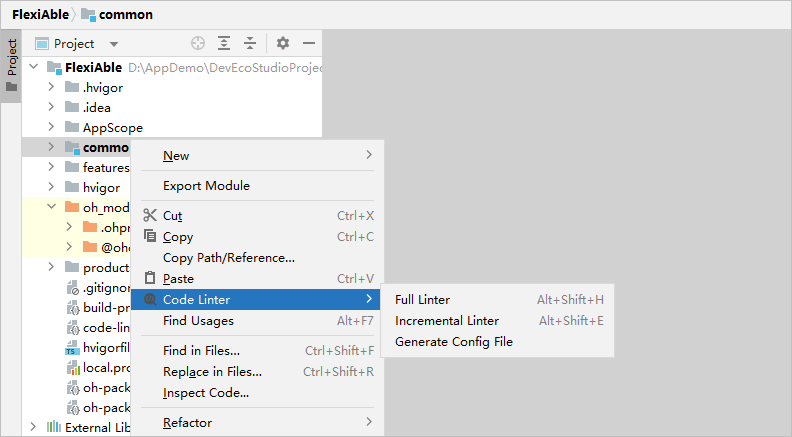
To check incremental files in the Git project (including added, modified, and renamed files), right-click and choose Code Linter > Incremental Linter, or click the gear icon in the lower-right corner of the commit window, choose Code Linter > Incremental Check, and then click Commit.
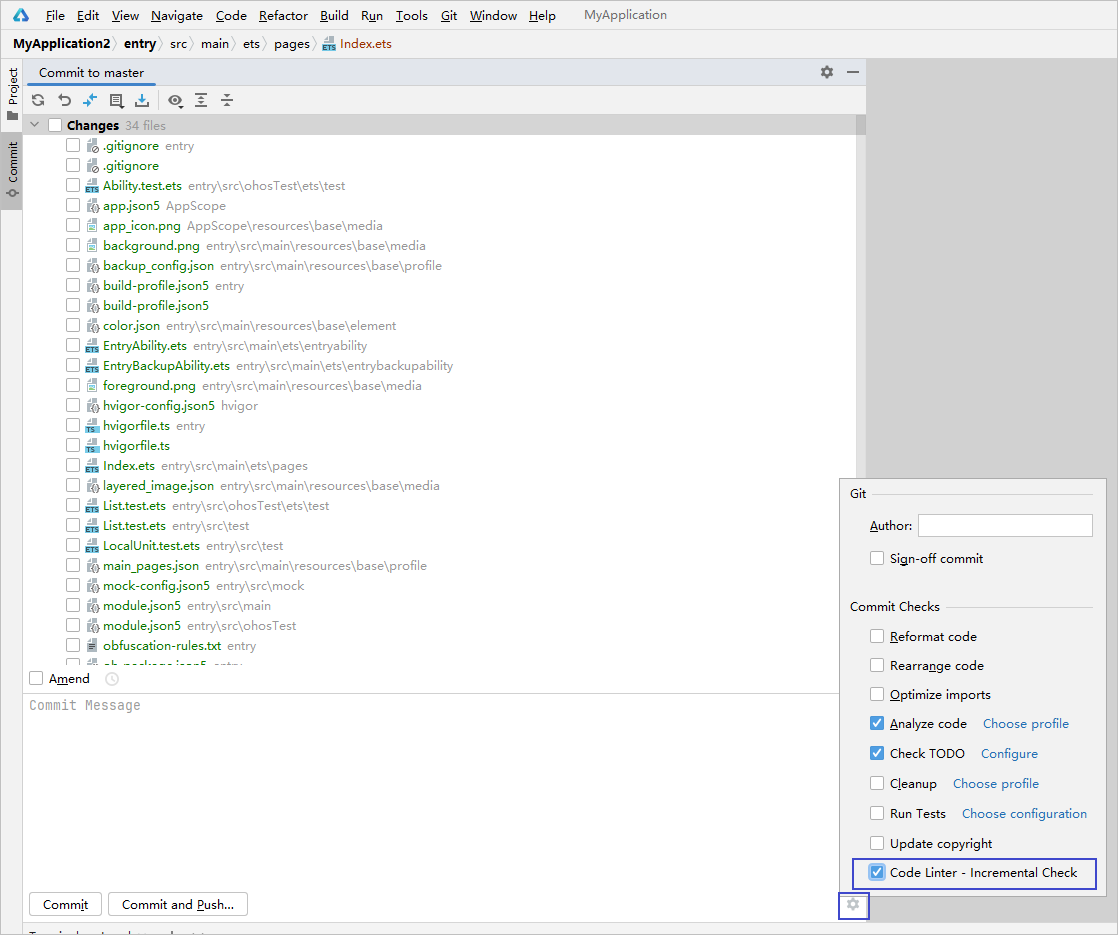

- Code Linter then checks your code in .ets files against the custom code check rules (if any) or default code check rules.
- Code Linter does not check the following files and directories:
- src/ohosTest
- /src/test
- node_modules
- oh_modules
- build
- .preview
- hvigorfile.ts
- hvigorfile.js
- BuildProfile.ets
[h2]Viewing Code Check Results and Fixing Defects
After the scanning is complete, view the check results in the tool panel at the bottom. You can filter defects by severity. Clicking the Filter by scene drop-down list allows you to filter the check results by rule. Double-clicking a defect directs you to its source code. Selecting a defect shows a Defect Description pane on the right, providing a rule description and suggestions for fixing the defect, as well as the correct and incorrect usage of the rule. When searching for a rule, you can enable or disable the match case and match whole word options.
Click the  icon to view defects that can be quickly fixed and click
 to fix defects in batches and refresh the check results.
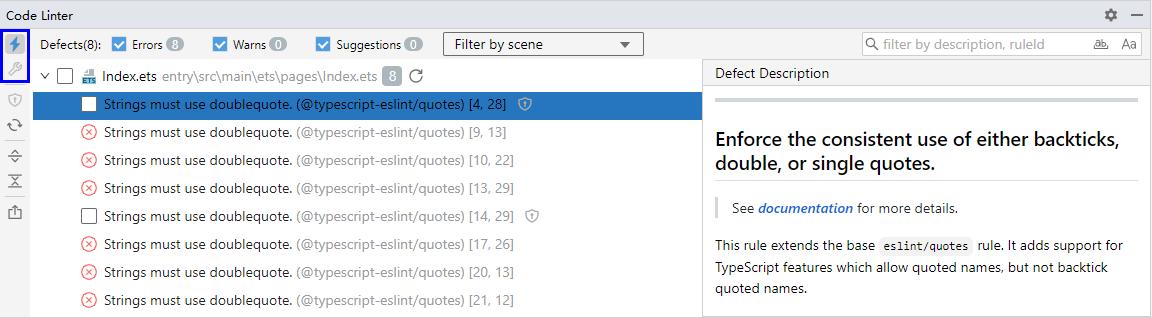
There are several ways to ignore defects:
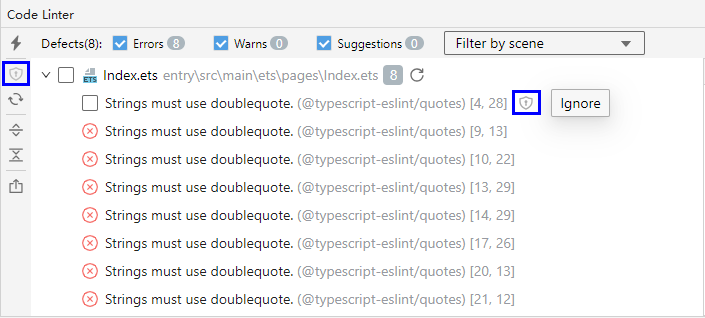
- Ignore false positives. To do so, click
 Ignore next to a specific defect to ignore it, or select multiple files or defects and click the Ignore icon on the left toolbar to ignore them all at once.
- Suppress Code Linter checks for a file or disable individual rules. To exclude a file from checks, add the /* eslint-disable */ comment to the top of the file. To disable individual rules, add the rule IDs, separated by commas (,), to eslint-disable.
- Suppress Code Linter checks for a code block or a specific line of code. Specifically, add the /* eslint-disable */ comment above the code block and the /* eslint-enable */ comment below the code block; add the /* eslint-disable-next-line */ comment above the line of code.
To restore the defects, delete the aforementioned comments and run Code Linter again.
Export the check result: Click  on the toolbar on the left to export the check result to an Excel file, including the line of problematic code, defect details, and severity.

Checking Code via the CLI
DevEco Studio 6.0.1 Beta1 and later support code check via the CLI. Open a cmd or Bash window in the DevEco Studio installation path/deveco-studio/plugins/codelinter/run directory, and execute the following command:
node ./index.js [options] [dir]
options: indicates available configurations. For details, see Table 1.
dir: root directory of the project to be checked. This parameter is optional. If this parameter is not specified, the current context directory is used by default.

To use the CLI for code check, a Node.js environment is required. The version of Node.js installed locally must match exactly the version located in the tools directory of DevEco Studio.
Examples
The following examples demonstrate Code Linter configuration using the @typescript-eslint/no-restricted-syntax (syntax restriction), @typescript-eslint/naming-convention (naming convention check), and @hw-stylistic/file-naming-convention (file naming convention check) rules.
[h2]Example 1: Checking Against Use of the bar Method in Class Foo
Defining a rule in the configuration file
In your ArkTS project, add the following code to the pages/Index.ets file:
class Foo {
  static bar() {}
}

Foo.bar();
Create the code-linter.json5 file (do not change this file name) in the root directory of your project and add the following configuration:
{
  "rules": {
    "@typescript-eslint/no-restricted-syntax": [
      // Set the severity. Available options are error, warn, and off.
      "error",
      {
        // The selector field is mandatory. Set it to disallow specified syntax.
        // You can use a DSL to specify the syntax patterns to disallow. Inside the square bracket following CallExpression, add your filter conditions (used to match nodes in the syntax tree).
        // callee.object.name filters the object (class, namespace, or module) that invokes the method based on the specified name. In this example, the value is Foo.
        // callee.property.name filters the invoked method based on the specified name. In this example, the value is bar.
        "selector": "CallExpression[callee.object.name='Foo'][callee.property.name='bar']",
        // The message field is optional. Set it to specify the error information to be displayed.
        "message": "Foo.bar() is not allowed"
      }
    ]
  },
} 
For details about how to configure other fields in the code-linter.json5 file, see Configuring Code Check Rules.
Performing Code Check
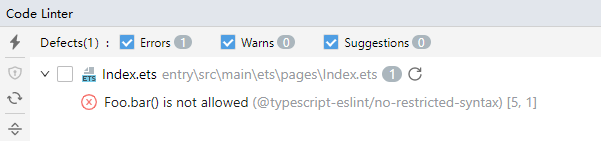
Perform code check on the pages/Index.ets file. The check result is as follows:
[h2]Example 2: Code Linter enforces naming conventions for class Foo.
Defining a Rule in the Configuration File
In your ArkTS project, add the following code to the pages/Index.ets file:
class foo {    // Construct an example of incorrect naming style. foo is the incorrect class name. The correct class name should be Foo.
  bar() {}
}
Create the code-linter.json5 file in the root directory of your project and add the following configuration:
{
  "rules": {
    "@typescript-eslint/naming-convention": [
      "error",
      {
        // The selector field is mandatory. It specifies what types of identifiers to target. In this example, the type is class.
        "selector": "class",
        // The format field is mandatory. It specifies the expected formats of the identifier and accepts enum values. In this example, the specified format is PascalCase.
        "format": ["PascalCase"],
        // The custom field is optional. It defines a custom regex that the identifier must (or must not) match.
        "custom": {
          // The regex property is mandatory. It indicates a regular expression.
          "regex": "^[a-zA-Z]+$",
          // The match property is mandatory. The value true indicates that the identifier must match the regex, and false indicates that the identifier must not match the regex.
          "match": true
        }
      }
    ]
  },
} Name | Description | Mandatory or Optional | Type | Accepted Value |
|---|---|---|---|---|
selector | What types of identifiers to target. | Yes | String, string array |
|
format | Expected formats of the identifier. | Yes | String array |
|
custom | Custom regex that the identifier must (or must not) match. | No | Object |
|
leadingUnderscore/trailingUnderscore | Whether leading/trailing underscores are allowed. | No | String |
|
prefix/suffix | Prefix/Suffix that the identifier must contain. If the specified prefix or suffix is not found, an error is reported. | No | String array | Custom prefix/suffix |
filter | Configuration that should or should not be applied to the identifier. | No | Object | The configuration format is similar to that of custom. match: whether the identifier must match the regex. The value true indicates that the identifier must match the regex, and false indicates that the identifier must not match the regex. regex: regular expression for filtering. NOTE: filter accepts a regular expression. In this case, match is treated as true. |
modifiers | Modifiers to apply to the identifier. | No | String array |
|
types | Types to match. | No | String array |
|

The format of an identifier is checked in the following order: filter > types > modifiers > validate leading underscore > validate trailing underscore > validate prefix > validate suffix > validate custom > validate format
Performing Code Check
Perform code check on the pages/Index.ets file. The check result is as follows:

[h2]Example 3: Code Linter checks the naming style of code files.
Defining a Rule in the Configuration File
In an ArkTS project, create the test.ets file in the pages directory.
Create the code-linter.json5 file in the root directory of your project and add the following configuration:
{
  "rules": {
    "@hw-stylistic/file-naming-convention": [
      // Set the severity. Available options are error, warn, and off.
      "error",
      {
        // The selector field is optional and can be set to either code or resources.
        // code indicates that the naming style check applies to code files.
        // resources indicates that the naming style check applies to resource files.
        "selector": "code"
      }
    ]
  },
} 
If the selector field is not configured, the naming style check will apply to both code files and resource files by default.
Performing Code Check
Perform code check on the pages/test.ets file. The check result is as follows:
