
Starting from version 26.0.0, a new API is added to allow users to pause download tasks.
Use Cases
As HarmonyOS apps continue to evolve, their features are becoming increasingly diverse. 80% of users tend to use just 20% of app features, while the remaining features are tailored to specific users. To prevent first-time app downloads from taking too long and using too much users' device space, AppGallery Kit offers on-demand distribution, which allows users to dynamically download enhanced features as needed.
Basic Concepts
On-demand distribution: An app is packaged into multiple installation packages, which contain all app code and static resources. The app downloaded from AppGallery contains only basic features. When a user needs to use enhanced features, they can download the corresponding installation packages from the server to their devices. (For details about app release, please refer to Releasing a HarmonyOS App.)
Service Process
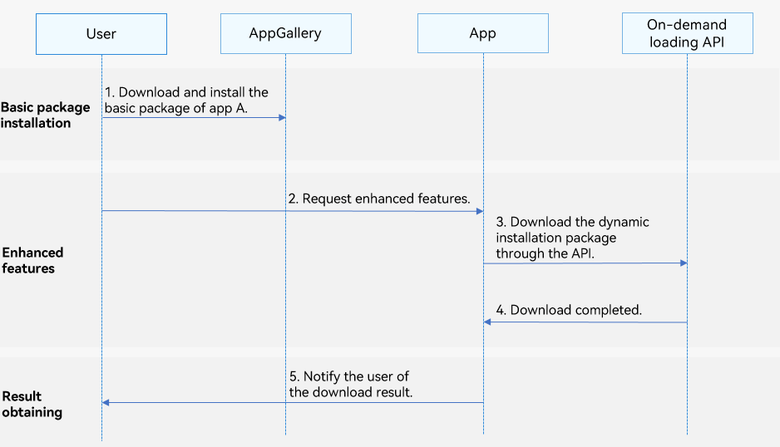
-
A user downloads the basic package of app A.
-
The user requests enhanced features from the app.
-
The app downloads the dynamic installation package through the API.
-
The dynamic installation package is downloaded.
-
The app notifies the user of the download result through the on API.
Constraints
-
The app must be released on AppGallery.
-
On-demand feature distribution supports phones, tablets, and PCs/2-in-1 devices. Starting from version 5.1.1(19), it is also supported on TVs.
-
On-demand feature distribution supports debugging using the Emulator for the Arm and x86 architectures.
-
Before using on-demand feature distribution, you need to split your app into a basic package and enhanced feature modules. For details, please refer to Managing Modules.
API Description
On-demand feature distribution provides the following ArkTS APIs. For details, please refer to the API reference.
| API | Description |
|---|---|
| getInstalledModule(moduleName: string): InstalledModule | Queries module installation information. |
| createModuleInstallRequest(context: common.UIAbilityContext | common.ExtensionContext): ModuleInstallRequest | Creates an on-demand loading request object. |
| addModule(moduleName: string): ReturnCode | Adds the name of the module to be loaded on demand. |
| fetchModules(moduleInstallRequest: ModuleInstallRequest): Promise<ModuleInstallSessionState> | Requests on-demand loading and returns the result asynchronously. |
| cancelTask(taskId: string): ReturnCode | Cancels a download task. |
| pauseTask(taskId: string): ReturnCode | Pauses a download task. |
| showCellularDataConfirmation(context: common.UIAbilityContext | common.ExtensionContext, taskId: string): ReturnCode | Displays a mobile data reminder pop-up. |
| on(type: 'moduleInstallStatus', callback: Callback<ModuleInstallSessionState>, timeout: number): void | Listens for the progress of the current app download task. |
| off(type: 'moduleInstallStatus', callback?: Callback<ModuleInstallSessionState>): void | Unregisters the listener for the current app download task progress. |
[h2]Obtaining Module Installation Information
-
Import the moduleInstallManager module and related common modules.
import { moduleInstallManager } from '@kit.AppGalleryKit'; -
Construct an input parameter.
The input parameter is the name of the module to be queried.
const moduleName: string = 'AModulelib';
-
Call the getInstalledModule API by passing the parameter constructed in step 2.
const moduleInfo: moduleInstallManager.InstalledModule =
  moduleInstallManager.getInstalledModule(moduleName);
[h2]Creating an On-Demand Loading Request Object
-
Import the moduleInstallManager module and related common modules.
import { moduleInstallManager } from '@kit.AppGalleryKit'; import type { common } from '@kit.AbilityKit'; -
Construct an input parameter.
The input parameter is the context of the current app. Only contexts of the UIAbilityContext and ExtensionContext types are supported. The context of the UIAbilityContext type is used to check whether the current app is running in the foreground. If the current app is not running in the foreground, the call will be rejected.
const context: common.UIAbilityContext | common.ExtensionContext =
  this.getUIContext().getHostContext() as common.UIAbilityContext;
-
Call the createModuleInstallRequest API by passing the parameter constructed in step 2.
const moduleInstallProvider: moduleInstallManager.ModuleInstallProvider = new moduleInstallManager.ModuleInstallProvider();
const moduleInstallRequest: moduleInstallManager.ModuleInstallRequest = moduleInstallProvider.createModuleInstallRequest(context);
[h2]Requesting On-Demand Loading
-
Import the moduleInstallManager module and related common modules.
import { moduleInstallManager } from '@kit.AppGalleryKit'; import type { common } from '@kit.AbilityKit'; import { hilog } from '@kit.PerformanceAnalysisKit'; -
Construct an input parameter.
The input parameter is the name of the module to be loaded on demand.
const moduleName: string = 'AModulelib';
-
Call the addModule API of ModuleInstallRequest by passing the parameter constructed in step 2.
let moduleInstallRequest: moduleInstallManager.ModuleInstallRequest; try { // ... const context: common.UIAbilityContext | common.ExtensionContext = this.getUIContext().getHostContext() as common.UIAbilityContext; const moduleInstallProvider: moduleInstallManager.ModuleInstallProvider = new moduleInstallManager.ModuleInstallProvider(); moduleInstallRequest = moduleInstallProvider.createModuleInstallRequest(context); // ... const retCode: moduleInstallManager.ReturnCode = moduleInstallRequest.addModule(moduleName); hilog.info(0, 'InstantDownload', `addModule result: ${JSON.stringify(retCode)}`); // ... } catch (error) { hilog.error(0, 'InstantDownload', `onError.code is ${error.code}, message is ${error.message}`); } -
Call the fetchModules method to request on-demand loading of a module.
try {
  moduleInstallManager.fetchModules(moduleInstallRequest)
    .then((data: moduleInstallManager.ModuleInstallSessionState) => {
      hilog.info(0, 'InstantDownload', `fetchModule result: ${JSON.stringify(data)}`);
      // ...
    })
  // ...
} catch (error) {
  hilog.error(0, 'InstantDownload', `fetching Modules onError.code is ${error.code}, message is ${error.message}`);
}
[h2]Pausing a Download Task
-
Import the moduleInstallManager module and related common modules.
import { moduleInstallManager } from '@kit.AppGalleryKit'; // ... import { hilog } from '@kit.PerformanceAnalysisKit'; -
Construct an input parameter, which is the ID of the download task to be paused.
// taskId is a field in ModuleInstallSessionState returned by fetchModules.
let taskId: string = '********';
-
When the network environment changes or device resources are insufficient, call the pauseTask API to pause the download task.
try {
  // ...
  const rtnCode: moduleInstallManager.ReturnCode = moduleInstallManager.pauseTask(taskId);
  hilog.info(0, 'InstantDownload', `Succeeded in getting result: ${JSON.stringify(rtnCode)}`);
  // ...
} catch (error) {
  hilog.error(0, 'InstantDownload', `pauseTask onError.code is ${error.code}, message is ${error.message}`);
  // ...
}
[h2]Resuming a Download Task
After a download task is paused using pauseTask, you can call the fetchModules API to resume the download task from the point where it was paused.
import { moduleInstallManager } from '@kit.AppGalleryKit';
import type { common } from '@kit.AbilityKit';
import { hilog } from '@kit.PerformanceAnalysisKit';
// ...
@Component
struct ResumeTask {
  build() {
    Column() {
      Button('ResumeTask')
        .onClick(() => {
          try {
            const taskId: string = '********';
            // Pause a download task.
            const rtnCode: moduleInstallManager.ReturnCode = moduleInstallManager.pauseTask(taskId);
            hilog.info(0, 'InstantDownload', `Succeeded in getting result: ${JSON.stringify(rtnCode)}`);
            const myModuleInstallProvider: moduleInstallManager.ModuleInstallProvider =
              new moduleInstallManager.ModuleInstallProvider();
            const context: common.UIAbilityContext | common.ExtensionContext =
              this.getUIContext().getHostContext() as common.UIAbilityContext;
            // Create an on-demand loading request object.
            const myModuleInstallRequest: moduleInstallManager.ModuleInstallRequest =
              myModuleInstallProvider.createModuleInstallRequest(context);
            // Add the name of the module to be loaded on demand.
            myModuleInstallRequest.addModule('AModulelib');
            // Resume the download task.
            moduleInstallManager.fetchModules(myModuleInstallRequest)
              .then(() => {
                hilog.info(0, 'InstantDownload', 'Succeeded in fetching modules success data.');
              })
          } catch (error) {
            hilog.error(0, 'InstantDownload',
              `fetching modules onError.code is ${error.code}, message is ${error.message}`);
          }
        })
        .width('100%')
    }
    .margin(16)
    .height('100%')
    .justifyContent(FlexAlign.Center)
  }
}
[h2]Canceling a Download Task
-
Import the moduleInstallManager module and related common modules.
import { moduleInstallManager } from '@kit.AppGalleryKit'; import type { common } from '@kit.AbilityKit'; import { hilog } from '@kit.PerformanceAnalysisKit'; -
Construct an input parameter, which is the ID of the download task to be canceled.
// taskId is a field in ModuleInstallSessionState returned by fetchModules.
let taskId: string = '********';
-
Call the cancelTask API to cancel the download task.
try {
  // ...
  const rtnCode: moduleInstallManager.ReturnCode = moduleInstallManager.cancelTask(taskId);
  hilog.info(0, 'InstantDownload', `Succeeded in getting result: ${JSON.stringify(rtnCode)}`);
  // ...
} catch (error) {
  hilog.error(0, 'InstantDownload', `cancelTask onError.code is ${error.code}, message is ${error.message}`);
  // ...
}
[h2]Using Dynamic Modules
Assume that app A consists of two packages: entry.hap and AModulelib.hsp. The entry package provides basic features, and the AModulelib package provides enhanced features. For details about how to create a package, please click here. AppGallery provides only the entry package for users to download and install, while the AModulelib package can be dynamically downloaded through the fetchModules API in the entry package. Methods and components in AModulelib are called using the dynamic import technology.
The implementation in AModulelib is as follows:
-
Set deliveryWithInstall to false in module.json5 of the dynamic module AModulelib to indicate that AModulelib will not be downloaded for installation when a user proactively installs app A.
{ "module": { "name": "AModulelib", // ... "deliveryWithInstall": false } } -
Define the add method and DateComponent component in AModulelib. The add method is used to perform addition, and DateComponent is used to display text.
Calc.ets defines the add method as follows:
export function add(a:number, b:number) {
    return a + b;
}
DateComponent.ets defines DateComponent as follows:
@Component struct DateComponent { build() { Column() { Text('I am a component in AModulelib') .margin(10) } .width(300).backgroundColor(Color.Yellow) } } @Builder export function showDateComponent() { DateComponent() } -
Export the add and showDateComponent methods from AModulelib/Index.ets of AModulelib.
export { add } from './src/main/ets/utils/Calc';
export { showDateComponent } from './src/main/ets/components/DateComponent';
The implementation in entry is as follows:
-
Add the dynamic dependency configuration to the basic entry module. oh-package.json5 in entry uses dynamicDependencies to declare a dynamic dependency on the AModulelib module.
{ // ... "dynamicDependencies": { "AModulelib": "file:../AModulelib", // ... } } -
Use the methods and components of the dynamic module AModulelib in entry. Before calling the functions of AModulelib, check whether AModulelib has been loaded. If AModulelib has not been loaded, load it by referring to Requesting On-Demand Loading.
import { moduleInstallManager } from '@kit.AppGalleryKit';
import type { common } from '@kit.AbilityKit';
import { hilog } from '@kit.PerformanceAnalysisKit';
import { BusinessError, Callback } from '@kit.BasicServicesKit';

// ...

@Entry
@Component
export struct Index {
  // ...
  @BuilderParam aModuleLibComponent: Function;
  @State countTotal: number = 0;
  @State isShow: boolean = false;
  // ...

  build() {
    Column() {
      // ...
          Column() {
            Button($r('app.string.invokeButton'))
              .onClick(() => {
                this.initAModulelib(() => {
                  import('AModulelib').then((ns: ESObject) => {
                    this.countTotal = ns.add(3, 6);
                  }).catch((error: BusinessError) => {
                    hilog.error(0, 'InstantDownload',
                      `add onError.code is ${error.code}, message is ${error.message}`);
                  })
                })
              });
            Text('Calculation result:' + this.countTotal)
              .margin(10);

            Button($r('app.string.invokeToast'))
              .onClick(() => {
                this.initAModulelib(() => {
                  import('AModulelib').then((ns: ESObject) => {
                    this.aModuleLibComponent = ns.showDateComponent;
                    this.isShow = true;
                  }).catch((error: BusinessError) => {
                    hilog.error(0, 'InstantDownload',
                      `showDateComponent onError.code is ${error.code}, message is ${error.message}`);
                  })
                })
              }).margin({
              top: 10, bottom: 10
            });
            if (this.isShow) {
              this.aModuleLibComponent()
            }
            // ...
          }

          // ...
    }
    .width('100%')
    .height('100%')
    .padding(16)
  }

  private showToastInfo(msg: string | Resource) {
    this.getUIContext().getPromptAction().showToast({
      message: msg,
      duration: 2000
    });
  }

  /**
   * Check whether the AModulelib package has been loaded.
   *
   * @param successCallBack Callback.
   */
  private initAModulelib(successCallBack: Callback<void>): void {
    try {
      const moduleName: string = 'AModulelib';
      const moduleInfo: moduleInstallManager.InstalledModule =
        moduleInstallManager.getInstalledModule(moduleName);
      if (moduleInfo?.installStatus === moduleInstallManager.InstallStatus.INSTALLED) {
        hilog.info(0, 'InstantDownload', 'AModulelib installed');
        successCallBack && successCallBack();
      } else {
        // AModulelib has not been installed. Call fetchModules to download AModulelib.
        hilog.info(0, 'InstantDownload', 'AModulelib not installed');
        this.fetchModule(moduleName, successCallBack);
      }
    } catch (error) {
      hilog.error(0, 'InstantDownload',
        `getInstalledModule onError.code is ${error.code}, message is ${error.message}`);
    }
  }

  /**
   * Register a listener.
   *
   * @param successCallBack Callback.
   */
  private onListenEvents(successCallBack: Callback<void>): void {
    const timeout = 3 * 60; // Listening duration, in seconds. The default maximum listening duration is 30 minutes (30 x 60 seconds).
    moduleInstallManager.on('moduleInstallStatus', (data: moduleInstallManager.ModuleInstallSessionState) => {
      // Return success.
      if (data.taskStatus === moduleInstallManager.TaskStatus.INSTALL_SUCCESSFUL) {
        successCallBack && successCallBack();
        this.showToastInfo('install success');
      }
    }, timeout)
  }

  /**
   * Load the specified package.
   *
   * @param moduleName Name of the installation package to be loaded.
   * @param successCallBack Callback.
   */
  private fetchModule(moduleName: string, successCallBack: Callback<void>) {
    let moduleInstallRequest: moduleInstallManager.ModuleInstallRequest;
    try {
      hilog.info(0, 'InstantDownload', 'fetchModule start');
      const context: common.UIAbilityContext | common.ExtensionContext =
        this.getUIContext().getHostContext() as common.UIAbilityContext;
      const moduleInstallProvider: moduleInstallManager.ModuleInstallProvider =
        new moduleInstallManager.ModuleInstallProvider();
      moduleInstallRequest = moduleInstallProvider.createModuleInstallRequest(context);
      if (!moduleInstallRequest) {
        hilog.warn(0, 'InstantDownload', 'moduleInstallRequest is empty');
        return;
      }
      const retCode: moduleInstallManager.ReturnCode = moduleInstallRequest.addModule(moduleName);
      hilog.info(0, 'InstantDownload', `addModule result: ${JSON.stringify(retCode)}`);

      moduleInstallManager.fetchModules(moduleInstallRequest)
        .then((data: moduleInstallManager.ModuleInstallSessionState) => {
          hilog.info(0, 'InstantDownload', `fetchModule result: ${JSON.stringify(data)}`);
          if (data?.taskStatus !== undefined &&
            data?.code === moduleInstallManager.RequestErrorCode.SUCCESS) {
            this.onListenEvents(successCallBack);
          } else {
            hilog.info(0, 'InstantDownload', 'fetchModule failure');
          }
        })
        .catch((error: BusinessError) => {
          hilog.error(0, 'InstantDownload',
            `fetching Modules onError.code is ${error.code}, message is ${error.message}`);
        })
    } catch (error) {
      hilog.error(0, 'InstantDownload', `onError.code is ${error.code}, message is ${error.message}`);
    }
  }

  // ...
}
[h2]Performing Debugging
On-demand feature distribution provides you with access to the debug function, allowing you to debug your app during the integration process without the need to release your app on AppGallery. Assume that app A consists of two packages: entry.hap and AModulelib.hsp. The entry package provides basic features, and the AModulelib package provides enhanced features. For details about how to create a package, please click here.
-
Use the debug certificate to sign your app or atomic service. Compile locally to generate entry.hap and AModulelib.hsp. You can install the basic package either using hdc commands or directly through DevEco Studio.
hdc install entry.hap
-
Enable the developer debug mode: Go to Settings, tap the device model, tap the software version for seven consecutive times on the About screen, and tap Enable when the "Enable Developer options?" message is displayed.
-
Access the device sandbox path and, within the app's encrypted data directory el2, create the cache/moduleinstall/<ModuleName> directory (where <ModuleName> is AModulelib here). Then, upload the module's debug package AModulelib.hsp to the corresponding module directory. (Ensure that the debug package file is granted the read and write permissions.)
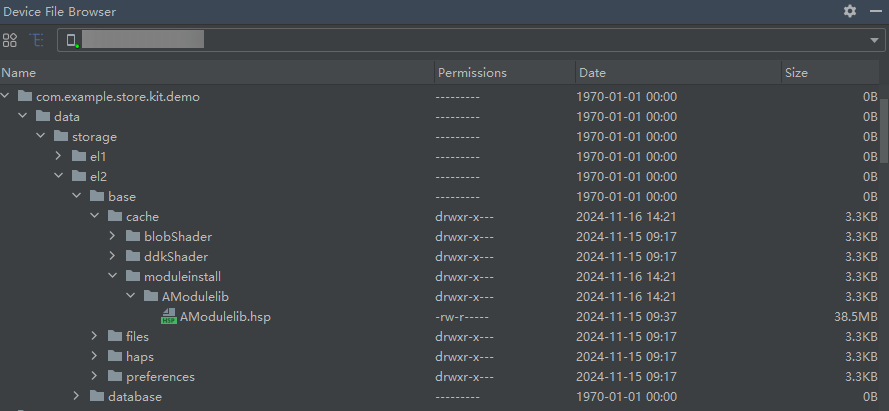
-
Install the module's debug package, cancel a download task, or resume a download task by referring to Creating an On-Demand Loading Request Object, Requesting On-Demand Loading, Canceling a Download Task, Resuming a Download Task, or Using Dynamic Modules, without the need to modify parameters. Once the installation is successful, the files in the corresponding module directory will be automatically deleted.