Main Title

Self-check focus: During playback, check whether the main title is correctly displayed in the media controller.
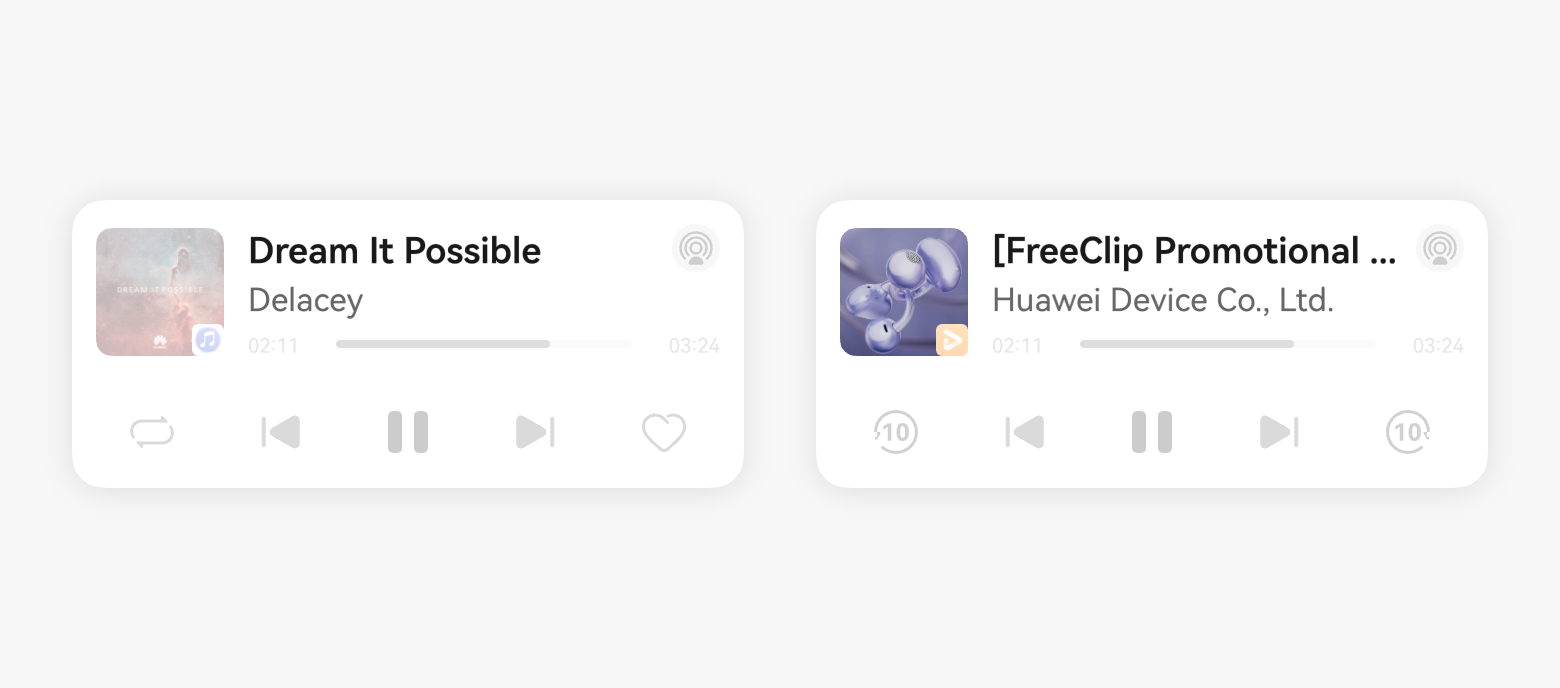
The main title (AVMetadata.title) is used to display content names such as a song name and movie name. A live streaming application can also set a live streaming room name to display the media content that is being played to users. It is recommended that a short character string be used as the main title. If the title exceeds the display length, it will display by scrolling from the right to the left.
Progress and Time

Self-check focus: During playback, check whether the progress bar is properly displayed in the media controller, is draggable, responds accurately to drag actions, and avoids issues like rebounding or trembling.
Progress Display
The media controller can display progress bars in three forms. To enhance user experience, applications should support the first type of progress bar whenever possible.
The first type includes a draggable progress bar. It is suitable for applications that support progress adjustment, provide the playback duration (AVMetadata.duration) of the media content that is being played, and register for progress control (seek). Media Control displays the first type of progress bar, which is draggable.
The second type includes a non-draggable progress bar that advances automatically with time. It is suitable for applications that do not support progress adjustment, have not registered for progress control, but still provide the media playback duration. Media Control displays the second type of progress bar, which is not draggable but advances automatically with time.
The third type represents a non-functional progress bar. It is suitable for applications that do not support progress adjustment, cannot provide the playback duration (since they cannot obtain the media playback duration, for example, live streams), or have not registered for progress control. Media Control displays the third type of progress bar, indicating that the progress bar is not operational.

Progress Control
The first type of progress bar allows users to adjust media playback progress via the media controller. To deliver consistent experience of progress adjustment, follow the following development guidelines:
Applications do not need to set the progress in real time through AVPlaybackState, and the media controller will automatically calculate the playback progress based on the information set by the applications. Applications only need to update AVPlaybackState when there are changes in playback status, progress, or speed.
Examples:
(1) An application sets the play or pause state and the current progress when it plays or pauses.
(2) An application notifies the media controller of the final state and progress after users adjust the progress bar in the media controller (in this case, the application receives a callback) or within the application.
(3) An application sets the start progress when the actual playback starts. If the playback has a buffering state, the playback state can be reported as PLAYBACK_STATE_BUFFERING to instruct Media Control to display the playback state but not progress advancement.
VIP/Ad progress processing
Trial listening or viewing supported
a. An application sets the trial duration, not the full song length. If only the trial duration is set, when users trigger progress control in the media controller, the application receives the relative timestamp within the trial duration, rather than the absolute timestamp within the total duration. The application should calculate the absolute timestamp from the song's start for actual response processing.
b. If an application sets the total song length but requires the system to support the trial segment, the application should report the start position of the progress when the playback starts, and report the end position when the seek command exceeds the trial segment. In the latter case, the playback control progress of the system rebounds.
Trial listening or viewing not supported
This scenario is treated the same as non-functional progress bars, following the third type of progress display.
Ads supported
- Set the ad duration separately.
- Set a new duration for the main content, to distinguish it from the ad.
Subtitle

Self-check focus: During playback, check whether the subtitle is correctly displayed in the media controller.
The subtitle provides auxiliary information of media content, for example, the artist's name for a song, the producer's details for a movie, or the episode selection information for a TV series or variety show. You can use AVMetadata.subtitle or AVMetadata.artist to set a subtitle.
Lyrics

Self-check focus: During playback, check whether lyrics are correctly displayed and accurately updated in the media controller in sync with the playback progress.
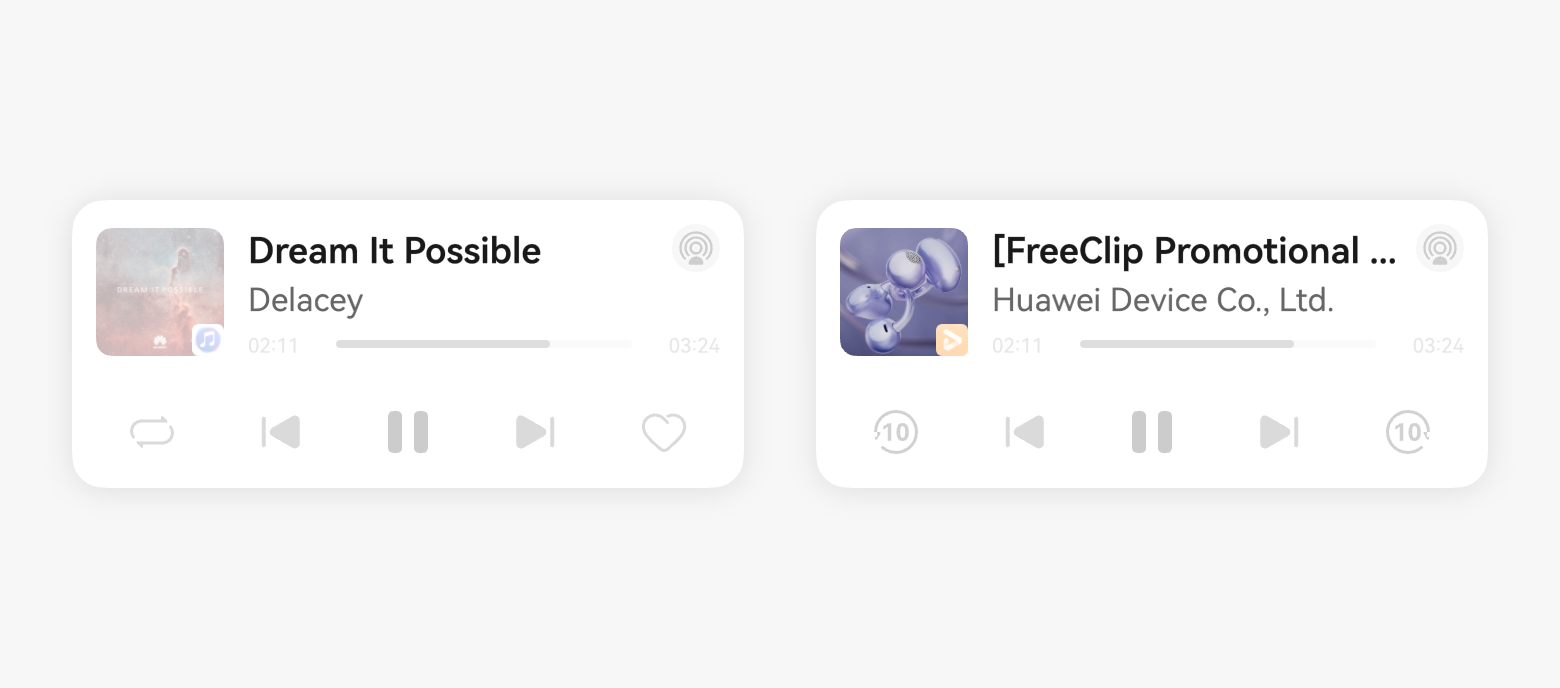
For song media content with lyrics, applications can choose to display the lyrics in the subtitle area. The lyric of the full track of the song that is being played is combined into a string based on the standard lyric format, for example, [00:25.44]xxx\r\n[00:26.44]xxx\r\n, and is set for the media controller through AVMetadata.lyric. The media controller automatically refreshes the content in the subtitle area based on the progress. No extra operation is required for applications.

Play/Pause

Self-check focus: During playback, touch the play/pause button in the media controller, and check whether the button takes effect and whether their status matches that in the application.
Applications must integrate the play/pause feature in the media controller. When an application receives a play/pause callback or users touch the play/pause button within the application, it must report the new playback status and progress.

Previous/Next

Self-check focus: During playback, touch the previous and next buttons in the media controller, and check whether the buttons take effect and whether the played content matches that in the application.
Applications can choose to integrate the previous/next feature in the media controller. When an application receives a previous/next callback or users touch the previous/next button within the application, it must report the new media information, playback status, and progress.

Redirection

Self-check focus: During playback, touch the cover image in the media controller, and check whether it redirects to the current playback page of the application.
When users touch a playback control widget, they are redirected to a specific service page of the application, for example, a music/audiobook/video playback details page, a live room page, a news reading page, or a specific browser tab page. For details, see step 3 in AVSession Provider - How to Develop.
Favorites

Self-check focus: During playback, touch the favorite button in the media controller, and check whether the button takes effect and whether the status matches that in the application.
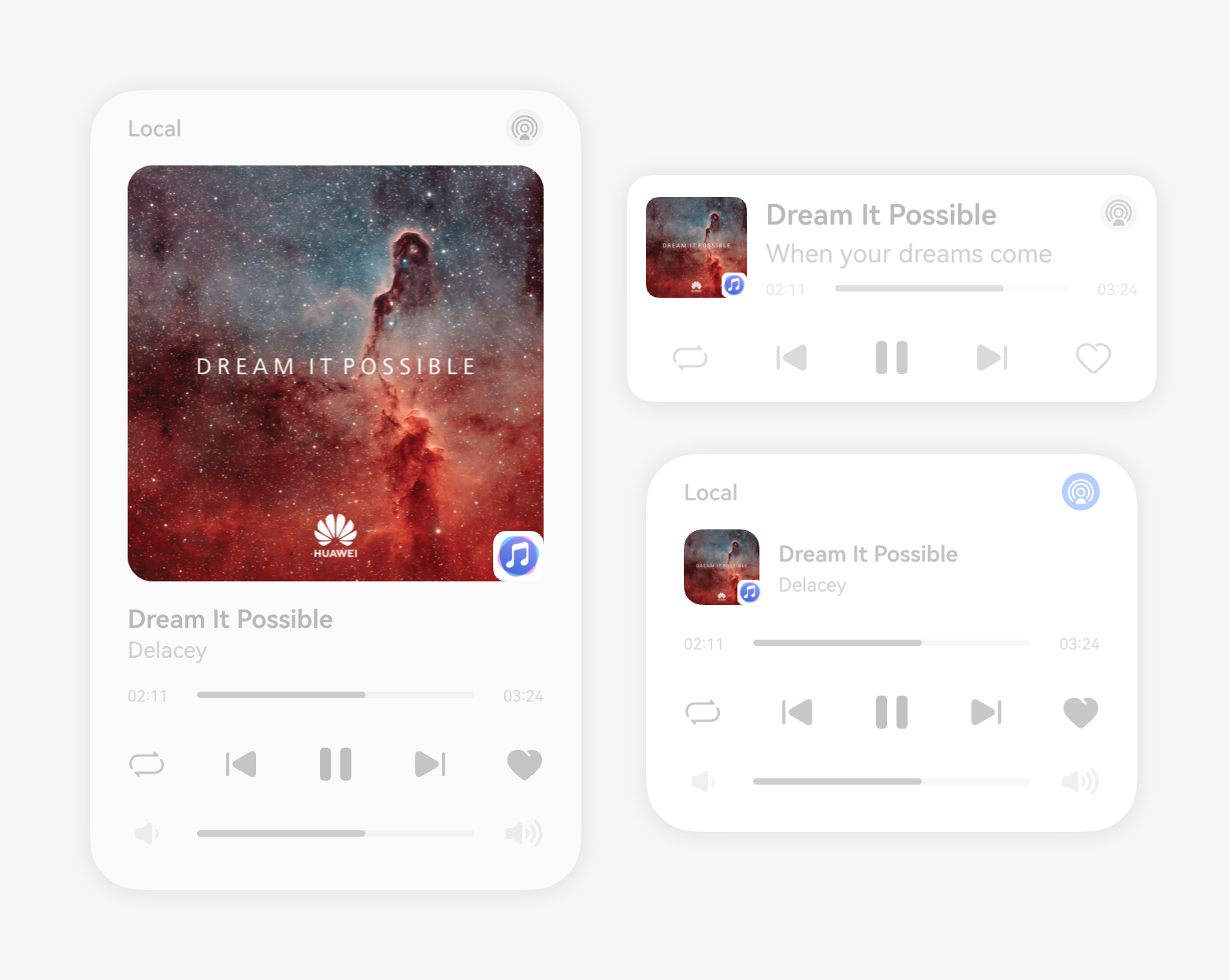
Music or audiobook applications that support the favorites/like feature can integrate with the favorite feature of the media controller, allowing users to favorite/unfavorite during playback through the media controller. After the integration, when the application receives a favorite/unfavorite callback from the media controller or users touch the favorite/unfavorite button within the application, the application should report the favorite/unfavorite status of the content being played, ensuring consistency between the application and the media controller. For details, see Favoriting Media Assets.
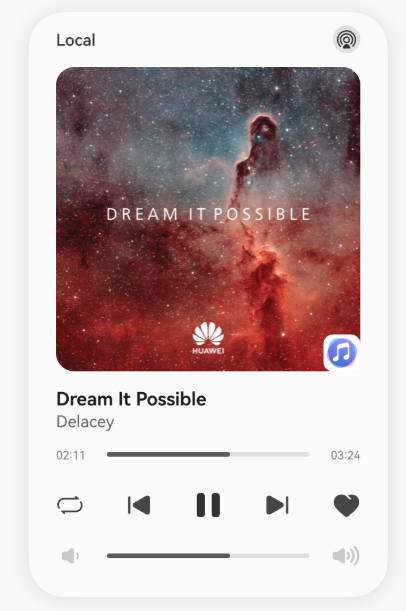
Loop Mode

Self-check focus: During playback, change the loop mode in the media controller, and check whether the operation takes effect.
Music and audiobook applications that support switching of the playback mode can integrate with the loop mode switching feature of the media controller.
Supported playback modes include sequential play, playlist loop, single loop, and shuffle play.
After the integration, when the application receives a callback for loop mode changes from the media controller or users change the loop mode within the application, it should report the new loop mode in the sequence defined in the application.
For example, if the current loop mode is playlist loop and the next mode set in the application is shuffle, the application should switch to shuffle mode and update the value of LoopMode in AVPlaybackState accordingly.
If the application supports a loop mode that is not included in the system's standard four modes, it should select one of the four standard modes for reporting.
For example, if the current mode is playlist loop and the next mode in the application is a special "heart" mode, the application could report this as shuffle play.

Fast forward/Rewind

Self-check focus: During playback, touch the fast-forward and rewind buttons in the media controller, and check whether the playback is properly responded and whether the progress is accurately displayed in the media controller.
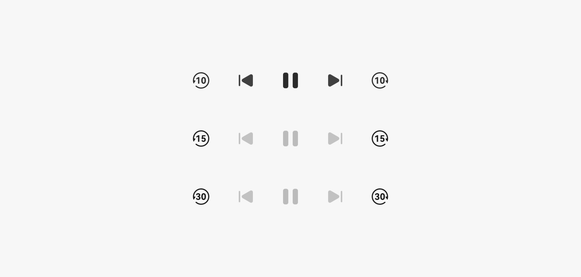
For media content that benefits from frequent progress adjustment, such as long podcasts, audiobooks, or long videos, the applications can implement fast-forward and rewind features with selectable intervals.
The fast-forward and rewind duration can be set to 10s, 15s, or 30s, as shown in the following figure. The application must inform the playback control of any adjustments made to the playback progress, whether initiated from the media controller or within the application itself.