Obtaining the Client ID and App ID
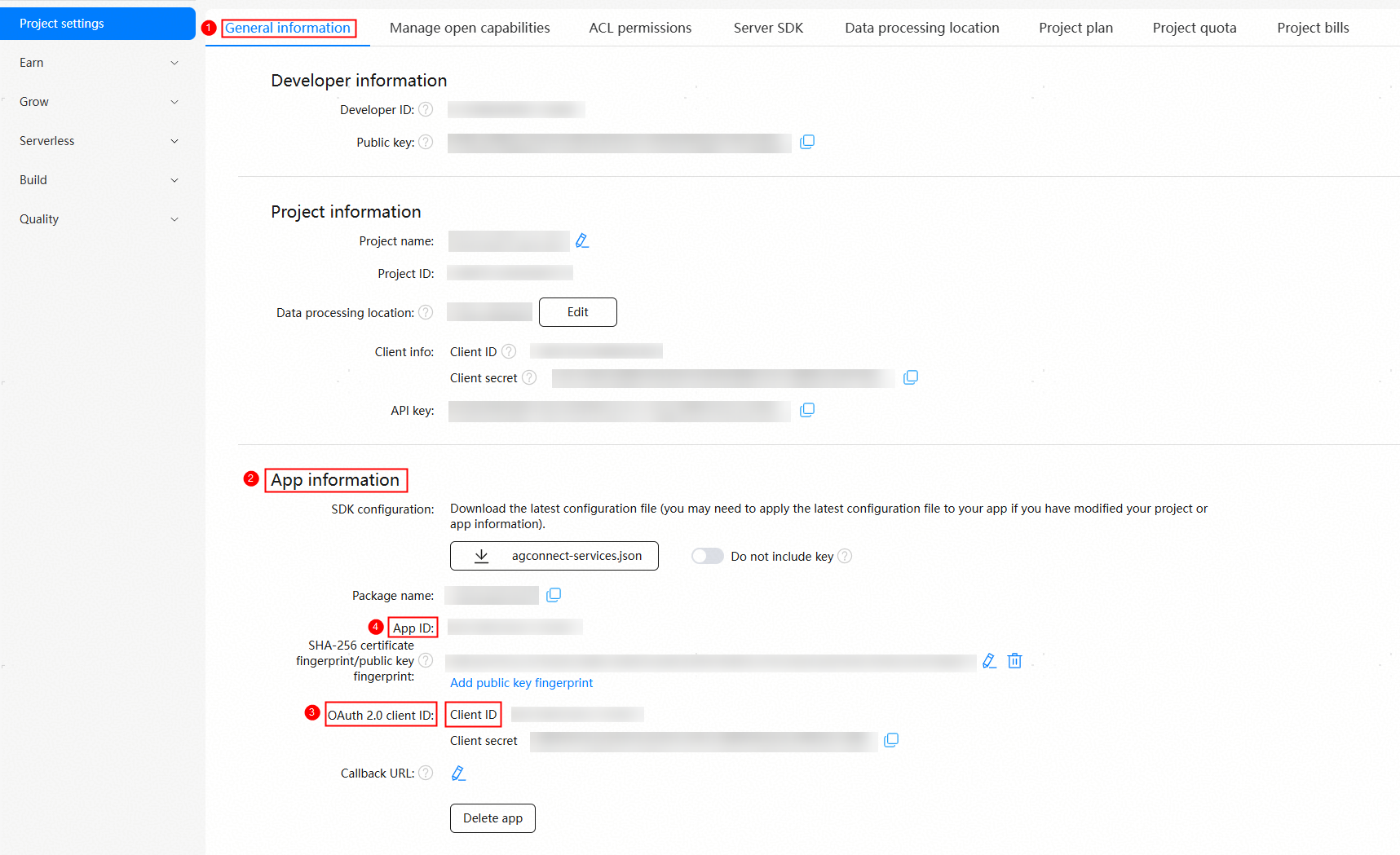
Sign in to AppGallery Connect, go to Development and services, select the desired project and app, and find the client ID and app ID of the app in the App information area on the General information tab page.
Checking the Necessity of Client ID Configuration
If the client ID and app ID obtained in the previous section are the same, it is unnecessary to configure the client ID. Otherwise, you need to configure the client ID as instructed in the next section.
Configuring the Client ID
In the module.json5 file of the entry module in the project, add the metadata section. Set name to client_id and value to the client ID obtained in the previous section.

If the project has multiple modules, configure the client ID of your app in the module.json5 file in the module whose type is entry.
Ensure that the obtained client ID is the client ID of your app. Using the project's client ID by mistake will result in API call errors.
"module": {
  "name": "entry",
  "type": "entry",
  "description": "<description>",
  "mainElement": "<mainElement>",
  "deviceTypes": [
  ],
  // ...
  "pages": "$profile:main_pages",
  // ...
  "metadata": [
    // The configuration is as follows:
    // ...
    {
      "name": "client_id",
      // Assign the client ID obtained in the previous section to the value field. Make sure not to set value using any other method.
      "value": "xxxxx"
    }
  ]
}