On mobile or touch-enabled web applications, users interact with web pages through gestures. ArkWeb supports the recognition of common gestures, such as touch and hold, swipe, and tap, providing a rich user interaction experience.
ArkWeb Gesture Recognition
ArkWeb receives the ArkUI touch event and identifies the gesture. For details about the distribution policy of touch events, see Basic Interaction Principles. ArkWeb gestures comply with the touch events, UI events, and pointer events defined by the W3C standard.
The following table lists identifications of common events.
| Gesture Event | Trigger Conditions |
|---|---|
| Tap | Triggered when a button is pressed and then lifted within a short interval. |
| LongPress | Triggered when a button is pressed for a period of time without moving. |
| ScrollBegin | Triggered when the page scrolling starts. |
| ScrollUpdate | Triggered when a page is scrolled, including flinging and dragging. Dragging indicates scrolling when a finger does not leave the screen. Flinging indicates that the page continues to scroll after the finger leaves the screen. |
| ScrollEnd | Triggered when the scrolling ends. |
| FlingStart | Triggered when a fling starts. |
| FlingCancel | Triggered when a fling is canceled. |
| PinchBegin | Triggered when a pinch gesture starts. |
| PinchUpdate | Triggered when a pinch gesture is updated. |
| PinchEnd | Triggered when a pinch gesture ends. |
ArkWeb Gestures and ArkUI Gestures
ArkUI provides gesture binding while ArkWeb has independent gesture recognition. Therefore, you need to distinguish these two types of gestures.
- ArkWeb gestures: automatically generated by Web components upon receiving touch events. These gestures are used on web pages.
- ArkUI gestures: received by and used on the Web component. ArkUI gestures are not directly used on web pages.
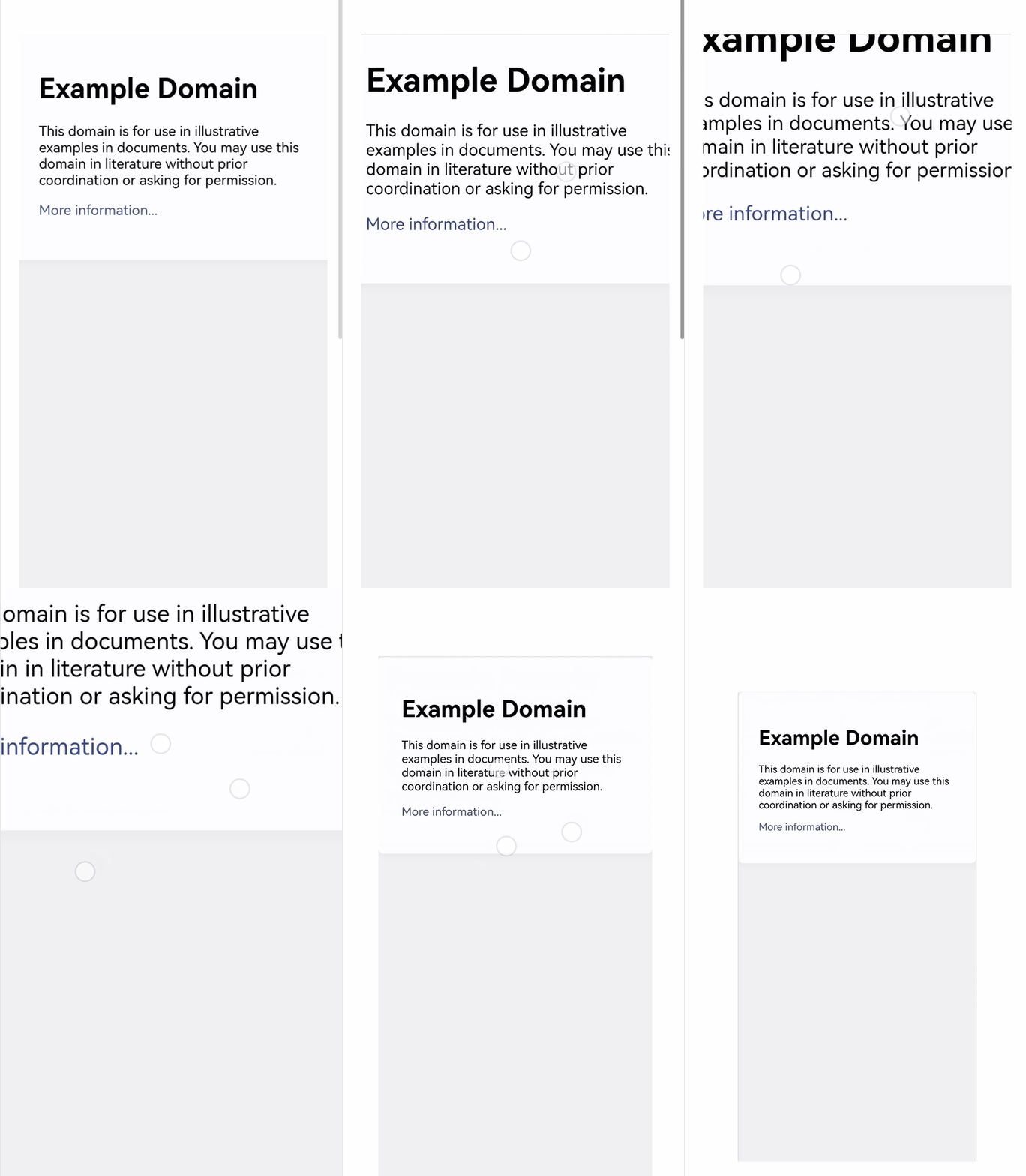
The following uses zoom as an example to describe the differences between the two gestures:
- When two fingers are pinched on the web page, the content in the Web component is zoomed in or out. This is because ArkWeb identifies the pinch event and applies it to the web page.
- If a user pinches three fingers together, the Web component itself scales. This is because ArkWeb receives the Pinch Gesture identified by ArkUI and executes the bound callback function. In addition, ArkWeb supports the scale method, which can be used to adjust the zoom ratio of the Web component.

This example is used only to describe the differences between ArkUI gestures and ArkWeb gestures. You are not advised to use this method to scale Web components.
import { webview } from '@kit.ArkWeb';

@Entry
@Component
struct Index {
  @State scaleValue: number = 1;
  @State pinchValue: number = 1;
  controller: webview.WebviewController = new webview.WebviewController();

  build() {
    Column() {
      Web({ src: 'www.example.com', controller: this.controller })
      // Bind the zoom ratio to the component. You can change the zoom ratio to zoom in or out the component.
        .scale({ x: this.scaleValue, y: this.scaleValue, z: 1 })
        .zoomAccess(true)
        .gesture(
          // Bind the pinch gesture triggered by three fingers to the component.
          PinchGesture({ fingers: 3 })
            .onActionStart((event: GestureEvent|undefined) => {
              console.info('Pinch start');
            })
            // Obtain the zoom ratio through the callback function when the pinch gesture is triggered, and then change the zoom ratio of the component.
            .onActionUpdate((event: GestureEvent|undefined) => {
              if(event){
                this.scaleValue = this.pinchValue * event.scale;
                console.info(`Pinch update: ${this.scaleValue}`);
              }
            })
            .onActionEnd(() => {
              this.pinchValue = this.scaleValue;
              console.info('Pinch end');
            })
        )
    }
  }
} 
ArkWep Gesture Judgment
-
ArkUI gestures
ArkWeb consumes some ArkUI gestures, for example, the swipe gesture. If you want to handle these gestures yourself instead of letting ArkWeb consume them, refer to ArkUI's gesture conflict handling. For a specific example, see example.
-
ArkWeb gestures
ArkWeb gestures are generated after the Web component receives touch events. You can use either of the following methods to judge ArkWeb gestures:
- Do not send touch events to the Web component. For details, see Hit Testing.
- Send the TouchCancel event to the Web component. For details about the C APIs, see OH_ArkUI_TouchRecognizer_CancelTouch. For details about the sample, see NdkGestureSetting.
[h2]How do I disable the zoom gesture?
The Web component provides the zoomAccess API to control whether to enable zooming. You can also use the user-scalable attribute on the web page to control zooming. For details, see Zooming Web Pages.
[h2]How do I enable the Web component to return to the previous web page following a swipe gesture?
Solution
Override the onBackPress API to define the return logic and use WebviewController to determine whether to return to the previous web page.
Example
import { webview } from '@kit.ArkWeb';

@Entry
@Component
struct Index {
  controller: webview.WebviewController = new webview.WebviewController();

  build() {
    Column() {
      Web({ src: 'https://www.example.com', controller: this.controller }) // Replace it with a real website manually.
    }
  }

  onBackPress() {
    try {
      // Whether the current page can go forward or backward by the given step (-1). A positive value indicates forward, and a negative value indicates backward.
      if (this.controller.accessStep(-1)) {
        this.controller.backward(); // Return to the previous web page.
        // Execute the user-defined back logic.
        return true;
      }
    } catch (err) {
      console.error(`onBackPress failed with error: ${err.code}, ${err.message}`);
    }
    // Execute the default system back logic to return to the previous page.
    return false;
  }
}
[h2]Why cannot I interact with the web page after it is loaded?
The web page may determine its behavior based on other platforms' User-Agent. To solve this problem, you can use setCustomUserAgent to set a custom User-Agent in the Web component. For example:
import { webview } from '@kit.ArkWeb';

@Entry
@Component
struct Index {
  private webController: webview.WebviewController = new webview.WebviewController();
  build(){
    Column() {
      Web({
        src: 'https://www.example.com',
        controller: this.webController,
      }).onControllerAttached(() => {
        // Customize User-Agent.
        let customUA = 'Mozilla/5.0 (Phone; Android; HarmonyOS 5.0) AppleWebKit/537.36 (KHTML, like Gecko) Chrome/129.0.0.0 Mobile Safari/537.36';
        this.webController.setCustomUserAgent(customUA);
      })
    }
  }
}
[h2]How to handle a blank page caused by excessive fling speed?
The Web component extends the viewport meta tag by adding two attributes, max-fling-speed-x and max-fling-speed-y, to control the fling speed of the page. You can adjust the attribute values based on your actual requirements.

max-fling-speed-x limits the horizontal fling speed, and max-fling-speed-y limits the vertical fling speed, in vp/s.
The following is an example HTML snippet:
<meta name="viewport" content="width=device-width, initial-scale=1, max-fling-speed-y=4500">
<meta name="viewport" content="width=device-width, initial-scale=1, max-fling-speed-x=4500">
<meta name="viewport" content="width=device-width, initial-scale=1, max-fling-speed-y=4500, max-fling-speed-x=4500">