Symptom
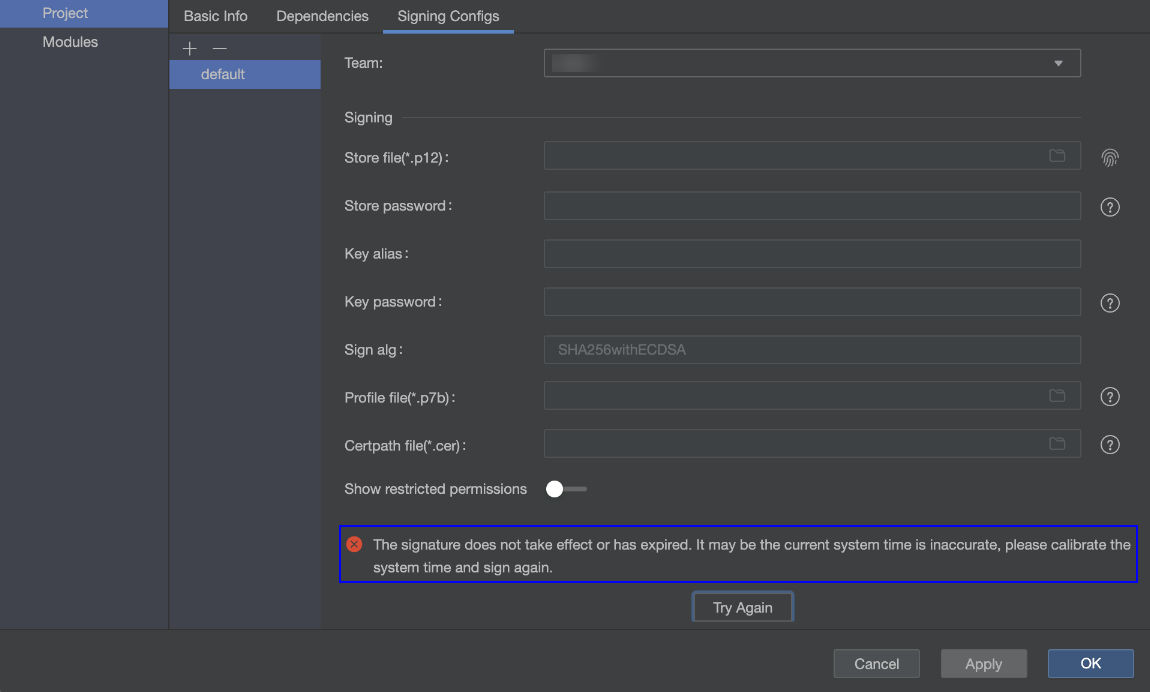
When an application is automatically signed, the following error message is displayed: "The signature does not take effect or has expired. The current system time may be inaccurate. Please calibrate the system time and sign again."
Solution
Verify that the system time of the computer is set to Beijing time.
Windows:
- On the Start menu, search for and open Control Panel.
- Choose Clock and Region > Date and Time.
- In the displayed dialog box, choose Change date and time settings.
- Click OK to save the modification.
macOS:
- On the desktop, click the menu
 in the upper left corner and choose System Settings.
- In the sidebar, choose General > Date and Time.
- Click the settings button next to the time and manually enter the date and time.
If your device is managed by your company or school, you may be restricted by mobile device management (MDM) and cannot change the time. In this case, contact the IT administrator.