Use Cases
Since version 5.0.5(17), the scenario of guiding users to bind cards is supported.
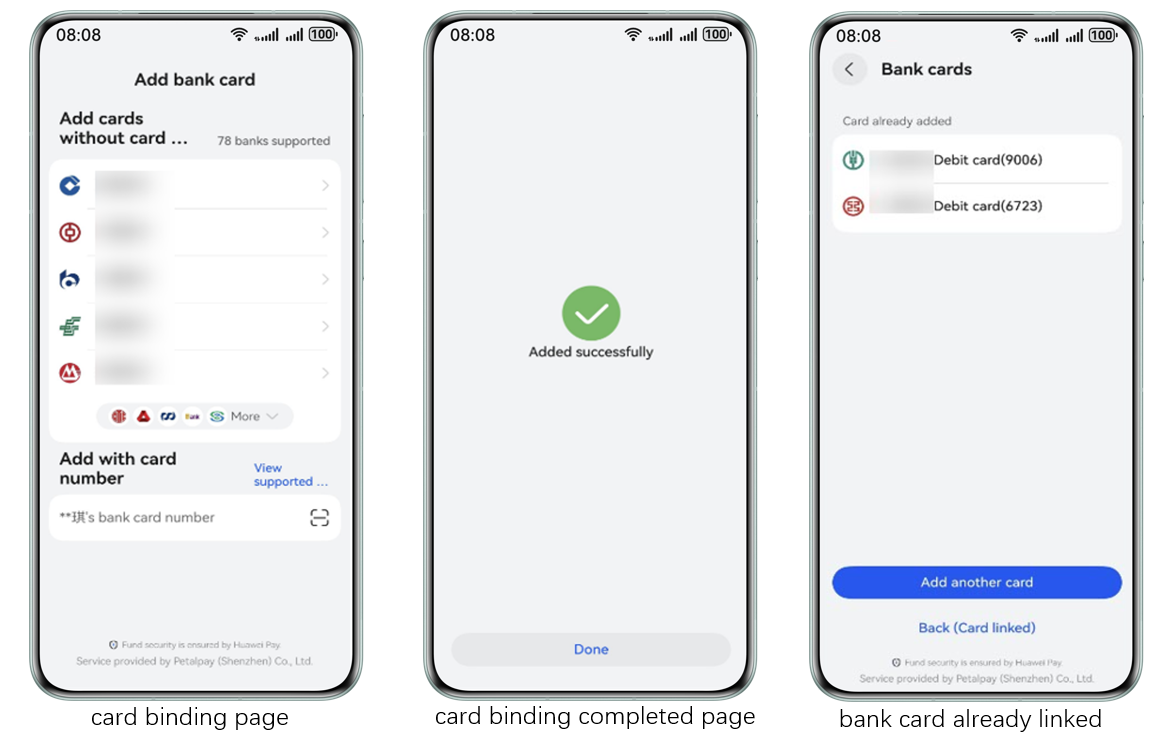
The card binding screen can be displayed, and users can be effectively guided to complete card binding based on marketing activities of merchants. For example, if a merchant launches a marketing activity for bank cards, users need to be guided to the card binding screen to complete the bank card binding.
Supported merchant models: direct merchant, platform merchant, and service provider
The following figure shows the screen of guiding users to bind cards.
Providing Information About the App to Be Redirected to for Card Binding
You need to communicate with the Huawei Pay service side (click here for cooperation consultation) and provide the following app information.
| App information. | Mandatory | Description |
|---|---|---|
| AppID | Yes | App ID. (To obtain the app ID, sign in to AppGallery Connect, click Development and services, find the desired project in the project list, and obtain the app ID in the App information area on the Project settings > General information page.) |
Service Process
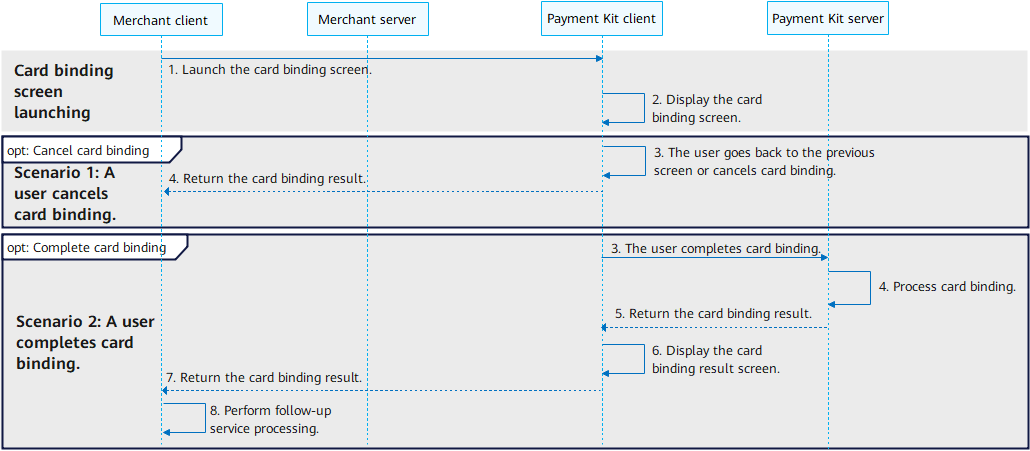
The following figure shows the integration process.
Scenario 1: A User Cancels Card Binding
-
The merchant client calls the requestBindCard API to launch the card binding screen.
-
The Payment Kit client displays the card binding screen. The merchant client can complete the subsequent process based on the user's operation.
-
The user goes back to the previous screen or cancels card binding.
-
The Payment Kit client goes back and sends the card binding result to the merchant client. The merchant client then completes the subsequent process based on the card binding result.
Scenario 2: A User Completes Card Binding
-
The merchant client calls the requestBindCard API to launch the card binding screen.
-
The Payment Kit client displays the card binding screen. The merchant client can complete the subsequent process based on the user's operation.
-
The user completes card binding on the card binding screen. The Payment Kit client requests the Payment Kit server to process the card binding.
-
The Payment Kit server processes the card binding.
-
The Payment Kit server returns the card binding result to the Payment Kit client.
-
The Payment Kit client displays the card binding result screen.
-
After the user closes the card binding screen, the Payment Kit client goes back and sends the card binding result to the merchant client.
-
The merchant client completes the subsequent service processing based on the card binding result.
API Description
The following table describes the API for launching the card binding screen. For details about the API, please refer to API Reference.
| API Name | Description |
|---|---|
| requestBindCard(context: common.UIAbilityContext | common.UIExtensionContext): Promise<BindCardResult> | Launches the card binding screen. |
[h2]Launching the Card Binding Screen (On-Device Development)
The merchant client calls the requestBindCard API to launch the card binding screen.
If the API returns a result using the .then() method, the API request is successful. If the API returns a result using the .catch() method, the API request fails. If the request is abnormal, you can obtain the error code through error.code. For details about the error code, please refer to Error Codes.
The sample code is as follows:
import { BusinessError } from '@kit.BasicServicesKit';
import { paymentService } from '@kit.PaymentKit';
import { common } from '@kit.AbilityKit';

@Entry
@Component
struct Index {
  context: common.UIAbilityContext = this.getUIContext().getHostContext() as common.UIAbilityContext;
  requestBindCardPromise() {
    paymentService.requestBindCard(this.context)
      .then((bindCardResult: paymentService.BindCardResult) => {
        // The card is successfully bound.
          console.info(`succeeded in binding card. result: ${bindCardResult}`);
      })
      .catch((error: BusinessError) => {
        // The card fails to be bound.
        console.error(`failed to binding card, error.code: ${error.code}, error.message: ${error.message}`);
      });
  }

  build() {
    Column() {
      Button('requestBindCardPromise')
        .type(ButtonType.Capsule)
        .width('50%')
        .margin(20)
        .onClick(() => {
          this.requestBindCardPromise();
        })
      }
    .width('100%')
    .height('100%')
  }
}