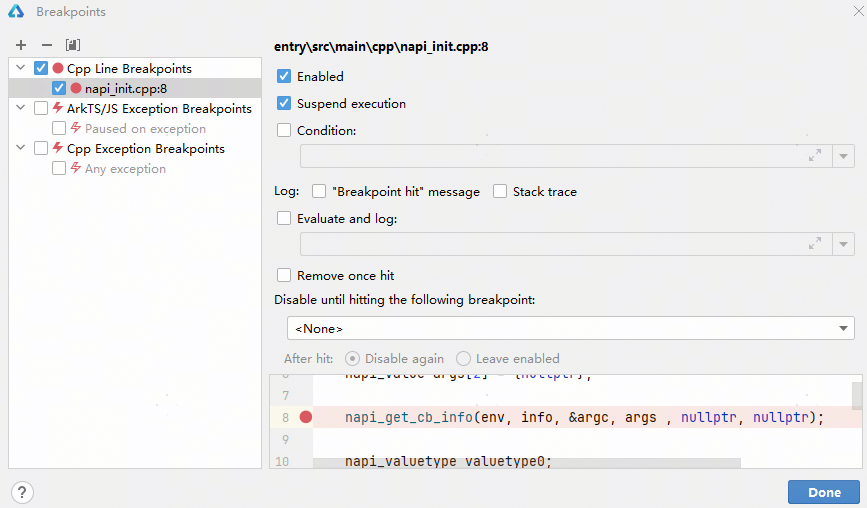
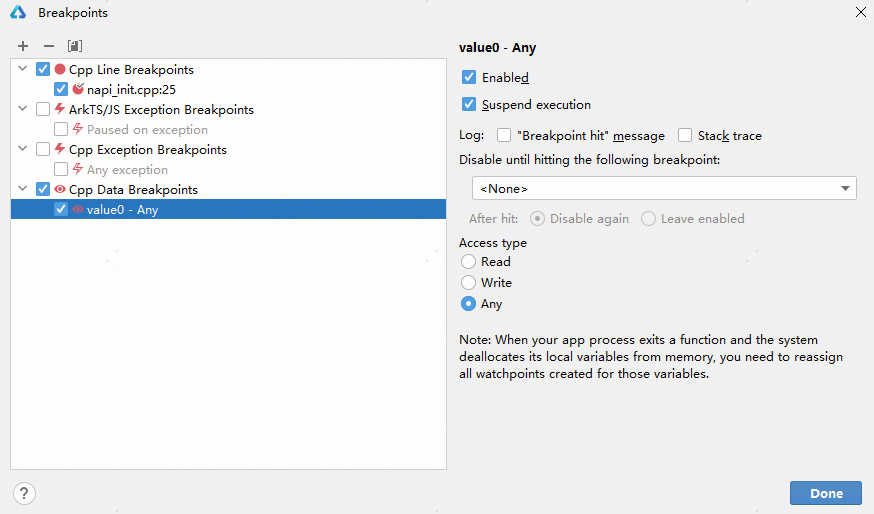
To view or modify breakpoints, click  View Breakpoints. On the page displayed, you can:
- Check Enabled to enable the breakpoint.
- Check Suspend execution to pause the app execution at the breakpoint.
Setting a Conditional Breakpoint
To set a conditional breakpoint, select Condition for the breakpoint and set the condition. Then, the app will be paused at the breakpoint when the specified condition is met.
Setting a Log Breakpoint
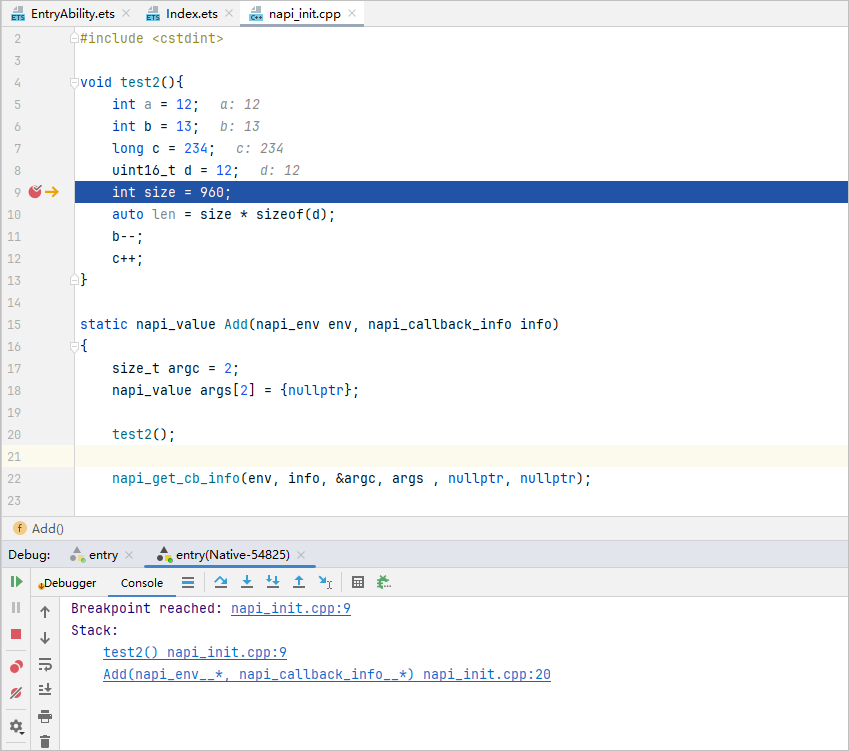
To print log information in Console when a breakpoint is hit:
- Select "Breakpoint hit" message to print "Breakpoint reached " when the breakpoint is hit.
- Select Stack trace to print the stack of the thread when the breakpoint is hit.
- Select Evaluate and log and add an expression to print the value of the expression when the breakpoint is hit.

If Enabled is not selected, log information will not be printed for that breakpoint. If Enabled is selected and Suspend execution is not selected, log information will be printed. If Enabled is selected and Condition is set, log information will not be printed if the specified condition is not met.
Setting a Temporary Breakpoint
To set a one-time breakpoint, select Remove once hit for the breakpoint. Then, the breakpoint will be removed after it is hit.
Setting a Function breakpoint
A function breakpoint, also called a method breakpoint or a symbolic breakpoint, pauses execution when a function is called. A function name is set as the condition for hitting the breakpoint.
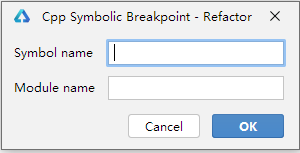
To set a function breakpoint, click + and select Cpp Symbolic Breakpoints. In the dialog box displayed, enter the function name and module name (the module name is optional), and click OK.
Setting an Exception Breakpoint
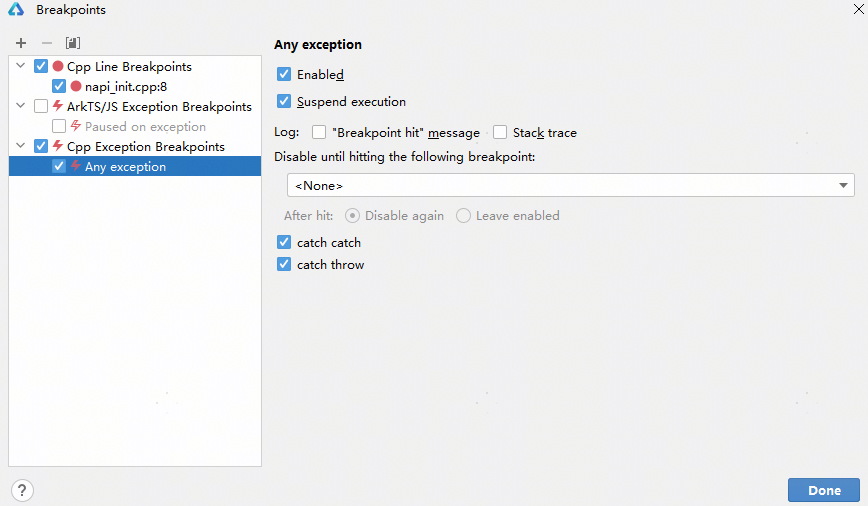
An exception breakpoint pauses the execution at the code when an exception is thrown or captured.

Other system exceptions, such as SIGSEGV, will be captured by default and the process is terminated.
To set an exception breakpoint, select Any exception under Cpp Exception Breakpoints, and check Enabled for the breakpoint.
Setting a Data breakpoint
Three types of data breakpoints are supported: break on read, break on write, or break on read/write.
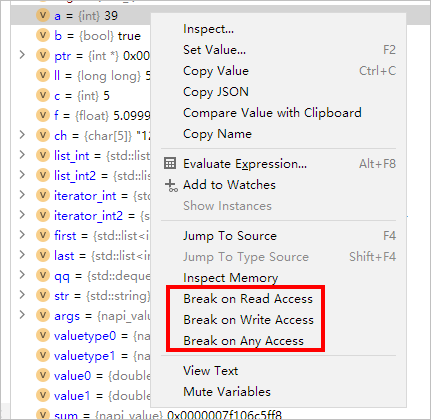
To set a data breakpoint, right-click a variable in Variables and choose Break on Read Access, Break on Write Access, or Break on Any Access from the shortcut menu.
You can view and modify breakpoints on the Breakpoints page.

- The specific types of data breakpoints that can be set vary depending on the hardware in use. The size of the variable is also restricted by the hardware.
- Due to hardware limits, a maximum of two data breakpoints can be set.
- Data breakpoints set for local variables must be manually deleted when they get out of scope. Otherwise, the process will be interrupted when the variable address is reused.