Symptom
After the hdc list targets command is executed, the command output is [Empty], indicating that the device cannot be identified.
Possible Causes
Item | Symptom |
|---|---|
Hardware Connection | The USB port is abnormal, the data cable is damaged, or the docking station is interfered. |
Driver Issue | The HDC driver is not installed, the driver version conflicts, or an exception occurs during Zadig installation. |
Environment Conflict | The port is occupied (for example, ADB and HDC share port 8710), or the TCP mode fails to be switched. |
System Compatibility | The device system does not match the hdc tool version, or the image burning is abnormal. |
Solution
- Windows
Check whether the target device is displayed in Device Manager.
If HDC Device or HDC Interface is displayed, the connection is normal.
HDC Interface usually indicates that the device has composite ports.
If the HDC Device is not displayed, the device cannot be identified. You can use any of the following methods to resolve the problem:
- Change the USB port.
- Use another USB cable.
- Connect the device to another computer.
- Burn the corresponding image again.
Reinstall the driver if it is damaged.
Reinstalling the driver:
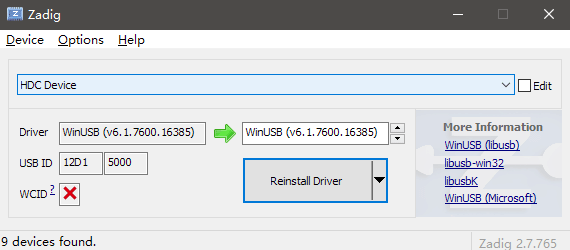
Open Zadig (Zadig Repository) and insert the device. In Options, click List All Devices, select HDC Device from the drop-down list, and click Reinstall Driver.
- Linux
Run the lsusb command to check whether HDC Device or HDC Interface exists. If the command does not exist, run the apt-get install usbutils command to install usbutils.
- macOS
Check whether the macOS can identify the USB device connected to the Mac in System Information or System Overview.
(1) Press and hold the Option key on the keyboard, and click Menu.
(2) Choose System Information or System Overview.
(3) Select USB on the left.
(4) Check whether HDC Device or HDC Interface is displayed in the device tree. If not, perform the following steps to check whether the USB connection is normal.
Check Item | Normal Status | Exception Handling |
|---|---|---|
USB port | Connect the device using a USB port. | If the device cannot be identified using a docking station, replace the docking station or try to connect the device using a USB port. |
USB cable Device status | Use the USB cable delivered with the device. The device is powered on. In Settings > System > Developer options, USB debugging is enabled. | If a third-party cable is used, ensure that the cable meets the USB2.0 standard. If USB debugging is not enabled, remove and insert the USB port, restart the device, or restore the device to its factory settings. |
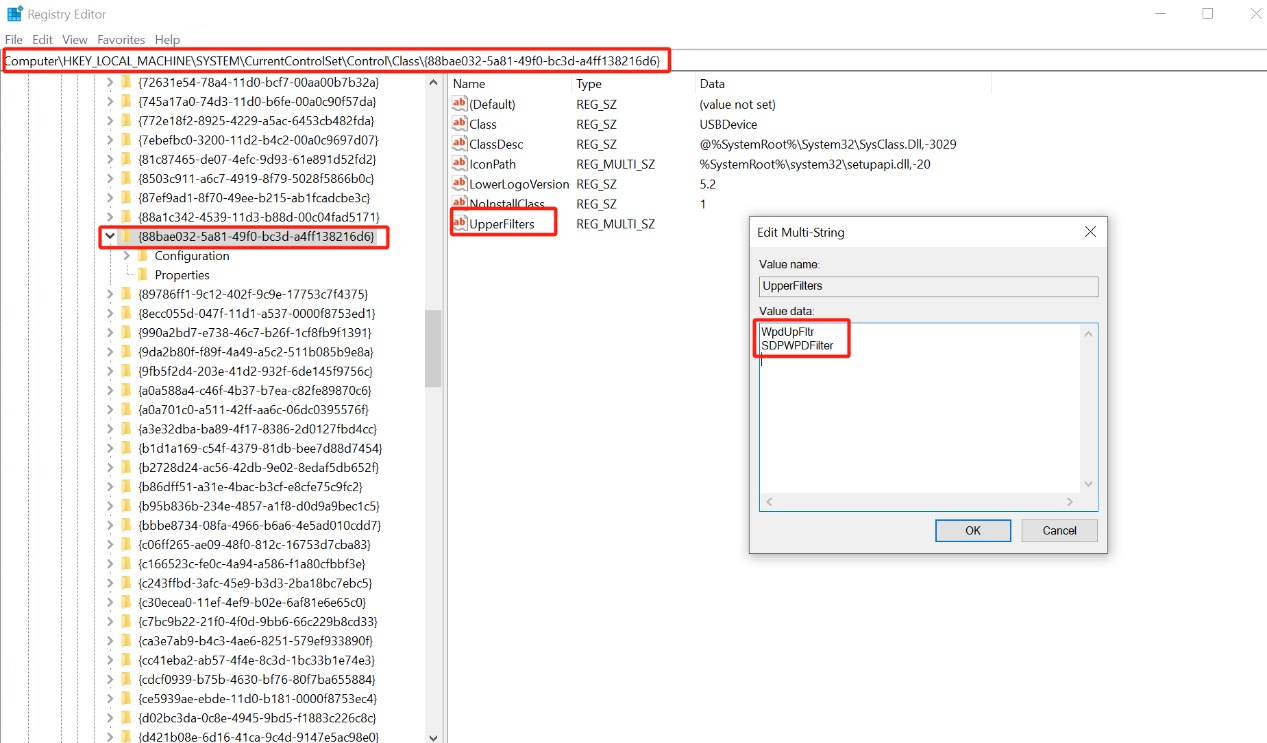
- Run regedit to open the Registry Editor, and click Computer\HKEY_LOCAL_MACHINE\SYSTEM\CurrentControlSet\Control\Class\{88bae032-5a81-49f0-bc3d-a4ff138216d6}.
- In the list on the right, right-click UpperFilters and choose Edit to clear all character data. (You are advised to back up the data before clearing the data.) Refresh the screen, remove and insert the device, or restart the PC.
3. Change the TCP mode to the USB mode.
- The hdc does not match the device. If the latest image is burnt to the device, the hdc must be of the latest version.
- The port is occupied. hdc and hdc_std cannot run at the same time because they use the same port. Ensure that either hdc or hdc_std is running.
- The adb conflicts with the hdc. You can run any of the following commands:
adb kill-server
hdc kill
hdc start