Complete basic preparations and fingerprint configuration by referring to Application Development Preparations before proceeding with subsequent development activities.
Sign in to AppGallery Connect and click My projects.
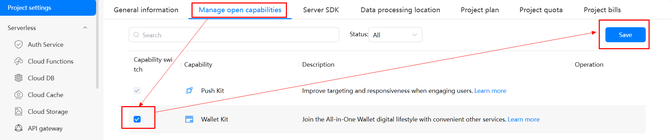
Click the desired project, go to Project settings > Manage open capabilities, and enable Wallet Kit so that the car key management console can send HTTP/HTTPS requests to the HUAWEI Wallet server. When Wallet Kit is disabled, your app server cannot access the HUAWEI Wallet server.
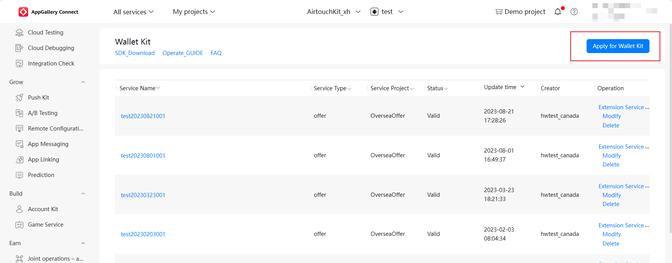
On the Project settings page, go to Earn > Wallet Kit and click Apply for Wallet Kit.
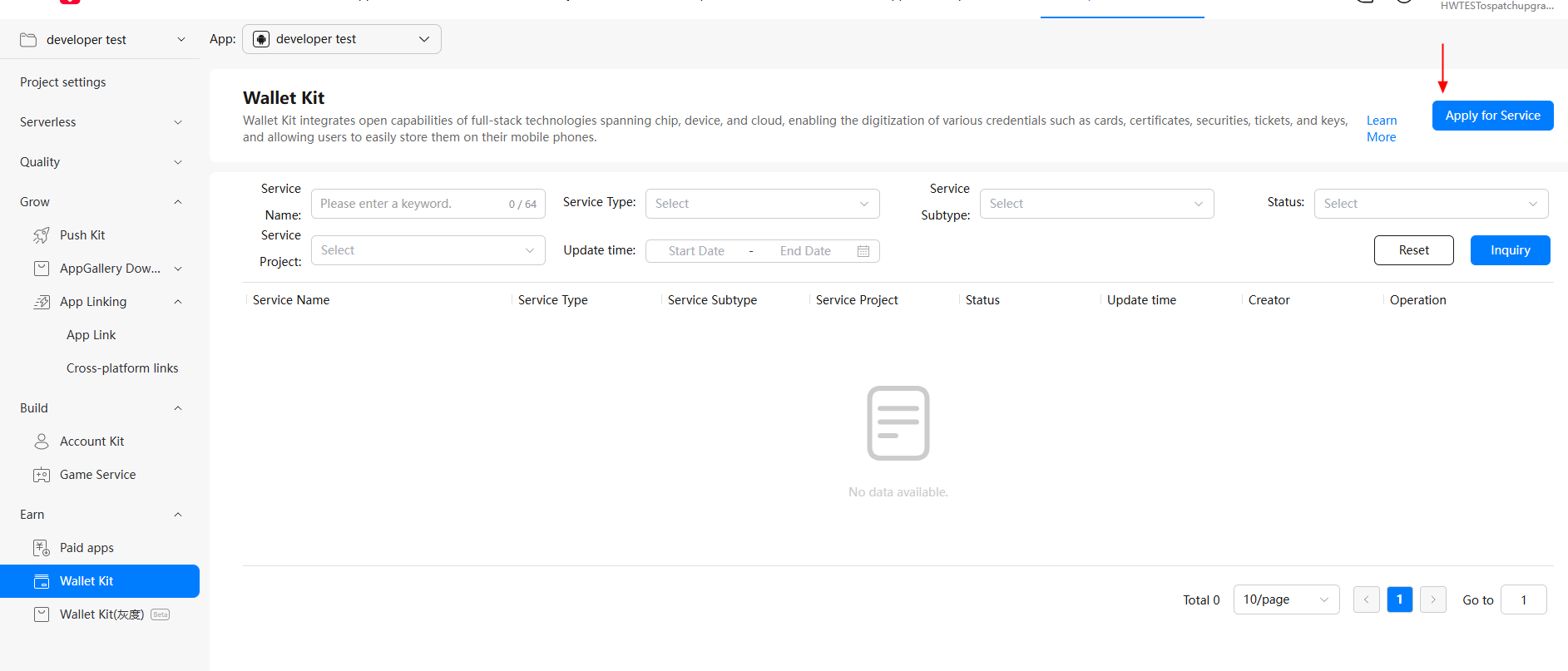
Choose Wallet Kit > Apply for Service.
Set the Wallet Kit parameters. The parameters may vary depending on the service scenario.
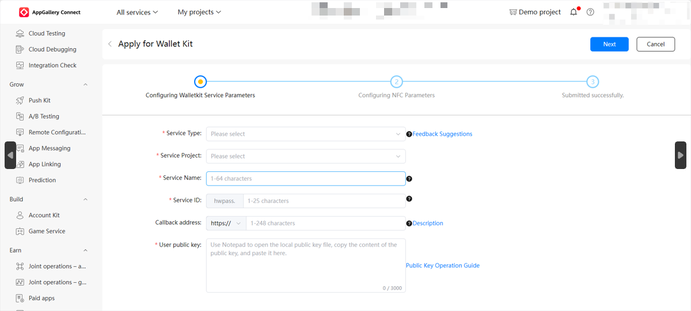
Wallet Kit Parameter Value Service Type Service type, which covers cards, coupons, tickets, and keys. Currently, you can only choose car key. For details about the transportation card service, please refer to Transportation Card. Service Project The options available depend on the value selected for Service Type. For example, when Service Type is set to card, the options of Service Project include loyaltycardw and OverseaAllpowerful. Service Name It is used to distinguish one service from another when all services that you have applied for are displayed on the Wallet Kit service list page. Service ID It is used by the HUAWEI Wallet server to distinguish one service from another. It must be unique. Access Mode In the Chinese mainland, three access modes are supported: app access, cloud access, and proxy access. Merchants can select an access mode that best suits their needs. If they choose cloud access, they must enter the callback address and public key. If they choose app access, they only need to upload the certificate request file to generate a certificate. If they choose proxy access, they must enter the callback address, and the public key will be sent to the HUAWEI Wallet server by default. Callback address Address you provide for Wallet Kit to send a callback notification when a user successfully claims or deletes a pass.
Note: If you do not need Wallet Kit to send a callback notification in such scenarios, you can leave this parameter empty.
User public key The public key will be used by the HUAWEI Wallet server to authenticate your identity. You need to generate a public key using the following method, and copy and paste it here. How to generate a public key:
(1) Configure the node execution environment, use the text editor to create a file, copy the following code to the file, and save the file as generateKeyPair.js.
const crypto = require('crypto');
// Generate a key pair.
const { publicKey, privateKey } = crypto.generateKeyPairSync('rsa', {
  modulusLength: 4096, // Key length, which must be greater than or equal to 4096 characters.
  publicKeyEncoding: {
    type: 'spki', // Public key encoding format.
    format: 'der' // Public key output format.
  },
  privateKeyEncoding: {
    type: 'pkcs8', // Private key encoding format.
    format: 'der' // Private key output format.
  }
});
console.info('Generated public key:');
console.info(publicKey.toString('base64'));
console.info('Generated private key:');
console.info(privateKey.toString('base64'));
(2) Open the command-line interface (CLI) and run the node generateKeyPair.js command.
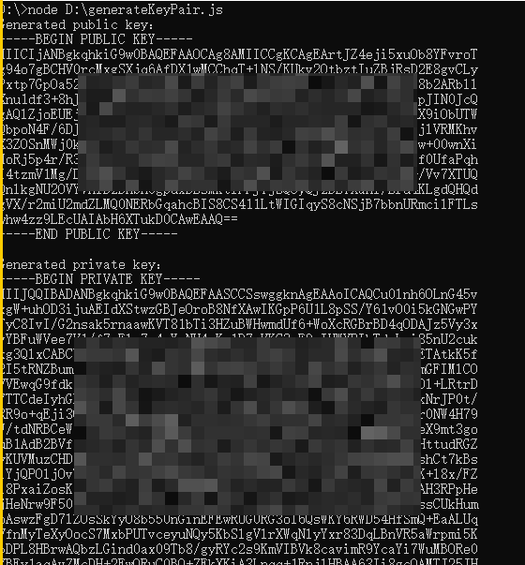
(3) Copy the generated public and private keys from the result and save it. The following figure shows the result.
Click Next. On the Configuring NFC Parameters page, set the NFC parameters. The parameters may vary depending on the service scenario.
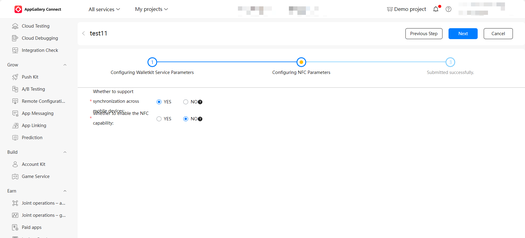
NFC Parameter Value Whether to support synchronization across mobile devices Indicates whether users can share the claimed passes across different devices under the same account. Select NO by default. Whether to enable the NFC capability For keys, all-in-one cards, access cards, health insurance cards, exit-entry permit for traveling to and from Hong Kong (China) and Macao (China), and passports, select YES and set Application ID (AID) and File parameter definition. For other passes, you can select NO. Application ID (AID) Click Get AID to create an app ID. The value is a hexadecimal number with up to 32 characters (recommended length: 32). It is recommended that the value start with A000000048575041590100. External authentication key Key for external authentication during offline pass reading and writing. The value is a hexadecimal number with up to 32 characters (recommended length: 32). File parameter definition Key information, which is used to control the read and write permissions of a specified file section. The value is a hexadecimal number with up to 32 characters (recommended length: 32). Click Next. On the displayed Wallet Kit service list page, you can view, edit, or delete a service.