Use Cases
The cross-platform link capability is supported since API version 6.0.0(20).
It enables app redirection on HarmonyOS devices in a specified way. After tapping a cross-platform link, users will be redirected to a HarmonyOS preview page, an app details page on AppGallery, a custom URL, a deep link, or another designated page.
Cross-platform links are primarily used to send app promotional information directly to users, for example, sharing product campaigns or app promotional activities via SMS, email, or social media.
Development Process
| Party | Procedure |
|---|---|
| Cloud-side development | Enable App Linking. |
| Cloud-side development | Request a URL prefix in AppGallery Connect, add a trusted URL format, and create a cross-platform link. |
| App-side development | Configure a cross-platform link in the module.json5 file. |
| App-side development | Process the link passed by the caller app. |
| App-side development | Verify the app launch effect. |
[h2]Requesting a URL Prefix
A URL prefix is a part of a cross-platform link, which follows the format of https://domain name. Before creating a cross-platform link, you need to request a URL prefix.
Sign in to AppGallery Connect and click Development and services.
Click the project to which your HarmonyOS app belongs. (Ensure that all versions of the app across different platforms are contained within the same project.)
In the navigation tree, choose Grow > App Linking > Cross-platform links. On the page displayed, click the URL prefixes tab, and click New URL prefix.

Set a prefix for the free domain name provided by AppGallery Connect. The prefix must be unique and contain only lowercase letters and digits. Then click Next.
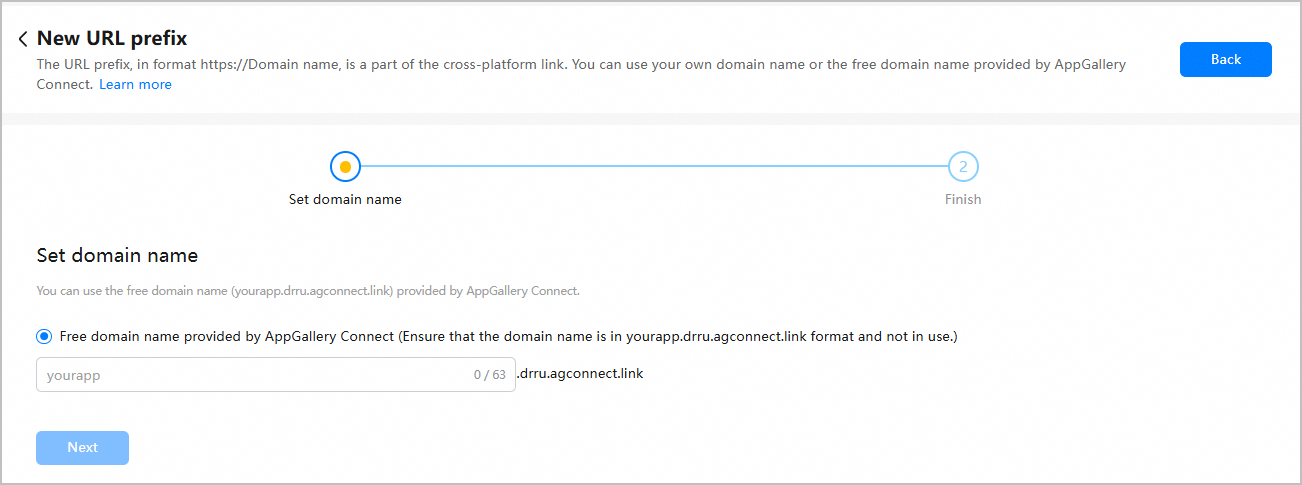
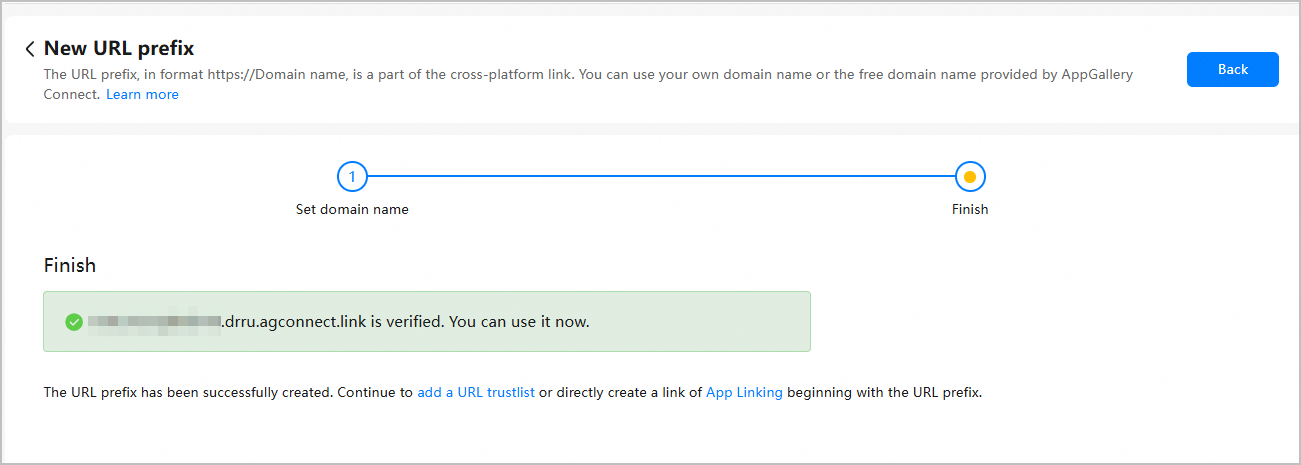
View the complete domain name displayed after it is verified.
[h2]Adding a Trusted URL Format
Before creating a cross-platform link, you need to add a trusted URL format to define the format of deep links and custom URLs. Once configured, redirection is restricted to URLs that match the trusted format, helping prevent website spoofing.
Sign in to AppGallery Connect and click Development and services.
Click the project to which your HarmonyOS app belongs. (Ensure that all versions of the app across different platforms are contained within the same project.)
In the navigation tree, choose Grow > App Linking > Cross-platform links. On the page displayed, click the URL trustlist tab, and click New trusted URL format.
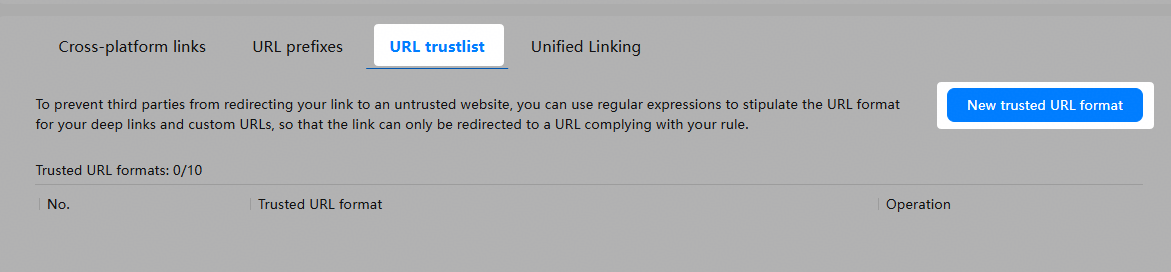
Add a trusted URL format using regular expressions, and then click Release in the upper right corner.

[h2]Creating a Cross-Platform Link
Configure a cross-platform link to implement redirection in a specified way.
Sign in to AppGallery Connect and click Development and services.
Click the project to which your HarmonyOS app belongs. (Ensure that all versions of the app across different platforms are contained within the same project.)
In the navigation tree, choose Grow > App Linking > Cross-platform links. On the page displayed, click the Cross-platform links tab, and click New cross-platform link.

Set a short link and click Next.

Parameter Description URL prefix Prefix of a cross-platform link. If you have not requested a URL prefix, request one.
You can set a character string as the short link suffix for the cross-platform link in the text box under URL prefix. A default suffix is automatically generated by AppGallery Connect. You can change the default suffix to a custom one, but ensure that the custom suffix is unique.
Link preview Short link to be sent to users through the cross-platform link capability. Set a deep link and click Next.
- The domain name in the deep link must follow the trusted URL format.
- The deep link destination cannot be set to an executable file.
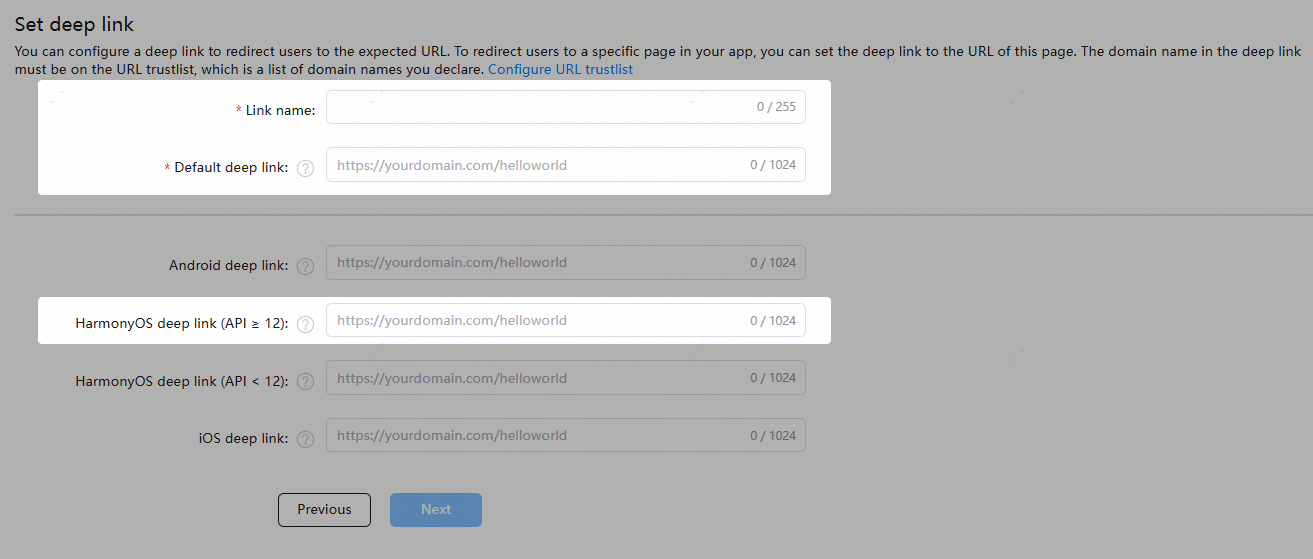
Parameter Description Link name Custom name of the cross-platform link. Default deep link URL of the in-app content to be accessed.
If HarmonyOS deep link (API ≥ 12) is not set, this link will be opened by default.
HarmonyOS deep link (API ≥ 12) Optional. If specified, this link will be opened preferentially on a HarmonyOS device. Set the cross-platform link behavior for HarmonyOS and click Next.
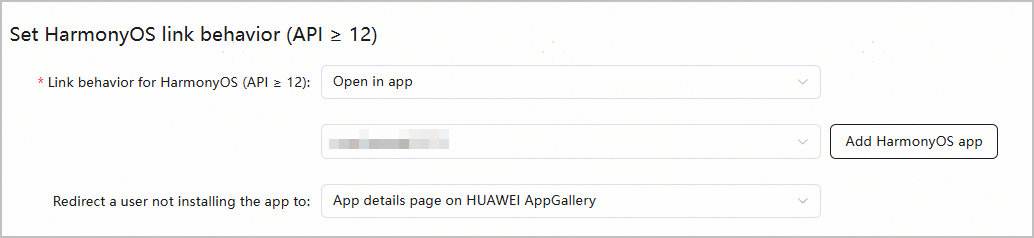
Parameter Description Link behavior for HarmonyOS (API ≥ 12) 1. Select Open in app, and users will be redirected to the content specified by the deep link in the HarmonyOS app after tapping the cross-platform link.
2. Select or add a HarmonyOS app for which you want to configure the deep link.
Redirect a user not installing the app to If a user has not installed the HarmonyOS app, the user will be redirected to the app details page on HUAWEI AppGallery or a custom URL.
Note: If Custom URL is selected for Redirect a user not installing the app to, do not enter a URL that targets an executable file.
(Optional) On the Set tracing parameters page, set ad tracking parameters to track ad and traffic performance.
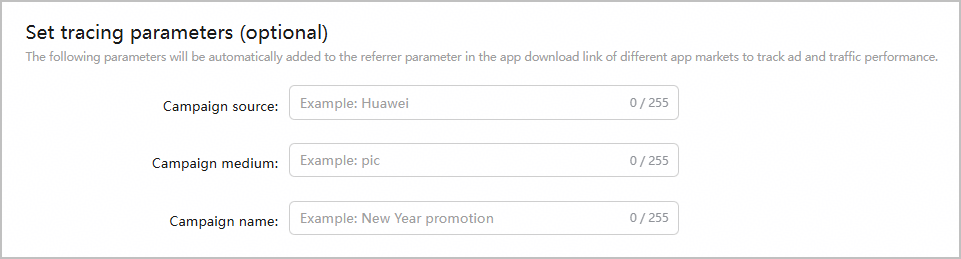
Parameter Description Campaign source Ad channel, for example, Huawei. You can also customize a value. Campaign medium Identifier of an ad medium, for example, pic or email. Campaign name Name of a campaign, for example, New Year promotion. (Optional) Set social meta tags to track sharing on social media and click Next.
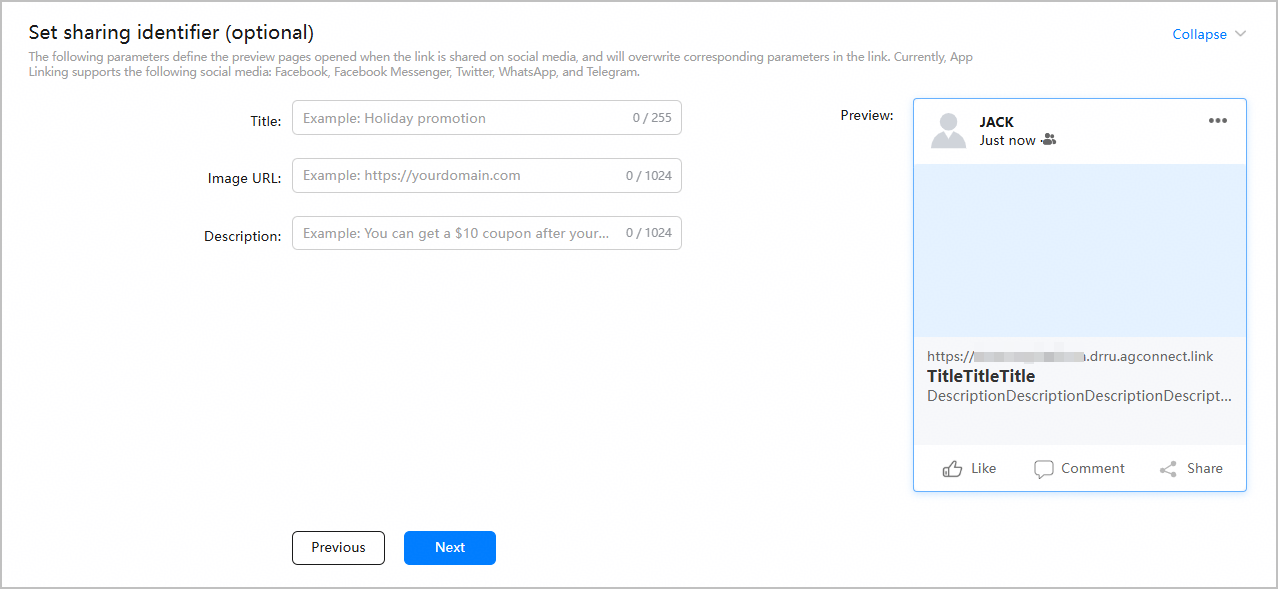
Parameter Description Title Title to be displayed when a cross-platform link is shared on social media. Image URL URL of the image to be displayed when a cross-platform link is shared on social media. Description Description to be displayed when a cross-platform link is shared on social media. (Optional) Set the preview page to redirect a user to a proper position.
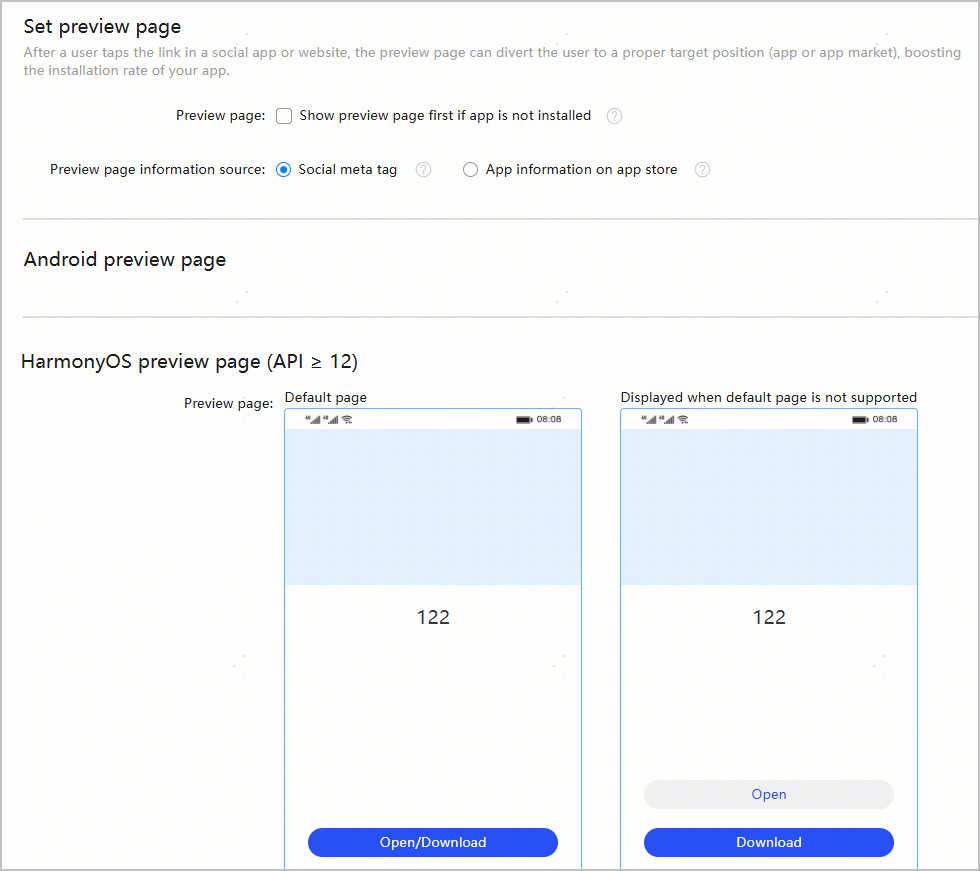
Parameter Description Preview page Indicates whether to display the preview page when a user taps the cross-platform link and the app is not installed.
- If this check box is selected and the app is not installed, when a user taps the cross-platform link, the preview page will be displayed before the user is redirected to the app details page on AppGallery.
- By default, this check box is not selected. When a user who has not installed the app taps the cross-platform link, they will be preferentially redirected to the app details page on AppGallery based on the browser type.
Note: Currently, only HUAWEI Browser supports this function.
Preview page information source Source of information displayed on the preview page. This parameter is available only when the Preview page check box is selected.
- Social meta tag: Information on the preview page comes from social meta tags.
- App information on app store: Information on the preview page comes from the app information configured in AppGallery Connect.
After all settings are complete, click Release in the upper right corner. A list of your released cross-platform links is displayed on the Cross-platform links tab page.

Click the QR code icon in the URL column or Download QR code in the Operation column of a cross-platform link to download the QR code image of the link.

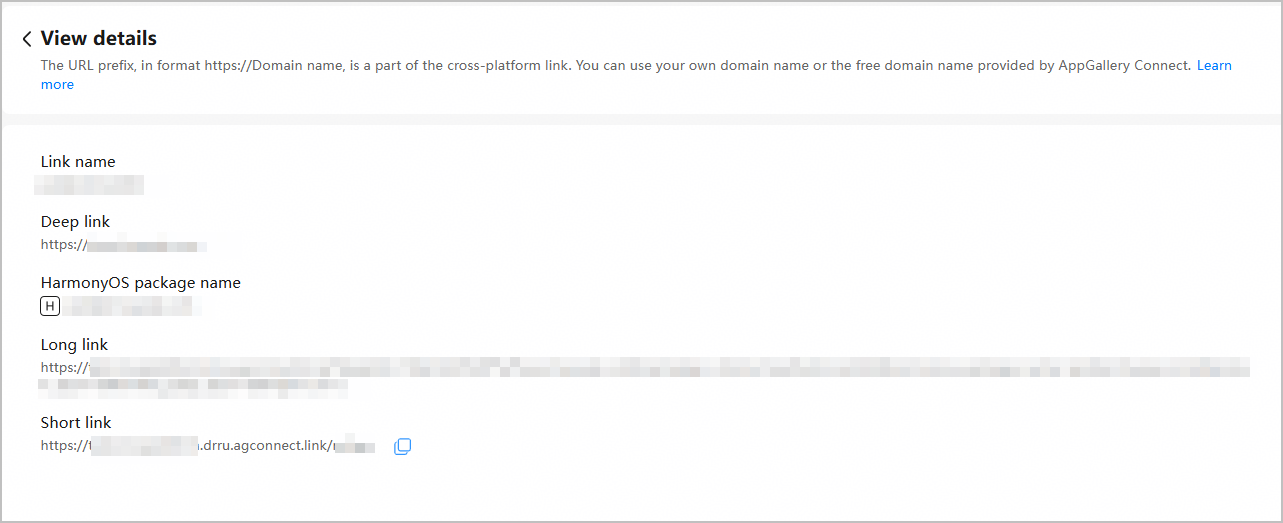
Click View details in the Operation column of a cross-platform link to view the link details, including the deep link, HarmonyOS app package name, and short link.
[h2](Optional) Archiving a Cross-Platform Link
After creating a cross-platform link, you can archive it if you no longer want to manage it but still want to preserve its long-term usability for users.
A cross-platform link will be hidden after being archived for seven days, and you will be unable to view the link or cancel the archiving in AppGallery Connect.
By default, archived cross-platform links remain valid for one year since the archiving time. Exercise caution when archiving links.
The procedure is as follows:
Sign in to AppGallery Connect and click Development and services.
Click the project to which your HarmonyOS app belongs.
In the navigation tree, choose Grow > App Linking > Cross-platform links.
Click the Cross-platform links tab, and archive the created cross-platform links.
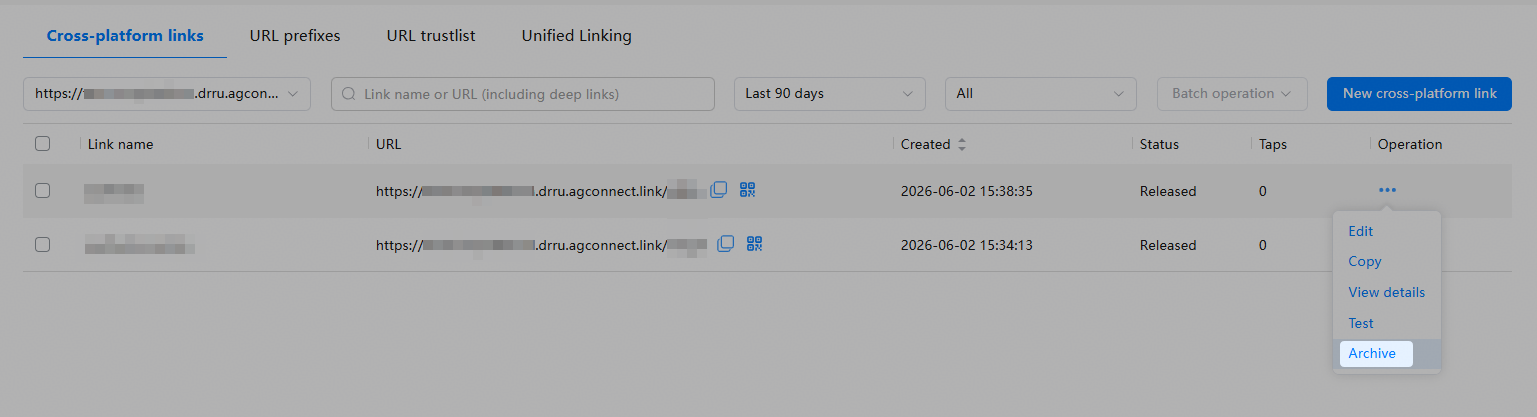
Archiving a single cross-platform link: In the cross-platform link list, click Archive in the Operation column of the link to be archived.
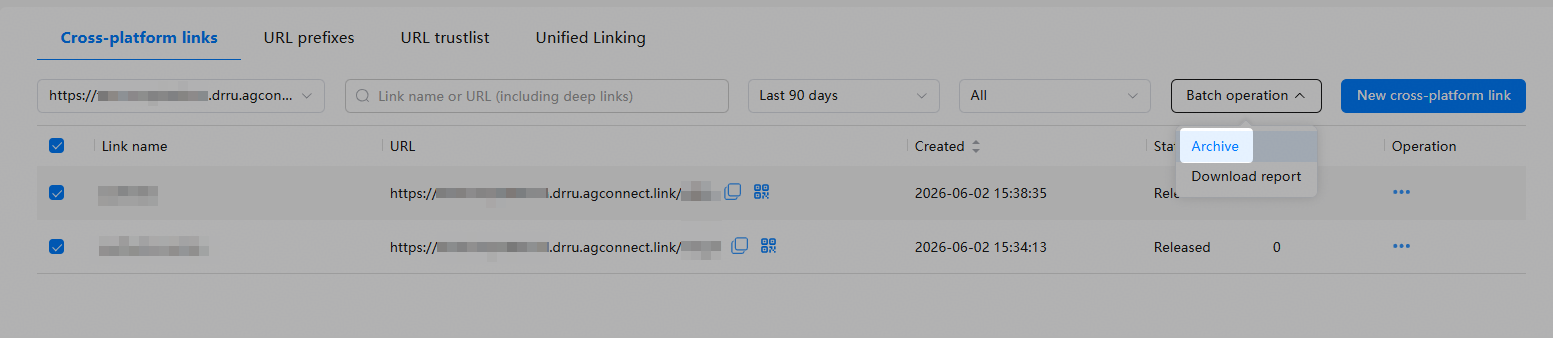
Batch archiving: Select multiple links to be archived in the list and select Archive from the Batch operation drop-down list in the upper right corner.

You can filter links by time to view cross-platform links archived in the last seven days. To restore an archived link, you can click Unarchive in the Operation column.
[h2]Configuring a Cross-Platform Link in the module.json5 File
Configure the following information in the module.json5 file of your HarmonyOS app to receive a cross-platform link and obtain the data passed through the link.
The "entities" list must contain "entity.system.browsable".
The "actions" list must contain "ohos.want.action.viewData".
The "uris" list must contain an element whose "scheme" is "https" and "host" is the associated domain name. The optional properties include "path", "pathStartWith", and "pathRegex". For details, please refer to Description of uris.
"domainVerify" must be set to true, indicating that the domain verification is enabled.

By default, the skills field contains a skill object, which is used to identify the app entry. App redirection links cannot be configured in the skill object. Instead, you need to create a separate skill object.
If multiple redirection scenarios are involved, create different skill objects under skills. Otherwise, the configuration will not take effect.
For example, the configuration below is required when the domain name of the cross-platform link is example.drcn.agconnect.link.
{
  "module": {
    "abilities": [
      {
        "name": "EntryAbility",
        "srcEntry": "./ets/entryability/EntryAbility.ets",
        "icon": "$media:icon",
        "label": "$string:EntryAbility_label",
        // Set exported to true. If exported is set to false, only authorized system apps can start the target app.
        "exported": true,
        "startWindowIcon": "$media:icon",
        "startWindowBackground": "$color:start_window_background",
        "skills": [
          {
            "entities": [
              "entity.system.home"
            ],
            "actions": [
              "ohos.want.action.home"
            ]
          },
          {
            "entities": [
              // entities must contain "entity.system.browsable".
              "entity.system.browsable"
            ],
            "actions": [
              // actions must contain "ohos.want.action.viewData".
              "ohos.want.action.viewData"
            ],
            "uris": [
              {
                // scheme must be set to https.
                "scheme": "https",
                // host must be set to the domain name of the cross-platform link.
                "host": "example.drcn.agconnect.link",
                // path is optional, which indicates the short link suffix of the cross-platform link, for example, AIYx in example.drcn.agconnect.link/AIYx.
                // If the app supports only specific paths, provide those paths here to prevent unsupported paths from triggering the app.
                "path": "AIYx"
              }
            ],
            // domainVerify must be set to true.
           "domainVerify": true
          }
          // If other redirection capabilities are involved, such as push message– and NFC-based redirection, add a skill object to prevent conflicts with App Linking.
        ]
      }
    ]
  }
}
[h2]Processing the Link Passed by the Caller App
Add the following code to the onCreate() or onNewWant() lifecycle callback of the HarmonyOS app's ability (for example, EntryAbility) to process the passed link.
import { AbilityConstant, UIAbility, Want } from '@kit.AbilityKit';
import { hilog } from '@kit.PerformanceAnalysisKit';
import { url } from '@kit.ArkTS';
// ...

export default class EntryAbility extends UIAbility {
  onCreate(want: Want, launchParam: AbilityConstant.LaunchParam): void {
    // ...
    // Obtain the passed link information from want.
    // For example, if the passed URL is https://example.drcn.agconnect.link/AIYx?action=showall, you can perform subsequent processing based on your service requirements.
    let uri = want?.uri;
    if (uri) {
      // ...
      try {
        let urlObject = url.URL.parseURL(uri);
        if (urlObject.toString() === 'https://example.drcn.agconnect.link/AIYx?action=showall'){
          // ...
        }
        // ...
      } catch (error) {
        hilog.error(0x0000, 'testTag', 'Failed to parse url.');
      }
    }
  }
  // ...
}
To start a specified UIAbility page component based on link parameters, please refer to Starting a Specified Page of UIAbility.
[h2]Starting the App by Calling the UIAbilityContext.openLink() API
The caller app calls the UIAbilityContext.openLink() API, with appLinkingOnly set to false or not set. This ensures that the target app is started in the method of preferentially opening the app in App Linking mode.
Add the GlobalContext.ets file to the entry/src/main/ets/common directory to implement the APIs for initializing and obtaining the app context.
import { common } from '@kit.AbilityKit';

export class GlobalContext {
  private static context: common.UIAbilityContext;

  public static initContext(context: common.UIAbilityContext): void {
    GlobalContext.context = context;
  }

  public static getContext(): common.UIAbilityContext {
    return GlobalContext.context;
  }
}
Import GlobalContext to the entry/src/main/ets/entryability/EntryAbility.ets file and use GlobalContext.initContext(this.context) in the onCreate method to initialize the global app context.
In the entry/src/main/ets/pages/Index.ets file, call the UIAbilityContext.openLink() API to configure the cross-platform link.
import { BusinessError } from '@kit.BasicServicesKit';
import { hilog } from '@kit.PerformanceAnalysisKit';
import { GlobalContext } from '../common/GlobalContext';
// ...

@Entry
@Component
struct Index {
  // ...

  build() {
    // ...
      Button('start link union', { type: ButtonType.Capsule, stateEffect: true })
        .width('100%')
        .height(40)
        .margin({ top: '20vp' })
        .onClick(() => {
          let context = GlobalContext.getContext();
          // Set link to the actual URL for redirection.
          let link: string = 'https://example.drcn.agconnect.link/AIYx';
          context.openLink(link, { appLinkingOnly: false })
            .then(() => {
              hilog.info(0x0000, 'testTag', `Succeeded in opening link.`);
            })
            .catch((error: BusinessError) => {
              hilog.error(0x0000, 'testTag', `Failed to open link, code: ${error.code}, message: ${error.message}`);
            })
        })
      // ...
  }

  // ...
}
Install the caller app and tap the redirection button in the app.
At this point, the target app has not been installed. If a matching app is available, tapping the link will redirect to a HarmonyOS preview page, an app details page on AppGallery, a custom URL, or another designated page, depending on the method specified during cross-platform link creation. If no app matches, the system attempts to access the app content in a browser.
Install the target app. The content details page specified by the deep link will be displayed when the app is launched for the first time.
[h2]Starting the App Through the System Browser or ArkWeb
ArkWeb deeply integrates App Linking. When a user taps a cross-platform link in the system browser or on an embedded web page in an app that integrates ArkWeb, the target app is preferentially started through App Linking if a matching app is available. However, there are certain restrictions:
If the link behavior for HarmonyOS is configured for the cross-platform link, the HarmonyOS preview page will be displayed, prompting users to open or download the app.
If only a deep link is configured for the cross-platform link, the content details page specified by the deep link will be displayed.