
Currently, this capability is available only in the Chinese mainland.
In the era of mobile internet, people rely on a multitude of apps to scan a wide range of codes. The scan-to-access capability will revolutionize the scanning experience for users.
By registering your domain name with the scan-to-access capability, you can enable users to access a specified page in your app by scanning a 2D code or 1D code via a system-level entry such as Control Panel. This streamlines the access process, letting users reach the desired service page within your app in a single step.
By integrating the scan-to-access capability, your app can:
Provide users with better service access experience via easy-to-find code scanning entries.
Leverage the powerful barcode scanning capabilities of HarmonyOS.
Reach users with much greater ease.
Flowchart
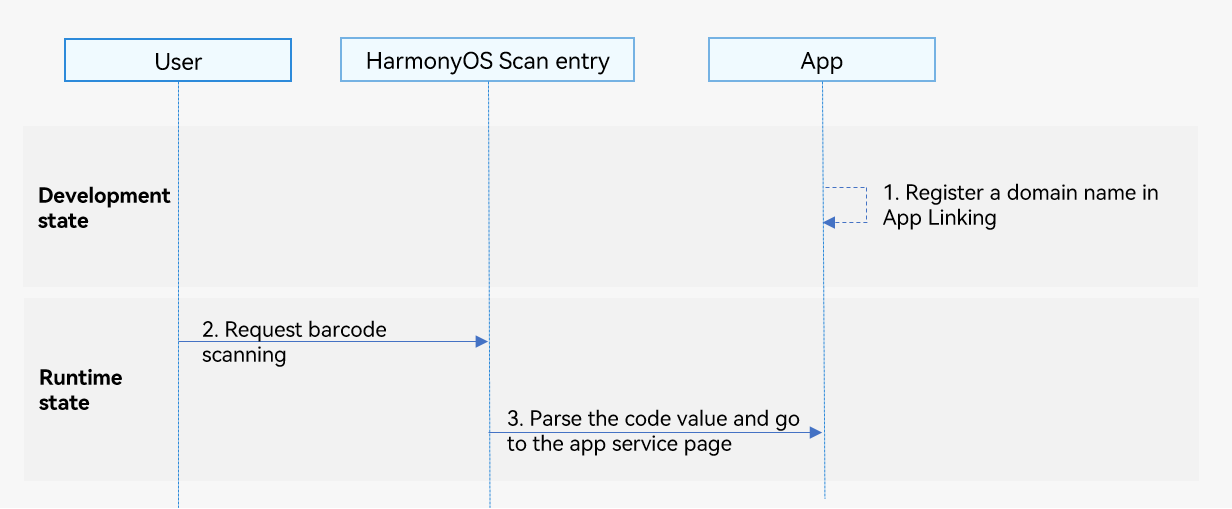
A developer registers a domain name based on the development guide of App Linking.
A user initiates a scanning request through the HarmonyOS barcode scanning entry.
The HarmonyOS barcode scanning entry calls the relevant system capability to parse the code value, query the app information accordingly, and launch the app.
The app shows the target service page based on the parsing result to the user.
Development Procedure
Complete necessary preparations by referring to Getting Started.
Process the received code value and execute the in-app page redirection logic.
import { UIAbility, Want } from '@kit.AbilityKit';
import { BusinessError } from '@kit.BasicServicesKit';
import { hilog } from '@kit.PerformanceAnalysisKit';
import { router, window } from '@kit.ArkUI';

export default class EntryAbility extends UIAbility {
  private page: string = 'pages/Index';
  private uiContext?: UIContext;

  // Obtain the code value through the onCreate callback in cold start scenarios.
  onCreate(want: Want): void {
    hilog.info(0x0001, '[Scan Access]', 'Succeeded in getting want in onCreate');

    // Obtain the input link information from want. For example, the input URL is https://www.example.com/scan.
    this.getRouterUri(want);
  }

  // Obtain the code value through the onNewWant callback in warm start scenarios.
  onNewWant(want: Want): void {
    hilog.info(0x0001, '[Scan Access]', 'Succeeded in getting want in onNewWant');
    // Obtain the input link information from want.
    this.getRouterUri(want);
  }

  onWindowStageCreate(windowStage: window.WindowStage): void {
    hilog.info(0x0001, '[Scan Access]', 'Ability onWindowStageCreate');
    try {
      windowStage.getMainWindow().then((windowObj: window.Window) => {
        try {
          windowStage.loadContent(this.page).then(() => {
            hilog.info(0x0001, '[Scan Access]', 'Succeeded in loading the content.');
            try {
              this.uiContext = windowObj.getUIContext();
              hilog.info(0x0001, '[Scan Access]', 'Succeeded in getting UIContext.');
            } catch (err) {
              hilog.error(0x0001, '[Scan Access]', `Failed to get UIContext by windowObj. Code: ${err.code}.`);
            }
          }).catch((err: BusinessError) => {
            hilog.error(0x0001, '[Scan Access]', `Failed to load the content. Code: ${err.code}.`);
          })
        } catch (err) {
          hilog.error(0x0001, '[Scan Access]', `Failed to load the content. Code: ${err.code}.`);
        }
      }).catch((err: BusinessError) => {
        hilog.error(0x0001, '[Scan Access]', `Failed to get MainWindow. Code: ${err.code}.`);
      })
    } catch (err) {
      hilog.error(0x0001, '[Scan Access]', `Failed to get MainWindow. Code: ${err.code}.`);
    }
  }

  // Parse the scanning result and redirect the user to the corresponding page.
  private getRouterUri(want: Want): void {
    const uri: string | undefined = want?.uri;
    if (!uri) {
      return;
    }
    this.page = 'pages/Access';

    if (this.uiContext) {
      // Open the corresponding page based on the parsed URI, for example, open pages/Access.
      const status: router.RouterState = this.uiContext.getRouter().getState();
      if (status && status.name !== 'Access') {
        try {
          // Process the service based on the URI.
          this.uiContext.getRouter().pushUrl({
            url: 'pages/Access'
          }).catch((err: BusinessError) => {
            hilog.error(0x0001, '[Scan Access]', `Failed to pushUrl by getRouter. Code: ${err.code}.`);
          });
        } catch (err) {
          hilog.error(0x0001, '[Scan Access]', `Failed to pushUrl by getRouter. Code: ${err.code}.`);
        }
      }
    }
  }
}
Verify the scan-to-access capability.
- Install the test app for which the domain name mapping has been configured on your test device.
- Open the code scanning entry on Control Panel on the HarmonyOS device and scan the QR code published for your app.
- Check whether the app can be launched and the target page can be opened.
The following shows the integration effect by using the Meituan bicycle as an example.
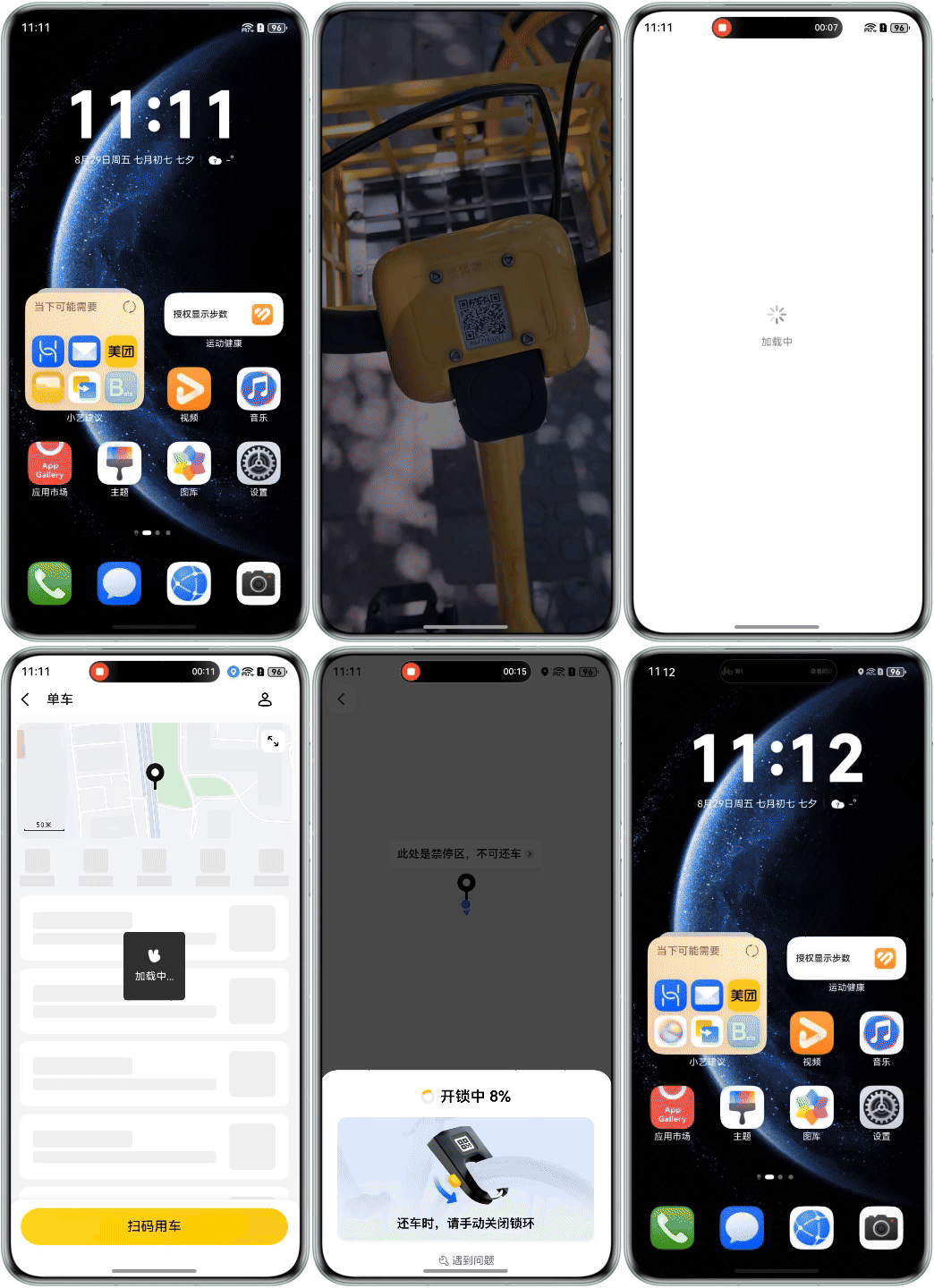
Verification After Development
To ensure optimal user experience, you are advised to complete the following after integrating the scan-to-access capability into your app:
Check whether your app delivers a user experience as expected based on the following criteria.
| No. | Criterion | Type | Description |
|---|---|---|---|
| 1 | Redirection experience when the app has been installed | Rule | When a user uses the system-level Scan entry to scan a barcode image, the user is redirected to the fulfillment page. A fulfillment page refers to the target service page after a user scans a barcode, such as a payment page within an app after a payment code is scanned, rather than the app's home page. |
| 2 | Redirection experience when the app has not been installed | Suggestion | When a user uses the system-level Scan entry to scan a barcode image, a web page corresponding to the code value is opened in a browser. You need to design the web page properly to effectively execute the intended action, guide users through app installation, or perform other tasks. |