Overview
Service widgets provide users with clear information, which is easy to use, intelligent, and flexible on multiple devices, providing a simple and efficient user experience. The system provides a wide range of service widget development capabilities through Form Kit, covering widget creation, interaction, update, management, and more. These capabilities enable developers to efficiently develop personalized service widgets.
Figure 1 Weather widget

[h2]Widget Update Scenarios
Service widgets are usually used to display the latest information or data. The widget update mechanism ensures that the latest content is displayed on the widget, so that users can obtain real-time information. For example, through widget updates, the news app can display the latest news title and summary, and the weather app can provide the latest weather information.
The widget update frequency and strategy directly affect user experience. If the widget content is not updated for a long time, users may consider that the app is inactive or unreliable, which reduces the reliability and use frequency of the app. On the contrary, a proper widget update mechanism can keep the widget content fresh and attractive, improving user experience and satisfaction.
Generally, widget data needs to be loaded or updated in the following scenarios.
Table 1 Widget update scenarios
| Type | Description |
|---|---|
| Active update | • Initializes widget data when a widget is added. For example, when a widget is added from the home screen and the widget preview pop-up window is displayed, the widget data is initialized and loaded.
• Updates a widget in the case of UI interaction. For example, tap the refresh button on a widget to update the recommended content. For a music widget, tap the play button to start playing music in the background and update the status of the play button.
• Updates data to the widget in the case of changes caused by interactions on the app. For example, when the favorites button is tapped on the app to change the favorites status of an article, the favorites status of the widget is synchronously updated.
|
| Passive update | • Interval-based updates (by setting the update interval or the next update time), and time-specific updates (by setting an update time). For example, the recommended content of the news widget is updated at specified intervals. |


How to Implement
This section uses the widget update and data interaction sample to describe the widget data interaction process, how to implement common widget update scenarios, and FAQs and precautions during widget update development.
[h2]Widget Running Mechanism
Figure 2 Widget provider and host

Take the Weather widget as an example. The weather app functions as the widget provider and provides the display content, widget layout, and interaction logic of the Weather widget. For example, the weather widget displays the location, temperature, and weather conditions. A user can tap the widget to switch to the weather app. In this case, the home screen serves as the widget host, that is, the app that hosts the widget. It controls where the weather widget is displayed on the home screen and displays the widget content. The implementations of ArkTS service widgets depend on the capabilities of the ArkTS service widget framework, which manages the widget lifecycle and update mechanism and renders the widget pages. As shown in the following figure, the widget provider and host depend on the widget framework. The addition, deletion, and update of the weather widget provided by the weather app depend on the widget management service of the framework. The display of the weather widget content on the home screen depends on the widget rendering service of the framework. For details about the widget provider, host, and framework, see How to Implement.
[h2]Widget Data Interaction
The implementation of the widget update scenario depends on the FormExtensionAbility lifecycle, the updateForm() API provided by the FormProvider module, and the widget update mechanism provided by the widget framework. As shown in the following figure, the main process and the widget process of the app are two independent processes. The main process of the app holds UIAbility, and the widget process of the app holds FormExtensionAbility. The UI pages of widgets are rendered by the system service in a unified manner and presented by the widget host (for example, the home screen). If the widget data does not depend on the main process of the app, you can use the widget framework capability in the widget process to update the widget. If the widget data depends on the main process of the app, the main process needs to use the updateForm() API provided by the FormProvider module to update the widget. In this case, the widget ID must be specified. Therefore, the widget ID needs to be stored when the widget is added. In this scenario, you need to use system capabilities such as the widget framework and data storage to ensure that the widget ID data of the main process and the widget process is consistent.
Figure 4 Relationship between the main process and the widget process

This section describes the widget update scenarios which are caused by widget or app UI interactions and triggered by the system update mechanism at specified intervals or specific times. Generally, dealing with these common scenarios suffices to meet users' requirements for updating widget information. The other type is application widgets that need to update information in real time, for example, travel taxi widgets. Users have high requirements on real-time information. This type of scenario can be implemented by using the Push Kit capability. For details, see Pushing a Widget Update Message.
[h2]Scenario Description
When adding a widget, you need to initialize the widget data. For details about how to create and configure a widget, see ArkTS Widget Development. This section describes how to initialize widget data.
Figure 5 Widget preview page

[h2]Development Process
When a widget is added, the widget data initialization process is as follows.
Figure 6 Widget data initialization process

When you press and hold an app icon on the home screen to display the widget list, the FormExtensionAbility lifecycle API onAddForm() is first triggered. You can use the widget parameter enumeration FormParam to obtain widget information, such as the widget ID, widget name, and widget width and height, from the input parameter want of the lifecycle API onAddForm(). You can determine which is necessary information or whether to save it.
import { Want } from '@kit.AbilityKit';
import { formBindingData, FormExtensionAbility, formInfo, formProvider } from '@kit.FormKit';
import { hilog } from '@kit.PerformanceAnalysisKit';
// ...
const TAG: string = 'EntryFormAbility';

export default class EntryFormAbility extends FormExtensionAbility {
  onAddForm(want: Want): formBindingData.FormBindingData {
    if (!want || !want.parameters) {
      hilog.error(0x0000, TAG, `FormAbility onAddForm want or want.parameters is undefined`);
      return formBindingData.createFormBindingData('');
    }
    do {
      let formName: string = want.parameters[formInfo.FormParam.NAME_KEY] as string;
      let formId: string = want.parameters[formInfo.FormParam.IDENTITY_KEY] as string;
      // ...
    } while (0);
    return formBindingData.createFormBindingData('');
  }

  // ...
}
Create a data type for which a widget needs to be returned. The type can be an object containing multiple key-value pairs or a string in JSON format. Use the createFormBindingData() API of the formBindingData module to encapsulate the data class required by the widget. The data class is used as the return value of the onAddForm() lifecycle API and passed to the widget.
Note: If the onAddForm() API cannot directly construct a data class as the return value to initialize the form, for example, in scenarios where the data depends on the database query result or network data, you can use the updateForm() API provided by the FormProvider module to push the asynchronously obtained data to the form.
export class FormData {
  formId: string = '';
  formTime: string = '';
  isFavor?: boolean = false;
  index?: number = 0;
  cardList: Array<CardListItemData> = [];

  constructor(formId: string) {
    this.formId = formId;
  }
}
import { BusinessError, systemDateTime } from '@kit.BasicServicesKit';
import { Want } from '@kit.AbilityKit';
import { formBindingData, FormExtensionAbility, formInfo, formProvider } from '@kit.FormKit';
import { hilog } from '@kit.PerformanceAnalysisKit';
import { CardListItemData, CommonData, FormData } from '../common/CommonData';
// ...
export default class EntryFormAbility extends FormExtensionAbility {
onAddForm(want: Want): formBindingData.FormBindingData {
if (!want || !want.parameters) {
hilog.error(0x0000, TAG, `FormAbility onAddForm want or want.parameters is undefined`);
return formBindingData.createFormBindingData('');
}
do {
let formName: string = want.parameters[formInfo.FormParam.NAME_KEY] as string;
let formId: string = want.parameters[formInfo.FormParam.IDENTITY_KEY] as string;
// ...
if (formName === 'card_info_refresh') {
let formData = new FormData(formId);
formData.formTime = systemDateTime.getTime().toString();
let tempFormInfo: formBindingData.FormBindingData = formBindingData.createFormBindingData(formData);
return tempFormInfo;
}
let key: string = `${formId}_show_index`;
let data = util.getFormInitData(key, preferences);
if (formName === 'card_info_update') {
// Save the index of the data items currently displayed on the card.
util.preferencesPut(preferences, key, data.id);
let formData = new FormData(formId);
formData.cardList.push(data);
let tempFormInfo: formBindingData.FormBindingData = formBindingData.createFormBindingData(formData);
return tempFormInfo;
}
} while (0);
return formBindingData.createFormBindingData('');
}
// ...
} The widget page uses the page-level UI state to store the data received by the LocalStorage from the onAddForm() API. Use the status variable decorated by @LocalStorageProp to receive detailed information about the data type. The key value in the @LocalStorageProp(key) decorator must correspond to the key value of the data type. Use the obtained data to initialize the widget page.
let storageLocal = new LocalStorage();

@Entry(storageLocal)
@Component
struct WidgetCard {
  // ...
  @LocalStorageProp('formTime') @Watch('onFormTimeChange') formTime: string = '';
  @LocalStorageProp('formId') formId: string = '';
  // ...
  onFormTimeChange() {
    // ...
  }
  // ...
  build() {
    // ...
  }
} [h2]Scenario Description

Generally, simple widget UI interactions cause widget updates. For example, when a smart home appliance control widget is used to control a home appliance switch, the switch status on the widget changes with the device status. When a news widget is tapped, the latest data is obtained from the network to update the recommended content list. This type of update can be implemented through the message event. The widget can be updated only in the widget process.
[h2]Development Process
Figure 7 Widget updates caused by UI interactions
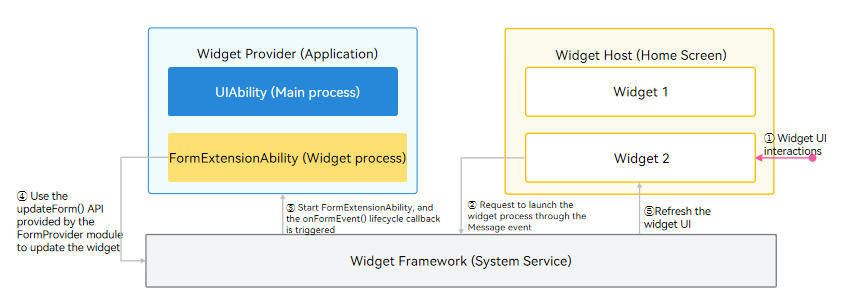
Register the onClick() event on the widget page. For dynamic widgets, use the postCardAction() API. For static widgets, use the FormLink component to trigger events. The following uses a dynamic widget as an example. Call the postCardAction() API in the onClick() event callback and set the action parameter to message to trigger a message event. If the abilityName parameter is not set for the message event, the FormExtensionAbility is started by default.
Row() {
  this.buttonBuilder($r('app.string.message'))
}
.onClick(() => {
  postCardAction(this, {
    action: 'message',
    params: {
      message: 'Message refresh card.'
    }
  });
})
After the message event starts the FormExtensionAbility, the onFormEvent() lifecycle method is triggered. Build the data class to be updated for the widget and call the updateForm() method to push the data to the widget. The widget is updated when the status variable decorated with @LocalStorageProp is updated on the widget page.
import { formBindingData, FormExtensionAbility, formInfo, formProvider } from '@kit.FormKit';
import { hilog } from '@kit.PerformanceAnalysisKit';
import { CardListItemData, CommonData, FormData } from '../common/CommonData';
// ...
const TAG: string = 'EntryFormAbility';

export default class EntryFormAbility extends FormExtensionAbility {
  // ...
  onFormEvent(formId: string, message: string) {
    // ...
    let formData = new FormData(formId);
    // ...
      let formMsg: formBindingData.FormBindingData = formBindingData.createFormBindingData(formData);
      formProvider.updateForm(formId, formMsg).then(() => {
        hilog.info(0x0000, TAG, 'updateForm success.');
      }).catch((error: Error) => {
        let err = error as BusinessError;
        hilog.error(0x0000, TAG, `updateForm failed. error code=${err.code}, message=${err.message}`);
      });
    } catch (error) {
      let err = error as BusinessError;
      hilog.error(0x0000, TAG, `getSync failed, error code=${err.code}, message=${err.message}`);
    }
  }

  // ...
} [h2]Scenario Description

Widget UI interactions cause widget updates, implementing the same functions as those when the app is running in the foreground. For example, when a user taps the play or switch button on a music widget, music is played in the background and the playback status on the widget is updated. This update scenario can be implemented by using the call event. The widget needs to be updated when the main process of the app is started in the background.
[h2]Development Process
Figure 8 Widget update when starting an app in the background

Register the onClick() event on the widget page. The following uses a dynamic widget as an example. Call the postCardAction() API in the callback (for a static widget, use static FormLink). Set the action parameter to call and configure the method to be called and the data to be passed. This triggers the call event to start the specified UIAbility in the background. Pay attention to the following restrictions when setting parameters:
- The abilityName parameter can be set only to the UIAbility of the current app, that is, the UIAbility configured in the module.json5 file.
- The method parameter is required. It is a string used to trigger the corresponding method in the UIAbility.
- When the current call event triggers the update of a specified widget, the formId parameter needs to be set for the UIAbility to update the current widget after receiving the request.
Row() {
  this.buttonBuilder($r('app.string.call'))
}
.onClick(() => {
  postCardAction(this, {
    action: 'call',
    abilityName: 'EntryAbility',
    params: {
      formId: this.formId,
      method: 'updateCardInfo',
      params: {
        message: 'Call refresh card.'
      }
    }
  });
})
In the onCreate() lifecycle of the started UIAbility, configure the method required for listening for the call event. The name of the listening method must be the same as that of method configured for the call event. Use the readString() method to read the transferred string value and then use JSON.parse() to parse the transferred parameters. Use the passed form ID to construct the data type required for updating the widget and call the updateForm() API to push the data to the widget.
Note that when the process exits, the listening needs to be canceled in the onDestroy() lifecycle. The listening configuration method needs to return the data type that implements the rpc.Parcelable() API.
import { AbilityConstant, UIAbility, Want } from '@kit.AbilityKit';
import { hilog } from '@kit.PerformanceAnalysisKit';
import { formBindingData, formInfo, formProvider } from '@kit.FormKit';
import { rpc } from '@kit.IPCKit';
import { CardListItemData, CommonData, FormData } from '../common/CommonData';
// ...
const TAG: string = 'EntryAbility';

export default class EntryAbility extends UIAbility {
  private callFunc = (data: rpc.MessageSequence): MyParcelable => {
    try {
      let params: Record<string, string> = JSON.parse(data.readString());
      if (params.formId !== undefined) {
        let formId: string = params.formId;
        let formData = new FormData(formId);
        let util = PreferencesUtil.getInstance();
        let preferences = util.getPreferences(this.context);
        if (!preferences) {
          return new MyParcelable(1);
        }
        let index: number = preferences.getSync(CommonConstants.DATA_INDEX, 0) as number;
        formData.cardList = CommonData.getData(index);
        util.preferencesPut(preferences, CommonConstants.DATA_INDEX, index + 1);
        let formMsg: formBindingData.FormBindingData = formBindingData.createFormBindingData(formData);
        formProvider.updateForm(formId, formMsg).then((data) => {
          hilog.info(0x0000, TAG, 'updateForm success.', JSON.stringify(data));
        }).catch((error: Error) => {
          let err = error as BusinessError;
          hilog.error(0x0000, TAG, `updateForm failed. error code=${err.code}, message=${err.message}`);
        });
      }
    } catch (error) {
      let err = error as BusinessError;
      hilog.error(0x0000, TAG, `callFunc failed, error code=${err.code}, message=${err.message}`);
    }
    return new MyParcelable(1);
  };
  // ...
  onCreate(want: Want, _launchParam: AbilityConstant.LaunchParam): void {
    // ...
    try {
      this.callee.on('updateCardInfo', this.callFunc);
    } catch (error) {
      let err = error as BusinessError;
      hilog.error(0x0000, TAG, `on updateCardInfo failed, error code=${err.code}, message=${err.message}`);
    }
    // ...
  }

  // ...
  onDestroy(): void {
    // ...
    try {
      this.callee.off('updateCardInfo');
      // ...
    } catch (error) {
      let err = error as BusinessError;
      hilog.error(0x0000, TAG, `Failed to disconnect callee. Cause: error code=${err.code}, message=${err.message}`);
    }
  }

  // ...
}


class MyParcelable implements rpc.Parcelable {
  num: number;

  constructor(num: number) {
    this.num = num;
  }

  marshalling(dataOut: rpc.MessageSequence): boolean {
    try {
      dataOut.writeInt(this.num);
    } catch (error) {
      let err = error as BusinessError;
      hilog.error(0x0000, 'MyParcelable', `marshalling failed, error code=${err.code}, message=${err.message}`);
    }
    return true;
  }

  unmarshalling(dataIn: rpc.MessageSequence): boolean {
    try {
      this.num = dataIn.readInt();
    } catch (error) {
      let err = error as BusinessError;
      hilog.error(0x0000, 'MyParcelable', `unmarshalling failed, error code=${err.code}, message=${err.message}`);
    }
    return true;
  }
} 
This action type requires that the widget provider have the ohos.permission.KEEP_BACKGROUND_RUNNING permission.
[h2]Scenario Description

After the widget UI is redirected to the app, the widget is updated. This is used to manually trigger interval-based widget updates. For example, when a user taps a weather widget to go to the app, the app updates the weather in real time and the weather data on the widget is updated. This update scenario can be implemented through the router event. You need to jump from the widget process to the main process of the application to update the widget.
[h2]Development Process
Figure 9 Widget update after switching from widget to app

Register the onClick() event on the widget page, call the postCardAction() API in the callback, and set the action parameter to router to trigger a router event. The router event starts the UIAbility specified by abilityName.
Row(){
  this.buttonBuilder($r('app.string.router'))
}
.onClick(() => {
  postCardAction(this, {
    action: 'router',
    abilityName: 'EntryAbility',
    params: {
      message: 'Router refresh card.'
    }
  });
})
Receive the router event in the UIAbility and obtain parameters. If the UIAbility is not running in the background, the onCreate lifecycle callback is triggered. If the UIAbility is running in the background, the onNewWant() lifecycle callback is triggered. The lifecycle parameter want contains widget-related information and performs widget-related operations. Determine the parameters contained in params, construct the data class required for updating the widget, and call the updateForm() API to push data to the widget.
import { AbilityConstant, UIAbility, Want } from '@kit.AbilityKit';
import { hilog } from '@kit.PerformanceAnalysisKit';
import { formBindingData, formInfo, formProvider } from '@kit.FormKit';
import { rpc } from '@kit.IPCKit';
import { CardListItemData, CommonData, FormData } from '../common/CommonData';
// ...
const TAG: string = 'EntryAbility';

export default class EntryAbility extends UIAbility {
  // ...
  onCreate(want: Want, _launchParam: AbilityConstant.LaunchParam): void {
    // ...
    this.updateInfo(want);
    // ...
  }

  // ...
  onNewWant(want: Want, _launchParam: AbilityConstant.LaunchParam): void {
    this.updateInfo(want);
  }

  private updateInfo(want: Want) {
    if (!want || !want.parameters || want.parameters[formInfo.FormParam.IDENTITY_KEY] === undefined) {
      return;
    }
    let message: string = '';
    try {
      let paramsObj: Record<string, string> =
        JSON.parse(want.parameters?.params as string) as Record<string, string>;
      message = paramsObj?.message || '';
    }catch (error){
      hilog.error(0x0000, TAG, `JSON parse failed: ${error.message}`);
    }
    if (message === 'Router refresh card.') {
      let formId = want.parameters[formInfo.FormParam.IDENTITY_KEY].toString();
      let formData = new FormData(formId);
      // ...
        let formMsg: formBindingData.FormBindingData = formBindingData.createFormBindingData(formData);
        formProvider.updateForm(formId, formMsg)
          .then((data) => {
            hilog.info(0x0000, TAG, 'updateForm success.', JSON.stringify(data));
          })
          .catch((error: Error) => {
            let err = error as BusinessError;
            hilog.error(0x0000, TAG, `updateForm failed, error code=${err.code}, message=${err.message}`);
          });
      } catch (error) {
        let err = error as BusinessError;
        hilog.error(0x0000, TAG, `updateInfo failed, error code=${err.code}, message=${err.message}`);
      }
    }
  }

  // ...
} [h2]Scenario Description

The following example describes the scenario where the favorites button is tapped in an app. The content displayed on the widget is in the data list of the app. When a user taps the favorites button in the app, the favorites status should be synchronized to the widget.
[h2]Development Process
The following figure shows the widget update caused by UI interaction on the app.
Figure 10 Process of updating data from app to widget

When an image display widget is created, Preferences is used to save the widget ID to the widget ID list and the current widget status in the onAddForm() lifecycle.
import { Want } from '@kit.AbilityKit';
import { formBindingData, FormExtensionAbility, formInfo, formProvider } from '@kit.FormKit';
import { hilog } from '@kit.PerformanceAnalysisKit';
import { CardListItemData, CommonData, FormData } from '../common/CommonData';
import { CommonConstants } from '../common/CommonConstants';
import { PreferencesUtil } from '../common/utils/PreferencesUtil';

const TAG: string = 'EntryFormAbility';

export default class EntryFormAbility extends FormExtensionAbility {
  onAddForm(want: Want): formBindingData.FormBindingData {
    if (!want || !want.parameters) {
      hilog.error(0x0000, TAG, `FormAbility onAddForm want or want.parameters is undefined`);
      return formBindingData.createFormBindingData('');
    }
    do {
      let formName: string = want.parameters[formInfo.FormParam.NAME_KEY] as string;
      let formId: string = want.parameters[formInfo.FormParam.IDENTITY_KEY] as string;
      let util = PreferencesUtil.getInstance();
      let preferences = util.getPreferences(this.context);
      if (!preferences) {
        break;
      }
      // Save form id using preferences.
      util.addFormId(preferences, formId);

      // ...
      let key: string = `${formId}_show_index`;
      let data = util.getFormInitData(key, preferences);
      if (formName === 'card_info_update') {
        // Save the index of the data items currently displayed on the card.
        util.preferencesPut(preferences, key, data.id);
        let formData = new FormData(formId);
        formData.cardList.push(data);
        let tempFormInfo: formBindingData.FormBindingData = formBindingData.createFormBindingData(formData);
        return tempFormInfo;
      }
    } while (0);
    return formBindingData.createFormBindingData('');
  }

  // ...
}
The onClick() event is registered for the favorites button on the app. When the event callback is triggered, Preferences is used to update the favorites status, the widget displaying the favorites status change is queried, and the favorites status is updated to the widget.
Row() {
  // ...
}
.onClick(() => {
  let util = PreferencesUtil.getInstance();
  let preferences = util.getPreferences(this.getUIContext().getHostContext()!);
  if(!preferences) {
    return;
  }
  this.statusArr[this.itemData.id] = !this.statusArr[this.itemData.id];
  this.itemData.favour = this.statusArr[this.itemData.id!];
  util.preferencesPut(preferences, 'statusArr', this.statusArr);

  // Update page display data.
  AppStorage.set('statusArr', [...this.statusArr]);

  let idArr = PreferencesUtil.getInstance().getFormIds(preferences);
  if (idArr.length > 0) {
    idArr.forEach((formId: string) => {
      if (!preferences) {
        return;
      }
      try {
        if (preferences.getSync(`${formId}_show_index`, -1) as number === this.itemData.id) {
          let formData = new FormData(formId);
          formData.cardList = [this.itemData];
          let formMsg: formBindingData.FormBindingData = formBindingData.createFormBindingData(formData);
          formProvider.updateForm(formId, formMsg).then(() => {
            hilog.info(0x0000, TAG, `updateForm success.`);
          }).catch((error: Error) => {
            let err = error as BusinessError;
            hilog.error(0x0000, TAG, `updateForm failed: error code=${err.code}, message=${err.message}`);
          });
        }
      } catch (error) {
        let err = error as BusinessError;
        hilog.error(0x0000, TAG, `getSync failed, error code=${err.code}, message=${err.message}`);
      }
    })
  }
}) [h2]Scenario Description
When the weather or calendar app is used, the widget needs to update the latest data of the current day so that users can obtain the latest information. When a news reading widget displays the list of hot articles, the list needs to be updated at specified intervals.
To implement the preceding scenarios, service widgets can be updated at specified intervals or specific times.
Before configuring a widget to update periodically, enable the periodic update feature by setting the updateEnabled field to true in the form_config.json file. To ensure security and performance, each widget can be refreshed for a maximum of 50 times at a scheduled time every day. The scheduled refresh can be triggered by setting the widget configuration item updateDuration or calling the setFormNextRefreshTime method. When the number of scheduled refresh times reaches 50, the widget cannot be refreshed again in scheduled mode. The number of scheduled refresh times will be reset at 00:00 every day.
[h2]Development Process
Interval-based updates
Interval-based updates indicate that the widget content is automatically updated at the specified interval. You can set this parameter in the updateDuration field in the form_config.json configuration file. The unit of the updateDuration field is 30 minutes. That is, the minimum update interval is half an hour (30 minutes). The value 0 indicates that this parameter does not take effect. The value N indicates that the update period is 30 x N minutes.
After scheduled refresh is triggered, the system calls the lifecycle callbacks function of onUpdateForm() and uses the updateForm() method to update the widget content.
import { formBindingData, FormExtensionAbility, formInfo, formProvider } from '@kit.FormKit';
import { hilog } from '@kit.PerformanceAnalysisKit';
import { CardListItemData, CommonData, FormData } from '../common/CommonData';
// ...
export default class EntryFormAbility extends FormExtensionAbility {
  // ...
  onUpdateForm(formId: string) {
    // ...
    let formData = new FormData(formId);
    // ...
    let formMsg: formBindingData.FormBindingData = formBindingData.createFormBindingData(formData);
    formProvider.updateForm(formId, formMsg).catch((err: BusinessError) => {
      hilog.error(0x0000, TAG, `updateForm failed, error code=${err.code}, message=${err.message}`);
    });
  }

  // ...
}
Time-specific updates
Time-specific updates indicate that the widget content is automatically updated at specific times every day. You can set the scheduledUpdateTime field in the form_config.json file, for example, set it to 14:00. After the scheduled update is triggered, the system calls the onUpdateForm()lifecycle callbacks method of FormExtensionAbility. For details about related operations, see the scheduled update.
Note that updateDuration takes precedence over scheduledUpdateTime. To implement time-specific updates, updateDuration must be set to 0. If it is set to a value greater than 0, time-specific updates do not take effect.
{
  "forms": [
    {
      "name": "card_info_refresh",
      "displayName": "$string:widget_display_name",
      "description": "$string:widget_desc",
      "src": "./ets/widget/pages/WidgetCard.ets",
      "uiSyntax": "arkts",
      "window": {
        "designWidth": 720,
        "autoDesignWidth": true
      },
      "colorMode": "auto",
      "isDynamic": true,
      "isDefault": true,
      "updateEnabled": true,
      "scheduledUpdateTime": "14:00",
      "updateDuration": 0,
      "defaultDimension": "4*4",
      "supportDimensions": [
        "4*4"
      ]
    },
    // ...
  ]
}
For more precautions, see Passive Update.
[h2]How do I update multiple widgets of a specified type?
To update all widgets of the same type, you need to save their formId. In the onAddForm() lifecycle, the widget name, width, and height can be used to identify widgets of the same type, and formId data is classified and persisted, for example, using preferences or RDB.
When a widget needs to be synchronized after a status update on the app, obtain the formId array of this type from the persistent data. Traverse the array and call formProvider.updateForm() to push the data required for widget update. When a widget is removed, check whether formId exists in the array of this type in the onRemoveForm() lifecycle. If it exists, the data item needs to be deleted and the persistent data needs to be updated.
[h2]How do I manage the IDs of all widgets that have been added to the home screen?
When a user presses an app icon and selects a widget from the drop-down list, or presses a widget and selects more widgets, the onAddForm() lifecycle callback is triggered for all widgets. When a user manually closes the pop-up window for adding a widget to the home screen or turns off the screen, the onRemoveForm() lifecycle callback is triggered for all widgets. When a user adds a widget to the home screen and exits from this function, the onRemoveForm() lifecycle callback is triggered for all widgets except the current added widget.
When the onAddForm() lifecycle callback is triggered, the widget ID is stored to the database. When the onRemoveForm() lifecycle callback is triggered, the widget ID is deleted from the database. IDs of widgets that are not deleted from the database are those that have been added to the home screen.