Multi-Window is a multitasking solution that allows multiple application windows to run simultaneously on the same screen in floating windows, split-screen views, or multitask views. With this feature, users can arrange the size and position of each window to fit their needs.
Floating Windows
A floating window is a non-full-screen application window that floats on the device screen. It is perfect for users to quickly switch to another task while they are in the middle of something else, like checking a message while browsing.
On smartphones, only one floating window can be displayed on a single screen. On foldable phones in the unfolded state and tablets, up to two floating windows can be displayed on a single screen. When the maximum number of floating windows has been reached, opening a new floating window will replace the oldest unused one.
[h2]Types of Floating Windows
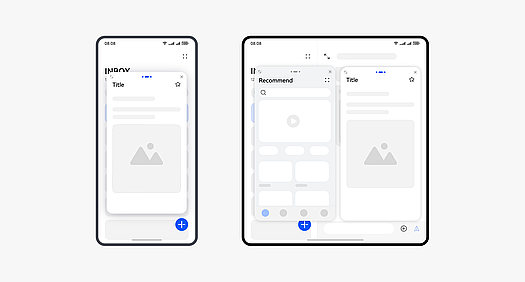
There are two main types of floating windows:
Portrait floating windows: They are great for news, social media, and shopping applications.
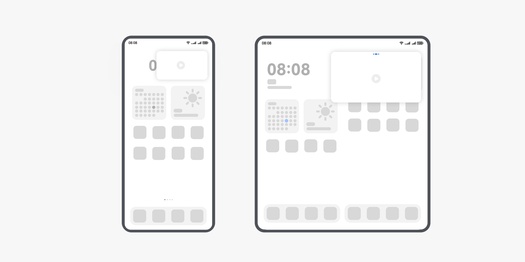
Landscape floating windows: They are ideal for landscape games and full-screen video playback.
[h2]Triggering and Restoration of Floating Windows
Floating windows can be triggered in any of the following ways:
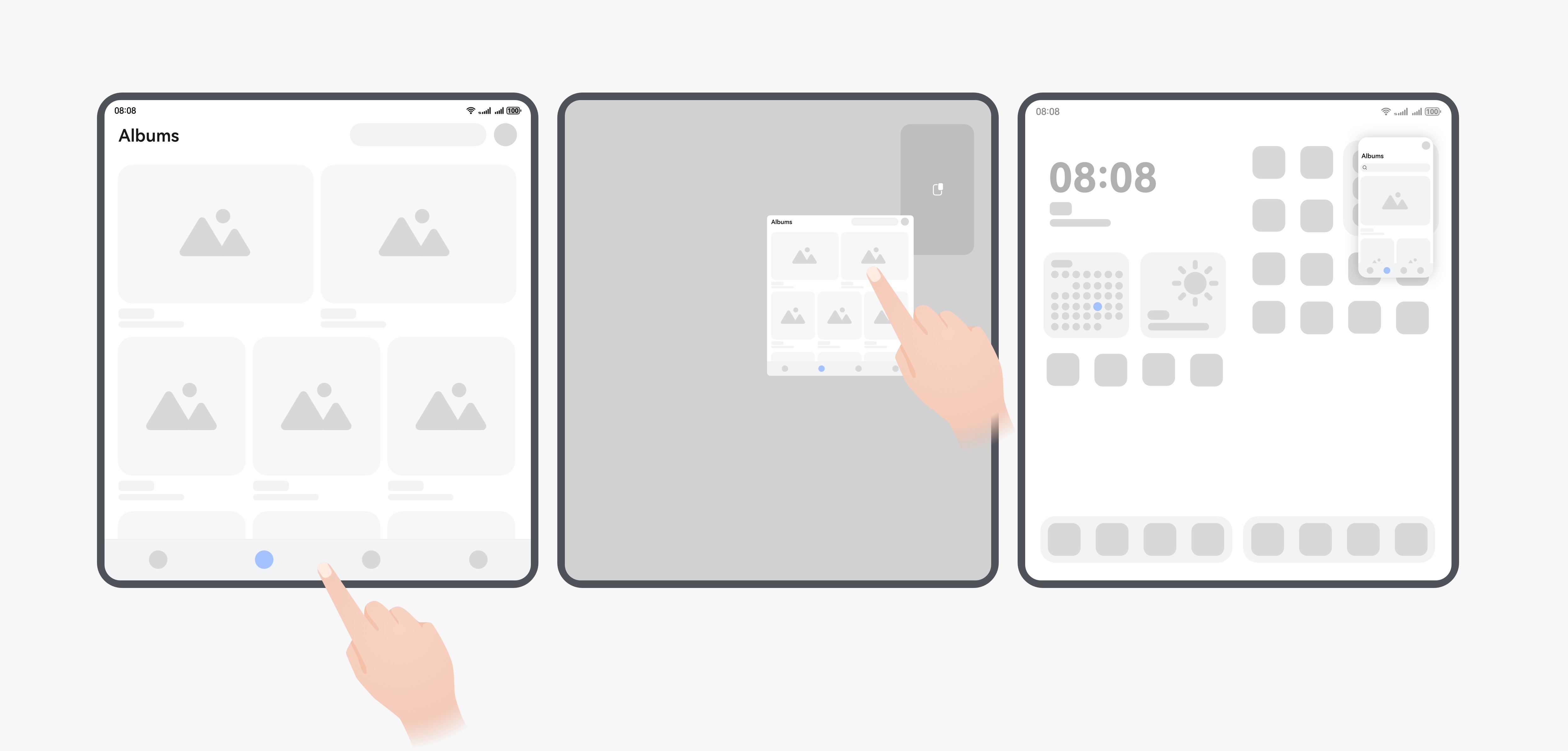
Triggered by a gesture: When an application is running in full-screen mode, users can swipe up from the bottom of the screen to the top-right hot zone to open a floating window.
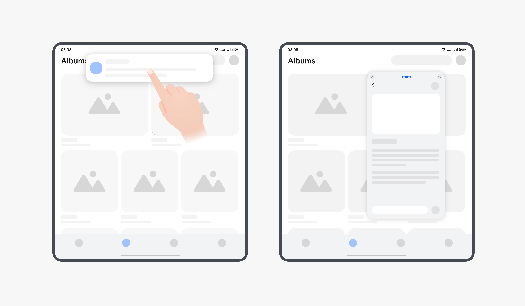
Triggered by a notification: When a notification is received and displayed (not collapsed yet), users can pull down the notification to open a floating window.
Triggered from the side dock: Users can swipe from the edge of the screen to display the side dock, and then tap an application that supports floating windows on the dock to open a floating window.
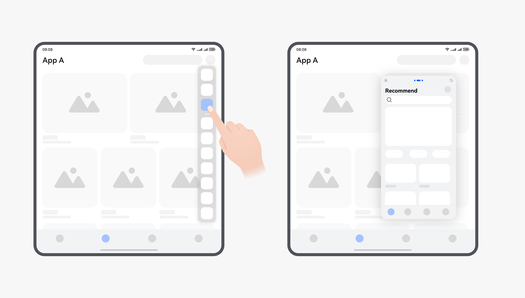
Switching from split-screen mode: When an application is running in split-screen mode, users can drag the top bar of the split-screen pane to the hot zone to shrink the pane into a floating window.
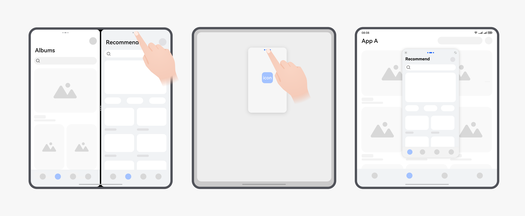
Floating windows can be restored in either of the following ways:
Restored from the recent task center: If a floating window has been enabled for an application, this application is displayed together with full-screen applications in the recent task center. Users can tap the widget of this application to restore its floating window.
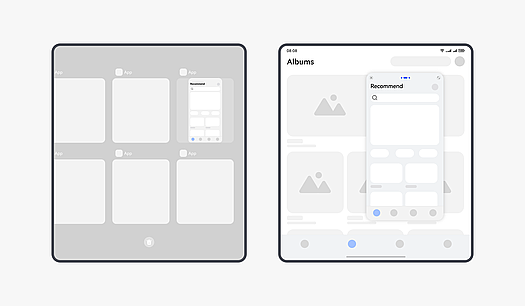
Restored from the sidebar: After being minimized, an application for which a floating window has been enabled is temporarily stored in the sidebar on the screen. Users can tap or long press the sidebar to expand the task selection screen and then tap the widget of this application to restore its floating window.
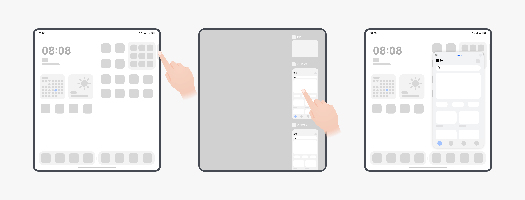
[h2]Precautions
PC apps running on tablets do not support floating windows.
If the deviceTypes tag in the module.json5 configuration file of an application contains 2in1 but does not contain phone, the system determines that the application is a PC application.
In multi-window mode, the window dimensions are determined by the system and are not restricted by WindowLimits.
Split-Screen Views
Split-screen applies to scenarios where two applications are concurrently running on the screen for a long time. For example, users can watch shopping guides while browsing through commodities, watch videos while playing games, or take notes while watching videos.
[h2]Triggering of Split-Screen Views
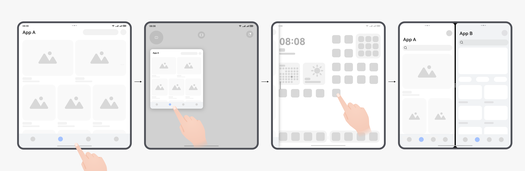
Triggered by a gesture: When an application is running in full-screen mode, users can swipe up from the bottom of the screen to the top-left hot-zone, and then tap another application icon or widget that supports split-screen mode on the home screen to enter the split-screen mode.
Application-initiated: Applications can proactively enable split-screen mode. For details, see In-Application Split-Screen Mode.
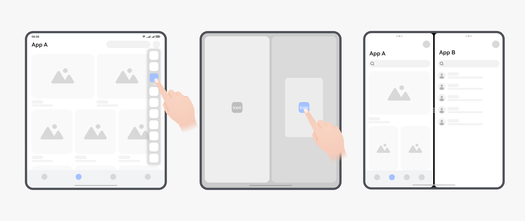
Triggered from the side dock: Users can long press an application icon on the dock bar and drag it outward to activate the split-screen mode with the foreground application that supports split-screen views.
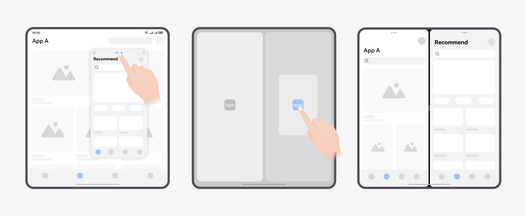
Switching from a floating window: Users can drag the top bar of the floating window to the hot zone to convert it into a split-screen view with the foreground full-screen application.
[h2]Precautions
- In multi-window mode, the window dimensions are determined by the system and are not restricted by WindowLimits.
Multitask Views
Starting from HarmonyOS 5.0.1, the multitask view is available on foldable devices and certain tablets.
The multitask view is designed to help users efficiently handle multiple tasks when the foldable device is in the unfolded state. With this feature, users can run multiple applications on the same screen simultaneously and quickly switch between them, breaking through the physical limitations of the screen.
The multitask view supports up to three windows on foldable devices (up to four windows on some tablets).
[h2]Styles of Multitask Views
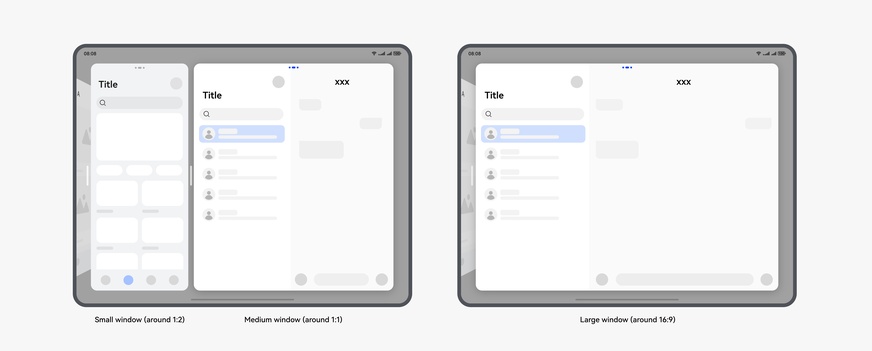
On dual-fold devices, the multitask view supports two window sizes: small and large. On triple-fold devices and tablets, the multitask view supports three window sizes: small, medium, and large. The size and position of the windows can be adjusted.
Window size and aspect ratio of the multitask view on dual-fold devices
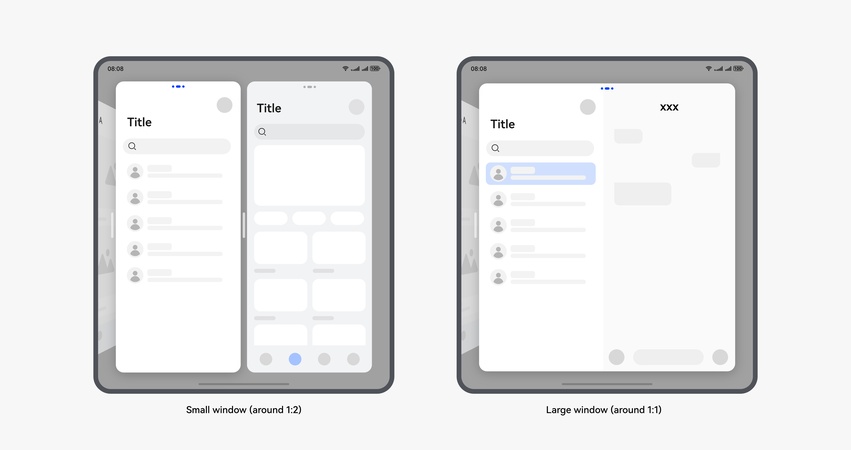
Window size and aspect ratio of the multitask view on triple-fold devices or tablets
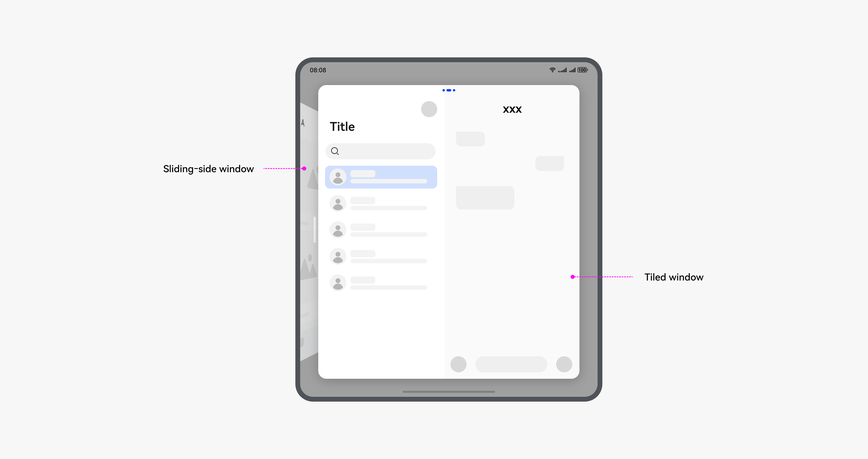
Window states include tiled and sliding-side layouts.
[h2]Entering Multitask Views
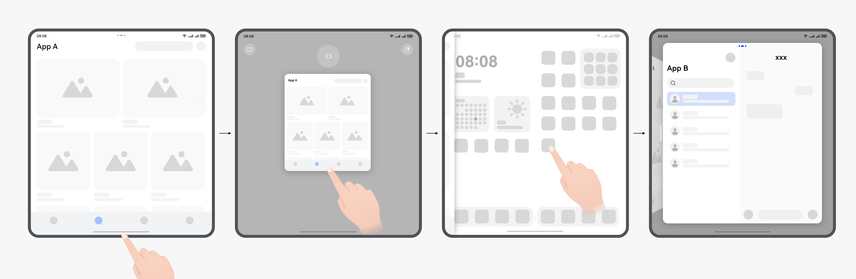
Triggered by gestures:
When an application is running in full-screen mode, users can swipe up from the bottom of the screen to the middle-top hot zone, and then tap another application icon or widget that supports the multitask view on the home screen to create a multitask view layout.
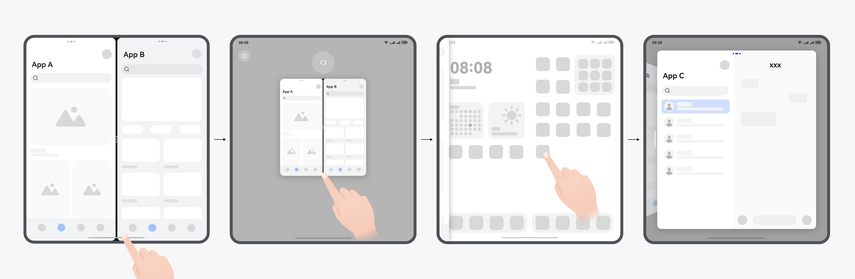
When an application is running in split-screen mode, users can swipe up from the bottom of the screen to the middle-top hot zone, and tap another application icon or widget that supports the multitask view on the home screen to create a multitask view layout.
When an application is running in split-screen mode, users can swipe up from the bottom of the screen to the top-left hot zone, and tap another application icon or widget that supports the multitask view on the home screen to create a triple-small-window multitask view layout.
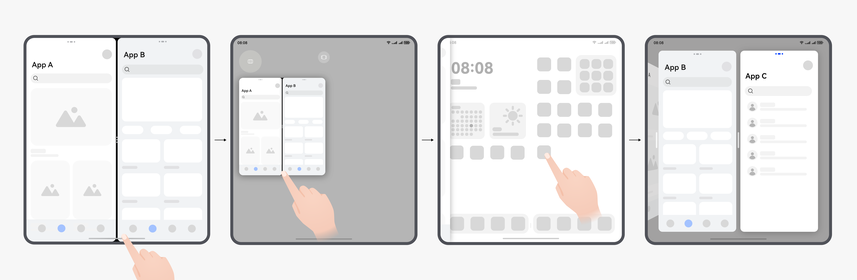
Triggered by the top bar:
When an application is running in full-screen mode, users can tap the top bar of the application, select Multitask view, and tap another application icon or widget that supports the multitask view on the home screen to create a multitask view layout.
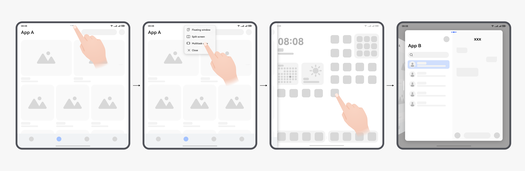
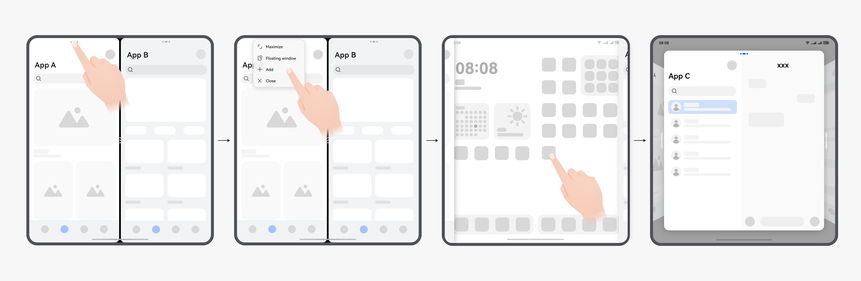
When an application is running in split-screen mode, users can tap the top bar of the application, select Add, and tap another application icon or widget that supports the multitask view on the home screen to create a Multitask view layout.
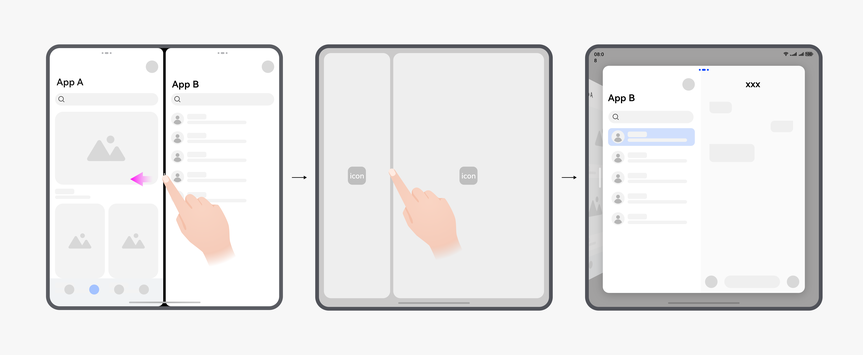
Triggered by dragging the split screen: When an application is running in split-screen mode, users can adjust the split-screen ratio to the corresponding hot zone to create a multitask view layout.
[h2]Precautions
- The sliding-side window in the multitask view is invisible. You can listen for on('windowVisibilityChange') to check whether the application is the sliding-side state.
- In multi-window mode, the window dimensions are determined by the system and are not restricted by WindowLimits.
- On tablets, the Multitask view does not support the emulator.