Possible Causes
- The old process PID is used for debugging.Run the hdc shell command to access the device, and then run the ps -ef|grep bundleName command to check the number of processes corresponding to the bundle name. If there are two processes, the old process PID is used.
> hdc shell
ps -ef|grep bundleName
Solution
Uninstall the application and restart the debugging process. If the issue persists, restart the device and start debugging again.
- The application is not started.
Run the hdc track-jpid command to check whether the application is running.

If the application is not listed, you can check whether the application is running as follows: Run the hdc shell command to access the device, and then run the ps -ef|grep bundleName command to check the number of processes corresponding to the bundle name.
If the application is missing, it has not started. If the application exists but is not listed in the hdc track-jpid list, the application is not registered.
Run the hdc shell bm dump -n bundleName command and open the aa.txt file to check whether the value of debug is true. If yes, the application is a release application. Clean the project and rebuild the debug version. If the issue persists, the application was not installed correctly. If the application is a pre-installed one, you are advised to perform an OTA update.
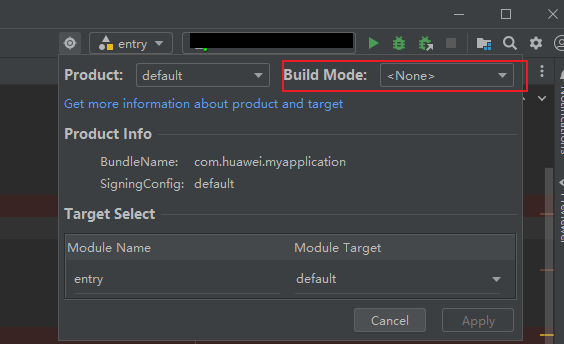
build mode: Select <None> or debug to build a debug package.
- The Hvigor version is not compatible.
Make sure you are using a compatible Hvigor version. Create a template project and check the version number in the hvigor-config.json5 file located in the hvigor directory to ensure it matches the current version.