Introduction
During development, after completing the required adaptation process, you can import the prepared APK application sandbox data and verify the HarmonyOS application data migration and adaptation.
After the HarmonyOS application adaptation is complete and the application is released to HUAWEI AppGallery, you still need to upgrade the device from HarmonyOS to HarmonyOS NEXT to perform E2E verification of the application data migration.
[h2]Preparing Application Sandbox Data
Construct the APK application sandbox data and pack the constructed APK application sandbox data into {APK package name}.zip in the specified format.
NOTE
When you compress the {APK package name}.zip file, use the UTF-8 encoding format. Otherwise, garbled characters will be displayed in the file name.
| APK Sandbox Directory | {APK package name}.zip Directory |
|---|---|
| /data/user_de/{userId}/{APK package name}/ | {APK package name}/de |
| /data/user/{userId}/{APK package name}/ | {APK package name}/ce |
| /data/media/{userId}/Android/data/{APK package name}/ | {APK package name}/A/data |
| /data/media/{userId}/Android/obb/{APK package name}/ | {APK package name}/A/obb |
After the {APK package name}.zip package is decompressed, a root directory that contains the APK package name must exist, and the root directory must contain the corresponding sandbox directory folder. The file structure is as follows:
─com.demo.demo
    ├─A
    │  ├─data
    │  └─obb
    ├─ce
    └─de
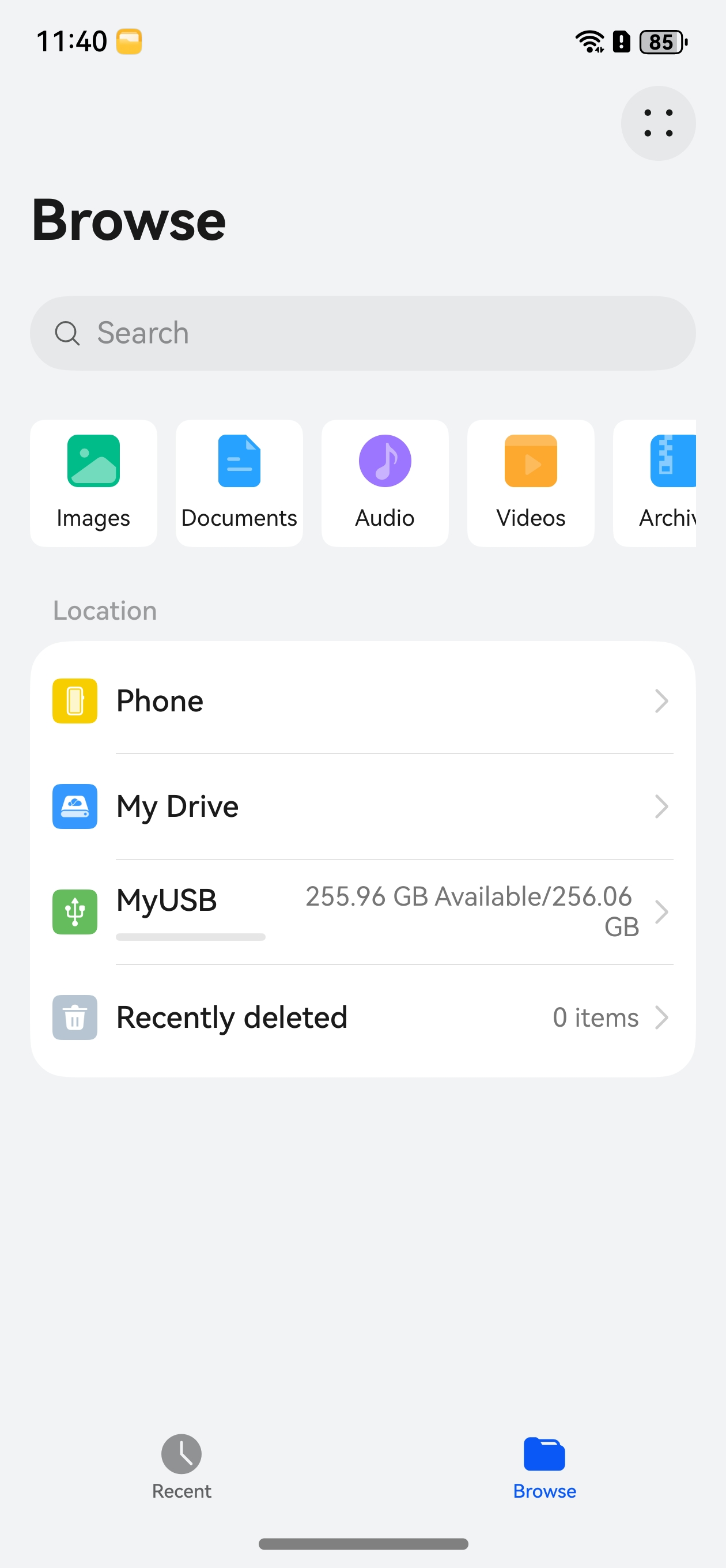
Push the {APK package name}.zip package to an external storage device (USB flash drive or removable disk) and connect the device to the external storage device.
NOTE
The current device can identify external storage devices in NTFS format. Choose an external storage device in NTFS format to connect to the device.
On the device, open the Files app, touch and hold {APK package name}.zip on the external storage device.
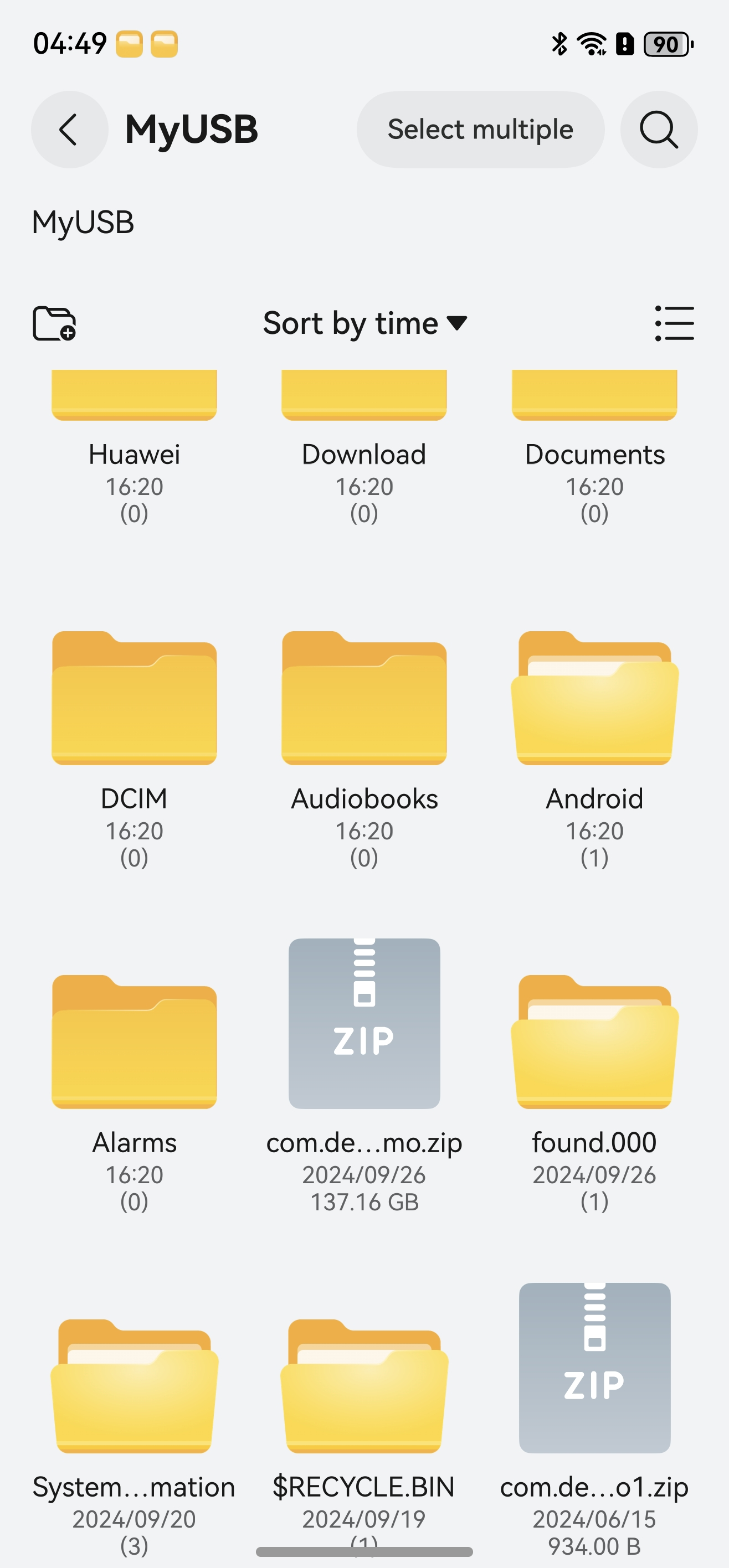
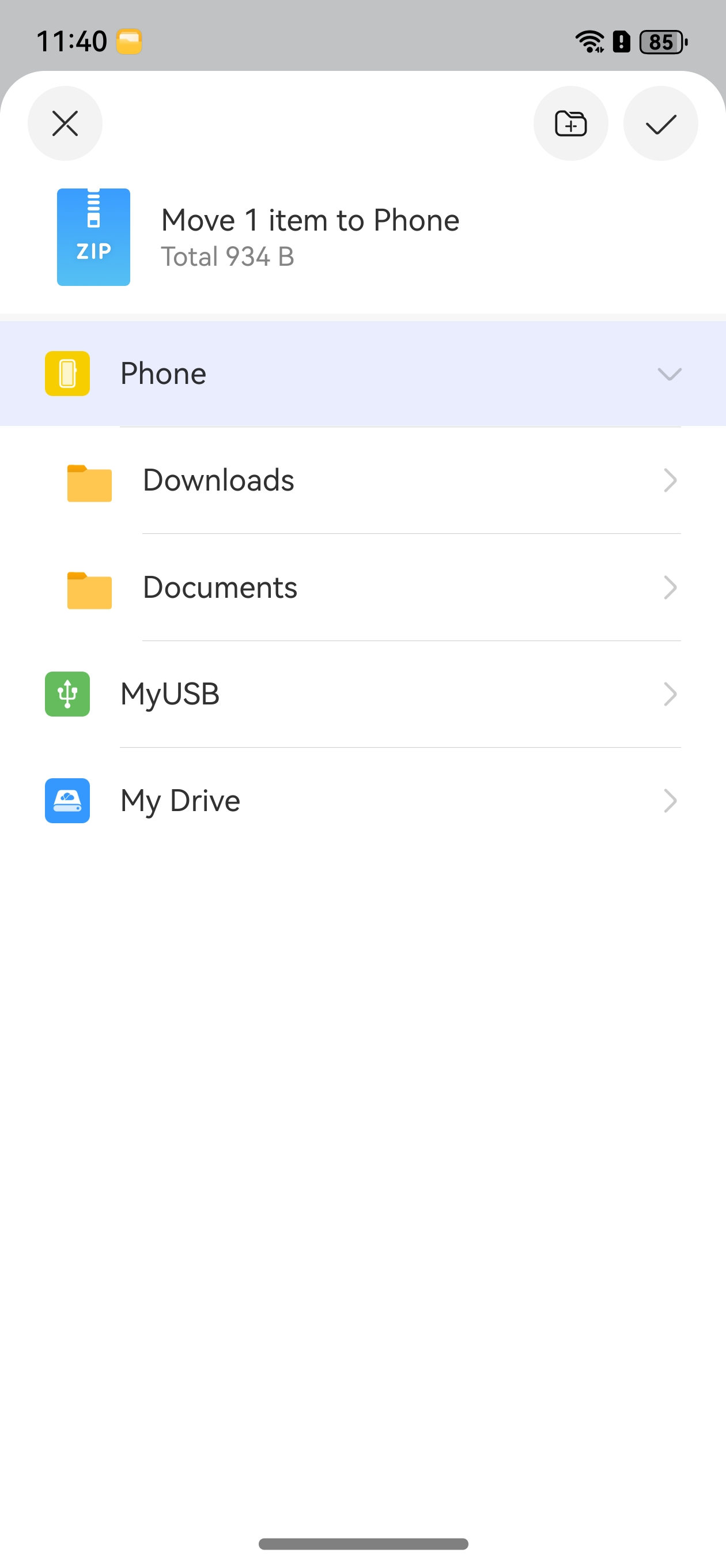
Touch Copy to copy the data to the Downloads directory of the file manager as the test data source for subsequent self-verification.

Simulating and Verifying Application Data Migration on HarmonyOS NEXT
After the application sandbox data is prepared, you need to complete the required adaptation process and then simulate and verify the application data migration.
Install the target HarmonyOS application on the device.
NOTE
For the migration debugging tool with the version earlier than 205.0.0.110, only applications with release signatures can be debugged.
For the migration debugging tool of 205.0.0.110 or a later version, only applications with debug signatures can be debugged. Upgrade the tool to the latest version and use the package with the debug signature for verification.
To view the version of the migration debugging tool, choose Settings > Apps & services > MigrateTool > Version.
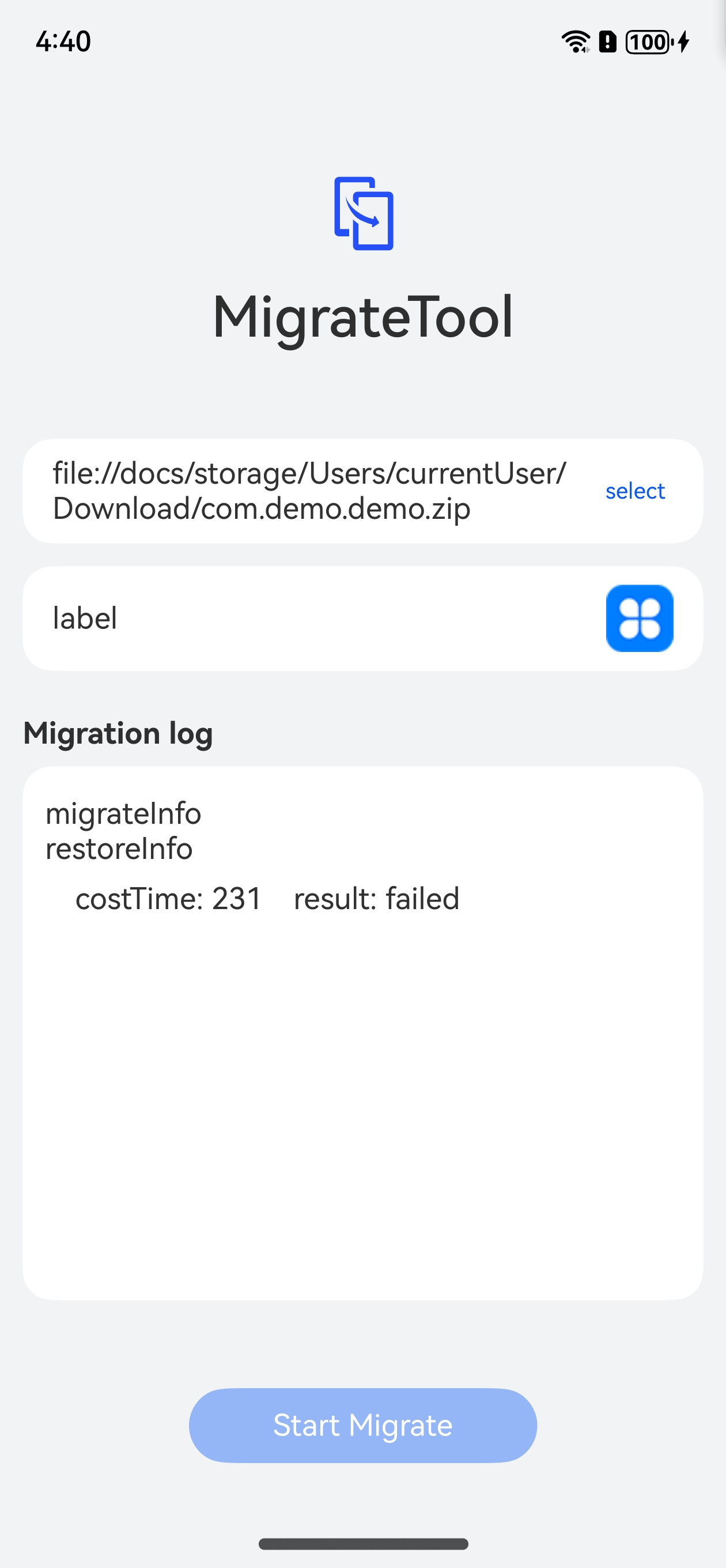
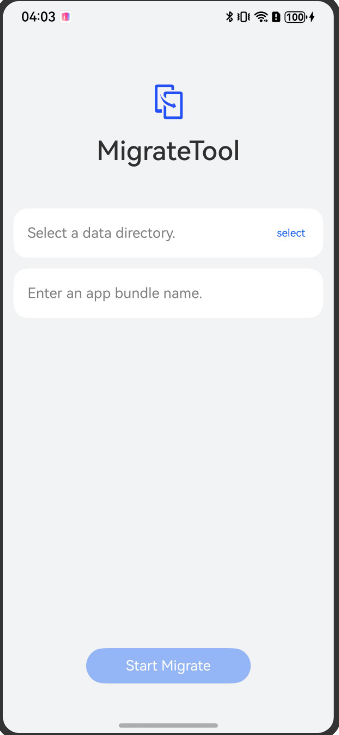
Open the migration debugging tool. The following figure shows the icon of the migration debugging tool.

On the home page of MigrateTool, touch select to go to the device file management page.
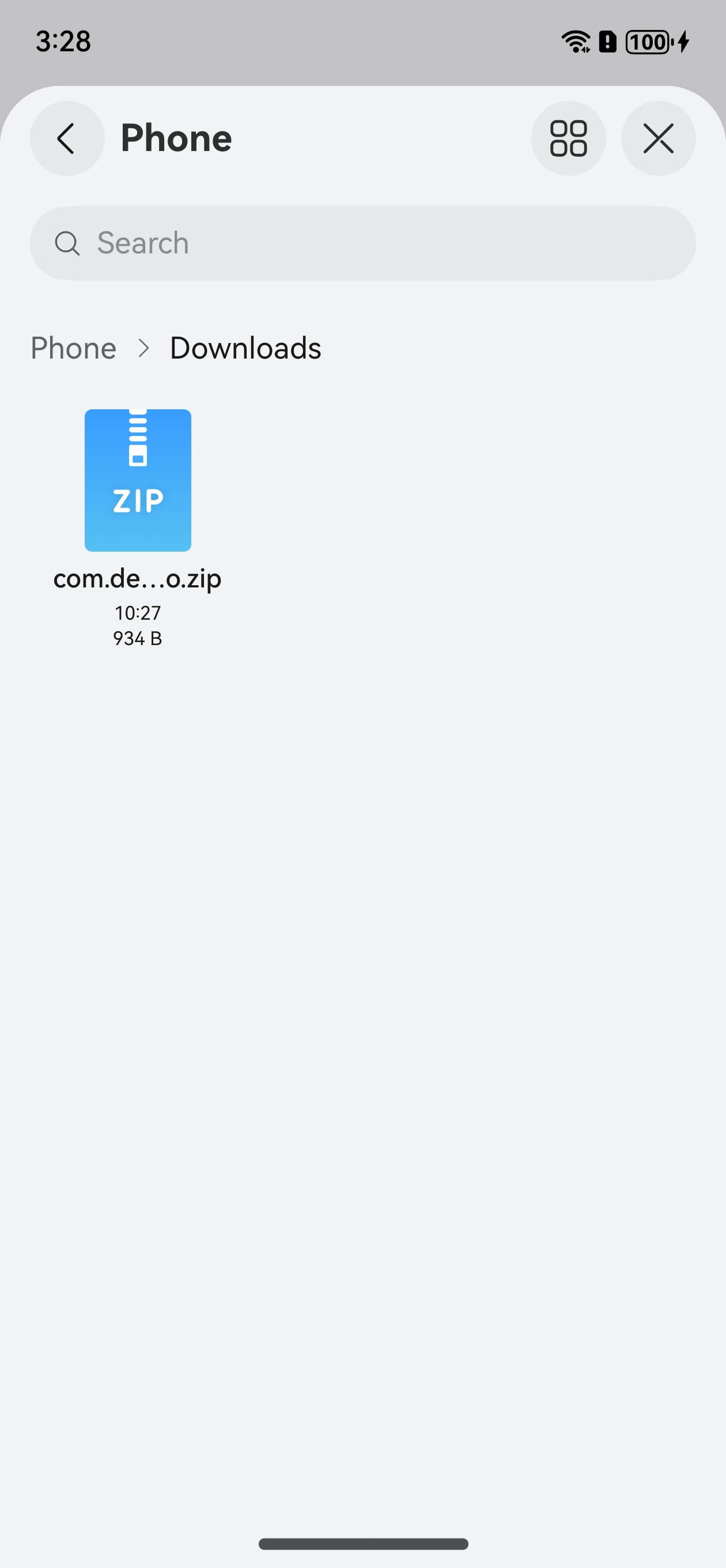
On the device file management page, touch Browse to check the internal storage of the mobile phone. Touch Phone, go to the corresponding path of the mobile phone storage based on the path of the imported data, and select the .zip package of the APK application data to be imported.

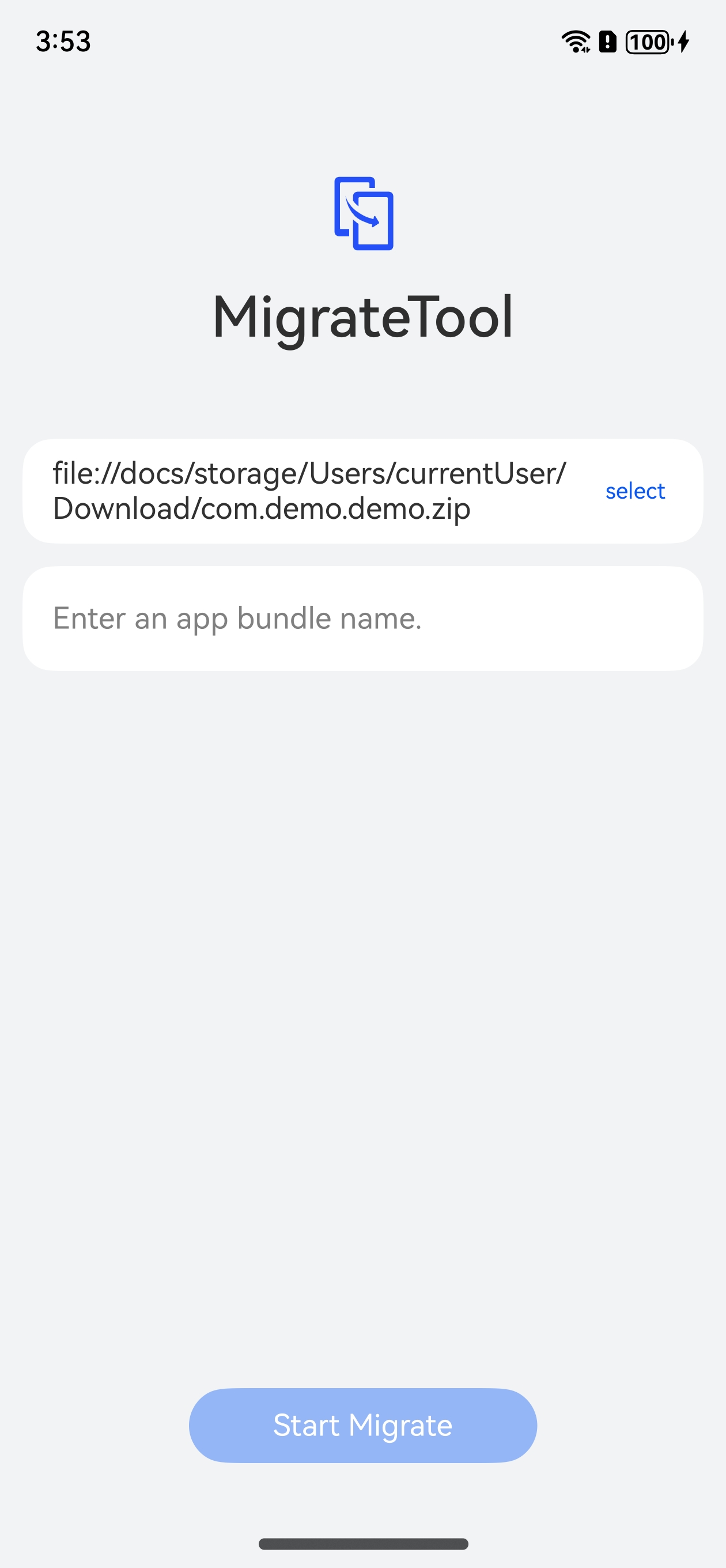
After the target .zip package is selected, the home page of MigrateTool is displayed and the selected APK application data to be imported is displayed in the first column. Touch Enter an app bundle name.
Enter the name of the target HarmonyOS application package to be verified. The target application is displayed in the second column on the home page.
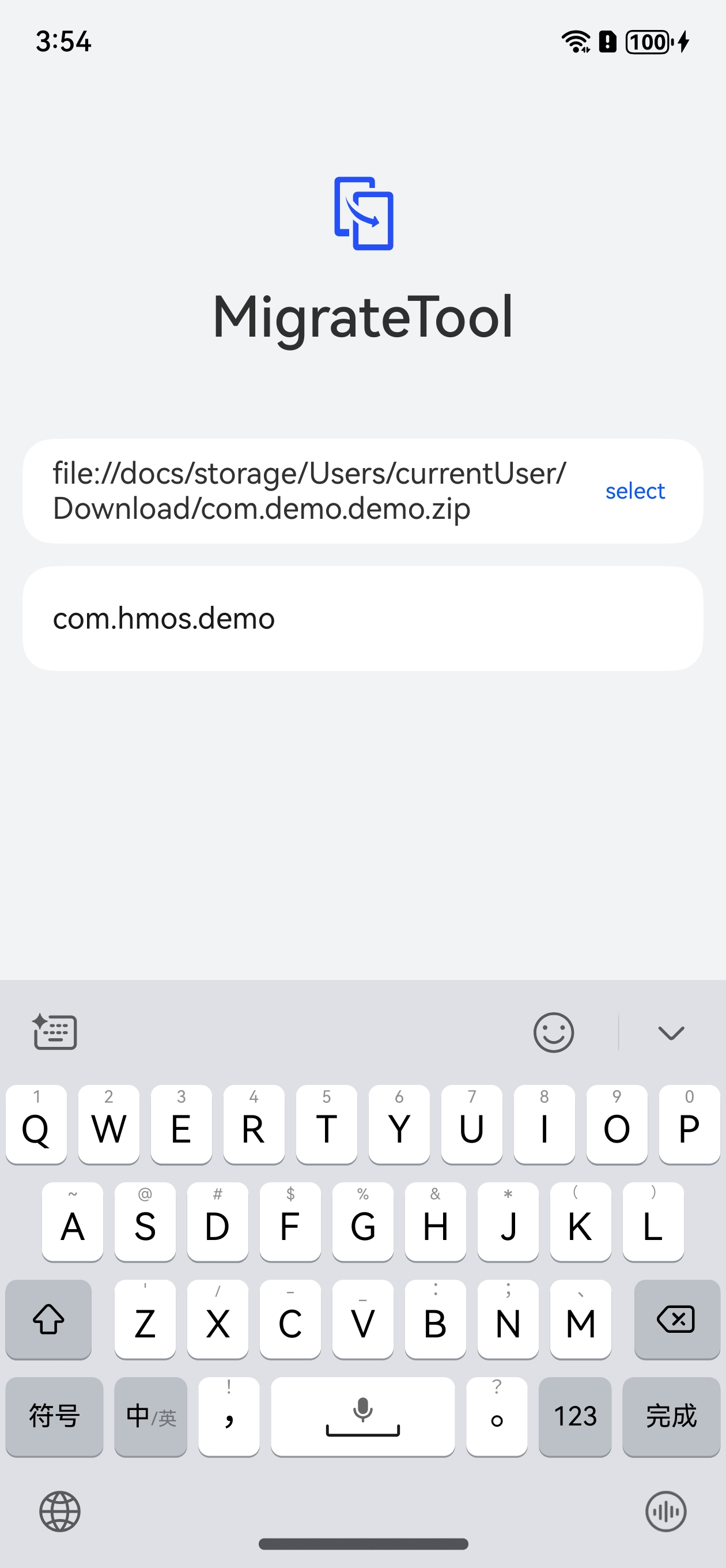
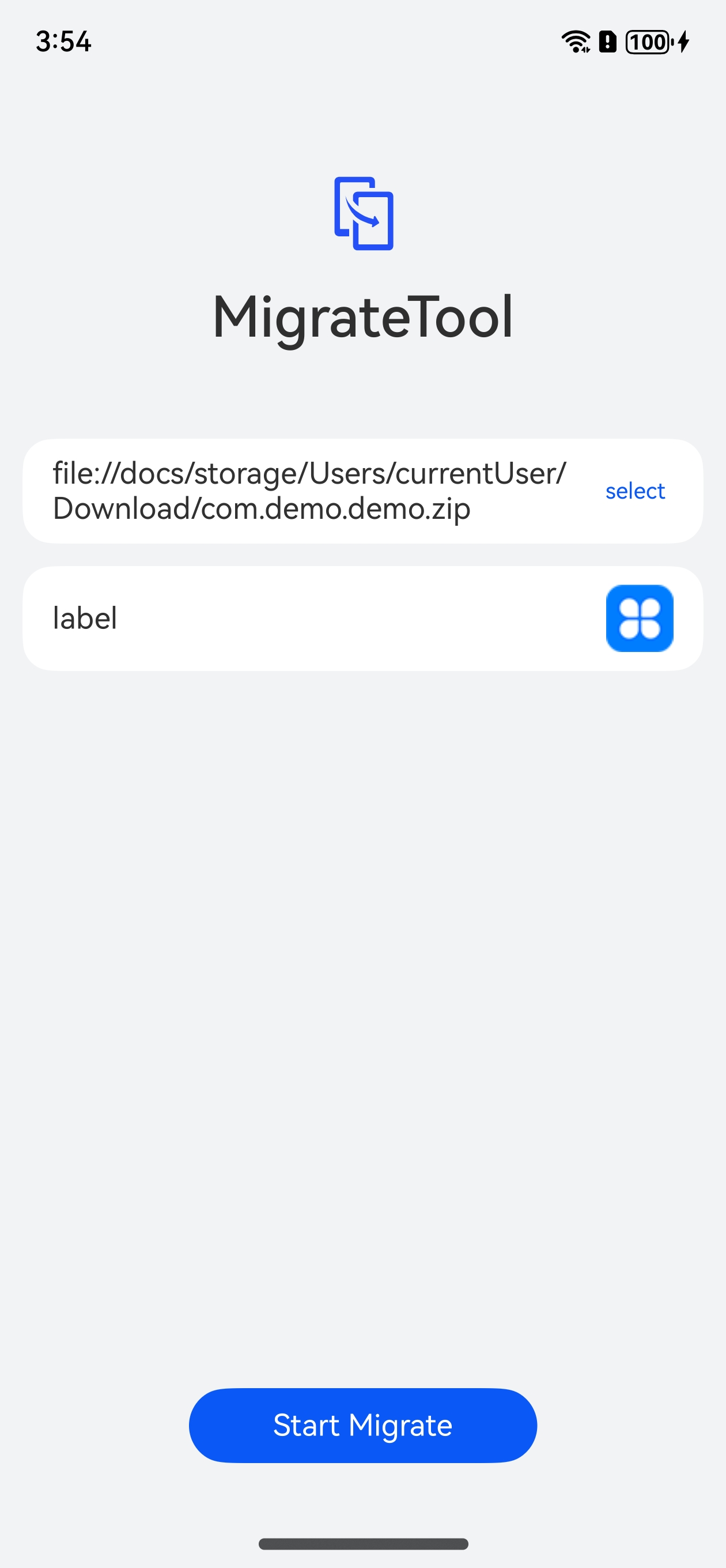
Touch Start Migrate to simulate data migration. The data optimization page is displayed, on which there is a data migration progress bar for users to view the application data migration progress.

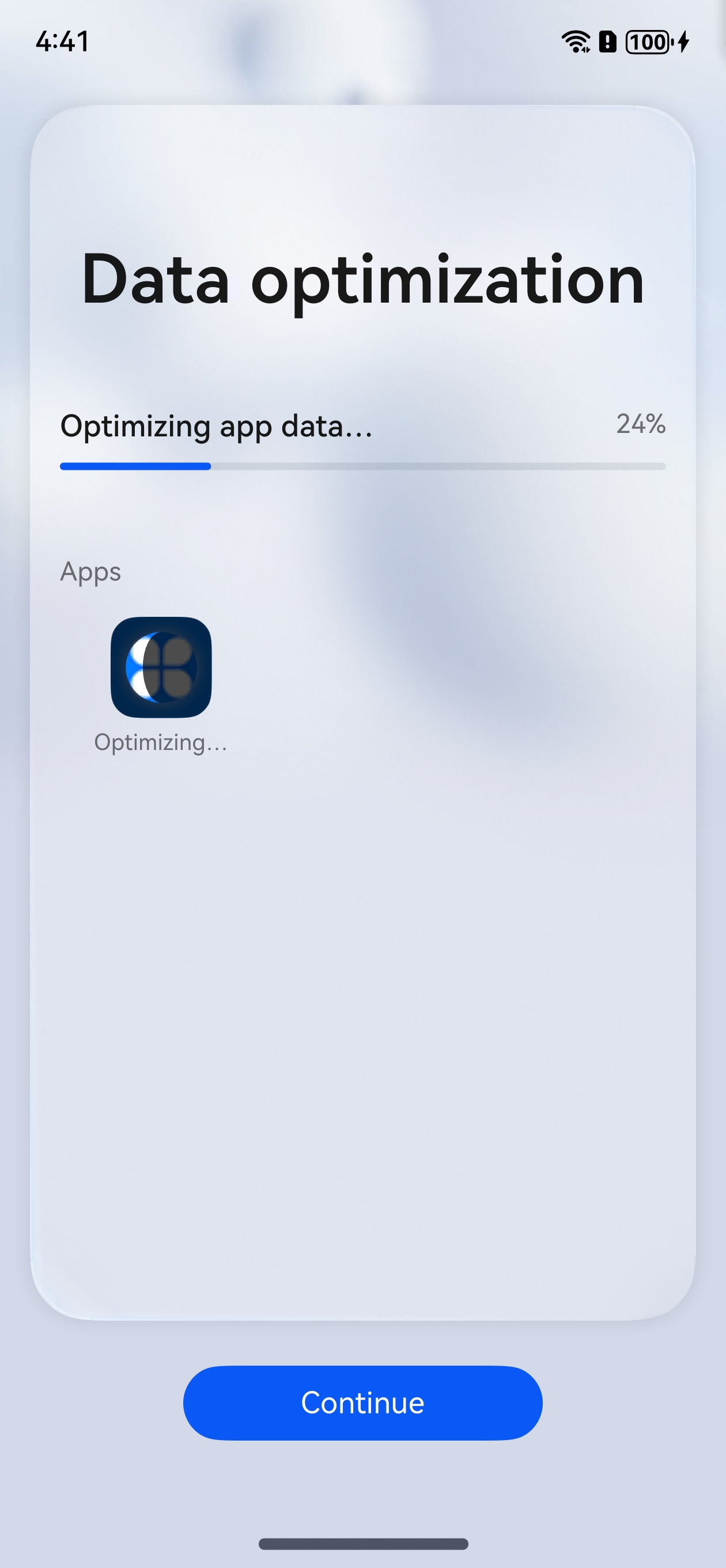
After the application data migration is complete, Optimization complete is displayed above the data migration progress bar, and the progress reaches 100%. If the data migration is successful, no error message is displayed. Touch Complete to switch back to the home page of MigrateTool. The detailed migration information is displayed in the Migration log area. The result field indicates the data migration result, and the costTime field indicates the data migration duration (unit: ms).
NOTE
If the data migration is successful, the backup and restore framework is successfully connected and the APK application data is successfully migrated to the specified directory required by the backup and restore framework. Developers need to obtain data from the sandbox of the app and parse the data to determine whether the app adapts to the backup and restore framework.
The maximum data migration duration of a single application is set to 15 minutes. The data migration task fails if it takes more than 15 minutes. Developers need to optimize the code implementation of BackupExtensionAbility to complete app data migration within 15 minutes.

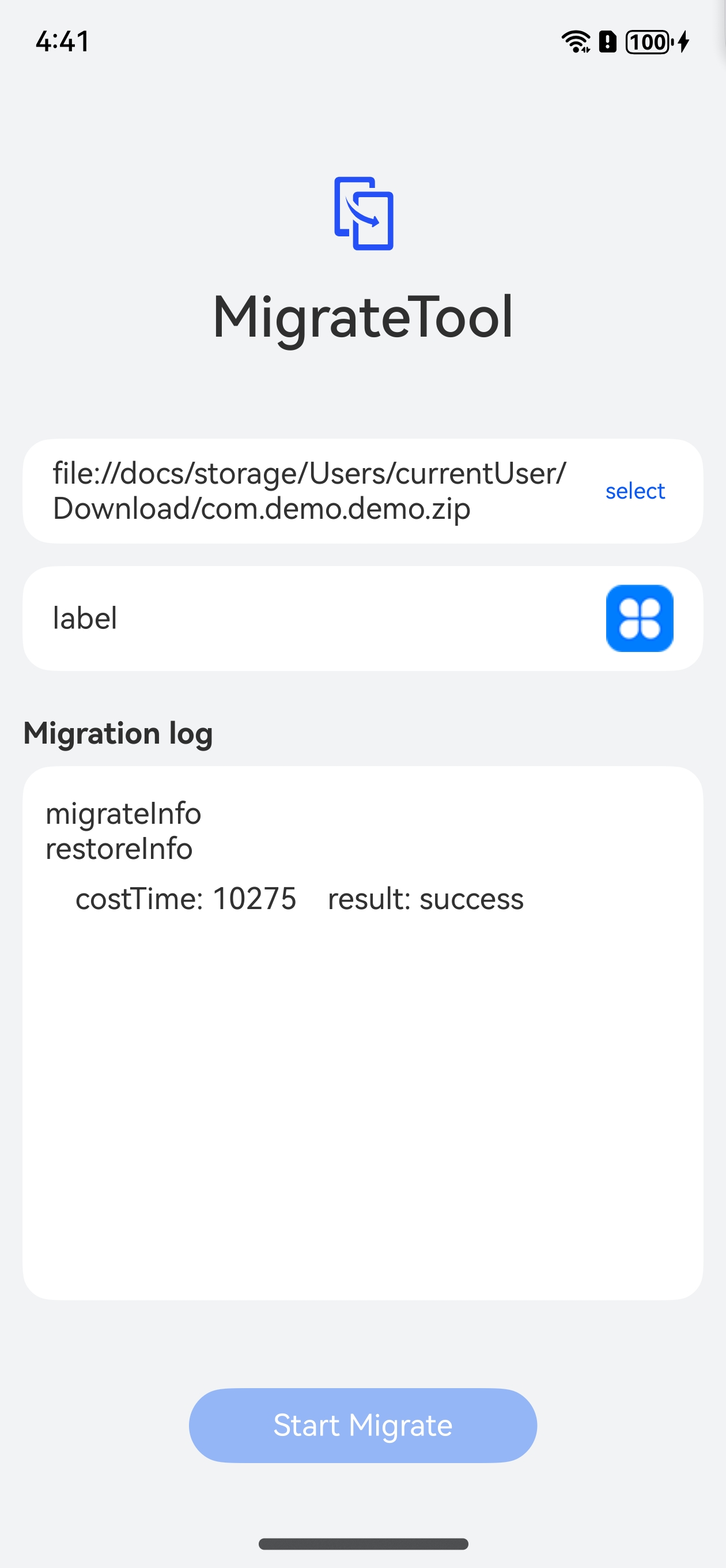
If the data migration fails, Failed (Reinstallation required) is displayed above the application icon. Touch Complete to switch back to the home page of MigrateTool. The detailed migration information is displayed in the Migration log area. The result field indicates the data migration result, and the costTime field indicates the data migration duration (unit: ms).