Introduction
When an application is backgrounded or closed, the system can still send scheduled notifications on behalf of the application. Currently, the following reminder types are supported: timer, calendar, and alarm.To prevent the agent-powered reminder from being abused for advertising and marketing purposes, a control mechanism is added to some devices. As a result, applications cannot directly use this reminder. Please refer to Control limitations for details.
Constraints
-
Devices supported: The agent-powered reminder applies to mobile phones, tablets, PCs/2-in-1 devices, Vision, and wearables.
-
Control limitations:
- Mobile phones, tablets, and PCs/2-in-1 devices are subject to management controls, but Vision and wearables are not.
- After the control, Calendar Kit can be used to implement the corresponding reminder functionality. For details, see Calendar Kit Development Guide. Alternatively, you can request the agent-powered reminder from Huawei by referring to Requesting the Agent-Powered Reminder. After the request is approved, the corresponding capabilities will be available, and then the corresponding API can be called.
-
Application limitations:
The agent-powered reminder is only available to the following types of applications: tools, business, efficiency, financial management, education, life services, travel, healthcare, fitness and health, and games. If your application does not belong to any of the preceding types, you are not eligible to request the reminder. For applications that meet the preceding types, submit the application category screenshot in the attachment during application. To obtain the application category information, sign in to AppGallery Connect and choose Apps and atomic services > Release app > App information.
-
Scenario limitations:
The agent-powered reminder cannot be requested in marketing scenarios (such as e-commerce, red packet, coupon flash sales, and live streaming reservation). The following are some common scenarios where this permission can be requested:
- Life reminders (alarms, accounting reminders, time/calendar reminders, expiration reminders, habit check-in, timing reminders, calendar/memorial day reminders, and trip reminders)
- Fitness and health reminders (workout/training reminders, menstrual cycle reminders, water drinking reminders, dietary logging reminders, blood glucose measurement/medication reminders, sleep reminders, and vaccination/prenatal check-up reminders)
- Learning reminders (study reminders, course reminders, and vocabulary memorization reminders)
- Office reminders (shift scheduling and office check-in reminders)
- Game reminders (reminders for important in-game tasks, including player/asset damage and task completion)

The agent-powered reminder must meet both the application and scenario requirements. A single application may involve multiple scenarios. For example, a game application may involve two scenarios: live streaming reservation and game task completion. Since live streaming reservation is a marketing scenario, the agent-powered reminder cannot be requested.
- Quantity limitations:
- A maximum of 30 valid or unexpired reminders can be set for a regular application.
- Since API version 10, the total number of valid and unexpired reminders for all applications cannot exceed 12,000. For API version 9 and earlier versions, the total number of valid and unexpired reminders cannot exceed 2,000.

When the reminder time arrives, the notification center displays the relevant reminder. The reminder remains active and unexpired unless the user touches the CLOSE button, at which point the reminder becomes expired.
For a recurring reminder (for example, a daily reminder), the reminder is always valid regardless of whether the user touches the CLOSE button.
- Redirection limit: The application that is redirected to upon a click on the notification must be the application that requested the agent-powered reminder.
Relationship with Other Kits
- When the preset time arrives, notifications created by Notification Kit will be displayed in the notification center. For details about notification styles, see Notification Style.
Available APIs
The table below uses promise as an example to describe the APIs used for developing agent-powered reminders. For details about more APIs and their usage, see reminderAgentManager.
Table 1 Main APIs for agent-powered reminders
| API | Description |
|---|---|
| publishReminder(reminderReq: ReminderRequest): Promise<number> | Publishes a reminder. |
| cancelReminder(reminderId: number): Promise<void> | Cancels a reminder published. |
| getValidReminders(): Promise<Array<ReminderRequest>> | Obtains all valid (not yet expired) reminders set by the current application. |
| cancelAllReminders(): Promise<void> | Cancels all reminders set by the current application. |
| addNotificationSlot(slot: NotificationSlot): Promise<void> | Adds a notification slot. |
| removeNotificationSlot(slotType: notification.SlotType): Promise<void> | Removes a notification slot. |
[h2]Requesting the Agent-Powered Reminder
-
Sign in to AppGallery Connect and click Development and services.
-
Find your project and click the application for which you want to request the agent-powered reminder. If there is no corresponding application, create a HarmonyOS application.
-
Go to Project settings > Manage open capabilities, and click Request next to Agent-powered reminder.

-
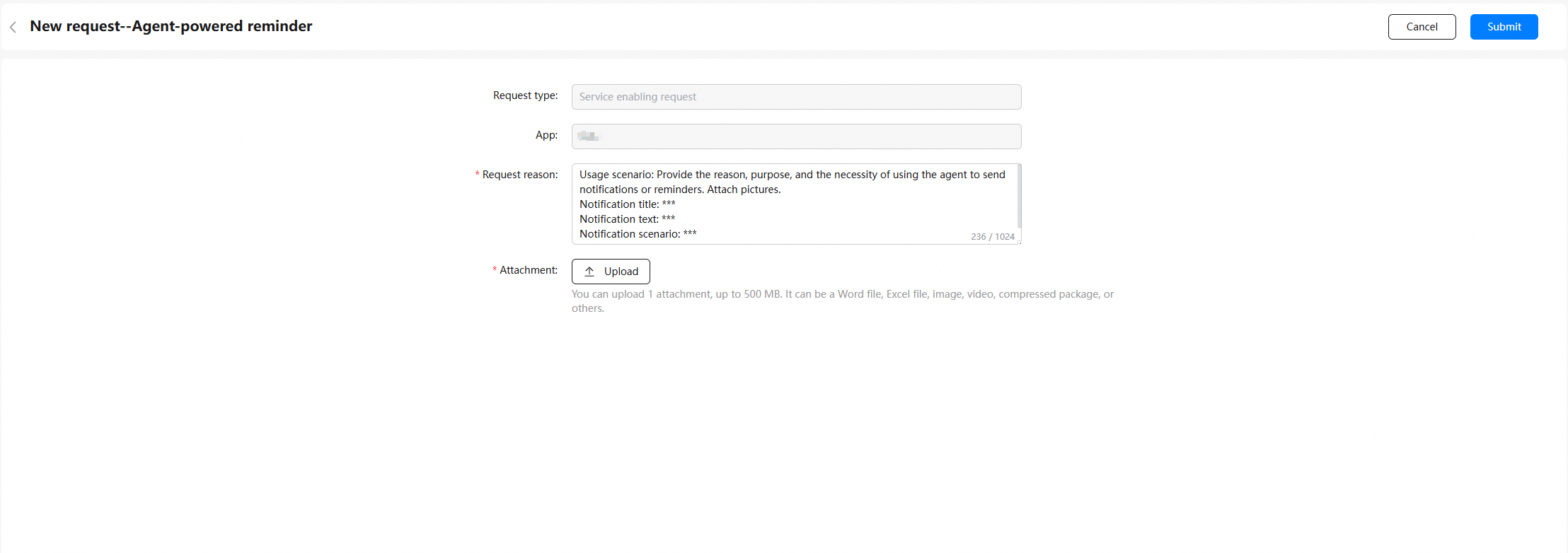
On the New request--Agent-powered reminder page, enter the reason, upload the screenshots of the agent-powered reminder scenarios and application category, and click Submit. To obtain the application category information, sign in to AppGallery Connect and choose Apps and atomic services > Release app > App information.
-
Return to the Open capability page. The original Request button changes to Requesting. You will receive the request result in eight working days.

-
After the request is approved, the interaction center will send a notification to you, and Requesting will change to a dimmed Request button.
-
After the request is approved, select the agent-powered reminder and click Save in the upper right corner. Your application has successfully integrated the open capabilities. In this case, you need to generate a new profile file and perform manual signing to debug and release your application.

[h2]Requesting Permissions
Declare the ohos.permission.PUBLISH_AGENT_REMINDER permission. For details, see Declaring Permissions.
[h2]Requesting Notification Authorization
Request notification authorization. Agent-powered reminders can be used only after being authorized by the user.
[h2]Developing Functionalities
-
Import the modules.
import { notificationManager } from '@kit.NotificationKit'; import { reminderAgentManager } from '@kit.BackgroundTasksKit'; import { BusinessError } from '@kit.BasicServicesKit'; -
Define a reminder. You can define the following types of reminders based on project requirements.
-
Timer
let timer: reminderAgentManager.ReminderRequestTimer = { reminderType: reminderAgentManager.ReminderType.REMINDER_TYPE_TIMER, // The reminder type is countdown timer. ringDuration: Constant.REMINDER_DURATION, // Ringing and vibration duration, in seconds. title: context.resourceManager.getStringSync($r('app.string.timer') .id), // Reminder title. The value in the "app.string.timer" resource file is "timer". content: context.resourceManager.getStringSync($r('app.string.countdown_close') .id), // Reminder content. The value in the "app.string.countdown_close" resource file is "timer ended". wantAgent: { // Information about the target UIAbility that is displayed after the reminder notification is touched. pkgName: 'com.example.reminderagentmanager', abilityName: 'EntryAbility' }, notificationId: 100, // Notification ID used by the reminder. If there are reminders with the same notification ID, the later one will overwrite the earlier one. slotType: notificationManager.SlotType.CONTENT_INFORMATION, // Type of the slot used by the reminder. triggerTimeInSeconds: this.countdownTime }; -
Calendar
let calendar: reminderAgentManager.ReminderRequestCalendar = { reminderType: reminderAgentManager.ReminderType.REMINDER_TYPE_CALENDAR, // The reminder type is calendar event. dateTime: { // Reminder time. year: date.getFullYear(), month: date.getMonth() + 1, day: date.getDate(), hour: date.getHours(), minute: date.getMinutes(), }, actionButton: // Set the button type and title displayed for the reminder in the notification panel. [{ title: context.resourceManager.getStringSync($r('app.string.calendar_close') .id), // The value in the "app.string.calendar_close" resource file is "disable calendar reminder". type: reminderAgentManager.ActionButtonType.ACTION_BUTTON_TYPE_CLOSE }], // Information about the target UIAbility that is displayed after the reminder notification is touched. wantAgent: { pkgName: 'com.example.reminderagentmanager', abilityName: 'EntryAbility' }, ringDuration: Constant.REMINDER_DURATION, // Ringing and vibration duration, in seconds. title: context.resourceManager.getStringSync($r('app.string.calendar') .id), // Reminder title. The value in the "app.string.calendar" resource file is "calendar". content: context.resourceManager.getStringSync($r('app.string.calendar_reach') .id), // Reminder content. The value in the "app.string.calendar_reach" resource file is "calendar reminder time is up". slotType: notificationManager.SlotType.CONTENT_INFORMATION // Type of the slot used by the reminder. } -
Alarm
let alarm: reminderAgentManager.ReminderRequestAlarm = {
  reminderType: reminderAgentManager.ReminderType.REMINDER_TYPE_ALARM, // The reminder type is alarm clock.
  hour: time.hour, // Hour portion of the reminder time.
  minute: time.minute, // Minute portion of the reminder time.
  actionButton: // Set the button type and title displayed for the reminder in the notification panel.
  [
    {
      title: context.resourceManager.getStringSync($r('app.string.alarm_clock_close')
        id), // The value in the "app.string.alarm_clock_close" resource file is "disable alarm".
      type: reminderAgentManager.ActionButtonType.ACTION_BUTTON_TYPE_CLOSE
    },
    {
      title: context.resourceManager.getStringSync($r('app.string.alarm_clock_postpone')
        id), // The value in the "app.string.alarm_clock_postpone" resource file is "snooze alarm".
      type: reminderAgentManager.ActionButtonType.ACTION_BUTTON_TYPE_SNOOZE
    }
  ],
  slotType: notificationManager.SlotType.CONTENT_INFORMATION, // Type of the slot used by the reminder.
  ringDuration: Constant.REMINDER_DURATION, // Ringing and vibration duration, in seconds.
  wantAgent: {
    // Information about the target UIAbility that is displayed after the reminder notification is touched.
    pkgName: 'com.example.reminderagentmanager',
    abilityName: 'EntryAbility'
  },
  title: context.resourceManager.getStringSync($r('app.string.alarm_clock')
    .id), // Reminder title. The value in the "app.string.alarm_clock" resource file is "alarm".
  content: context.resourceManager.getStringSync($r('app.string.alarm_clock_reach')
    .id), // Reminder content. The value in the "app.string.alarm_clock_reach" resource file is "alarm time is up".
  snoozeTimes: 0, // Number of reminder snooze times.
  timeInterval: 0, // Reminder snooze interval, in seconds.
  daysOfWeek: []  // Days of a week when the reminder repeats.
}
-
-
Publish the reminder. After the reminder is published, your application can use the agent-powered reminder feature.
let reminderId: number = await reminderAgentManager.publishReminder( this.calendarReminders[index].reminderRequestCalendar!); Logger.info(TAG, `publish reminder result: id is ${reminderId}`); this.calendarReminders[index].reminderId = reminderId; // Save the ID of the published reminder. -
Delete the reminder as required.
Logger.info(TAG, `cancel reminder id is ${this.calendarReminders[index].reminderId}`)
await reminderAgentManager.cancelReminder(this.calendarReminders[index].reminderId);