Overview

The NetCopeilot function is supported since API version 20. Currently, it is only supported on phones and tablets.
Before app launch, developers usually need to optimize and verification app performance across diverse network conditions. For instance, after optimizing an app for smooth short video streaming during subway commutes, developers must verify whether stuttering issues have actually been resolved—but this requires testing in real-world scenarios.
Network Navigator, also known as netcopilot, provides comprehensive network simulation capabilities that enable developers to rapidly validate app user experience across typical network scenarios. This significantly improves testing efficiency and reduces verification costs. For example, developers can verify high-speed rail optimization effects without actually boarding a train.
In addition, NetCopeilot provides suggestions on data transmission optimization in these network scenarios. Your app can access Huawei Network Boost Kit to implement cross-layer collaboration between the app and the OS, improving the Internet access smoothness of the app.
For example, when transitioning between WLAN and mobile data networks while entering or exiting elevators, the app rapidly senses network interface changes and promptly redirects high-priority data requests to the new connection, ensuring seamless network switching without interruptions. When the network performance deteriorates, Network Boost Kit reports quality of service (QoS) data to assist the app in optimizing transmission scheduling.
Using Preset Network Simulation Scenarios
Network Navigator provides two access methods: the Settings interface and hdc command-line interface (CLI).
The following describes how to use NetCopilot through the settings screen. For details about how to use NetCopilot through the HDC command line, see NetCopilot Tool.
When you use this function for the first time, enable the developer mode on the device by referring to Enabling Developer Options. Then, go to Settings > System > Developer options > Network Pilot to access the Network Pilot screen.
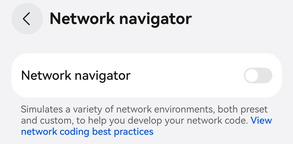
Network Navigator has preset the following common network simulation scenarios. You can use them to quickly test app user experience.

How to Start a Network Simulation Scenario
To start network simulation, click any network simulation scenario you need from Available simulations. For example, after clicking In & out of elevator, the simulation scenario will be activated and you can view it in Active simulations.

You can also view the network simulation details in the device's live window.

How to Exit a Network Simulation Scenario
To stop a network simulation scenario, tap  on the right and exit the simulation.


The following table lists the prerequisites and phases for the preset network simulation scenarios.
| Network Simulation Scenario | Prerequisites | Scenario and Phase Description |
|---|---|---|
| In & out of elevator | Connect to WLAN and enable mobile data switch. | Simulates the scenario in which a user enters and exits elevator with network switching between WLAN and mobile network. This scenario consists of six phases, runs for 5 minutes total, and executes cyclically. |
| Leave home WLAN range | Connect to WLAN and enable mobile data switch. | Simulates the scenario in which a user leaves home, disconnecting from WLAN and switching to mobile network. This scenario consists of four phases, lasts for 3 minutes, and executes cyclically. |
| Enter home WLAN range | Connect to WLAN and enable mobile data switch. | Simulates the scenario in which a user moves from outdoor to indoor area, connecting to WLAN and disconnecting from mobile network. This scenario consists of three phases, lasts for 3 minutes, and executes cyclically. |
| Busy cafeteria | Connect to WLAN or mobile network. | Simulates a network with many connected devices, featuring high contention, low bandwidth, and high latency. This scenario consists of three phases, lasts for 5 minutes, and executes cyclically. |
| Parking | Connect to WLAN or mobile network. | Simulates a poor-quality network with weak signal, low bandwidth, and high latency. This scenario consists of three phases, lasts for 5 minutes, and executes cyclically. |
| Riding the subway | Connect to WLAN or mobile network. | Simulates a network with varying conditions, with strong signal at stations, and weak signal between stations. This scenario consists of five phases, lasts for 5 minutes, and executes cyclically. |
| Riding high-speed train | Insert dual SIM cards and enable mobile data switch. | Simulates a network with varying conditions, with frequent switching between cell towers, and intermittent loss of service. This scenario consists of five phases, lasts for 10 minutes, and executes cyclically. |
| Highway driving | Connect to WLAN or mobile network. | Simulates a network with varying conditions, with strong signal in urban areas and weak signal in tunnels. This scenario consists of five phases, lasts for 5 minutes, and executes cyclically. |
For more details about the phases and network conditions, see Appendix.
Configuring a Customized Network Simulation Scenario
If the preceding preset network simulation scenarios cannot meet your development requirements, you can click Add Customized Network Scenario at the bottom of the Network Navigator page to add the required network configuration.
The value ranges of the parameters are as follows. After you enter a value for a parameter, the unit is automatically added. The parameter configuration of the customized scenario will be applied to the default network during startup. You are advised to use this function when the network environment is stable.
| Parameters and options | Value Range | Unit |
|---|---|---|
| Upstream bandwidth | 100 - 500000 | Kbps |
| Downlink bandwidth. | 100 - 2000000 | Kbps |
| UL Packet Loss Rate | 0.0 - 20.0 | % |
| DL Packet Loss Rate | 0.0 - 20.0 | % |
| Uplink latency | 1 - 1000 | ms |
| Downlink delay | 1 - 1000 | ms |
Currently, custom scenarios are not supported by Network Boost Kit. If you want to simulate the registration of the callback in a network scenario, you can use the preset network simulation scenarios.
Network Optimization Recommendations
With Network Navigator, you can monitor network changes in real time through the live window. You can also click the live window to view network simulation details. In addition, you can view network parameters and network coding best practices by clicking the respective link in the window.


Code Optimization Recommendations
Network Navigator intelligently simulates network QoS changes when activating specified scenarios, helping developers quickly build target network environments. Through this feature, developers can proactively discover app compatibility issues in different network environments and perform targeted optimization based on the best practices in this section.
Code Optimization Scenarios
Currently, eight network simulation scenarios are supported. For details, see Appendix. The network characteristics can be classified into three types: network switching, network fluctuation, and poor network quality. The following table lists the scenario characteristics and code development suggestions.
Network Switching
Characteristics: When a device switches between network types (for example, WLAN and cellular) or switches SIM cards, it may experience IP address changes, forced TCP connection resets, and delays due to DNS re-resolution and handshake re-establishment.
Typical scenarios: Entering and leaving an elevator, disconnecting from WLAN when leaving home, and traveling on high-speed rail (switching between SIM cards).
Best practices: Detect network switches in a timely manner and re-establish connections, perform DNS resolution, and re-send any incomplete requests. Alternatively, use the HTTP module of Network Kit to initiate network requests. Network Kit incorporates the intelligent multi-network switching capability of the Tongtu network protocol stack, which automatically reroutes pending and ongoing requests to the active network during network switching. This effectively prevents request failures and service response delays in network switching scenarios. The sample code for sending HTTP requests using Network Kit is as follows:
// Import related modules.
import { http } from '@kit.NetworkKit';
import { BusinessError } from '@kit.BasicServicesKit';
// Each httpRequest corresponds to an HTTP request task and cannot be reused.
 let httpRequest = http.createHttp();
 httpRequest.request(
  //Specify the URL for the HTTP request. The URL can include parameters or not. Specify request parameters in extraData.
  "EXAMPLE_URL", (err: BusinessError, data: http.HttpResponse) => {
  if (!err) {
    // data.result carries the HTTP response. Parse the response based on service requirements.
    console.info('Result:' + JSON.stringify(data.result));
    // Call the destroy() method to release resources after HttpRequest is complete.
    httpRequest.destroy();
  } else {
    console.error('error:' + JSON.stringify(err));
    // Call the destroy() method to release resources after HttpRequest is complete.
    httpRequest.destroy();
  }
}
);
Network Fluctuation
- Characteristics: Due to rapid fluctuations in signal strength (for example, during movement or high-speed travel), network performance can degrade sharply. This includes a significant reduction in bandwidth (from 50 Mbps to 1 Mbps), severe jitter in delay (RTT fluctuations exceeding 300%), and intermittent packet loss (0% to 5%).
- Typical scenarios: Riding the subway or driving on highways.
- Best practices:
Subscribe to netQuality events in Network Boost Kit to monitor network quality in real time and take appropriate measures.
// Import the connection namespace.
import { netQuality } from '@kit.NetworkBoostKit';
import { BusinessError } from '@kit.BasicServicesKit';
try {
  netQuality.on('netQosChange', (list: Array<netQuality.NetworkQos>) => {
    if (list.length > 0) {
      list.forEach((qos) => {
        // Callback information processing.
        console.info(`Uplink bandwidth of this data link type: ${JSON.stringify(qos.linkUpBandwidth)}.` );
        console.info(`Downlink bandwidth of this data link type: ${JSON.stringify(qos.linkDownBandwidth)}.` );
        // The app can detect the network quality in real time based on information such as the uplink and downlink bandwidths and adjust the request policy accordingly.
      });
    }
  });
 } catch (err) {
  console.error('errCode: ' + (err as BusinessError).code + ', errMessage: ' + (err as BusinessError).message);
}
When network quality is good, prefetch potential subsequent requests, send them in advance, and cache the fetched resources. When these requests are actually triggered, resources can be loaded directly from the cache, enhancing response speed and reducing latency.
// Import the connection namespace.
import { rcp } from '@kit.RemoteCommunicationKit';
import { HashMap } from "@kit.ArkTS";
export class PrefetchingRcp {
  private session = rcp.createSession();
  private responsePrefetched: HashMap<string, rcp.Response> = new HashMap<string, rcp.Response>();
  public async prefetch(url: string) {
    const request = new rcp.Request(url);
    try {
      // Send a prefetch request.
      let response: rcp.Response = await this.session.fetch(request);
      // Cache the fetched resources.
      this.responsePrefetched.set(url, response);
      return Promise.resolve();
     } catch (reason) {
       console.error(`Rcp prefetch failed: ${reason.code}`);
       return Promise.reject();
    }
  }
}
When network quality is poor, reduce request frequency or data volume to avoid worsening network congestion.
Poor Network Quality
Characteristics: In signal shielding areas (such as underground parking lots) or high-density access environments (such as crowded cafeterias), the network consistently exhibits low bandwidth (<1 Mbps), high latency (>100 ms), and a high packet loss rate.
Typical scenarios: Crowded cafeterias and parking lots.
Best practices: Reduce request frequency and data volume promptly when the network is congested, and resume requests once the network recovers. Besides using netQosChange to assess network quality, you can also subscribe to network scenario detection events to directly identify network congestion or weak signals. Upon detection, reduce request frequency to avoid repeated requests that could worsen network congestion. The sample code is as follows:
// Import the connection namespace.
import { netQuality } from '@kit.NetworkBoostKit';
import { BusinessError } from '@kit.BasicServicesKit';
try {
  netQuality.on('netSceneChange', (list: Array<netQuality.NetworkScene>) => {
    if (list.length > 0) {
      list.forEach((sceneInfo) => {
        // Process the network scenario identification callback information.
        if (sceneInfo.scene == 'congestion') {
          // Service logic implemented upon network congestion
        }
        if (sceneInfo.scene == 'normal') {
          // Service logic implemented upon network recovery
        }
        if (sceneInfo.weakSignalPrediction) {
          // Service logic implemented upon detection of potential network deterioration via weak signal prediction
        }
      });
    }
  });
 } catch (err) {
  console.error('errCode: ' + (err as BusinessError).code + ', errMessage: ' + (err as BusinessError).message);
}
Information Collection
When you use Network Navigator, your app usage records will be collected. We may contact you through the contact information linked to your HUAWEI ID for user feedback surveys, to help us further optimize this feature.
The data that will be collected includes:
Usage logs. You need to associate your HUAWEI ID to use Network Navigator. By enabling User Experience Improvement Program, you are automatically consenting to upload usage logs.
Bundle name and version number of the app that uses this feature.
Network simulation scenarios used by the app and the corresponding timestamps during usage.
Appendix
QoS in Different Network Scenarios
In & out of elevator
This scenario lasts for 5 minutes and executes cyclically.
| Sub-phase | Duration (min:sec) | Network interface. | Downlink bandwidth. | Downlink Bandwidth Distribution | Upstream bandwidth | Uplink Bandwidth Distribution | Latency | Delay Distribution | Packet loss | Packet Loss Distribution |
|---|---|---|---|---|---|---|---|---|---|---|
| Waiting for the elevator | 0-30s | WLAN | 60-140Mbps | random | 30-60Mbps | random | 0-20ms | random | 0.00%-0.01% | random |
| Entering an elevator | 30-90s | WLAN | 90-50Mbps | linearDecrease | 30-8Mbps | linearDecrease | 2-20ms | linearIncrease | 0.00%-0.21% | random |
| Elevator door closing | 90-100s | WLAN | 1-0Mbps | random | 1-0Mbps | random | 0-200ms | random | 0.00%-0.00% | random |
| Elevator door closing | 100-110s | WLAN | 1-0Mbps | linearDecrease | 1-0Mbps | linearDecrease | 200-1000ms | linearIncrease | 0.00%-8.00% | linearIncrease |
| Elevator door closing | 110-120s | Cellular | 20-50Mbps | random | 5-15Mbps | random | 0-20ms | random | 0.00%-0.20% | random |
| Elevator going up | 120-180s | Cellular | 20-50Mbps | random | 5-15Mbps | random | 0-30ms | random | 0.01%-0.20% | random |
| Elevator door opening | 180-210s | Cellular | 30-100Mbps | linearIncrease | 15-50Mbps | linearIncrease | 30-0ms | linearDecrease | 0.01%-0.10% | random |
| Exiting elevator | 210-240s | Cellular | 100-300Mbps | linearIncrease | 50-100Mbps | linearIncrease | 0-10ms | random | 0.00%-0.01% | random |
| Exiting elevator | 240-300s | WLAN | 60-140Mbps | random | 30-60Mbps | random | 10-20ms | random | 0.00%-0.01% | random |
Leave home WLAN range
This scenario lasts for 3 minutes and executes cyclically.
| Sub-phase | Duration (min:sec) | Network interface. | Downlink bandwidth. | Downlink Bandwidth Distribution | Upstream bandwidth | Uplink Bandwidth Distribution | Latency | Delay Distribution | Packet loss | Packet Loss Distribution |
|---|---|---|---|---|---|---|---|---|---|---|
| At home | 0-60s | WLAN | 60-140Mbps | random | 30-60Mbps | random | 0-15ms | random | 0.00%-0.00% | random |
| At the door | 60-90s | WLAN | 100-50Mbps | linearDecrease | 40-10Mbps | linearDecrease | 5-15ms | linearIncrease | 0.00%-0.00% | random |
| Walking away | 90-110s | WLAN | 5-0Mbps | random | 5-0Mbps | random | 0-200ms | random | 0.00%-0.00% | random |
| Walking away | 110-120s | WLAN | 5-0Mbps | linearDecrease | 5-0Mbps | linearDecrease | 200-1000ms | linearIncrease | 0.00%-8.00% | linearIncrease |
| Walking away | 120-150s | Cellular | 200-400Mbps | random | 30-70Mbps | random | 0-35ms | random | 0.00%-0.00% | random |
| On a footpath | 150-180s | Cellular | 300-500Mbps | random | 50-100Mbps | random | 0-25ms | random | 0.00%-0.00% | random |
Enter home WLAN range
This scenario lasts for 3 minutes and executes cyclically.
| Sub-phase | Duration (min:sec) | Network interface. | Downlink bandwidth. | Downlink Bandwidth Distribution | Upstream bandwidth | Uplink Bandwidth Distribution | Latency | Delay Distribution | Packet loss | Packet Loss Distribution |
|---|---|---|---|---|---|---|---|---|---|---|
| In the hallway | 0-60s | Cellular | 300-500Mbps | random | 50-100Mbps | random | 0-25ms | random | 0.00%-0.00% | random |
| At the door | 60-90s | Cellular | 200-400Mbps | random | 30-70Mbps | random | 0-35ms | random | 0.00%-0.00% | random |
| At the door | 90-120s | WLAN | 30-50Mbps | random | 10-30Mbps | random | 10-40ms | random | 0.00%-0.00% | random |
| Entering home | 120-180s | WLAN | 60-140Mbps | random | 30-60Mbps | random | 0-20ms | random | 0.00%-0.00% | random |
Busy cafeteria
This scenario lasts for 5 minutes and executes cyclically.
| Sub-phase | Duration (min:sec) | Network interface. | Downlink bandwidth. | Downlink Bandwidth Distribution | Upstream bandwidth | Uplink Bandwidth Distribution | Latency | Delay Distribution | Packet loss | Packet Loss Distribution |
|---|---|---|---|---|---|---|---|---|---|---|
| Entering cafeteria | 0-60s | WLAN | 60-140Mbps | random | 30-60Mbps | random | 0-20ms | random | 0.00%-0.00% | random |
| Queuing for food | 60-120s | WLAN | 0-5Mbps | random | 0-5Mbps | random | 10-100ms | random | 0.00%-2.4% | random |
| Sitting down to eat | 120-240s | WLAN | 15-60Mbps | random | 10-20Mbps | random | 0-55ms | random | 0.00%-0.2% | random |
| Leaving cafeteria | 240-300s | WLAN | 60-140Mbps | random | 30-60Mbps | random | 0-20ms | random | 0.00%-0.00% | random |
Parking lot with weak signals
This scenario lasts for 5 minutes and executes cyclically.
| Sub-phase | Duration (min:sec) | Network interface. | Downlink bandwidth. | Downlink Bandwidth Distribution | Upstream bandwidth | Uplink Bandwidth Distribution | Latency | Delay Distribution | Packet loss | Packet Loss Distribution |
|---|---|---|---|---|---|---|---|---|---|---|
| Heading to the parking garage | 0-60s | Cellular | 300-500Mbps | random | 50-100Mbps | random | 0-25ms | random | 0.00%-0.00% | random |
| In a parking garage | 60-240s | Cellular | 0-10Mbps | random | 0-10Mbps | random | 30-100ms | random | 0.00%-0.50% | random |
| Exiting parking garage | 240-300s | Cellular | 300-500Mbps | random | 50-100Mbps | random | 0-35ms | random | 0.00%-0.00% | random |
Riding the subway
This scenario lasts for 5 minutes and executes cyclically.
| Sub-phase | Duration (min:sec) | Network interface. | Downlink bandwidth. | Downlink Bandwidth Distribution | Upstream bandwidth | Uplink Bandwidth Distribution | Latency | Delay Distribution | Packet loss | Packet Loss Distribution |
|---|---|---|---|---|---|---|---|---|---|---|
| Waiting for the train at the subway platform | 0-30s | Cellular | 300-500Mbps | random | 50-100Mbps | random | 0-25ms | random | 0.00%-0.00% | random |
| Train is moving | 30-150s | Cellular | 0-10Mbps | random | 0-10Mbps | random | 0-35ms | random | 0.00%-0.50% | random |
| The train has entered the station | 150-180s | Cellular | 300-500Mbps | random | 50-100Mbps | random | 0-35ms | random | 0.00%-0.00% | random |
| Train is moving | 180-270s | Cellular | 0-10Mbps | random | 0-10Mbps | random | 0-35ms | random | 0.00%-0.50% | random |
| The train has entered the station | 270-300s | Cellular | 300-500Mbps | random | 50-100Mbps | random | 0-25ms | random | 0.00%-0.00% | random |
Riding high-speed train
This scenario lasts for 10 minutes and executes cyclically.
| Sub-phase | Duration (min:sec) | Network interface. | Downlink bandwidth. | Downlink Bandwidth Distribution | Upstream bandwidth | Uplink Bandwidth Distribution | Latency | Delay Distribution | Packet loss | Packet Loss Distribution |
|---|---|---|---|---|---|---|---|---|---|---|
| Waiting at a high-speed railway platform | 0-60s | Cellular (SIM 1) | 300-500Mbps | random | 50-100Mbps | random | 0-25ms | random | 0.00%-0.00% | random |
| The train runs on the outskirts of the city | 60-120s | Cellular (SIM 1) | 100-250Mbps | random | 20-50Mbps | random | 0-35ms | random | 0.00%-0.50% | random |
| The train is traveling in a mountainous area | 120-240s | Cellular (SIM 1) | 0-8Mbps | random | 0-8Mbps | random | 300-2000ms | random | 0.00%-5.00% | random |
| The train is traveling in a mountainous area | 240-360s | Cellular (SIM 2) | 30-50Mbps | random | 10-30Mbps | random | 300-2000ms | random | 0.00%-5.00% | random |
| The train has arrived at the station on the outskirts of a city | 360-480s | Cellular (SIM 1) | 200-400Mbps | random | 30-70Mbps | random | 0-35ms | random | 0.00%-0.50% | random |
| Exiting the train station | 480-600s | Cellular (SIM 1) | 300-500Mbps | random | 50-100Mbps | random | 0-25ms | random | 0.00%-0.00% | random |
Highway driving
This scenario lasts for 5 minutes and executes cyclically.
| Sub-phase | Duration | Network interface. | Downlink bandwidth. | Downlink Bandwidth Distribution | Upstream bandwidth | Uplink Bandwidth Distribution | Latency | Delay Distribution | Packet loss | Packet Loss Distribution |
|---|---|---|---|---|---|---|---|---|---|---|
| Vehicle traveling in an urban area | 0-60s | Cellular | 300-500Mbps | random | 50-100Mbps | random | 0-25ms | random | 0.00%-0.00% | random |
| Vehicle entering a tunnel | 60-120s | Cellular | 0-2Mbps | random | 0-2Mbps | random | 300-2000ms | random | 0.00%-5.00% | random |
| Vehicle traveling in an urban area | 120-180s | Cellular | 300-500Mbps | random | 50-100Mbps | random | 0-25ms | random | 0.00%-0.00% | random |
| Driving on the elevated road | 180-240s | Cellular | 0-10Mbps | random | 0-10Mbps | random | 0-35ms | random | 0.00%-0.00% | random |
| Vehicle traveling in an urban area | 240-300s | Cellular | 300-500Mbps | random | 50-100Mbps | random | 0-25ms | random | 0.00%-0.00% | random |