The system provides the light and dark theme modes for users. Dark mode reduces the screen brightness and visual stimulus in low-light environments, improving reading experience. The Web component is rendered based on the web page style. If the web page is not adapted to dark mode, it will be separated from the system theme. To ensure a consistent user experience, you need to consider users' theme preferences and adapt the web page to dark mode.
ArkWeb allows you to flexibly set dark mode for Web components without affecting the system. In addition, ArkWeb can enforce dark mode on different web pages to ensure compatibility with various system themes.
Adapting Web Pages to Dark Mode
You can adapt web pages to dark mode using the color-scheme and prefers-color-scheme attributes.
-
color-scheme is a CSS attribute that indicates the color scheme supported by a web page. It can affect the form, scroll bar, and CSS system color. The CSS system color refers to the built-in color of the Web component, which is the default color used when the style of some elements is not defined.
When the dark color scheme is supported, the Web component applies dark mode to forms, scroll bars, and elements that use the CSS system color. If an element uses a custom color style, the custom color style is not affected by color-scheme.
If color-scheme is not set, the default value is normal, indicating that no color scheme is specified. The default color scheme of the Web component is used, which is the same as that of light. Example:
/* Method 1: Use the meta tag for global settings */
<meta name="color-scheme" content="light"> /* Only the light mode is supported */

/* Method 2: Use style for global settings */
:root {
  color-scheme: light dark; /* Light and dark modes are supported. The mode is switched based on the system. */
}

/* Method 3: Use style to set a specific element */
div {
  color-scheme: light; /* Only the light mode is supported */
}
The following figure shows the rendering effect of the color-scheme.html page when dark mode is enabled and disabled. When dark mode is disabled, light color scheme is used for web pages, and a custom background style is used for input2. When dark mode is enabled, the web page uses dark color scheme, input2 retains the custom style, and the colors of the web page background, font, form, progress bar, and buttons are automatically switched to the dark color.
<!-- color-scheme.html -->
<!DOCTYPE html>
<html>
<head>
    <meta name="viewport" content="width=device-width, initial-scale=1.0, maximum-scale=1.0, user-scalable=no">
    <meta name="color-scheme" content="light dark">
</head>
<body>
  <h1>Example page</h1>
  <input name="input1" type="text" placeholder="please enter text">
  <br><br>
  <input name="input2" type="text" placeholder="please enter text" style="background-color: lightgray;">
  <br><br>
  <progress value="50" max="100"></progress>
  <br><br>
  <input type="checkbox">
  <input type="checkbox" checked>
  <br><br>
  <button>submit</button>
</body>
</html>
Figure 1 Effect of color-scheme page

-
prefers-color-scheme is a CSS media query feature that can detect the system theme color. You can use this feature to define different CSS styles for different system theme colors to adapt to users' theme preferences. Example:
<style>
  /* Default style */
  body { background-color: White; }

  /* Light style, which overwrites the default style when the dark style is disabled on the web page */
  @media (prefers-color-scheme: light) {
    body { background-color: Gray; }
  }

  /* Dark style, which overwrites the default style when the dark style is enabled on the web page */
  @media (prefers-color-scheme: dark) {
    body { background-color: Black; }
  }
</style>
You can use color-scheme to declare a web page color scheme and change the default style of web page elements. However, the application scope of color-scheme is limited. You can use prefers-color-scheme to define the dark style of web pages more flexibly. Moreover, prefers-color-scheme can be used together with color-scheme.
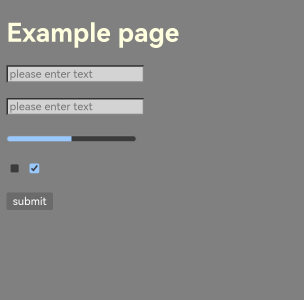
For example, when the following style definition is added to color-scheme.html and the web dark mode is enabled, the web page uses the dark color scheme and the style defined in @media (prefers-color-scheme: dark). Figure 2 shows the rendering effect.
<style>
  @media (prefers-color-scheme: dark) {
    body { background-color: Gray; color: LightYellow; }
    input { background-color: Lightgray; }
  }
</style>
Figure 2 Effect of prefers-color-scheme
Setting the Web Dark Mode
You can use the darkMode() API to configure the web dark mode, which is disabled by default. WebDarkMode.Auto can be set for applications to follow the system dark mode. You can also set WebDarkMode.On or WebDarkMode.Off to enable or disable dark mode.
If you set WebDarkMode.On or WebDarkMode.Auto and enable the system dark mode, the web page enters dark mode. When dark mode is enabled, the web page uses the dark style defined in @media(prefers-color-scheme: dark). If the web page does not define a dark style, the original mode is retained.
To forcibly convert a web page that is not adapted to dark mode to the dark style, you can use the forceDarkAccess() API. The forcible dark mode can overwrite the default style of the web page and convert the background and text colors of the web page to dark mode. The forcible dark mode cannot ensure that all color conversions meet the expectation.
In forcible dark mode, the high-brightness color value is converted to a color value suitable for a low-light environment, and the low-brightness color value remains unchanged. The specific color value conversion algorithm adheres to the Chromium kernel standard and is updated in tandem with the Chromium kernel. Color conversion applies only to elements that do not support dark color schemes. If the global declaration of a web page supports the dark color scheme, the color values of the entire web page will not be converted.

If the dark style of an element is defined in @media(prefers-color-scheme: dark) but the dark color scheme is not declared by using color-scheme, the web page converts the color value based on the dark style, as shown in Table 1.
Table 1 Relationship between dark mode, forcible dark mode, and color-scheme
| Dark Mode | Forcible Dark Mode | color-scheme | Expected Result |
|---|---|---|---|
| Disabled | No impact | - | The web page uses the color scheme supported by color-scheme. |
| Enabled | Disabled | - | The web page uses the color scheme supported by color-scheme and the style defined in @media (prefers-color-scheme: dark). |
| Enabled | Enabled | Dark mode is supported | The web page uses the dark color scheme and the style defined in @media (prefers-color-scheme: dark). |
| Enabled | Enabled | Dark mode is not supported | The web page converts the color value of the high-brightness elements based on the algorithm. If a style is defined in @media (prefers-color-scheme: dark), the color value is converted based on the defined style. |
The forceDarkAccess() API takes effect only when the web dark mode is enabled. In the following example, the application sets the web dark mode to follow the system. When the system dark mode is enabled, the web page enters the forcible dark mode.
import { webview } from '@kit.ArkWeb';

@Entry
@Component
struct WebComponent {
  controller: webview.WebviewController = new webview.WebviewController();
  @State mode: WebDarkMode = WebDarkMode.Auto;
  @State access: boolean = true;

  build() {
    Column() {
      Web({ src: $rawfile('darkModePage.html'), controller: this.controller })
        .darkMode(this.mode)
        .forceDarkAccess(this.access)
    }
  }
}
The code of the resources/rawfile/darkModePage.html page is as follows:
<!-- darkModePage.html -->
<!DOCTYPE html>
<html>
<head>
    <meta name="viewport" content="width=device-width, initial-scale=1.0, maximum-scale=1.0, user-scalable=no">
    <style type="text/css">
        body { background: LightBlue; color: Black; }
        @media (prefers-color-scheme: dark) {
            body { background: LightGray; color: Brown; }
        }
    </style>
</head>
<body class="contentCss">
  <p>Dark mode debug page</p>
  <input name="input1" placeholder="please enter text" style="color-scheme: light dark;">
  <br><br>
  <input name="input2" placeholder="please enter text">
</body>
</html>
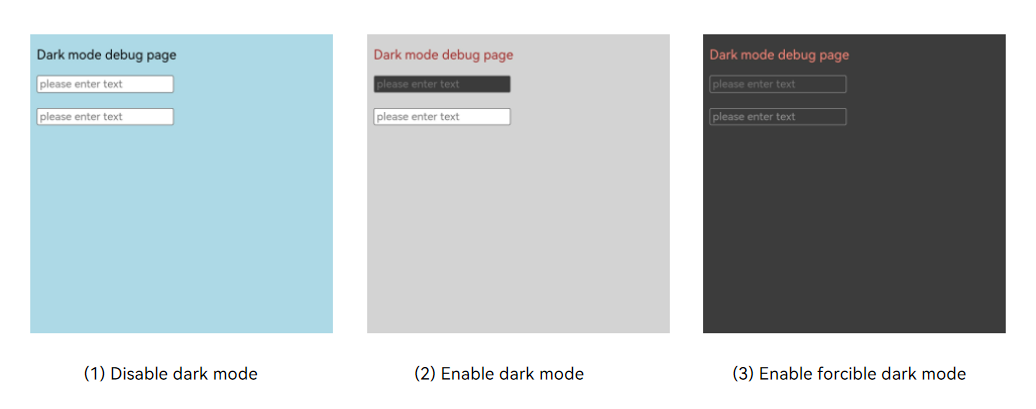
The styles of the darkModePage.html page when dark mode is disabled, when dark mode is enabled, and when forced dark mode is enabled are shown in Figure 3. When dark mode is disabled, the web page adopts the default style. When dark mode is enabled, the color scheme of input1 switches to dark, and the web page applies the gray background and brown text styles defined in @media(prefers-color-scheme: dark). When forced dark mode is enabled, the color scheme of input1 is dark and is not converted by Web, while the web page background color, text color, and input2 background color are all converted from the color values in (2) to those shown in (3).
Figure 3 Effects of the dark color mode and forcible dark color mode on the web page
Adapting the Web Component Background Color to Dark Mode
When the Web component is rotated or its size changes, the web page size changes and the background color of the Web component may be displayed. In dark mode, you are advised to set the background color of the Web component to black to ensure a consistent experience with the web page background.
You can use backgroundColor() to set the background color of Web components. If no background color is set, the default background color white is used. In forcible dark mode, the default background color is black. If forcible dark mode is not enabled, you can use the following methods for adaptation.
-
When WebDarkMode.On and WebDarkMode.Off are set on the application side to control dark mode, the background color of Web components changes accordingly.
import { webview } from '@kit.ArkWeb'; @Entry @Component struct WebComponent { controller: webview.WebviewController = new webview.WebviewController(); @State isDark: boolean = false; build() { Column() { Web({ src: $rawfile('darkModePage.html'), controller: this.controller }) .darkMode(this.isDark ? WebDarkMode.On : WebDarkMode.Off) .backgroundColor(this.isDark ? Color.Black : Color.White) } } } -
When WebDarkMode.Auto is set on the application side to follow the system dark mode, the background color of Web components changes with the system.
import { window } from '@kit.ArkUI';
import { AbilityConstant, ConfigurationConstant, UIAbility, Want, Configuration } from '@kit.AbilityKit';
import { hilog } from '@kit.PerformanceAnalysisKit';

export default class EntryAbility extends UIAbility {
  onCreate(want: Want, launchParam: AbilityConstant.LaunchParam): void {
    // Save the current colorMode to AppStorage.
    AppStorage.setOrCreate<ConfigurationConstant.ColorMode>('currentColorMode', this.context.config.colorMode);
    hilog.info(0x0000, 'testTag', '%{public}s', 'Ability onCreate');
  }
  // ...
  onConfigurationUpdate(newConfig: Configuration): void {
    // Dynamically update the color mode.
    const currentColorMode: ConfigurationConstant.ColorMode | undefined = AppStorage.get('currentColorMode');
    if (currentColorMode !== newConfig.colorMode) {
      AppStorage.setOrCreate<ConfigurationConstant.ColorMode>('currentColorMode', newConfig.colorMode);
    }
  }
}
import { webview } from '@kit.ArkWeb'; import { ConfigurationConstant } from '@kit.AbilityKit'; @Entry @Component struct WebComponent { controller: webview.WebviewController = new webview.WebviewController(); @State bgColor: Color = Color.White; @StorageProp('currentColorMode') @Watch('onCurrentColorModeChange') currentColorMode: ConfigurationConstant.ColorMode = ConfigurationConstant.ColorMode.COLOR_MODE_NOT_SET; build() { Column() { Web({ src: $rawfile('darkModePage.html'), controller: this.controller }) .darkMode(WebDarkMode.Auto) .backgroundColor(this.bgColor) } } onCurrentColorModeChange(): void { // Switch the background color based on the system settings. if (this.currentColorMode === ConfigurationConstant.ColorMode.COLOR_MODE_DARK) { this.bgColor = Color.Black; } else { this.bgColor = Color.White; } } }
[h2]What should I do if the web page is not switched to dark mode?
Symptom
The web page is not switched to dark mode.
Solution
There are multiple reasons for the switch failure. Perform the following steps to locate the fault:
-
Check whether dark mode is enabled on the web page. By default, darkMode() is disabled. You need to explicitly declare WebDarkMode.On or WebDarkMode.Auto to enable dark mode.
-
If dark mode is enabled on the web page, check whether the dark style is defined for the web page. If the dark style is not defined, the web page style remains unchanged even if dark mode is enabled on the web page. To enable forcible adaptation, use forceDarkAccess() to enable the forcible dark mode.
-
If the forcible dark mode is enabled on the web page, check whether the web page supports the dark color scheme. If a web page supports the dark color scheme by using color-scheme, the color value will not be converted by the web page in forcible dark mode. In addition, color-scheme does not affect the custom color style of elements on the web page. Therefore, the web page is not switched to the dark style. In this case, you need to modify the dark mode configuration.
[h2]What should I do if the web page style is abnormal after the forcible dark mode is enabled?
Symptom
When the forcible dark mode is enabled, the web page style conversion is abnormal. For example, the font is unclear, the style is not user-friendly, or the color is improper.
Solution
In forcible dark mode, the web page uses the Chromium color value conversion algorithm to automatically adjust the element color style. The layout and style of different web pages are different. The algorithm cannot ensure that all conversions meet the expectation. You are advised to customize the dark style.
[h2]What should I do if the web page switches to a dark background when dark mode is not enabled?
Symptom
The dark mode is not enabled for the Web component, but the web page background becomes dark.
Solution
If no background color is set or the background color is set to transparent on the web page, the background color of the Web component is displayed. In this case, check whether backgroundColor() is set to a dark color for the Web component.