Overview
When developing apps such as movies, conferences, and live broadcast, you usually need to use the video decoding capability to implement high-performance playback and video processing.
In this document, the video playback control is implemented by using the decoding capability in surface mode. In surface mode, NativeWindow is used to transfer output data during video decoding and directly connect to the XComponent component to implement video playback. Compared with the buffer mode, you do not need to connect the decoded video data to the playback component. For details, see Video Decoding.
Before reading this document, you are advised to understand related knowledge about audio and video encoding and decoding. In addition, it is recommended that the SDK version in the IDE environment be 6.0.2\ (22) or later.
This document covers the following content:
- Video Playback: Decodes a video in surface mode and plays it.
- Full-Screen Playback: Plays a video in full screen on the device.
- Pause and Resume: Pauses or resumes video playback.
- Seeking to the Playback Position: Seeks to another progress during video playback.
- Loop: Plays the same video cyclically.
- Playback at Speed: Adjusts the video playback speed.
- Switching Videos for Playback: Switches to another video during playback.
[h2]Scenario
Video decoding and playback is to restore the compressed data in a video file to a visible image through decoding and render the image for display. Video decoding is commonly used for high definition (HD) playback and low-latency playback. It is also the basis for video editing and playback (such as adding filters and watermarks), real-time scrolling comment overlay, and advanced color processing. Compared with using AVPlayer for playback (Basic Playback Controls with AVPlayer), decoding and playback support more video formats and image processing capabilities.
[h2]How to Implement
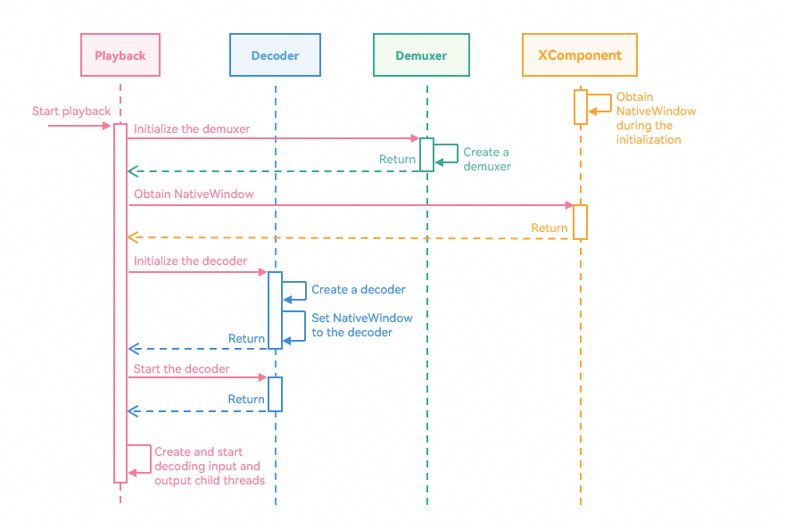
The video decoding and playback in surface mode are implemented by calling the capabilities of the AVCodec module. The process of demuxing a video file and decoding video and audio data for display and playback is as follows:
After a video is selected and played, use the video file to initialize the demuxer.
Obtains NativeWindow returned in the OnSurfaceCreate callback during XComponent initialization.
Initialize the decoder, set parameters such as NativeWindow, and start the decoder.
Create the decoding input and output child threads to start the decoding and playback process.
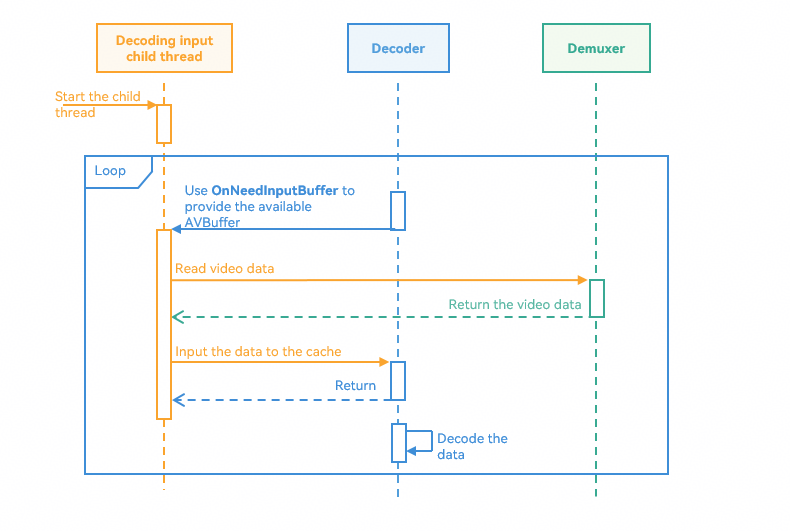
The input child thread obtains the available AVBuffer by using the OnNeedInputBuffer asynchronous callback function in OH_AVCodecCallback, reads video data from the demuxer, and submits the data to the decoder. In this way, the video data to be decoded is input to the decoder.
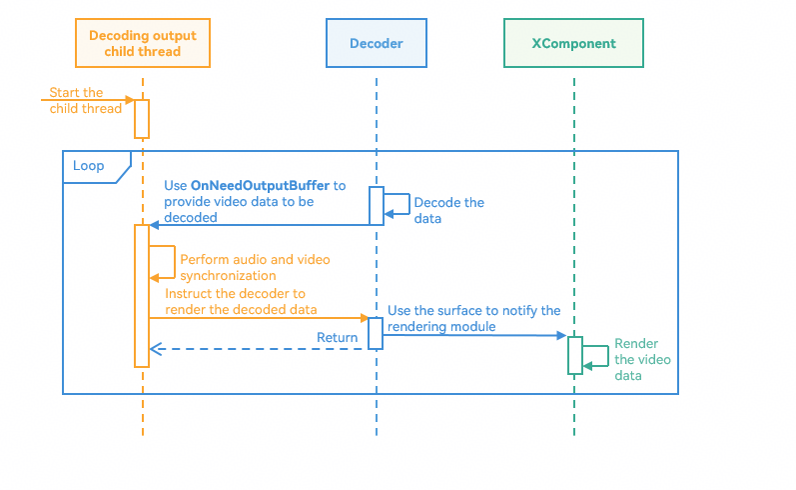
The decoding output child thread obtains the decoded frame data through OnNeedOutputBuffer, performs audio and video synchronization, and instructs the decoder to complete rendering on the surface.
[h2]How to Develop
Create decoding resources such as the demuxer and decoder.
int32_t Player::Init(SampleInfo &info)
{
    // ...
    // Create decode sources pointer.
    videoDecoder_ = std::make_unique<VideoDecoder>();
    audioDecoder_ = std::make_unique<AudioDecoder>();
    demuxer_ = std::make_unique<Demuxer>();

    // Create demuxer by video info.
    int32_t ret = demuxer_->Create(videoInfo_);
    CHECK_AND_RETURN_RET_LOG(ret == MEDIA_ERR_OK, ret, "Create demuxer failed");
    // Create and Configure audio ande video decoder.
    ret = CreateAudioDecoder();
    CHECK_AND_RETURN_RET_LOG(ret == MEDIA_ERR_OK, ret, "Create audio decoder failed");
    ret = CreateVideoDecoder();
    CHECK_AND_RETURN_RET_LOG(ret == MEDIA_ERR_OK, ret, "Create video decoder failed");
    // ...
}
Set decoding parameters based on video information. The following uses video parameters as an example.
int32_t Player::CreateVideoDecoder()
{
    // Create decoder by system mime.
    int32_t ret = videoDecoder_->Create(videoInfo_.videoInfo.videoCodecMime);
    CHECK_AND_RETURN_RET_LOG(ret == MEDIA_ERR_OK, MEDIA_ERR_ERROR, "Create video decoder failed, mime:%{public}s",
                             videoInfo_.videoInfo.videoCodecMime.c_str());
    videoDecContext_ = new CodecUserData;
    // Configure nativeWindow and video info to decoder.
    videoInfo_.videoInfo.window = XComponentManager::GetInstance()->nativeWindow_;
    ret = videoDecoder_->Config(videoInfo_, videoDecContext_);
    CHECK_AND_RETURN_RET_LOG(ret == MEDIA_ERR_OK, ret, "Video Decoder config failed");
    return MEDIA_ERR_OK;
}
Start the decoder, create decoding input and output child threads, and start to decode the video.
int32_t Player::Start()
{
    // ...
    if (videoDecContext_) {
        // Start the video decoder.
        ret = videoDecoder_->Start();
        CHECK_AND_RETURN_RET_LOG(ret == MEDIA_ERR_OK, ret, "Video Decoder start failed");
        // Set start state.
        isStarted_ = true;
        isPause_ = false;
        // Create video decode input and output sub thread.
        videoDecInputThread_ = std::make_unique<std::thread>(&Player::VideoDecInputThread, this);
        videoDecOutputThread_ = std::make_unique<std::thread>(&Player::VideoDecOutputThread, this);
        // ...
    }
    // ...
}
Use the input child thread to read data from the demuxer and send the data to the decoder for decoding.
void Player::VideoDecInputThread()
{
    while (isDecoding_) {
        // ...
        // Get AVBuffer and maintain the queue.
        CodecBufferInfo bufferInfo = videoDecContext_->inputBufferInfoQueue.front();
        videoDecContext_->inputBufferInfoQueue.pop();
        videoDecContext_->inputFrameCount++;
        // ...
        // read sample from demuxer.
        int32_t ret = demuxer_->ReadSample(demuxer_->GetVideoTrackId(),
                                           reinterpret_cast<OH_AVBuffer *>(bufferInfo.buffer), bufferInfo.attr);
        CHECK_AND_BREAK_LOG(ret == MEDIA_ERR_OK, "ReadSample failed, thread out");
        // ...
        // push the buffer to the decoder.
        ret = videoDecoder_->PushInputBuffer(bufferInfo);
        CHECK_AND_BREAK_LOG(ret == MEDIA_ERR_OK, "Push data failed, thread out");
    }
    MEDIA_LOGI("VideoDecInputThread out.");
}
Use the output child thread to obtain the decoded frame data from the decoder, processes the data, and sends the data for display.
void Player::VideoDecOutputThread()
{
    videoInfo_.videoInfo.frameInterval = MICROSECOND / videoInfo_.videoInfo.frameRate;
    while (isDecoding_) {
        // ...

        CodecBufferInfo bufferInfo = GetBufferInfo();
        // ...
        // Notify the suface to render the data and release it.
        lastPushTime = std::chrono::system_clock::now();
        ret = videoDecoder_->RenderOutputBuffer(bufferInfo.bufferIndex, !dropFrame);
        CHECK_AND_BREAK_LOG(ret == MEDIA_ERR_OK, "Decoder output thread out");
    }
    // ...
}
Call OH_VideoDecoder_RenderOutputBufferAtTime() to instruct the decoder to complete rendering on the output surface within the specified time.
int32_t VideoDecoder::RenderOutputBuffer(uint32_t bufferIndex, bool render)
{
    CHECK_AND_RETURN_RET_LOG(decoder_ != nullptr, MEDIA_ERR_ERROR, "Decoder is null");
    int32_t ret = MEDIA_ERR_OK;
    // Check if render.
    if (render) {
        // Get timestamp for render time.
        int64_t renderTimestamp = std::chrono::duration_cast<std::chrono::nanoseconds>(
            std::chrono::high_resolution_clock::now().time_since_epoch()).count();
        // Notify video decode to render by surface.
        ret = OH_VideoDecoder_RenderOutputBufferAtTime(decoder_, bufferIndex, renderTimestamp);
    } else {
        // Free buffer that does not need to be rendered.
        ret = OH_VideoDecoder_FreeOutputBuffer(decoder_, bufferIndex);
    }
    CHECK_AND_RETURN_RET_LOG(ret == AV_ERR_OK, MEDIA_ERR_ERROR, "Render output data failed, RET = %{public}d", ret);
    return MEDIA_ERR_OK;
}
[h2]Scenario
When a video is played in full-screen mode, only the video feed and controls are displayed on the app page, and other components are hidden. Videos are usually displayed in landscape mode, providing immersive playback experience.
[h2]How to Implement
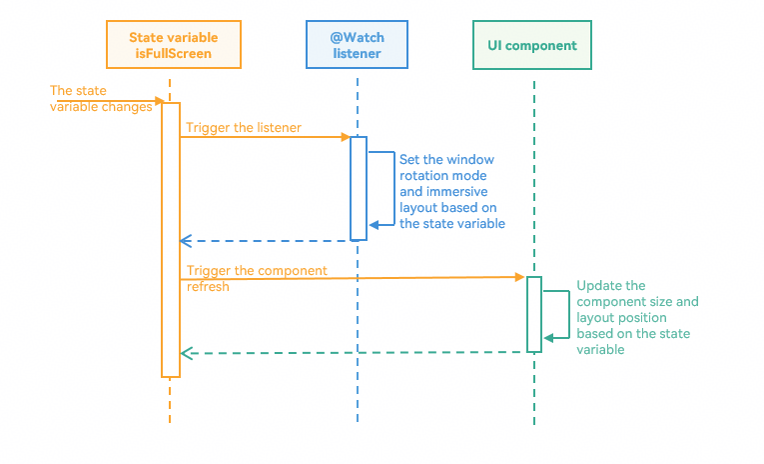
The full-screen playback is implemented by the UI. The process is as follows:
After being switched to the full-screen mode, the app updates the corresponding state variable.
The @Watch listening method of this state variable sets the window rotation mode and immersive layout based on the current state.
The sizes and positions of UI components are adjusted to implement the full-screen layout.

On the native side, you can use OH_NativeWindow_NativeWindowSetScalingModeV2() to set the image rendering and scaling mode of XComponent. You can set the OHScalingModeV2 parameter to scale the image based on the video ratio or scale the image to match the video window size.
[h2]How to Develop
Define a full-screen state variable and bind a listening method.
// The horizontal full-screen playback state flag.
@Watch('fullScreenSet') @Link isFullScreen: boolean;
After the state variable changes, use the bound listening method to set the window attributes based on the current state.
fullScreenSet() {
  // Change window orientation and layout when setting full screen.
  window.getLastWindow(this.getUIContext().getHostContext()).then((topWindow) => {
    topWindow.setPreferredOrientation(this.isFullScreen ?
      window.Orientation.AUTO_ROTATION_LANDSCAPE : window.Orientation.PORTRAIT).catch((error: BusinessError) => {
      hilog.error(DOMAIN, TAG, `Failed to setPreferredOrientation. Cause: ${error.code}, message: ${error.message}`);
    });
    topWindow.setWindowLayoutFullScreen(this.isFullScreen ? true : false).catch((error: BusinessError) => {
      hilog.error(DOMAIN, TAG,
        `Failed to setWindowLayoutFullScreen. Cause: ${error.code}, message: ${error.message}`);
    });
  }).catch((error: BusinessError) => {
    hilog.error(DOMAIN, TAG, `Failed to getLastWindow. Cause: ${error.code}, message: ${error.message}`);
  });
}
Take the XComponent component as an example. The component height is adjusted based on the state variable to implement full-screen playback.
XComponent({
  id: 'playerXC',
  type: XComponentType.SURFACE,
  libraryname: 'player'
})
  .width(WIDTH_SIZE)
  .height(this.isFullScreen ? NORMAL_SIZE : FULL_SIZE)
[h2]Scenario
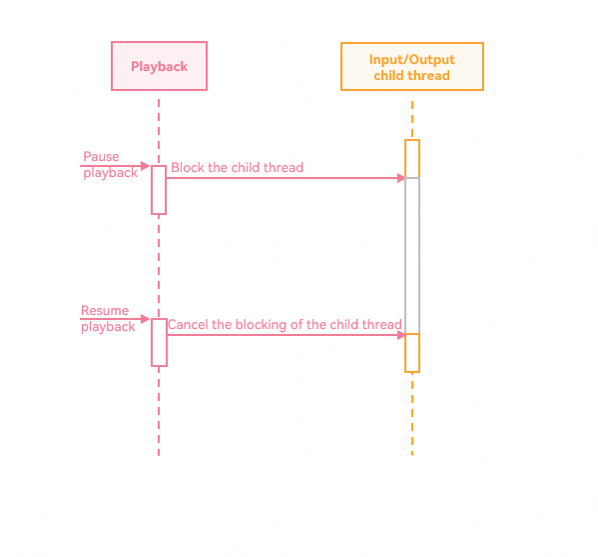
Pausing and resuming playback are common scenarios in video playback. If you pause playback, the video feed stops changing, and the internal decoder stops decoding data and rendering images. Resuming the playback is to resume the decoding process of the decoder and continue the video playback.
[h2]How to Implement
Pausing playback is implemented by blocking the input and output child threads. After blocking, the input child thread stops submitting data to the decoder, and the output child thread stops providing video frame data to the surface. In this way, the playback is paused. Resuming the playback is to cancel the blocking state of the input and output child threads to restore the playback state.
[h2]How to Develop
Both the decoding input and output child threads perform the condition variable wait operation and determine whether the operation is suspended.
// Use condition to wait for decoder requests for data.
std::unique_lock<std::mutex> lock(videoDecContext_->inputMutex);
videoDecContext_->inputCond.wait(
    lock, [this]() { return !isPause_ && (!isStarted_ || !videoDecContext_->inputBufferInfoQueue.empty()); });
When the playback is paused, the application sets the pause state synchronously and stops the audio playback.
int32_t Player::Pause()
{
    CHECK_AND_RETURN_RET_LOG(isStarted_, MEDIA_ERR_ERROR, "player do not start!");
    // Set pause state.
    isPause_.store(true);
    // if the audio render, pause it.
    if (audioRenderer_) {
        OH_AudioRenderer_Pause(audioRenderer_);
    }
    return MEDIA_ERR_OK;
}
Resuming playback cancels the pause state, wakes up the child thread waiting on the condition variable, and resumes playing the audio.
int32_t Player::Resume()
{
    CHECK_AND_RETURN_RET_LOG(isStarted_, MEDIA_ERR_ERROR, "player do not start!");
    isPause_.store(false); // Cancel the pause state.
    // Notify the thread to continue work.
    if (videoDecContext_) {
        videoDecContext_->inputCond.notify_all();
        videoDecContext_->outputCond.notify_all();
    }
    if (audioDecContext_) {
        audioDecContext_->inputCond.notify_all();
        audioDecContext_->outputCond.notify_all();
    }
    if (audioRenderer_) {
        OH_AudioRenderer_Start(audioRenderer_); // if need audio to play, continue.
    }
    return MEDIA_ERR_OK;
}
[h2]Scenario
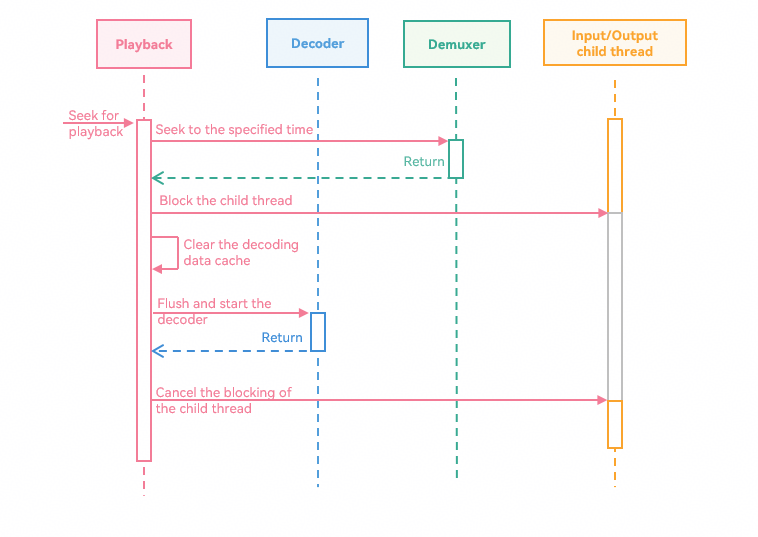
Seeking to the playback position refers to the process of seeking to another position on the progress bar during continuous video playback. During the seeking, the decoder clears the current cache data and reads data again at the playback position for decoding.
[h2]How to Implement
The seeking is implemented by using the seeking feature of the demuxer. The procedure is as follows:
Use OH_AVDemuxer_SeekToTime() of the demuxer to seek to the previous key frame at a specified time.

- Key frame (I frame): It is an important part of video encoding. It is a complete image frame and can be decoded independently. In addition to I-frame, there is a forward predictive frame (P-frame) and a bidirectional prediction frame (B-frame).
- Forward predictive frame (P-frame): An image is generated based on a previous I-frame or P-frame, and a change amount compared with a previous frame is stored.
- Bidirectional prediction frame (B-frame): A graph is generated by referring to I-frame or P-frame before and after the bidirectional prediction frame, and a change amount compared with a previous frame and a next frame is stored.
Block the decoding input and output child threads and suspend decoding.
Clear the data to be sent to the decoder and the decoded data to be sent for display.
Use OH_VideoDecoder_Flush() for video decoding and OH_AudioCodec_Flush() for audio decoding to clear the input and output data cached in the encoder.
Cancel the blocking of the decoding child thread and decode and play the video again at the specified position.

In addition to seeking to the previous key frame at a specified time, you can also select another seeking mode (for example, seeking to the next key frame). For details, see OH_AVSeekMode.
[h2]How to Develop
The demuxer seeks to the previous key frame at a specified time point.
int32_t Demuxer::Seek(int64_t position)
{
    // Select video track.
    int32_t ret = OH_AVDemuxer_SelectTrackByID(demuxer_, videoTrackId_);
    CHECK_AND_RETURN_RET_LOG(ret == AV_ERR_OK, MEDIA_ERR_ERROR, "SelectTrackByID failed");
    MEDIA_LOGI("Seek to %{public}" PRId64, position);
    // Call the system function to seek to destination.
    ret = OH_AVDemuxer_SeekToTime(demuxer_, position, SEEK_MODE_PREVIOUS_SYNC);
    CHECK_AND_RETURN_RET_LOG(ret == AV_ERR_OK, MEDIA_ERR_ERROR, "Seek failed");
    return MEDIA_ERR_OK;
}
Refresh the decoder, clear the buffer, and then decode and play the video.
int32_t Player::Seek(int64_t desTime)
{
    isReadRenderTime_.store(false);
    // ...
    if (videoDecoder_) {
        // Flush decoder, clear cache.
        videoDecContext_->isFlushing.store(true);
        videoDecContext_->ClearQueue();
        ret = videoDecoder_->Flush(videoDecContext_);
        CHECK_AND_RETURN_RET_LOG(ret == MEDIA_ERR_OK, MEDIA_ERR_ERROR, "video seek video flush failed");
        videoDecContext_->isFlushing.store(false);
        // Restart the decoder.
        ret = videoDecoder_->Start();
        CHECK_AND_RETURN_RET_LOG(ret == MEDIA_ERR_OK, MEDIA_ERR_ERROR, "video seek start videoDecoder failed");
    }
    // ...
}
After the video decoder is flushed, the PPS/SPS information needs to be transferred again. The first data item read by the demuxer after the seeking operation contains the PPS/SPS information. Therefore, the PPS/SPS information needs to be transferred to the decoder.
// read sample from demuxer.
int32_t ret = demuxer_->ReadSample(demuxer_->GetVideoTrackId(),
                                   reinterpret_cast<OH_AVBuffer *>(bufferInfo.buffer), bufferInfo.attr);
CHECK_AND_BREAK_LOG(ret == MEDIA_ERR_OK, "ReadSample failed, thread out");
// ...
// push the buffer to the decoder.
ret = videoDecoder_->PushInputBuffer(bufferInfo);
CHECK_AND_BREAK_LOG(ret == MEDIA_ERR_OK, "Push data failed, thread out");
PPS: picture parameter set, containing common encoding parameters of one or more frames.
SPS: sequence parameter set, containing global information of an entire video sequence. The information remains unchanged during the entire sequence playback, and the decoder needs to use the information for initialization.
[h2]Scenario
Looping playback indicates that a video is played back to the beginning after the current video is played. In this way, the same video is played continuously.
[h2]How to Implement
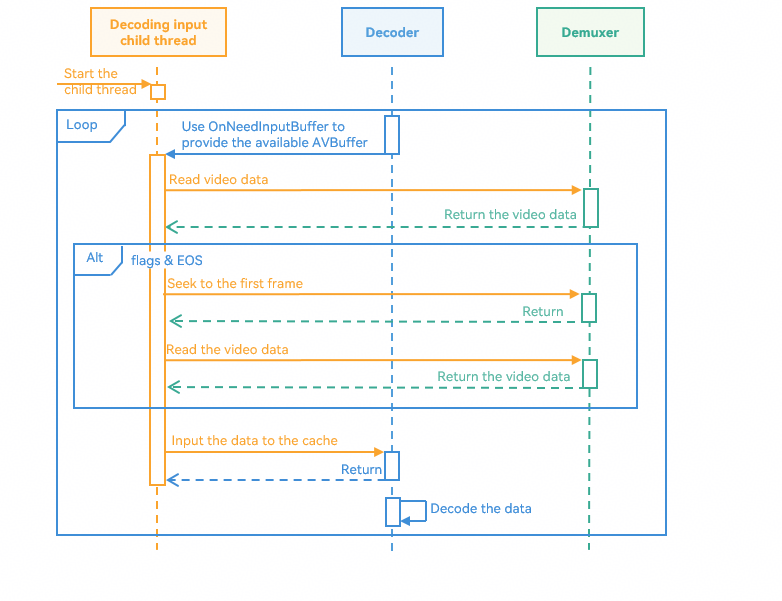
Looping playback starts from the first frame after the last frame is played. The process is as follows:
- When the OH_AVCodecBufferFlags of the AVBuffer obtained by the input child thread from the demuxer is AVCODEC_BUFFER_FLAGS_EOS, the buffer data is the end frame.
- Use the demuxer to seek to the first frame, that is, the time point 0.
- Obtain the first frame data from the demuxer to implement looping playback.
[h2]How to Develop
After obtaining the video end frame from the demuxer, the decoding input child thread seeks to the first frame for decoding.
// read sample from demuxer.
int32_t ret = demuxer_->ReadSample(demuxer_->GetVideoTrackId(),
                                   reinterpret_cast<OH_AVBuffer *>(bufferInfo.buffer), bufferInfo.attr);
CHECK_AND_BREAK_LOG(ret == MEDIA_ERR_OK, "ReadSample failed, thread out");
// Check if the buffer flag include eos.
if (bufferInfo.attr.flags & AVCODEC_BUFFER_FLAGS_EOS) {
    while (!isAudioWaitSeek_.load()) {
        std::this_thread::sleep_for(std::chrono::microseconds(WAIT_TIME));
    }
    ret = demuxer_->Seek(0); // Seek to the first frame.
    CHECK_AND_BREAK_LOG(ret == MEDIA_ERR_OK, "Loop failed, thread out");
    // Read first frame data from demuxer.
    ret = demuxer_->ReadSample(demuxer_->GetVideoTrackId(), reinterpret_cast<OH_AVBuffer *>(bufferInfo.buffer),
                               bufferInfo.attr);
    CHECK_AND_BREAK_LOG(ret == MEDIA_ERR_OK, "ReadSample failed, thread out");
}
After the audio end frame is obtained, wait until the video decoder completes frame deframing and read the first frame again.
// Read sample from demuxer.
int32_t ret = demuxer_->ReadSample(demuxer_->GetAudioTrackId(),
                                   reinterpret_cast<OH_AVBuffer *>(bufferInfo.buffer), bufferInfo.attr);
CHECK_AND_BREAK_LOG(ret == MEDIA_ERR_OK, "ReadSample failed, thread out");
// Check if the buffer flag include eos.
while (bufferInfo.attr.flags & AVCODEC_BUFFER_FLAGS_EOS) {
    // Wait the video thread seek to first frame.
    std::unique_lock<std::mutex> lock(audioDecContext_->endMutex);
    isAudioWaitSeek_.store(true);
    audioDecContext_->endCond.wait(lock);
    int32_t ret = demuxer_->ReadSample(demuxer_->GetAudioTrackId(),
                                       reinterpret_cast<OH_AVBuffer *>(bufferInfo.buffer), bufferInfo.attr);
    CHECK_AND_BREAK_LOG(ret == MEDIA_ERR_OK, "ReadSample failed, thread out");
}
isAudioWaitSeek_.store(false);
[h2]Scenario
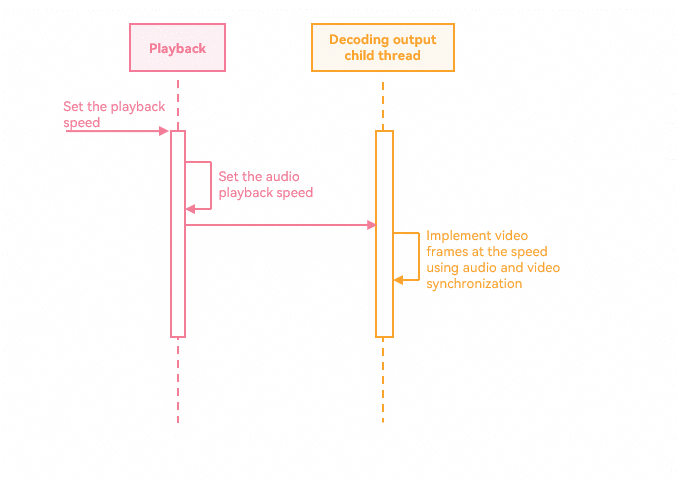
In the decoding and playing logic, the speed feature is usually implemented based on the rendering logic of the decoding data output module. Compared with the speed feature of the player, the custom solution based on underlying decoding supports more refined speed control (for example, 0.1x speed fine-tuning) to meet different application scenarios.
[h2]How to Implement
Set the audio playback speed. After the audio frame rendering speed changes, the video frame is traced based on the audio and video synchronization to achieve playback at speed.
[h2]How to Develop
Set the audio playback speed and transfer the speed to the video decoding module by assigning a value.
void Player::SetSpeed(float speed)
{
    // ...
    // Set audio play speed.
    OH_AudioRenderer_SetSpeed(audioRenderer_, speed);
    // Set speed value for sub thread.
    speed_ = speed;
    audioDecContext_->speed = speed;
}
The output child thread performs frame tracing by synchronizing audio and video. For details, see How to Develop in audio and video synchronization.
// video buffer is too late, drop it
if (waitTimeUs < WAIT_TIME_US_THRESHOLD_WARNING) {
    dropFrame = true;
    MEDIA_LOGW("VD buffer is too late");
} else {
    MEDIA_LOGW("VD buffer is too early waitTimeUs: %{public}ld", waitTimeUs);
    // [0, ), render it with waitTimeUs, max 1s
    // [-40,0), render it
    if (waitTimeUs > WAIT_TIME_US_THRESHOLD) {
        waitTimeUs = WAIT_TIME_US_THRESHOLD;
    }
    // per frame render time reduced by 33ms
    if (waitTimeUs > videoInfo_.videoInfo.frameInterval + PER_SINK_TIME_THRESHOLD) {
        waitTimeUs = videoInfo_.videoInfo.frameInterval + PER_SINK_TIME_THRESHOLD;
        MEDIA_LOGW("VD buffer is too early and reduced 33ms, waitTimeUs: %{public}ld", waitTimeUs);
    }
}
if (waitTimeUs > 0) {
    std::this_thread::sleep_for(std::chrono::microseconds(waitTimeUs));
}
[h2]Scenario
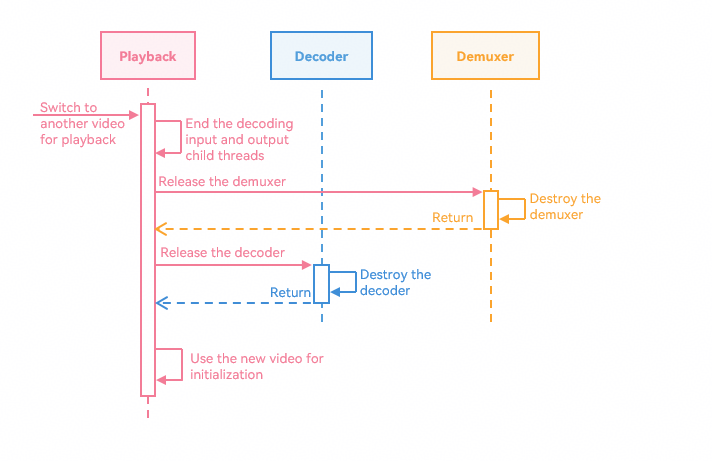
Video switching is a common interaction manner in a video playing scenario. After the video is switched, the decoding process and playback of the current video are ended, and the new video is used for decoding and playback.
[h2]How to Implement
To switch the video playback, you need to release the decoding resources of the current video and then use the new video for re-initialization. The details are as follows:
- Set the end state, end the decoding input and output child threads, and stop the decoding for the current video.
- Release the decoding resources of the current video, including the decoder and demuxer.
- Use the new video to re-create decoding resources and decoding child threads. For details, see How to Implement in the video playback section.
[h2]How to Develop
Release resources such as the decoder and child threads of the current video.
void Player::Release()
{
    // ...
    // Notify the sub thread continue and over.
    if (videoDecContext_) {
        videoDecContext_->inputCond.notify_all();
        videoDecContext_->outputCond.notify_all();
    }
    // ...
    ReleaseThread();
    currentRenderTime_.store(0);

    if (audioRenderer_ != nullptr) {
        OH_AudioRenderer_Release(audioRenderer_);
        audioRenderer_ = nullptr;
    }
    // Release decode resoure.
    if (demuxer_ != nullptr) {
        demuxer_->Release();
        demuxer_.reset();
    }
    if (videoDecoder_ != nullptr) {
        videoDecoder_->Release();
        videoDecoder_.reset();
    }
    // ...
}
After the release is complete, create resources based on the new video. For details, see How to Develop in the video playback section.