Use Cases
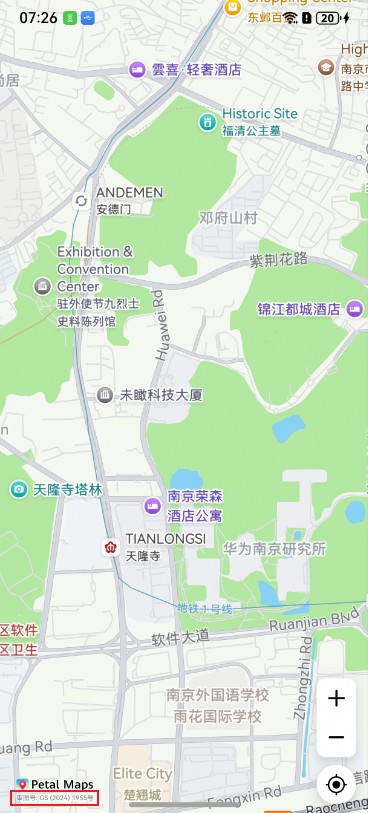
Starting from 6.1.0(23), the function of setting the map approval number in the lower left corner of a map is supported.
This section describes how to use map controls.
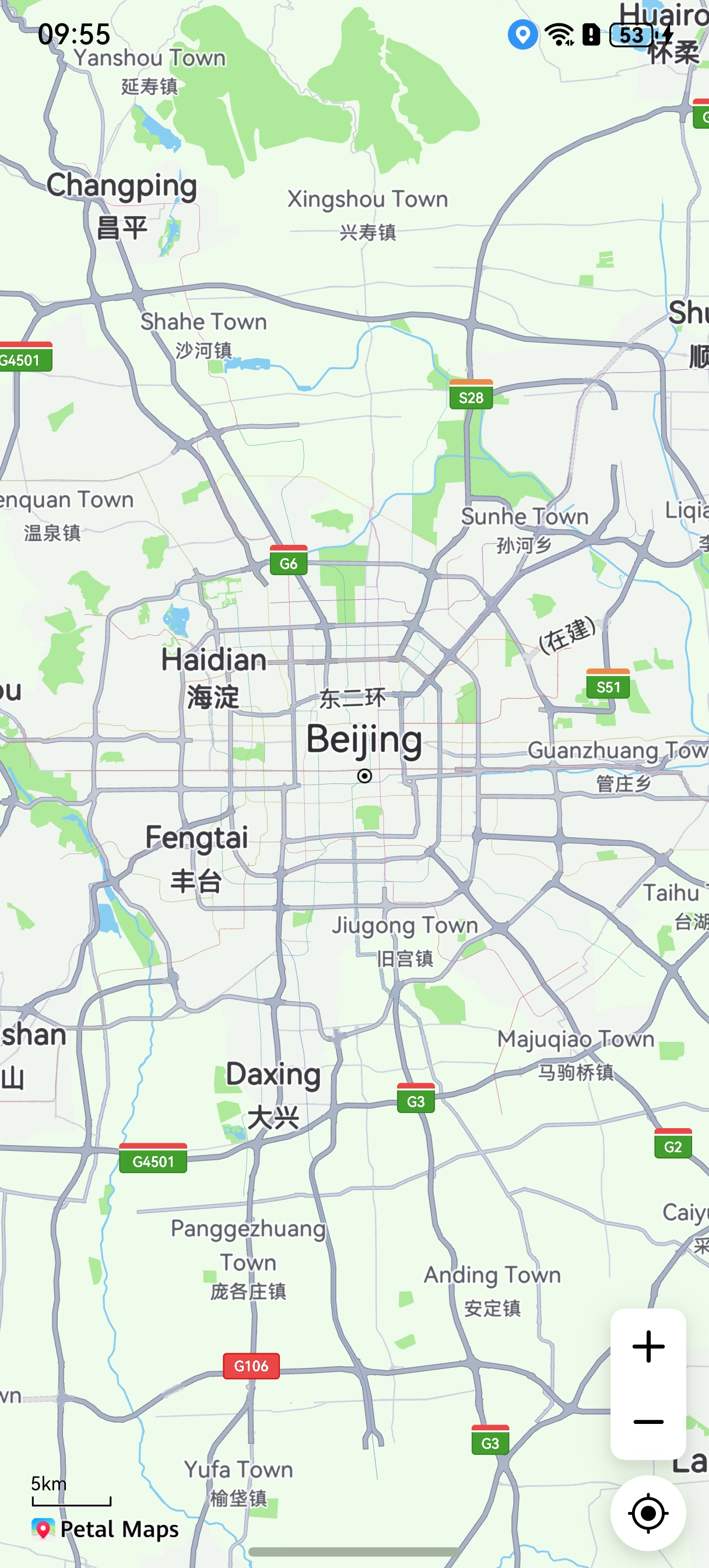
Controls refer to a series of components floating on a map component for operating the map, such as the zoom icon  , location icon
 , and scale
 .
API Description
The following table describes the map control APIs. Controls can be enabled or disabled in either of the following ways:
-
During map initialization, set whether to enable controls in the initialization parameter MapOptions. For details, please refer to Displaying a Map.
-
Call the set method provided by MapComponentController to enable or disable related controls.
| API | Description |
|---|---|
| setZoomControlsEnabled(enabled: boolean): void | Sets whether to enable the zoom control. |
| setMyLocationEnabled(myLocationEnabled: boolean): void | Sets whether to enable the my-location layer. |
| setMyLocationControlsEnabled(enabled: boolean): void | Sets whether to enable the my-location icon. |
| setScaleControlsEnabled(enabled: boolean): void | Sets whether to enable the scale. |
| setScalePosition(point: mapCommon.MapPoint): void | Sets the position of the scale control. |
| setAlwaysShowScaleEnabled(enabled: boolean): void | Sets whether to always display the scale. |
| setCompassControlsEnabled(enabled: boolean): void | Sets whether to enable the compass. |
| setLogoAlignment(alignment: mapCommon.LogoAlignment): void | Sets the map logo alignment mode. |
| setApproveNumberEnabled(enabled: boolean): void | Sets whether to display the map approval number. The map approval number can be displayed only when the routing location is in China. |
Development Procedure
Obtain a mapController object during map initialization. For details about the map initialization function, please refer to Displaying a Map.
[h2]Zoom Controls
Map Kit provides built-in zoom controls, which are enabled by default.
// Enable zoom controls.
this.mapController.setZoomControlsEnabled(true);

[h2]Scale
Map Kit provides a built-in scale control, which is disabled by default.
// Enable the scale control.
this.mapController.setScaleControlsEnabled(true);

Adjusting the scale position:
Use the setScalePosition method to set the position of the scale control.
let point: mapCommon.MapPoint = {
  // Use the upper left corner of the current map component as the origin and pan the map 1000 pixels to the right.
  positionX: 1000,
  // Use the upper left corner of the current map component as the origin and pan the map 1000 pixels downwards.
  positionY: 1000
};
this.mapController.setScalePosition(point); 
Obtaining the scale at the current level:
Use the getScaleLevel method to obtain the scale at the current level.
let level = this.mapController.getScaleLevel();
Obtaining the height and width of the scale control:
Use the getScaleControlsHeight and getScaleControlsWidth methods to obtain the height and width of the current scale control, respectively.
// Obtain the height of the scale control.
let height = this.mapController.getScaleControlsHeight();
// Obtain the width of the scale control.
let width = this.mapController.getScaleControlsWidth();
Setting the scale control to be always displayed:
Use the setAlwaysShowScaleEnabled method to set the scale control to be always displayed and use the isAlwaysShowScaleEnabled method to check whether the scale control is always displayed.
// Set the scale control to be always displayed.
this.mapController.setAlwaysShowScaleEnabled(true);
// Check whether the scale control is always displayed.
let scaleEnabled: boolean = this.mapController.isAlwaysShowScaleEnabled();
[h2]Compass
Map Kit provides a built-in compass control, which is enabled by default. The control is displayed in the upper right corner of the map by default. If this control is enabled, when the map is not oriented toward due north or is tilted, the compass icon will appear in the upper right corner of the map. The user can tap the compass icon to rotate the map to due north and cancel the tilt. If this control is enabled, when the map is oriented toward due north and is not tilted, the compass icon will be hidden. If this control is disabled, the compass icon will not be displayed.
// Enable the compass control.
this.mapController.setCompassControlsEnabled(true);

Adjusting the compass position:
Use the setCompassPosition method to set the position of the compass control.
let point: mapCommon.MapPoint = {
  // Use the upper left corner of the current map component as the origin and pan the map 1000 pixels to the right.
  positionX: 1000,
  // Use the upper left corner of the current map component as the origin and pan the map 1000 pixels downwards.
  positionY: 1000
};
this.mapController.setCompassPosition(point); 
[h2]Map Logo
Map Kit provides the setLogoAlignment method to adjust the map logo alignment mode and the setLogoPadding method to adjust the padding between the map edges and the logo. Note that the map logo cannot be covered. You can use the setLogoPadding method to set the padding to prevent the logo from being covered.
// Place the map logo in the lower right corner.
this.mapController.setLogoAlignment(mapCommon.LogoAlignment.BOTTOM_END);
// Set the padding between the logo and map edges, measured in pixels.
let padding: mapCommon.Padding = {
  right: 50,
  bottom: 50
};
this.mapController.setLogoPadding(padding); 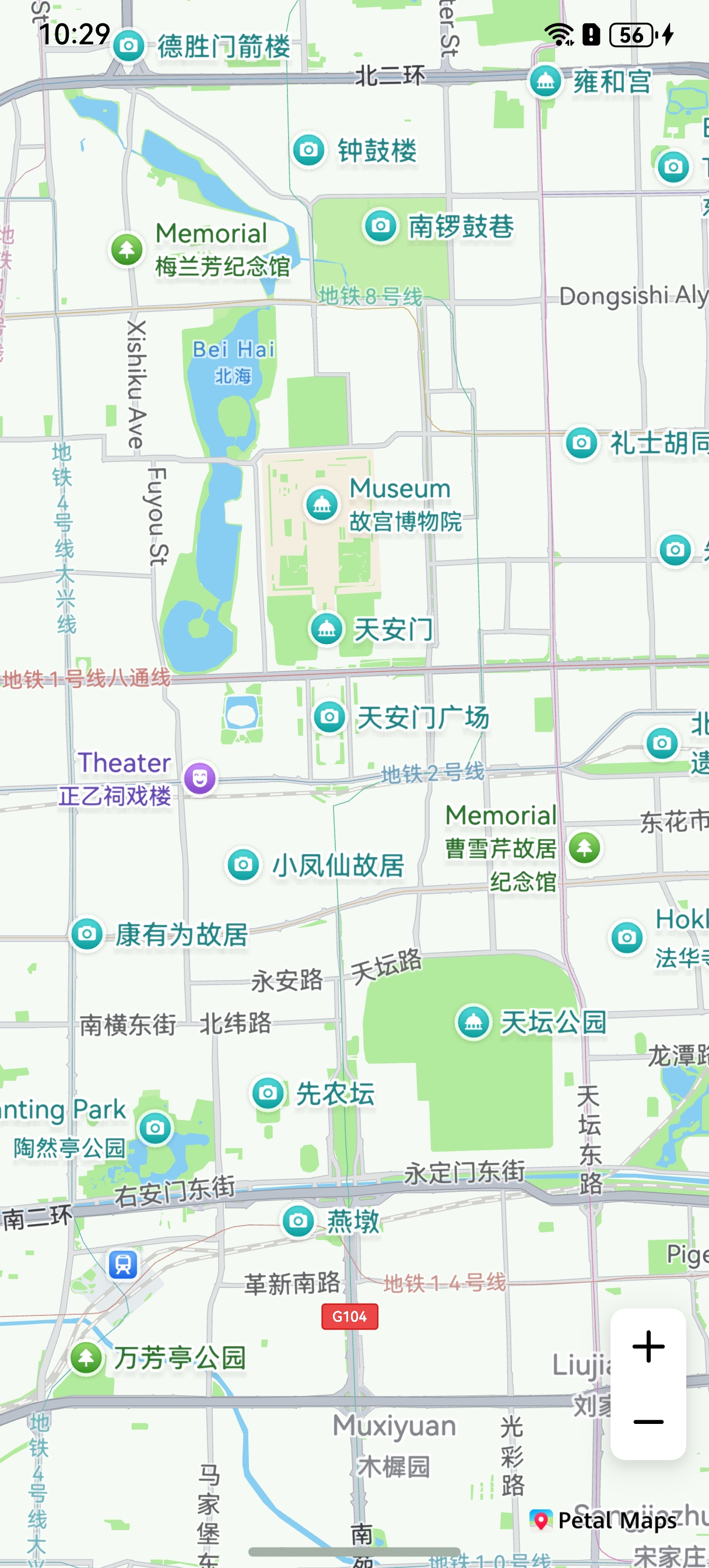
[h2]Map Approval Number
A map approval number is a unique identifier issued by the state after reviewing map products. It signifies that the map has officially passed inspection by the State Bureau of Surveying and Mapping of China.
Map Kit uses the setApproveNumberEnabled method to display the map approval number, as shown in the lower left corner of the following figure.
// Display the map approval number.
this.mapController?.setApproveNumberEnabled(true);