Scenario 1: Both the new and old certificates are issued by commercial CAs, or both are self-signed certificates issued by the same CA.
You only need to replace the old certificate with the new one on your message receipt server, without making any modification in AppGallery Connect.
Scenario 2: The new certificate is issued by a commercial CA, but the old certificate is a self-signed certificate.
You need to replace the old certificate with the new one on your message receipt server, and sign in to AppGallery Connect to modify the message receipt settings accordingly. During the replacement, the message receipt service will not be interrupted.
To modify the message receipt settings, perform the following steps:
Sign in to AppGallery Connect, click Development and services, and find and click the desired project in the project list. Then, go to Grow > Push Kit > Settings.
Select the app whose message receipt settings need to be modified, and click Modify next to App receipt.
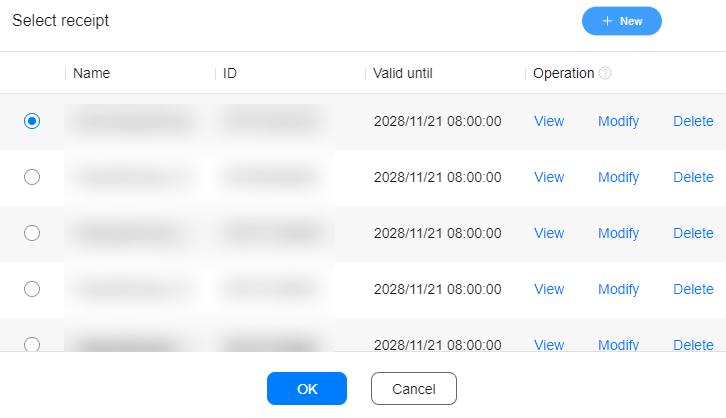
On the Select receipt page displayed, select a message receipt whose certificate needs to be replaced and click Modify in the Operation column.
On the Configure receipt page, check the latest certificate information detected by the message receipt service. You do not need to modify the information.
Click Submit to save the information.
Click OK to go back to the Settings page.
Scenario 3: Both the new and old certificates are self-signed certificates but are issued by different CAs.
To prevent the message receipt service from being interrupted during certificate replacement, you need to sign in to AppGallery Connect and set the new certificate as a backup certificate before replacing the old certificate on your message receipt server.
The message receipt service will trust both the old and backup certificates within 30 days, after which the old certificate will be replaced with the backup certificate if the certificate on your message receipt server has been replaced.
To set a backup certificate, perform the following steps:
Repeat the first three steps in scenario 2 to open the Configure receipt page.
On the Configure receipt page, click Set backup certificate and enter information about the new certificate.
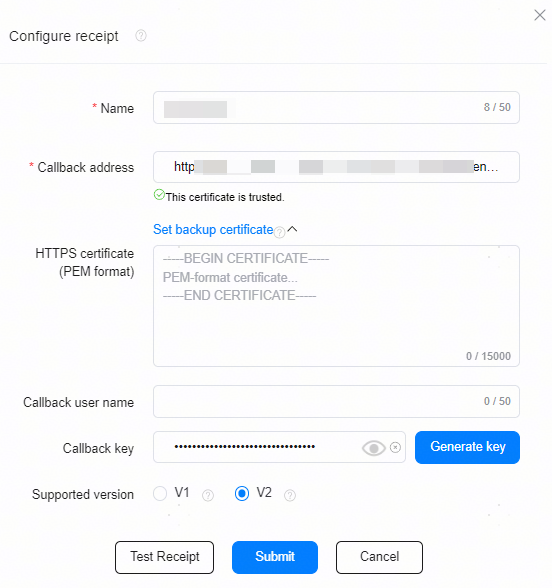
Click Submit to save the information.
Click OK to go back to the Settings page.

How to obtain the CA information of the certificate on your message receipt server
If the certificate has been installed on the message receipt server and the server is accessible, you can create a new receipt configuration and enter the callback address. Then, the CA information of the current certificate will be displayed.
If the certificate is not installed on the message receipt server, you can obtain the certificate CA information from the certificate.
The message receipt service will store the certificate CA information, and verify the certificate CA information to ensure that message receipts are correctly sent to the configured message receipt address.