When a user requests a refund from a non-game app, you can process this request in AppGallery Connect.

-
Refunds can only be initiated by users. For details, please refer to Requesting a Refund.
-
For a game app, the refund request will be processed by Huawei game operations personnel. In this case, just skip this topic.
Processing a Refund Request
To use the refund management function, make sure that you have at least one of the following roles with the refund permission: account holder, administrator, app administrator, and finance personnel. For details, please refer to Adding a Member Account.
After you have the refund permission, you can process a refund request as follows:
-
Sign in to AppGallery Connect and click Apps. In the app list, click the app for which the refund request comes.

-
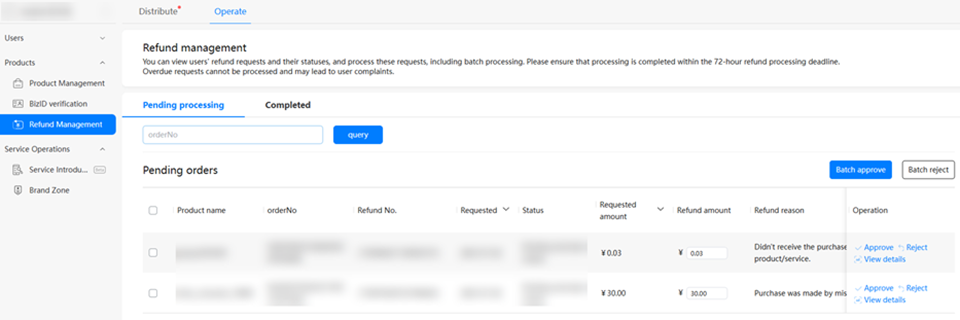
On the Operate tab, choose Products > Refund Management. Then, you can view the refund request.
-
Process the refund request.
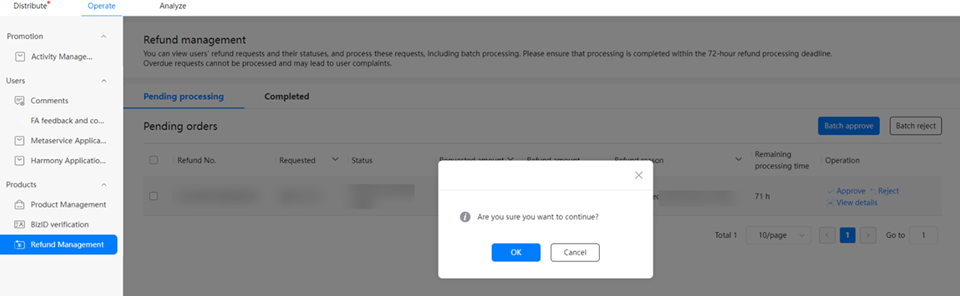
Approve: If you want to approve the refund request, input the amount in the Refund amount field and click Approve. In the confirmation dialog box, click OK.
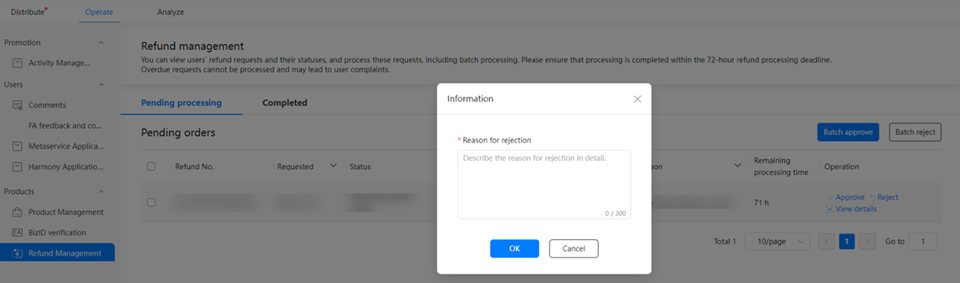
Reject: If you want to reject the refund request, click Reject, input the reason for rejection, and click OK.
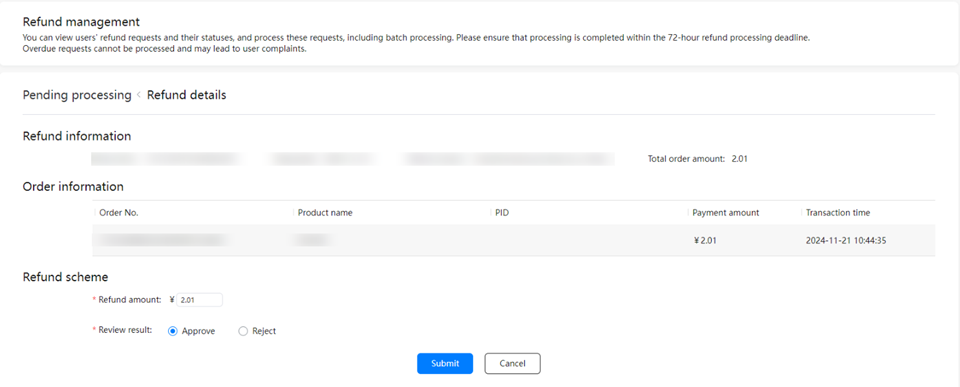
View details: You can also click View details to access the Refund details page. On this page, you can check the request details, specify Refund amount and Review result accordingly, and finally click Submit. (If you determine to reject a refund request, ignore Refund amount.)
Completed: The refund request that has been processed will be moved to the Completed tab.

Below lists the refund request statuses.
No. Refund Request Status Description 1 Rejected The refund request is rejected by you. 2 Approved The refund request is approved by you. 3 Refund successful The refund request is approved by you, and the refund process is already completed by Huawei. 4 Refund failed The refund request is approved by you, but the refund process fails to be completed by Huawei. 5 Overdue and unprocessed The refund request is not processed by you within the specified timeframe, and Huawei's operations team will process this request.
Requesting a Refund

-
The refund function is available for both game and non-game apps on HarmonyOS 6.16.10 or later versions. (To check the HarmonyOS version, go to Settings > HUAWEI ID > Payment & purchases > More settings > About. The path may vary depending on the OS version.)
-
Refund processing is not immediate. In general, it takes about seven working days from the time a refund request is submitted to its completion.
Users who wish to request a refund for a purchased digital product can select the relevant order and follow the on-screen instructions to submit their request. After you approve the refund request, the user will receive the refund amount.
Here are step-by-step instructions:
-
Go to Settings, access the HUAWEI ID screen, and tap Payment & purchases. On the Purchase history screen, tap the order for which a refund is needed. Then, on the Details screen, tap Report issue.
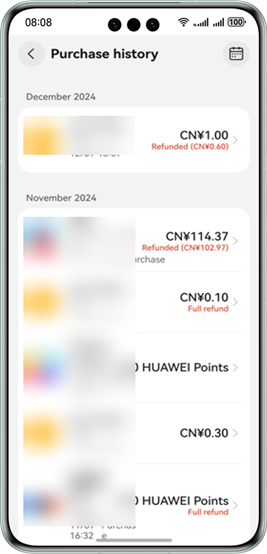
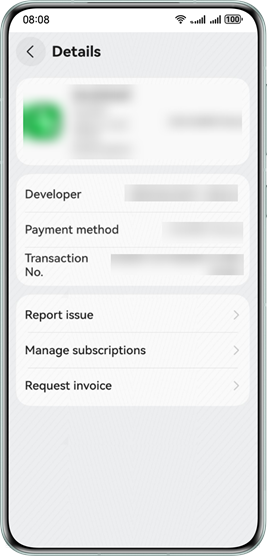
-
On the Report issue screen, tap Request refund, select a reason, and tap Submit.
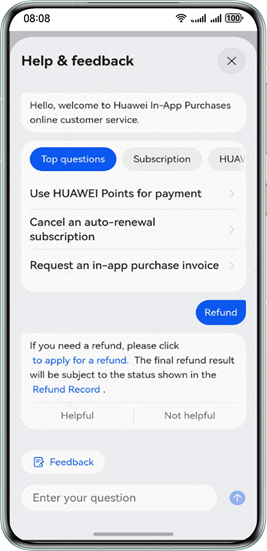
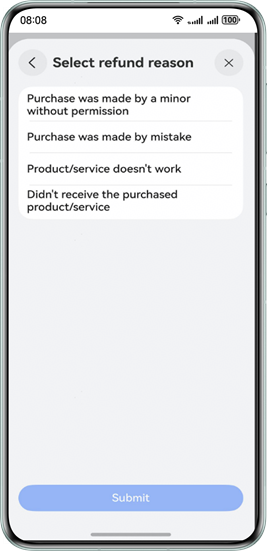
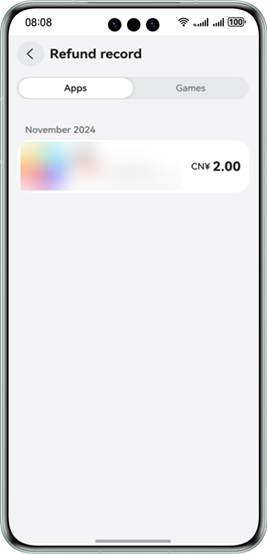
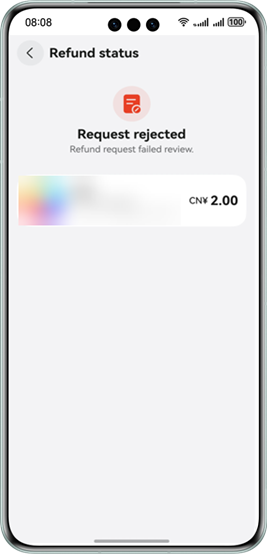
On the Report issue screen, tap View refund records to check the statuses of all refund requests.
Integrating the Refund API Within the App

-
Only non-game apps are allowed to integrate the refund API.
-
The refund API is applicable to only the refund of orders generated by the app itself.
Showing the Refund Screen
After a user initiates a refund request, your app sends a createRefundRequest request to IAP Kit to show the refund screen. The createRefundRequest request must contain the purchaseOrderId of the order to be refunded.
Sample code
import { iap } from '@kit.IAPKit';
import { BusinessError } from '@kit.BasicServicesKit';
import { common } from '@kit.AbilityKit';
import Logger from '../common/Logger';
// ...
  /**
   * Show the refund screen.
   */
  async createRefundRequest() {
    if (!this.purchaseOrderId) {
      Logger.error(TAG, `Failed to create refund request. Error params`);
      return;
    }
    const context: common.UIAbilityContext = this.getUIContext().getHostContext() as common.UIAbilityContext;
    await iap.createRefundRequest(context, this.purchaseOrderId).then(() => {
      // Refund successful.
      Logger.info(TAG, 'Succeeded in create refund request.');
      // ...
    }).catch((err: BusinessError) => {
      // Refund failed.
      Logger.error(TAG, `Failed to create refund request. Code is ${err.code}, message is ${err.message}`);
      // ...
    });
  }