Use CanvasRenderingContext2D to draw objects such as graphics, texts, line segments, and images on the <canvas> component. For details, see CanvasRenderingContext2D.
Drawing Line Segments
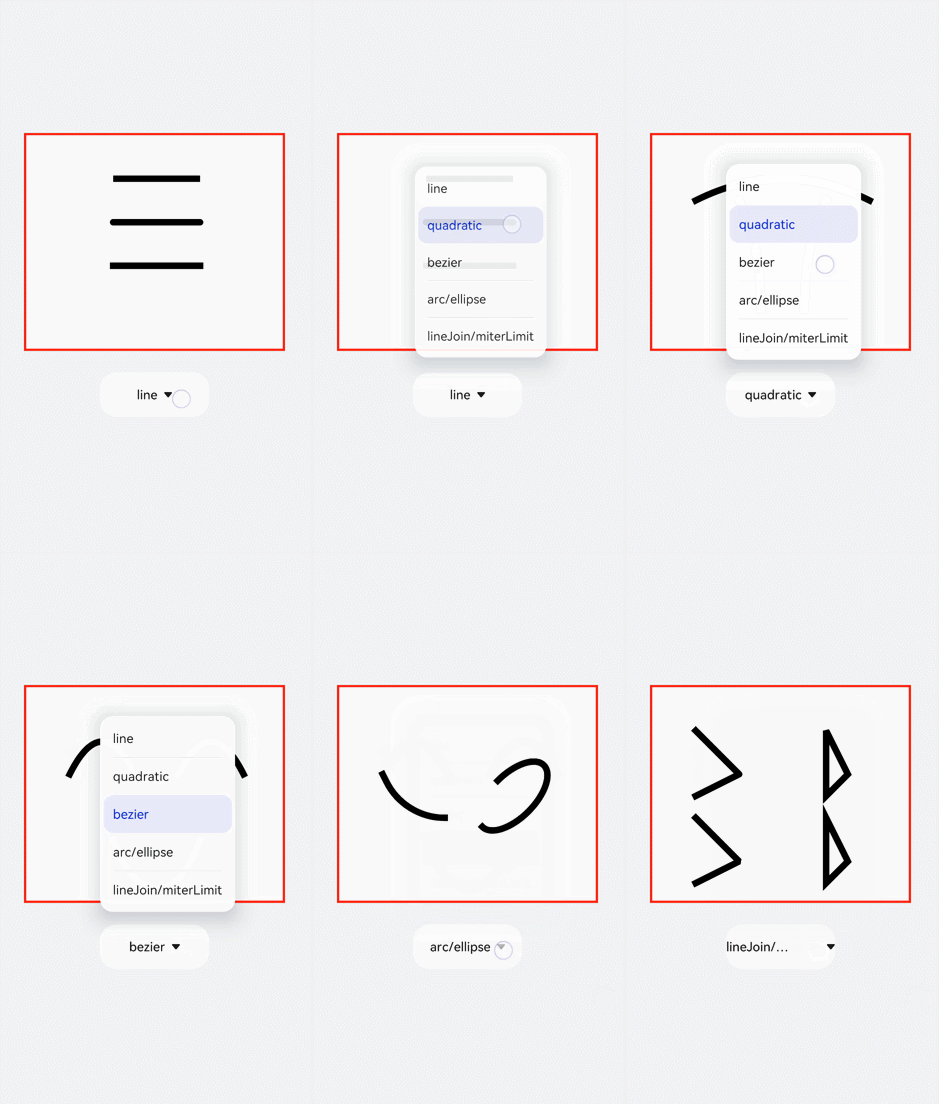
Use moveTo and lineTo to draw a line segment. Use the closePath method to end current path, obtaining a closed path. Set quadraticCurveTo (quadratic Bézier curve) or bezierCurveTo (cubic Bézier curve) to draw a graphic.
<!-- xxx.hml -->
<div class="container">
  <canvas ref="canvas1"></canvas>
  <select @change="change">
    <option value="value1"> line </option>
    <option value="value2"> quadratic </option>
    <option value="value3"> bezier </option>
    <option value="value4"> arc/ellipse </option>
    <option value="value5"> lineJoin/miterLimit </option>
  </select>
</div>
/* xxx.css */
.container {
width: 100%;
height: 100%;
flex-direction: column;
justify-content: center;
align-items: center;
background-color: #F1F3F5;
}
canvas {
width: 600px;
height: 500px;
background-color: #fdfdfd;
border: 5px solid red;
}
select {
margin-top: 50px;
width: 250px;
height: 100px;
background-color: white;
} // xxx.js
export default {
data: {
el: null,
ctx: null,
},
onShow() {
this.el = this.$refs.canvas1;
this.ctx = this.el.getContext("2d", { antialias: true });
// Clear the canvas.
this.ctx.clearRect(0, 0, 600, 500);
// Create a drawing path.
this.ctx.beginPath();
// Square off the endpoints of the line.
this.ctx.lineCap = 'butt';
// Border width
this.ctx.lineWidth = 15;
// Create a drawing path.
this.ctx.beginPath();
// Move a drawing path from the current point to a target position.
this.ctx.moveTo(200, 100);
// Connect the current point to the target position.
this.ctx.lineTo(400, 100);
// Stroke a path.
this.ctx.stroke();
this.ctx.beginPath();
// Round the endpoints of the line.
this.ctx.lineCap = 'round';
this.ctx.moveTo(200, 200);
this.ctx.lineTo(400, 200);
this.ctx.stroke();
// Square off the endpoints of the line.
this.ctx.beginPath();
this.ctx.lineCap = 'square';
this.ctx.moveTo(200, 300);
this.ctx.lineTo(400, 300);
this.ctx.stroke();
},
change(e) {
if (e.newValue == 'value1') {
this.el = this.$refs.canvas1;
this.ctx = this.el.getContext("2d", { antialias: true });
this.ctx.clearRect(0, 0, 600, 500);
// Up
this.ctx.beginPath();
this.ctx.lineCap = 'butt';
this.ctx.moveTo(200, 100);
this.ctx.lineTo(400, 100);
this.ctx.stroke();
// Middle
this.ctx.beginPath();
this.ctx.lineCap = 'round';
this.ctx.moveTo(200, 200);
this.ctx.lineTo(400, 200);
this.ctx.stroke();
// Down
this.ctx.beginPath();
this.ctx.lineCap = 'square';
this.ctx.moveTo(200, 300);
this.ctx.lineTo(400, 300);
this.ctx.stroke();
} else if (e.newValue == 'value2') {
this.ctx.clearRect(0, 0, 600, 500);
// Up
this.ctx.beginPath();
this.ctx.moveTo(100, 150);
// Path for a cubic Bézier curve
this.ctx.quadraticCurveTo(300, 50, 500, 150);
this.ctx.stroke();
// Left
this.ctx.beginPath();
this.ctx.moveTo(200, 150);
this.ctx.quadraticCurveTo(250, 250, 250, 400);
this.ctx.stroke();
// Right
this.ctx.beginPath();
this.ctx.moveTo(400, 150);
this.ctx.quadraticCurveTo(350, 250, 350, 400);
this.ctx.stroke();
} else if (e.newValue == 'value3') {
this.ctx.clearRect(0, 0, 600, 500);
// Down
this.ctx.beginPath();
this.ctx.moveTo(100, 200);
// Path for a cubic Bézier curve
this.ctx.bezierCurveTo(150, 100, 200, 100, 250, 200);
this.ctx.stroke();
// Left
this.ctx.beginPath();
this.ctx.moveTo(350, 200);
this.ctx.bezierCurveTo(400, 100, 450, 100, 500, 200);
this.ctx.stroke();
// Right
this.ctx.beginPath();
this.ctx.moveTo(200, 350);
this.ctx.bezierCurveTo(250, 500, 350, 500, 400, 350);
this.ctx.stroke();
} else if (e.newValue == 'value4') {
this.ctx.clearRect(0, 0, 600, 500);
this.ctx.beginPath();
this.ctx.moveTo(100, 200);
// Arc
this.ctx.arcTo(150, 300, 350, 300, 150);
this.ctx.stroke();
this.ctx.beginPath();
// Ellipse
this.ctx.ellipse(400, 250, 50, 100, Math.PI * 0.25, Math.PI * 0.5, Math.PI, 1);
this.ctx.stroke();
} else if (e.newValue == 'value5') {
this.ctx.clearRect(0, 0, 600, 500);
// Upper left
this.ctx.beginPath();
// Draw a sector centered at the common endpoint of connected line segments.
this.ctx.lineJoin = 'round';
this.ctx.moveTo(100, 100);
this.ctx.lineTo(200, 200);
this.ctx.lineTo(100, 250);
this.ctx.stroke();
// Lower left
this.ctx.beginPath();
// Fill a triangular between the common endpoint of connected segments.
this.ctx.lineJoin = 'bevel';
this.ctx.moveTo(100, 300);
this.ctx.lineTo(200, 400);
this.ctx.lineTo(100, 450);
this.ctx.stroke();
// Upper right
this.ctx.beginPath();
// Distance between the inner and outer corners at line intersections.
this.ctx.lineJoin = 'miter';
this.ctx.miterLimit = 3;
this.ctx.moveTo(400, 100);
this.ctx.lineTo(450, 200);
this.ctx.lineTo(400, 250);
// Draw a closed path.
this.ctx.closePath();
this.ctx.stroke();
// Lower right
this.ctx.beginPath();
this.ctx.lineJoin = 'miter';
this.ctx.miterLimit = 10;
this.ctx.moveTo(400, 300);
this.ctx.lineTo(450, 400);
this.ctx.lineTo(400, 450);
this.ctx.closePath();
this.ctx.stroke();
}
},
} 
Drawing Border
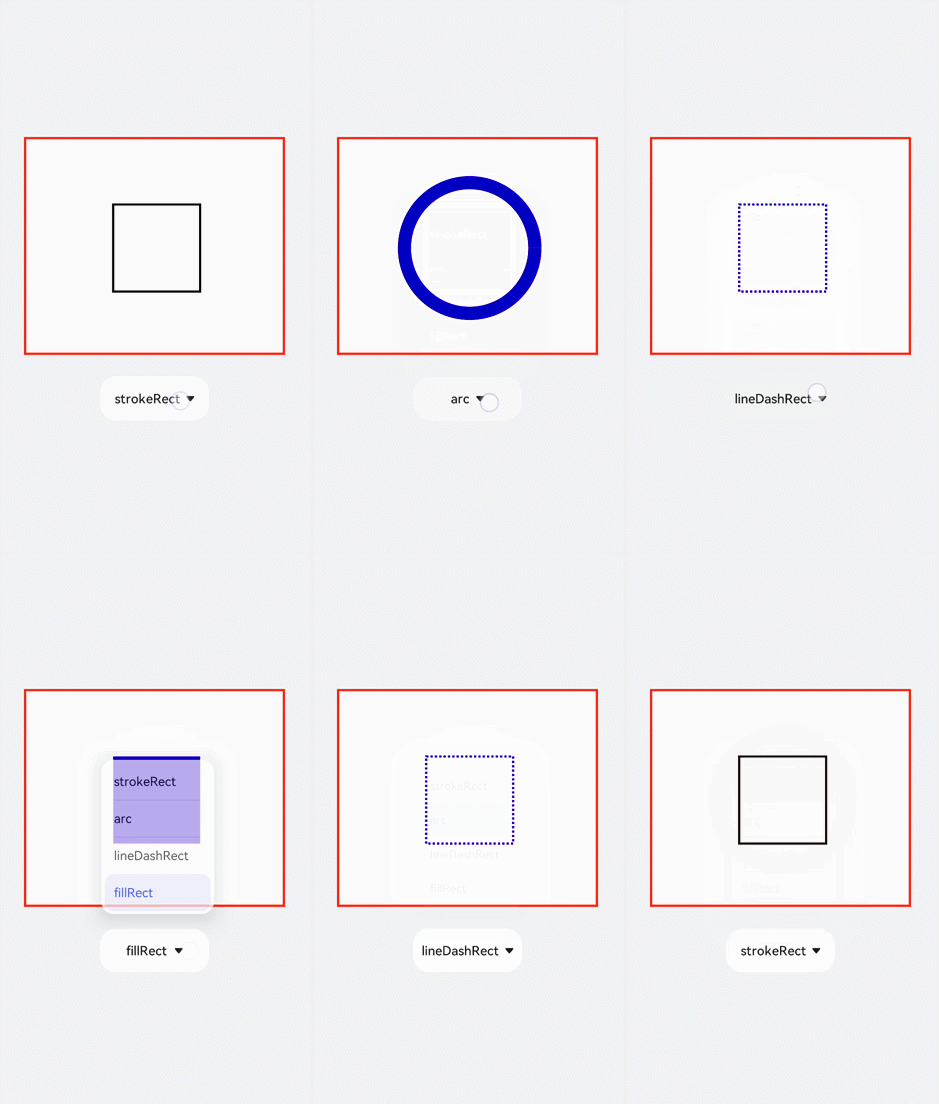
Globally define the canvas (el) and brush (ctx), and create a rectangle with the border width of 5 upon initialization. Change the border width (lineWidth), color (strokeStyle), and line dash level (setLineDash). Add the change event to the <select> component. The change event will be triggered upon selection and the changed image will be displayed.
<!-- xxx.hml -->
<div class="container">
  <canvas ref="canvas1"></canvas>
  <select @change="change">
    <option value="value1">strokeRect</option>
    <option value="value2">arc</option>
    <option value="value3">lineDashRect</option>
    <option value="value4">fillRect</option>
  </select>
</div>
/* xxx.css */
.container {
width: 100%;
height: 100%;
flex-direction: column;
justify-content: center;
align-items: center;
background-color: #F1F3F5;
display: flex;
}
canvas {
width: 600px;
height: 500px;
background-color: #fdfdfd;
border: 5px solid red;
}
select {
margin-top: 50px;
width: 250px;
height: 100px;
background-color: white;
} // xxx.js
export default {
data: {
el: null,
ctx: null,
},
onShow() {
this.el = this.$refs.canvas1;
this.ctx = this.el.getContext("2d", { antialias: true });
this.ctx.lineWidth = 5;
this.ctx.strokeRect(200, 150, 200, 200);
},
change(e) {
if (e.newValue == 'value1') {
// Clear the canvas.
this.ctx.clearRect(0, 0, 600, 500);
// Stroke width.
this.ctx.lineWidth = 5;
// Stroke color.
this.ctx.strokeStyle = '#110000';
// Line dash level of the border
this.ctx.setLineDash([0, 0]);
// Draw a stroked rectangle.
this.ctx.strokeRect(200, 150, 200, 200);
} else if (e.newValue == 'value2') {
this.ctx.clearRect(0, 0, 600, 500);
this.ctx.lineWidth = 30;
this.ctx.strokeStyle = '#0000ff';
this.ctx.setLineDash([0, 0]);
// Draw a circle.
this.ctx.arc(300, 250, 150, 0, 6.28);
// Draw the border.
this.ctx.stroke();
} else if (e.newValue == 'value3') {
this.ctx.clearRect(0, 0, 600, 500);
this.ctx.lineWidth = 5;
this.ctx.setLineDash([5, 5]);
this.ctx.strokeRect(200, 150, 200, 200);
} else if (e.newValue == 'value4') {
this.ctx.clearRect(0, 0, 600, 500);
// Draw and fill a rectangle.
this.ctx.fillStyle = '#0000ff';
this.ctx.fillRect(200, 150, 200, 200);
}
},
} 
Setting Gradient Fill Colors
Use the createLinearGradient and createRadialGradient methods to create gradient containers, then call the addColorStop method to add multiple color stops to form a gradient. Set fillStyle to gradient to fill the rectangle with the gradient, and finally configure the shadow blur level (shadowBlur), shadow color (shadowColor), and shadow offset (shadowOffset).
<!-- xxx.hml -->
<div class="container">
  <canvas ref="canvas1"></canvas>
  <select @change="change">
    <option value="value1">LinearGradient</option>
    <option value="value2">RadialGradient</option>
    <option value="value3">shadowBlur</option>
    <option value="value4">shadowOffset</option>
  </select>
</div>
/* xxx.css */
.container {
width: 100%;
height: 100%;
flex-direction: column;
justify-content: center;
align-items: center;
background-color: #F1F3F5;
display: flex;
}
canvas {
width: 600px;
height: 500px;
background-color: #fdfdfd;
border: 5px solid red;
}
select {
margin-top: 50px;
width: 250px;
height: 100px;
background-color: white;
} // xxx.js
export default {
data: {
el: null,
ctx: null,
},
onShow() {
this.el = this.$refs.canvas1;
this.ctx = this.el.getContext("2d", { antialias: true });
// Create a linear gradient.
let gradient = this.ctx.createLinearGradient(100, 100, 400, 300);
// Add gradient colors.
gradient.addColorStop(0.0, 'red');
gradient.addColorStop(0.7, 'white');
gradient.addColorStop(1.0, 'green');
// Apply the gradient.
this.ctx.fillStyle = gradient;
this.ctx.fillRect(100, 100, 400, 300);
},
change(e) {
if (e.newValue == 'value1') {
// Clear the canvas.
this.ctx.clearRect(0, 0, 600, 500);
let gradient = this.ctx.createLinearGradient(100, 100, 400, 300);
gradient.addColorStop(0.0, 'red');
gradient.addColorStop(0.7, 'white');
gradient.addColorStop(1.0, 'green');
this.ctx.fillStyle = gradient;
// Set the level of shadow blur.
this.ctx.shadowBlur = 0;
// Set the distance that shadows will be offset vertically.
this.ctx.shadowOffsetY = 0;
// Set the distance that shadows will be offset horizontally.
this.ctx.shadowOffsetX = 0;
this.ctx.fillRect(100, 100, 400, 300);
} else if (e.newValue == 'value2') {
this.ctx.clearRect(0, 0, 600, 500);
// Creates a radial gradient.
let gradient = this.ctx.createRadialGradient(300, 250, 20, 300, 250, 100);
gradient.addColorStop(0.0, 'red');
gradient.addColorStop(0.7, 'white');
gradient.addColorStop(1.0, 'green');
this.ctx.shadowBlur = 0;
this.ctx.shadowOffsetY = 0;
this.ctx.shadowOffsetX = 0;
this.ctx.fillStyle = gradient;
this.ctx.fillRect(100, 100, 400, 300);
} else if (e.newValue == 'value3') {
this.ctx.clearRect(0, 0, 600, 500);
let gradient = this.ctx.createLinearGradient(100, 100, 400, 400);
gradient.addColorStop(0.0, 'red');
gradient.addColorStop(0.5, 'white');
gradient.addColorStop(1, '#17ea35');
// Set the level of shadow blur.
this.ctx.shadowBlur = 30;
// Set the shadow color.
this.ctx.shadowColor = 'rgb(229, 16, 16)';
this.ctx.fillStyle = gradient;
this.ctx.fillRect(100, 100, 400, 300);
} else if (e.newValue == 'value4') {
this.ctx.clearRect(0, 0, 600, 500);
this.ctx.clearRect(0, 0, 600, 500);
let gradient = this.ctx.createRadialGradient(300, 250, 20, 300, 250, 200);
gradient.addColorStop(0.0, 'red');
gradient.addColorStop(0.5, 'white');
gradient.addColorStop(1, '#17ea35');
// Set the level of shadow blur.
this.ctx.shadowBlur = 30;
this.ctx.shadowOffsetY = 30;
// Set the shadow color.
this.ctx.shadowColor = 'rgb(23, 1, 1)';
this.ctx.fillStyle = gradient;
this.ctx.fillRect(100, 100, 400, 300);
}
},
} 
Filling Text
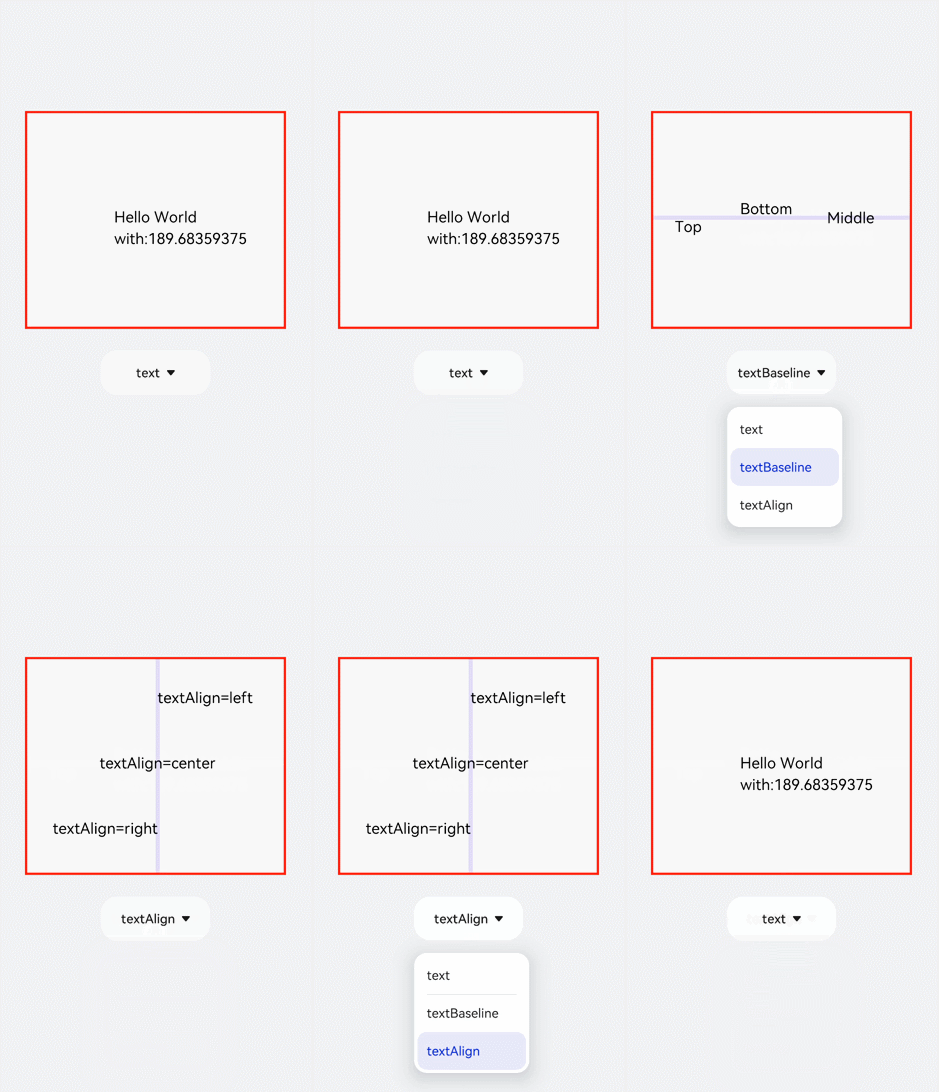
First create the text, then use the fillText method to draw the text on the canvas. Adjust the baseline transparency through the globalAlpha property so that the baseline does not obscure the text, and then set the textAlign and textBaseline properties to determine the text position relative to the baseline.
<!-- xxx.hml -->
<div class="container">
  <canvas ref="canvas1"></canvas>
  <select @change="change">
    <option value="value1">text</option>
    <option value="value2">textBaseline</option>
    <option value="value3">textAlign</option>
  </select>
</div>
/* xxx.css */
.container {
width: 100%;
height: 100%;
flex-direction: column;
justify-content: center;
align-items: center;
background-color: #F1F3F5;
}
canvas {
width: 600px;
height: 500px;
background-color: #fdfdfd;
border: 5px solid red;
}
select {
margin-top: 50px;
width: 250px;
height: 100px;
background-color: white;
} // xxx.js
export default {
data: {
el: null,
ctx: null,
},
onShow() {
this.el = this.$refs.canvas1;
this.ctx = this.el.getContext("2d", { antialias: true });
// Create text.
let text = "Hello World";
// Set the font.
this.ctx.font = '30px';
this.ctx.fillText("with:" + this.ctx.measureText(text).width, 200, 300);
// Set the fill text.
this.ctx.fillText(text, 200, 250);
},
change(e) {
if (e.newValue == 'value1') {
// Clear the canvas.
this.ctx.clearRect(0, 0, 600, 500);
// Start a new path.
this.ctx.beginPath();
// Initialize the textAlign attribute.
this.ctx.textAlign = 'left';
// Initialize the textBaseline attribute.
this.ctx.textBaseline = 'alphabetic';
// Set the font.
this.ctx.font = '30px Arial';
let text = "Hello World";
// Obtain the font width.
this.ctx.fillText("with:" + this.ctx.measureText(text).width, 200, 300);
// Set the fill text.
this.ctx.fillText(text, 200, 250);
} else if (e.newValue == 'value2') {
this.ctx.clearRect(0, 0, 600, 500);
this.ctx.beginPath();
// Set the opacity.
this.ctx.globalAlpha = 0.1;
// Set the line width.
this.ctx.lineWidth = 10;
// Set the line segment color.
this.ctx.strokeStyle = '#0000ff';
// Move from the current point to a target position.
this.ctx.moveTo(0, 240);
// Connect the current point to the target position.
this.ctx.lineTo(600, 240);
this.ctx.stroke();
this.ctx.font = '35px';
this.ctx.globalAlpha = 1;
// Initialize the textAlign attribute.
this.ctx.textAlign = 'left';
// Set textBaseline.
this.ctx.textBaseline = 'top';
this.ctx.fillText('Top', 50, 240);
this.ctx.textBaseline = 'bottom';
this.ctx.fillText('Bottom', 200, 240);
this.ctx.textBaseline = 'middle';
this.ctx.fillText('Middle', 400, 240);
} else if (e.newValue == 'value3') {
// Clear the canvas.
this.ctx.clearRect(0, 0, 600, 500);
this.ctx.beginPath();
this.ctx.globalAlpha = 0.1;
this.ctx.lineWidth = 10;
this.ctx.strokeStyle = '#0000ff';
this.ctx.moveTo(300, 0);
this.ctx.lineTo(300, 500);
this.ctx.stroke();
this.ctx.font = '35px';
this.ctx.globalAlpha = 1;
// Initialize the textBaseline attribute.
this.ctx.textBaseline = 'alphabetic';
// Set textAlign.
this.ctx.textAlign = 'left';
this.ctx.fillText('textAlign=left', 300, 100);
this.ctx.textAlign = 'center';
this.ctx.fillText('textAlign=center', 300, 250);
this.ctx.textAlign = 'right';
this.ctx.fillText('textAlign=right', 300, 400);
}
}
} 

In the ltr layout mode, the value start equals left. In the rtl layout mode, the value start equals right.
Adding Images
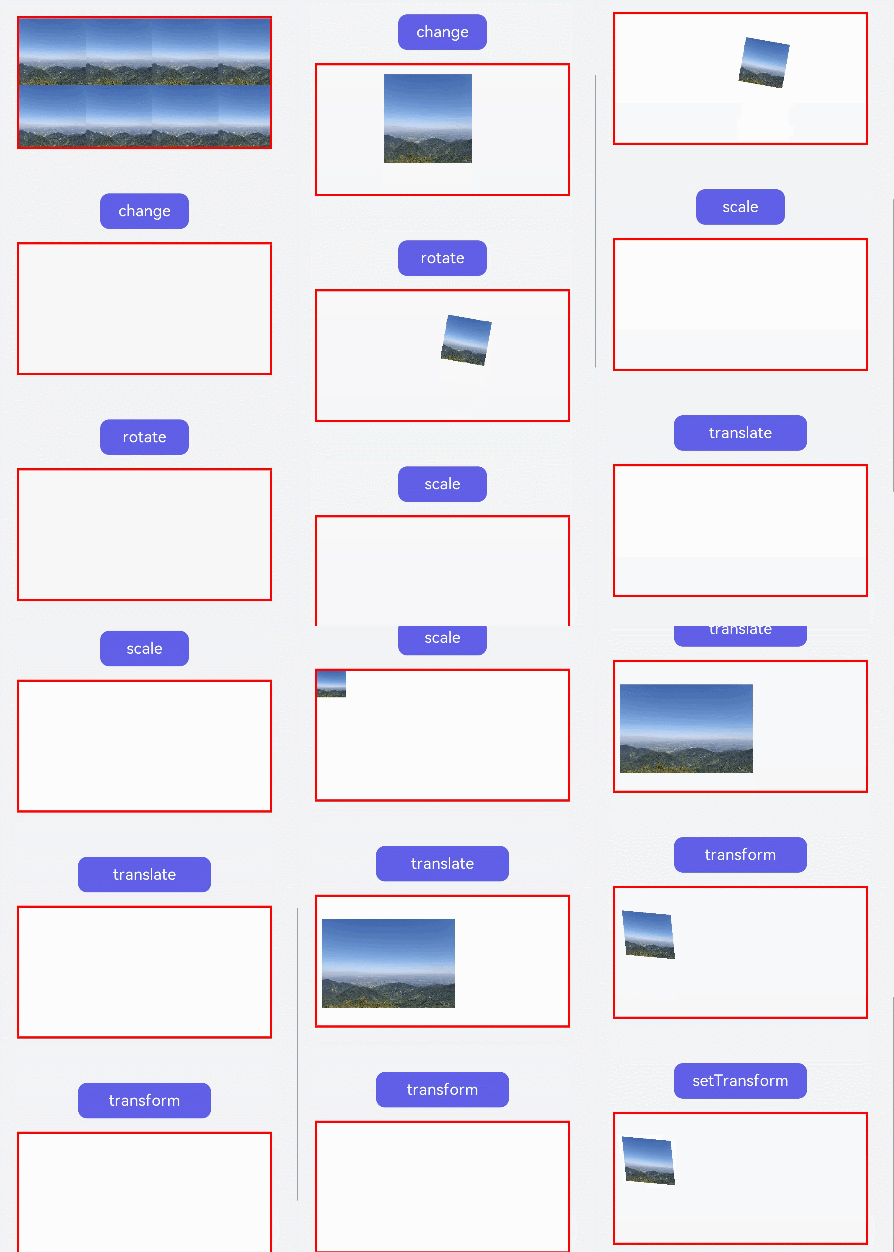
After creating an image object, use the drawImage method to draw the image, and apply animation styles such as scale, translate, or rotate to the image.
<!-- xxx.hml -->
<div class="container">
  <div class="content">
    <canvas ref="canvas0"></canvas>
    <text onclick="change">change</text>
    <canvas ref="canvas1"></canvas>
    <text onclick="rotate">rotate</text>
    <canvas ref="canvas2"></canvas>
    <text onclick="scale">scale</text>
    <canvas ref="canvas3"></canvas>
    <text onclick="translate" style="width: 300px;">translate</text>
    <canvas ref="canvas4"></canvas>
    <text onclick="transform" style="width: 300px;">transform</text>
    <canvas ref="canvas5"></canvas>
    <text onclick="setTransform" style="width: 300px;">setTransform</text>
    <canvas ref="canvas6"></canvas>
  </div>
</div>
/* xxx.css */
.container {
width: 100%;
flex-direction: column;
background-color: #F1F3F5;
align-items: center;
}
canvas {
width: 600px;
height: 300px;
margin-bottom: 100px;
background-color: #fdfdfd;
border: 5px solid red;
}
.content {
width: 80%;
margin-top: 50px;
margin-bottom: 50px;
display: flex;
flex-wrap: wrap;
justify-content: space-around;
}
text {
font-size: 35px;
width: 200px;
height: 80px;
color: white;
border-radius: 20px;
text-align: center;
background-color: #6060e7;
margin-bottom: 30px;
} // xxx.js
import promptAction from '@ohos.promptAction';
export default {
data: {
compositeOperation: 'source-over'
},
onShow() {
let ctx = this.$refs.canvas0.getContext('2d');
// Create an image object.
let img = new Image();
// Set the image path.
// Replace "common/images/2.png" with the image resource file you use.
img.src = 'common/images/2.png';
// Set the image width.
img.width = 150;
// Set the image height.
img.height = 150;
// Create an image tiling container.
var pat = ctx.createPattern(img, 'repeat');
ctx.fillStyle = pat;
ctx.fillRect(0, 0, 600, 300);
},
change() {
// Obtain the brush after the canvas is created.
let ctx = this.$refs.canvas1.getContext('2d');
ctx.clearRect(0, 0, 600, 1000);
if (this.compositeOperation == 'source-over') {
this.compositeOperation = 'destination-over';
} else {
this.compositeOperation = 'source-over';
}
ctx.globalCompositeOperation = this.compositeOperation;
let img = new Image();
img.src = 'common/images/2.png';
// Invoked when the image is successfully obtained.
img.onload = function () {
ctx.drawImage(img, 150, 20, 200, 200);
};
let img1 = new Image();
// Replace "common/images/3.png" with the image resource file you use.
img1.src = 'common/images/3.png';
img1.onload = function () {
// Draw an image.
ctx.drawImage(img1, 250, 80, 200, 200);
};
// Invoked when the image fails to be obtained.
img1.onerror = function () {
promptAction.showToast({ message: 'error', duration: 2000 })
};
},
rotate() {
let ctx = this.$refs.canvas2.getContext('2d');
ctx.clearRect(0, 0, 600, 300);
// Rotate the image.
ctx.rotate(10 * Math.PI / 180);
let img = new Image();
img.src = 'common/images/2.png';
img.onload = function () {
ctx.drawImage(img, 300, 0, 100, 100);
};
},
scale() {
let ctx = this.$refs.canvas3.getContext('2d');
ctx.clearRect(0, 0, 600, 200);
// Scale the image.
ctx.scale(1.3, 1.2);
let img = new Image();
img.src = 'common/images/2.png';
img.onload = function () {
ctx.drawImage(img, 0, 0, 50, 50);
};
},
translate() {
let ctx = this.$refs.canvas4.getContext('2d');
ctx.clearRect(0, 0, 600, 300);
ctx.translate(10, 0);
let img = new Image();
img.src = 'common/images/2.png';
img.onload = function () {
ctx.drawImage(img, 0, 50, 300, 200);
};
},
transform() {
let ctx = this.$refs.canvas5.getContext('2d');
ctx.clearRect(0, 0, 600, 300);
ctx.transform(1.1, 0.1, 0.1, 1, 10, 0);
let img = new Image();
img.src = 'common/images/2.png';
img.onload = function () {
ctx.drawImage(img, 0, 50, 100, 100);
};
},
setTransform() {
let ctx = this.$refs.canvas6.getContext('2d');
ctx.clearRect(0, 0, 600, 300);
ctx.setTransform(1.1, 0.1, 0.1, 1, 10, 0);
let img = new Image();
img.src = 'common/images/2.png';
img.onload = function () {
ctx.drawImage(img, 0, 50, 100, 100);
};
},
} 

-
Unlike the transform() function, the setTransform() function resets the existing transformation matrix and creates a transformation matrix even if it uses the same parameters.
-
The following formulas calculate coordinates of the transformed graph. x and y represent coordinates before transformation, and x' and y' represent coordinates after transformation.
x' = scaleX * x + skewY * y + translateX
y' = skewX * x + scaleY * y + translateY
Adding Methods
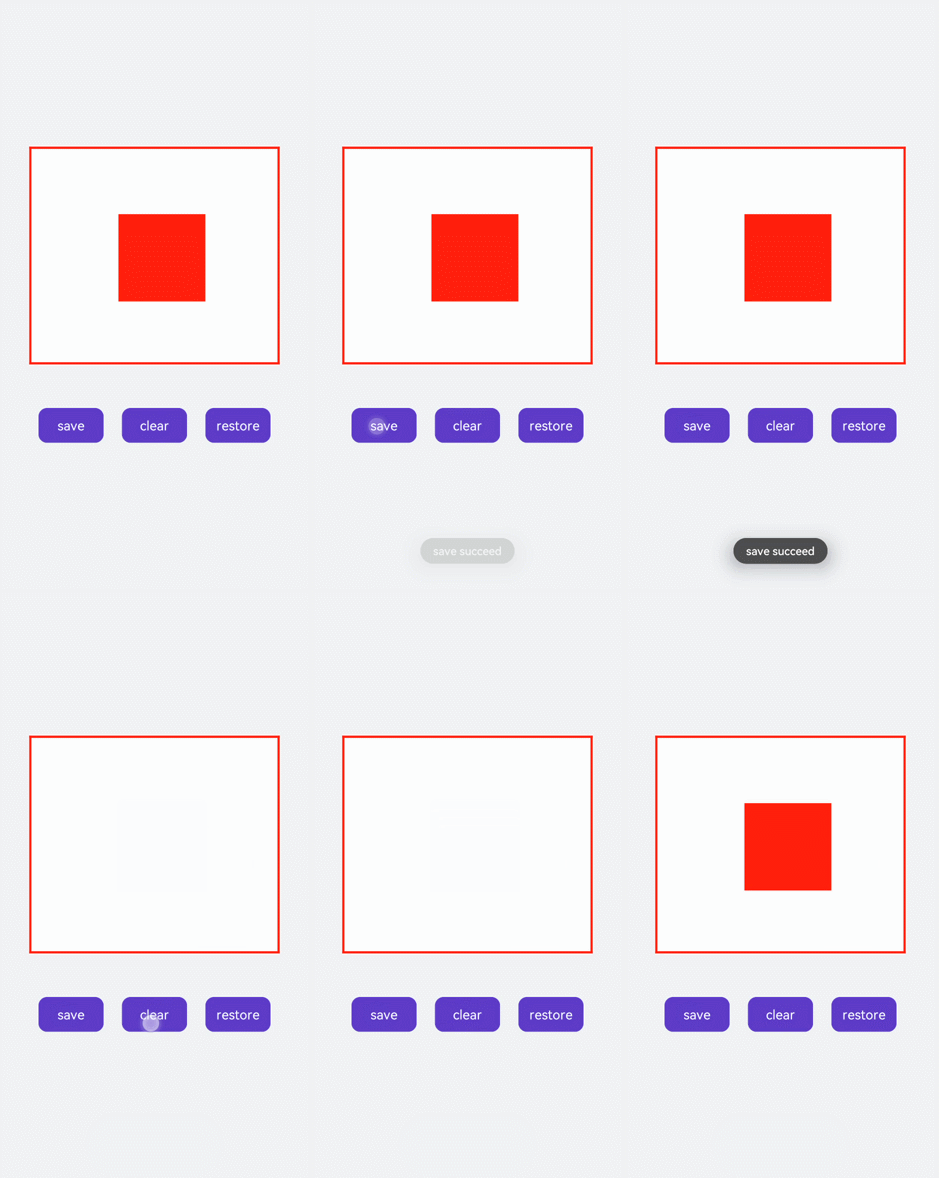
Use the save method to save the brush style, and use the restore method to restore the saved settings. In the following example, the brush color is first set to red. After the brush settings are saved, the canvas is cleared and the brush color is changed to blue. Drawing immediately at this point will produce a blue rectangle. However, if the brush settings are restored and then used for drawing, a red rectangle will be produced instead.
<!-- xxx.hml -->
<div class="container">
  <div class="content">
    <canvas ref="canvas"></canvas>
  </div>
  <div class="content">
    <text onclick="save">save</text>
    <text onclick="clear">clear</text>
    <text onclick="restore">restore</text>
  </div>
</div>
/* xxx.css */
.container {
width: 100%;
height: 100%;
flex-direction: column;
background-color: #F1F3F5;
align-items: center;
}
canvas {
margin-top: 300px;
width: 600px;
height: 500px;
background-color: #fdfdfd;
border: 5px solid red;
}
.content {
width: 80%;
margin-top: 50px;
margin-bottom: 50px;
display: flex;
flex-wrap: wrap;
justify-content: space-around;
}
text {
width: 150px;
height: 80px;
color: white;
border-radius: 20px;
text-align: center;
background-color: #6060e7;
margin-bottom: 30px;
} // xxx.js
import promptAction from '@ohos.promptAction';
export default {
data: {
ctx: '',
},
onShow() {
this.ctx = this.$refs.canvas.getContext('2d');
this.ctx.fillStyle = 'red';
this.ctx.fillRect(200, 150, 200, 200);
},
save() {
// Save the brush setting.
this.ctx.save();
promptAction.showToast({ message: 'save succeed' });
},
clear() {
this.ctx.clearRect(0, 0, 600, 500);
// Change the brush color.
this.ctx.fillStyle = '#2133d2';
},
restore() {
this.ctx.beginPath();
// Restore the brush setting.
this.ctx.restore();
this.ctx.fillRect(200, 150, 200, 200);
},
}