To support Multi-Window, add related fields in the module.json5 file to declare the support.
Declaring the Support for Floating Windows
Add floating to or use the default value of the supportWindowMode attribute under abilities in the module.json5 file to declare that an application supports the floating window.

The default value of supportWindowMode is ["fullscreen", "split", "floating"].
The supportWindowMode attribute identifies the window modes supported by the UIAbility. The following table lists the supported values and their meanings.
| Field | Description |
|---|---|
| fullscreen | A window in full-screen mode is supported. |
| split | A window in split-screen mode is supported. |
| floating | A floating window is supported. |
After the declaration, configure whether the application supports the landscape floating window or the upper/lower split-screen mode based on service requirements.
If the application needs to support a landscape floating window, add landscape or landscape_auto (which requires an API) to the preferMultiWindowOrientation attribute under abilities in the module.json5 file to declare that the application supports the landscape floating window or upper/lower split-screen mode.
The preferMultiWindowOrientation attribute identifies the Multi-Window orientation of the UIAbility. The following table lists the supported values and their meanings.
| Value | Description | Result |
|---|---|---|
| portrait | The Multi-Window layout is in portrait mode. This value is recommended for gaming applications in portrait mode. | Mobile phone Floating window triggered by gestures: portrait floating window Split-screen triggered by gestures: not supported Split-screen style switching: N/A Unfolded screens of a foldable mobile phone Floating window triggered by gestures: portrait floating window Split-screen triggered by gestures: left and right split screens Split-screen style switching: not supported |
| landscape | The Multi-Window layout is horizontal. After the configuration, the landscape floating window and upper/lower split-screen mode are supported. This value is recommended for gaming applications in landscape mode. | Mobile phone Floating window triggered by gestures: landscape floating window Split-screen triggered by gestures: not supported Split-screen style switching: N/A Unfolded screens of a foldable mobile phone Floating window triggered by gestures: landscape floating window Split-screen triggered by gestures: upper/lower split screens Split-screen style switching: not supported |
| landscape_auto | The Multi-Window layout can be dynamically changed to landscape mode, which must be used together with the API (enableLandscapeMultiWindow/disableLandscapeMultiWindow). This value is recommended for video applications. | If the system identifies that the application is running in landscape full-screen mode: Mobile phone Floating window triggered by gestures: landscape floating window Split-screen triggered by gestures: upper/lower split screens Split-screen style switching: N/A Unfolded screens of a foldable mobile phone Floating window triggered by gestures: landscape floating window Split-screen triggered by gestures: upper/lower split screens Split-screen style switching: supported If the system identifies that the application is not running in landscape full-screen mode, the effects are the same as those when the attribute is set to default. |
| default | Default. If this attribute is not specified, the value default is used. This option is recommended for other types of applications. | Mobile phone and unfolded screens of a foldable mobile phone Floating window triggered by gestures: portrait floating window Split-screen triggered by gestures: upper/lower split screens Split-screen style switching: N/A Unfolded screens of a foldable mobile phone Floating window triggered by gestures: portrait floating window Split-screen triggered by gestures: left and right split screens Split-screen style switching: supported |
Declaring the Support for the Split-Screen Mode
Add split to or use the default value of the supportWindowMode attribute under abilities in the module.json5 file to declare that an application supports the split screen.

The default value of supportWindowMode is ["fullscreen", "split", "floating"].
The supportWindowMode attribute identifies the window modes supported by the UIAbility. The following table lists the supported values and their meanings.
| Field | Description |
|---|---|
| fullscreen | A window in full-screen mode is supported. |
| split | A window in split-screen mode is supported. |
| floating | A floating window is supported. |
In-Application Split-Screen Mode
The in-application split-screen mode allows an application that declares its support for split-screen to launch two UIAbility components and create a split-screen view by calling startAbility while it is in full-screen mode. This mode enhances the multi-task processing capability of the application and improves user experience.
This mode takes effect only on tablets, PCs/2-in-1 devices, and foldable devices that support the landscape mode and are unfolded.
The following describes how to initiate split-screen by button press, providing the main steps and code snippets:
Obtain a UIAbilityContext object within the application. The object is the context required for starting the split-screen mode and calling startAbility.
this.hostContext = this.getUIContext()?.getHostContext() as common.UIAbilityContext;
Call startAbility to start a UIAbility and create a split-screen view. When calling startAbility, set the windowMode attribute in the StartOptions object to WINDOW_MODE_SPLIT_PRIMARY or WINDOW_MODE_SPLIT_SECONDARY. You can also set other attributes in the StartOptions object or parameters in the startAbility method as required, for example, the Want object.
Since API version 26.0.0, you can use the splitRatio field to set the screen split ratio within an application. The value can be EQUAL (default), PRIMARY_DOMINANT, or SECONDARY_DOMINANT.
// Create a StartOptions object and set the window mode to WINDOW_MODE_SPLIT_PRIMARY. The split-screen is started in the layout where the main window occupies a larger proportion and the secondary window occupies a smaller proportion.
let option: StartOptions = { windowMode: AbilityConstant.WindowMode.WINDOW_MODE_SPLIT_PRIMARY, splitRatio: window.SplitRatioPreference.PRIMARY_DOMINANT };
let want: Want = { bundleName: 'com.example.startsplitdemo', abilityName: 'EntryAbility1', moduleName: '' };
this.hostContext?.startAbility(want, option);
Since API version 26.0.0, you can set windowMode to WINDOW_MODE_SPLIT, which start an application in split-screen mode from a full-screen window, forming two split-screen windows. On a device that supports three split-screen windows, start the split-screen mode from two split-screen windows to create three split-screen windows.
// Create a StartOptions object and configure the window mode to WINDOW_MODE_SPLIT to display on the right in split-screen view.
let option: StartOptions = { windowMode: AbilityConstant.WindowMode.WINDOW_MODE_SPLIT };
let want: Want = { bundleName: 'com.example.startsplitdemo', abilityName: 'EntryAbility1', moduleName: '' };
this.hostContext?.startAbility(want, option);
Repeat the preceding step to launch other UIAbility windows. If the number of split-screen windows does not reach the maximum, a new split-screen window can be launched. Otherwise, split-screen windows can be replaced.
The following is a complete example:
Use DevEco Studio to create three abilities, named EntryAbility, EntryAbility1 and EntryAbility2, which correspond to the three windows shown in a split screen. The default loading page is Index.ets.
// Index.ets
import { AbilityConstant, common, StartOptions, Want } from '@kit.AbilityKit';
import { hilog } from '@kit.PerformanceAnalysisKit';
import { BusinessError } from '@kit.BasicServicesKit';
import { window } from '@kit.ArkUI';

interface AbilityActionItem {
  title: string;
  want: Want;
  startOption: StartOptions;
}
const ICON_BG_COLORS = ['#E8F0FE', '#FFF3E0', '#E8F5E9', '#FCE4EC', '#E0F2F1', '#EDE7F6', '#F9FBE7', '#F1F3F5'];
const DOMAIN: number = 0x0000;
const TAG: string = 'Index';
const ACTION_ITEMS: AbilityActionItem[] = [
  {
    title: 'Start EntryAbility1 in left split-screen',
    // Specify the information about the application to be displayed in split-screen mode.
    want: { bundleName: 'com.example.startsplitdemo', abilityName: 'EntryAbility1', moduleName: '' },
    // Create a StartOptions object and configure the window to display on the left in split-screen view.
    startOption: { windowMode: AbilityConstant.WindowMode.WINDOW_MODE_SPLIT_PRIMARY }
  },
  {
    title: 'Start EntryAbility2 in the right split-screen',
    want: { bundleName: 'com.example.startsplitdemo', abilityName: 'EntryAbility2', moduleName: '' },
    // Create a StartOptions object and configure the window to display on the right in split-screen view.
    startOption: { windowMode: AbilityConstant.WindowMode.WINDOW_MODE_SPLIT_SECONDARY }
  },
  {
    title: 'Start EntryAbility1 in the left split screen at a larger aspect ratio.',
    want: { bundleName: 'com.example.startsplitdemo', abilityName: 'EntryAbility1', moduleName: '' },
    startOption: {
      windowMode: AbilityConstant.WindowMode.WINDOW_MODE_SPLIT_PRIMARY,
      // Start the split-screen mode with the left window in a larger proportion and the right window in a smaller proportion.
      splitRatio: window.SplitRatioPreference.PRIMARY_DOMINANT
    }
  },
  {
    title: 'Start EntryAbility2 in the right split screen at a larger aspect ratio.',
    want: { bundleName: 'com.example.startsplitdemo', abilityName: 'EntryAbility2', moduleName: '' },
    startOption: {
      windowMode: AbilityConstant.WindowMode.WINDOW_MODE_SPLIT_SECONDARY,
      // Start the split-screen mode with the left window in a smaller proportion and the right window in a larger proportion.
      splitRatio: window.SplitRatioPreference.SECONDARY_DOMINANT
    }
  },
  {
    title: 'Start EntryAbility1 with the WINDOW_MODE_SPLIT window mode',
    want: { bundleName: 'com.example.startsplitdemo', abilityName: 'EntryAbility1', moduleName: '' },
    // Create a StartOptions object and configure the window mode to WINDOW_MODE_SPLIT to display on the right in split-screen view.
    startOption: { windowMode: AbilityConstant.WindowMode.WINDOW_MODE_SPLIT }
  },
  {
    title: 'Start EntryAbility2 with the WINDOW_MODE_SPLIT window mode',
    want: { bundleName: 'com.example.startsplitdemo', abilityName: 'EntryAbility2', moduleName: '' },
    startOption: { windowMode: AbilityConstant.WindowMode.WINDOW_MODE_SPLIT }
  }
]

@Entry
@Component
struct Index {
  @State name: string = '';
  @State currentItem: AbilityActionItem | null = null;
  private items: AbilityActionItem[] = ACTION_ITEMS;
  private hostContext: common.UIAbilityContext | null = null;

  aboutToAppear(): void {
    this.hostContext = this.getUIContext()?.getHostContext() as common.UIAbilityContext;
    this.name = this.hostContext?.abilityInfo.name ?? '';
  }

  onItemClick = (item: AbilityActionItem) => {
    this.currentItem = item;
    this.hostContext?.startAbility(item.want, item.startOption).then(() => {
      hilog.info (DOMAIN, TAG, 'Started successfully.');
    }).catch((err: BusinessError) => {
      hilog.error(DOMAIN, TAG, err.message);
    });
  }

  build() {
    Column() {
      Column({ space: 5 }) {
        Text('Ability Name: ' + this.name).fontSize(20).fontWeight(FontWeight.Medium).fontColor('#1D2129');
        if (this.currentItem) {
          Text('Ability Want Info: ' + JSON.stringify(this.currentItem)).fontSize(14).fontColor('#86909C');
        }
      }
      .width('100%')
      .padding(20)
      .backgroundColor('#F7F8FA')
      .borderRadius(18)
      .margin({ bottom: 20 })

      Column({ space: 4 }) {
        List({ space: 4 }) {
          ForEach(this.items, (item: AbilityActionItem, index: number) => {
            if (item.want.abilityName !== this.name) {
              ListItem() {
                Row() {
                  this.iconBuilder(item, index)
                  this.buttonInfoBuilder(item, index)
                }
                .alignItems(VerticalAlign.Center)
                .justifyContent(FlexAlign.Start)
                .width('100%')
                .margin({ left: 16, right: 16, top: 16, bottom: 16 })
                .onClick(() => this.onItemClick(item))
              }
              .borderRadius(14)
              .backgroundColor(Color.White)
              .width('100%')
            }
          })
        }
        .borderRadius(14)
        .edgeEffect(EdgeEffect.Spring, { alwaysEnabled: true })
        .scrollBar(BarState.Auto)
        .height('100%')
      }
      .backgroundColor('#60d9e0dc')
      .borderRadius(18)
      .padding({ left: 4, right: 4, top: 4, bottom: 4 })
      .width('100%')
      .layoutWeight(1);
    }
    .width('100%').height('100%').padding(24).backgroundColor('#FFFFFF');
  }

  @Builder
  buttonInfoBuilder(item: AbilityActionItem, index: number) {
    Column() {
      Text(item.title)
        .fontWeight(FontWeight.Medium).fontSize(14)
      Text(`${AbilityConstant.WindowMode[item.startOption.windowMode ?? -1]}`)
        .fontSize(12).fontColor('#86909C');
      Text(`windowMode:${item.startOption.windowMode}`)
        .fontSize(12).fontColor('#86909C');
      if (item.startOption.splitRatio !== undefined) {
        Text(`splitRatio: ${item.startOption.splitRatio}`)
          .fontSize(12).fontColor('#86909C');
      }
    }
    .alignItems(HorizontalAlign.Start)
    .justifyContent(FlexAlign.Center)
    .constraintSize({ maxWidth: '75%' })
    .margin({ left: 10 })
  }

  @Builder
  iconBuilder(item: AbilityActionItem, index: number) {
    Button({ type: ButtonType.Circle }) {
      SymbolGlyph(item.startOption.windowMode === AbilityConstant.WindowMode.WINDOW_MODE_SPLIT ?
        $r('sys.symbol.rectangle_split_3x1') : $r('sys.symbol.rectangle_split_2x1'))
        .fontSize(26).fontColor(['#ffa1e6f8']);
    }
    .width(52).height(52)
    .backgroundColor(ICON_BG_COLORS[index % ICON_BG_COLORS.length])
    .borderRadius(26)
    .id('icon')
  }
}
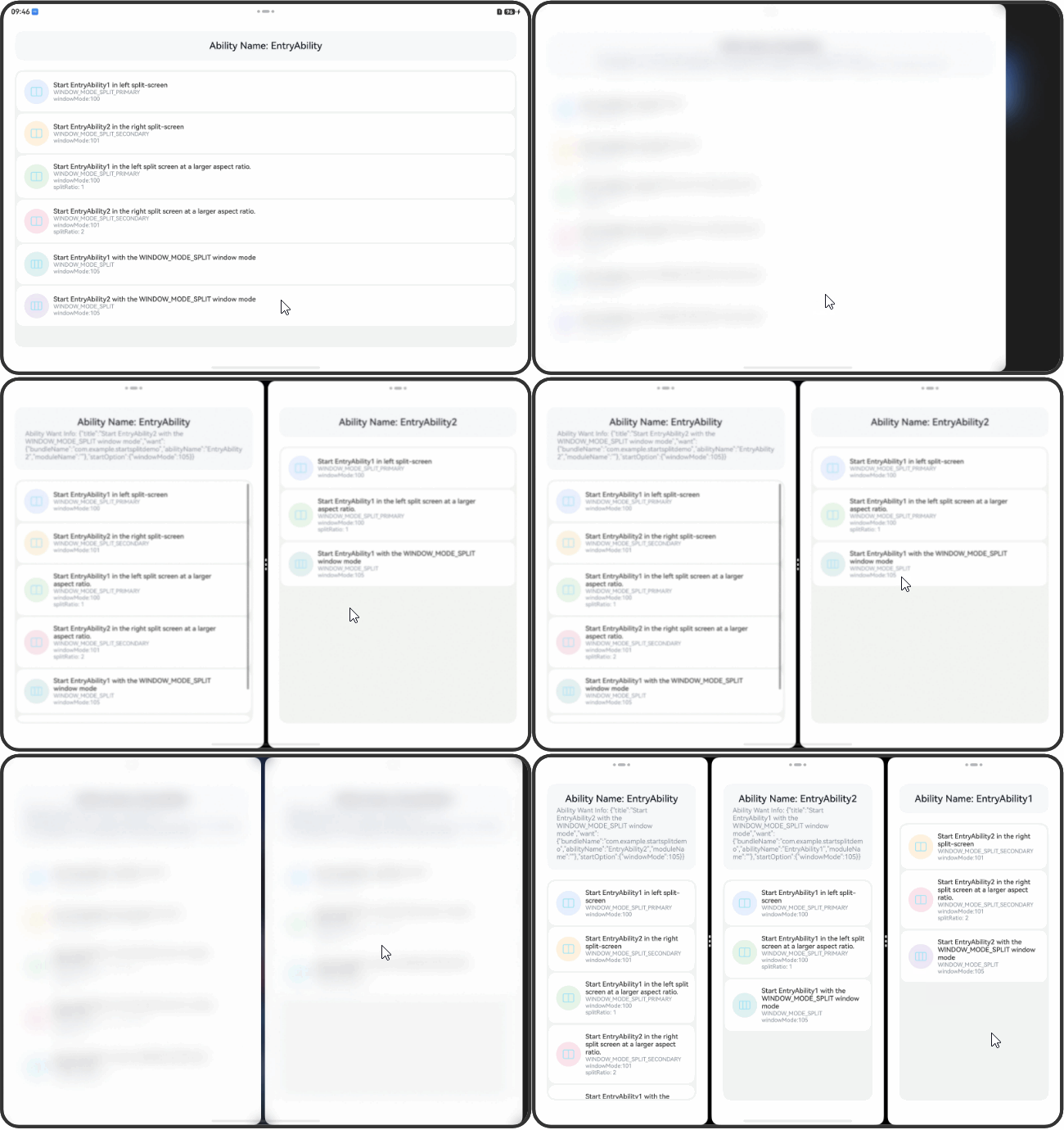
Figure 1 Starting the left split-screen
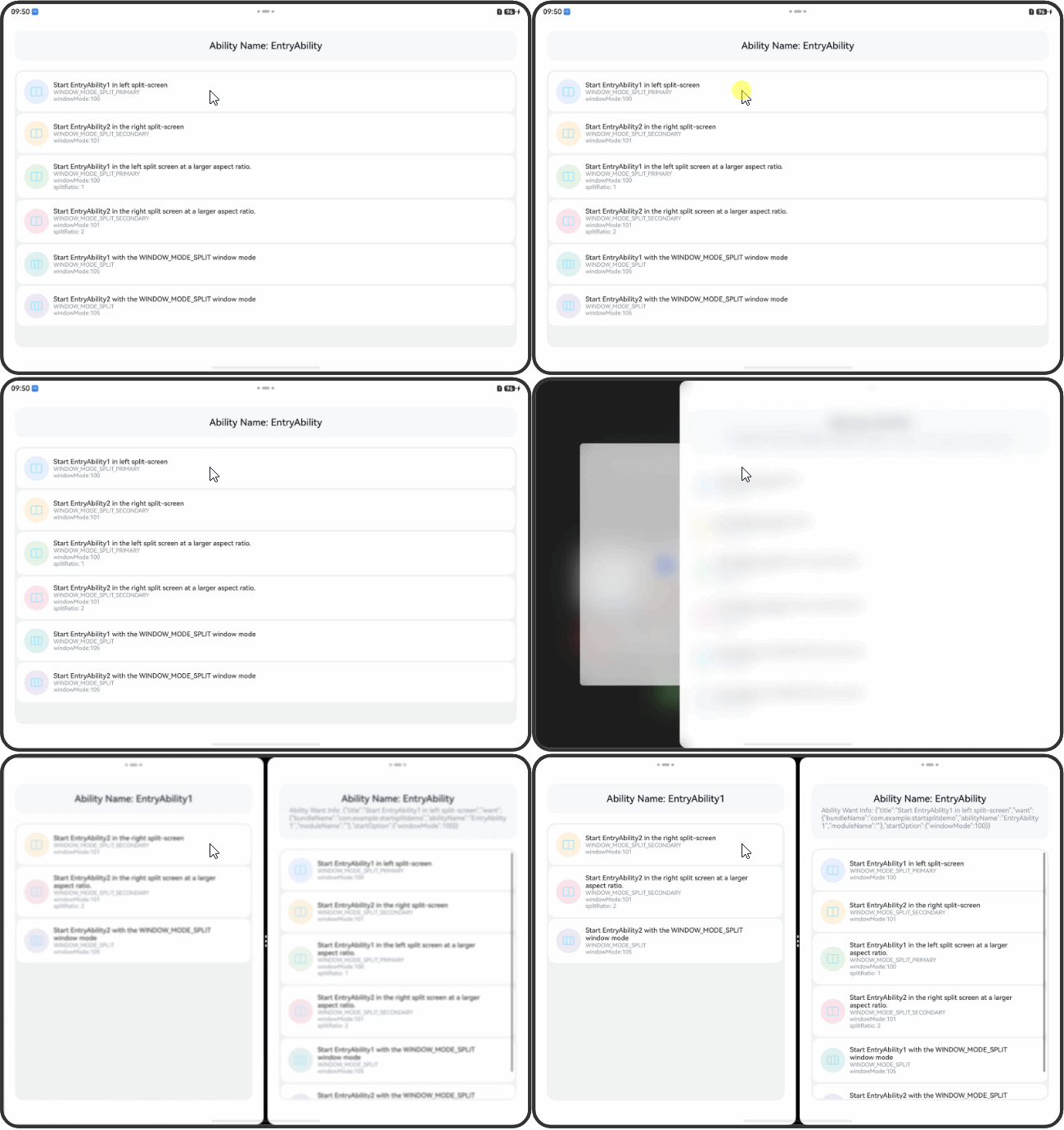
Figure 2 Starting the right split-screen
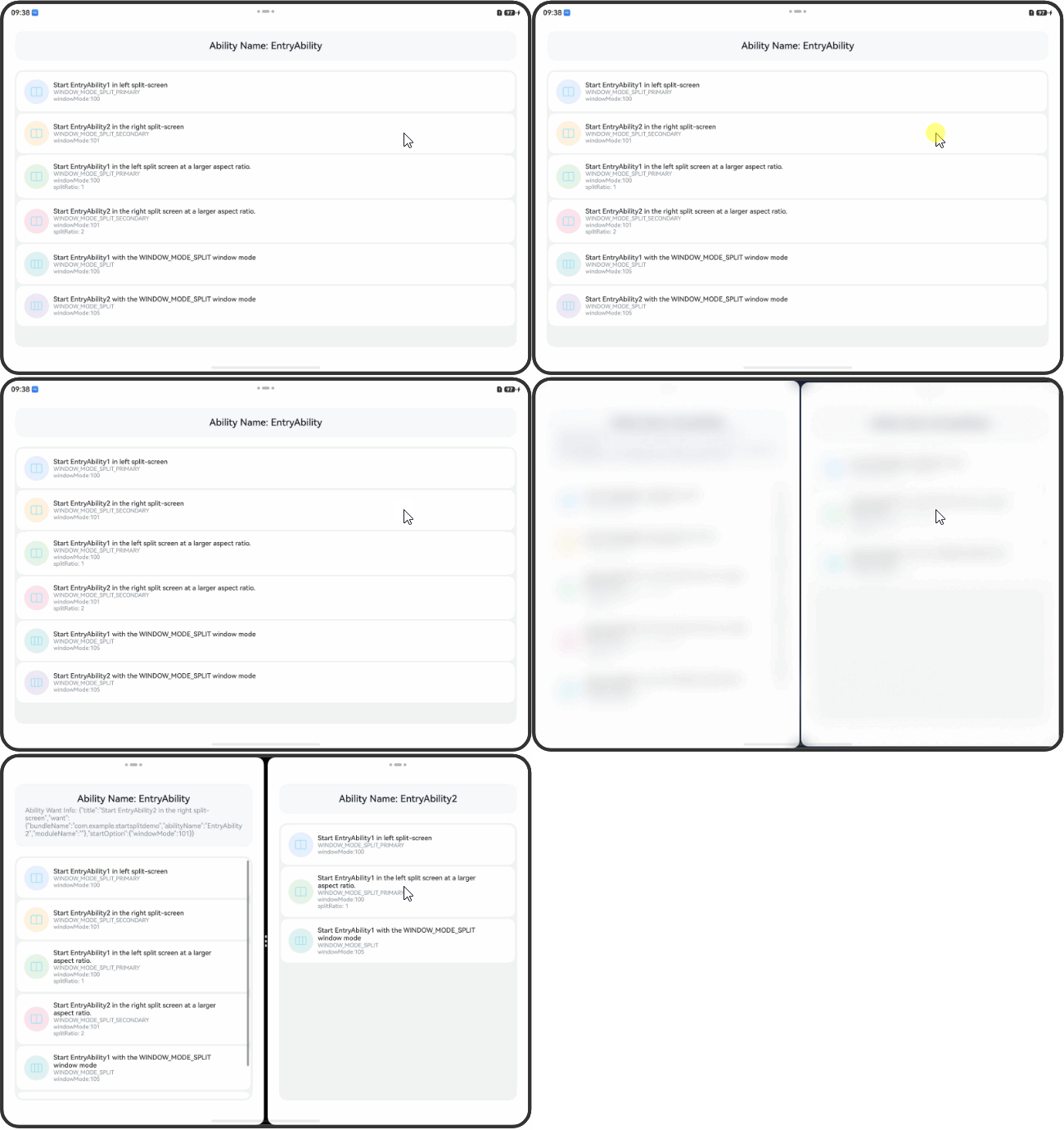
Figure 3 Starting the left split-screen in a larger proportion
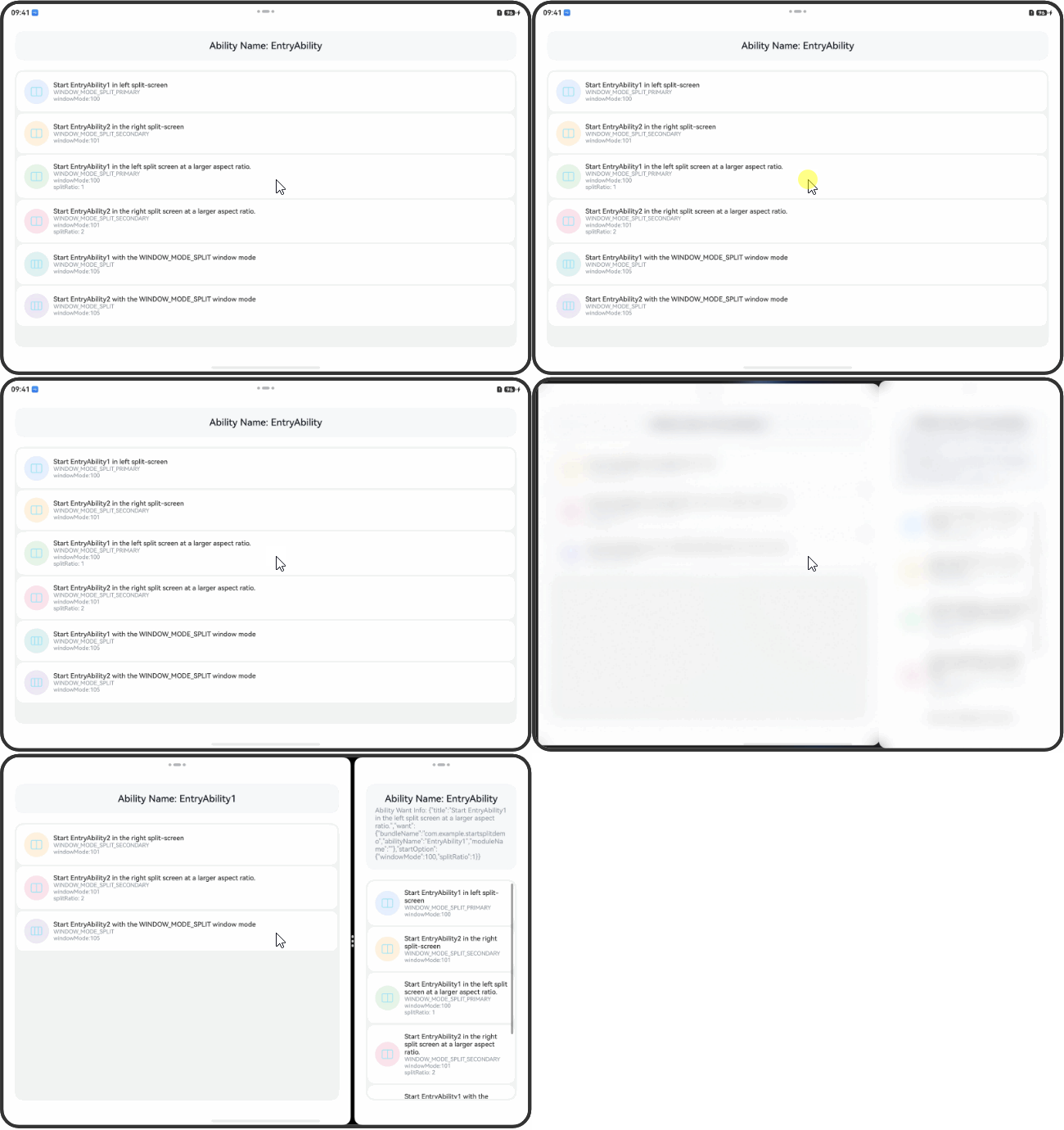
Figure 4 Starting the right split-screen in a larger proportion
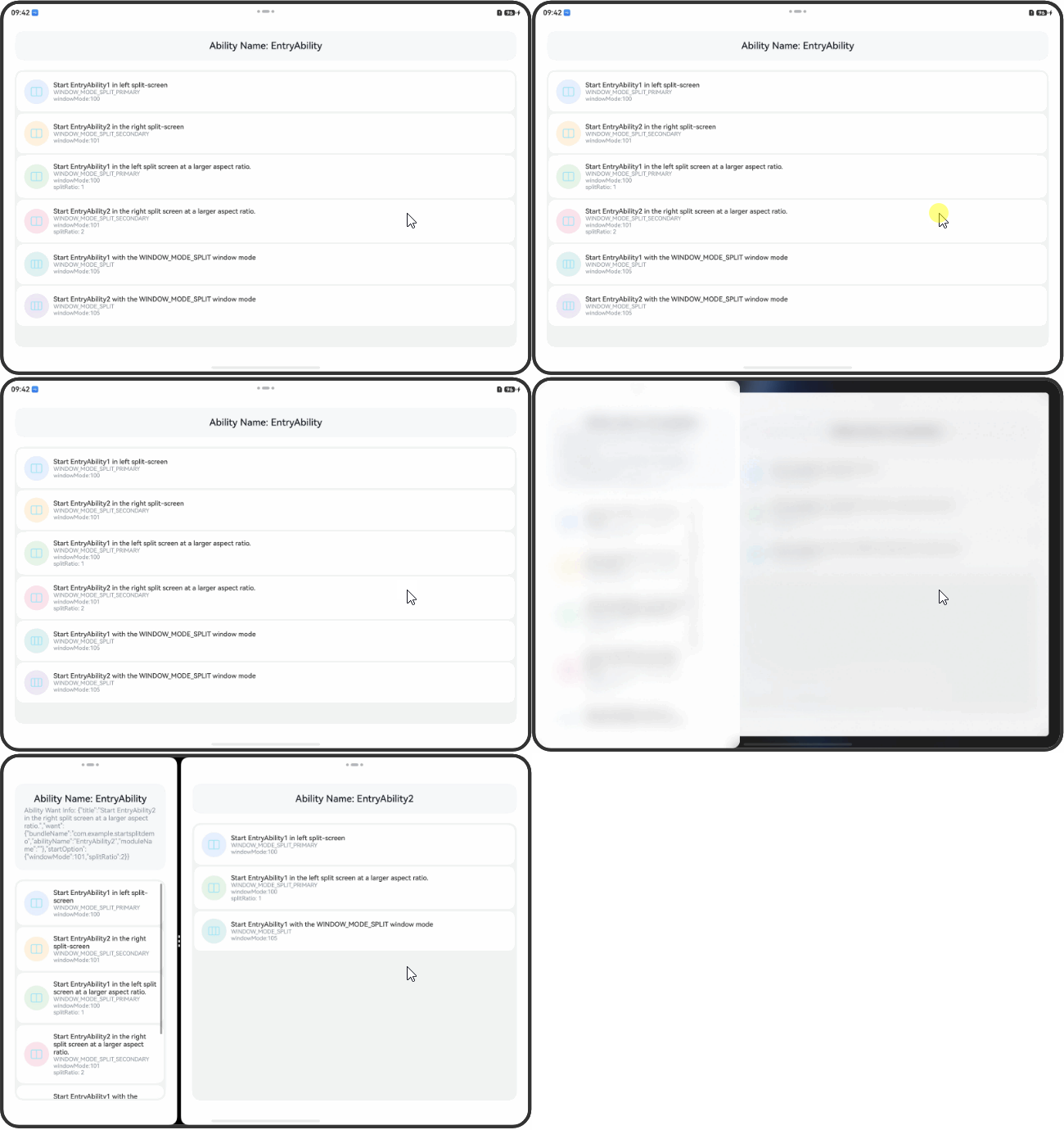
Figure 5 Starting the split-screen mode from two split-screen windows to create three-split-screen windows
In-Application Multi-Window
The in-application Multi-Window capability is supported sinceHarmonyOS 6.0.0. This function allows an application to start split-screen or multi-window mode, facilitating multitasking.
To use the in-application Multi-Window icon, you can use the advanced component MultiWindowEntryInAPP.