Overview
In HarmonyOS, the lifecycle of the main window is tightly coupled with the lifecycle of the app's UIAbility, while secondary windows (such as global floating windows) are managed by the app itself, allowing developers to flexibly control their display and hiding as needed.
In the stage model, one UIAbility corresponds to one WindowStage, and one WindowStage corresponds to one app main window (MainWindow). The relationship among UIAbility, WindowStage, and the app main window is shown in the following figure.
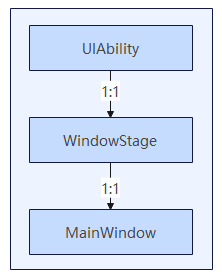
Each UIAbility instance is bound to a WindowStage instance. WindowStage is the window manager within the app process, responsible for managing the lifecycle and display logic of the main window. The main window is the drawing area of ArkUI, which can load different ArkUI pages to provide an interactive UI for users.
UIAbility manages the main window through WindowStage, ensuring that the window state is synchronized with the app logic. The lifecycle of WindowStage is managed by UIAbility.
Managing the Lifecycle of an App's Main Window
In the stage model, the app's main window is managed by the UIAbility through WindowStage, which maintains its lifecycle. You can receive notifications of main window creation and destruction through onWindowStageCreate and onWindowStageDestroy. For details, see UIAbility Lifecycle.
In addition, WindowStage and the main window provide the following means for listening to and managing lifecycle states:
-
Use the on('windowStageLifecycleEvent') API of WindowStage to listen for WindowStage lifecycle changes.
-
Obtain the main window through the getMainWindow() API of WindowStage, and then use the on('windowEvent') API to listen for events such as main window displaying and hiding.
[h2]Lifecycle States of an App's Main Window
When the main window enters the foreground, switches between foreground and background, or exits to the background, the corresponding lifecycle state changes are triggered.
In the stage model, the lifecycle states of the main window include the foreground state (SHOWN), foreground interactive state (RESUMED), foreground non-interactive state (PAUSED), background state (HIDDEN), focused state (ACTIVE), and unfocused state (INACTIVE).
| Lifecycle State | Description | Trigger Scenario Example |
|---|---|---|
| SHOWN | Foreground state. The SHOWN event is triggered when the app is launched for the first time or switches from the background to the foreground. | Tap the app icon to launch. |
| RESUMED | Foreground interactive state. The window enters this state after it reaches the foreground and becomes interactive. | After opening the app, the app is in the foreground and interactive with the user. |
| PAUSED | Foreground non-interactive state. The PAUSED event is triggered when the window is visible in the foreground but not interactive. The window remains in this state until it resumes or moves to the background. If the window resumes, the RESUMED event is triggered and it enters the interactive state. | When the app is in the foreground and the user enters the multitasking UI, the app remains in the foreground but is not interactive with the user. |
| HIDDEN | Background state. The HIDDEN event is triggered when the app switches from the foreground to the background. | The app is swiped up to exit, or the app window is closed. |
| ACTIVE | Focused state. The state after the app window processes a click event, or the state after the app is launched. | The state after the app window processes a click event, or the state after the app is launched. |
| INACTIVE | Unfocused state. The state of the previously focused window after a new app is opened or another window is clicked. | App A and app B form a split-screen in the foreground, and the user is interacting with app B. At this point, app A enters the INACTIVE state (unfocused state). |

The RESUMED and PAUSED states are triggered when the window switches to the foreground and to the background, respectively. However, in some scenarios, the triggering of the RESUMED and PAUSED states may differ.
For example, when an app is launched, or when the app is already launched and in the RESUMED state, if the app is placed under control (such as by an app lock), its lifecycle enters the PAUSED state. After the control is removed, the app re-enters the RESUMED state.
The flow of the main window's lifecycle events is as shown in the following figure.

[h2]Listening for the Main Window's Lifecycle State Changes
You can use the following APIs to listen for lifecycle changes of the WindowStage.
-
Before API version 20, you can call on('windowStageEvent') to register a listener for WindowStage lifecycle changes, and call off('windowStageEvent') to unregister the listener for WindowStage lifecycle changes.
-
The lifecycle state returned at this time is WindowStageEventType, which includes six states: SHOWN (foreground state), ACTIVE (focused state), INACTIVE (unfocused state), HIDDEN (background state), RESUMED (foreground interactive state), and PAUSED (foreground non-interactive state).
-
This API cannot guarantee the order of lifecycle state transitions, and is not recommended for scenarios where the order of state transitions matters.
-
-
(Recommended) Starting from API version 20, you can register a listener for WindowStage lifecycle changes by calling on('windowStageLifecycleEvent'), and unregister the listener by calling off('windowStageLifecycleEvent').
-
The lifecycle states returned at this point are WindowStageLifeCycleEventType, which includes four states: SHOWN (foreground state), RESUMED (foreground interactive state), PAUSED (foreground non-interactive state), and HIDDEN (background state).
-
For the focused and unfocused states of WindowStage, it is recommended to use on('windowEvent') for listening.
-
[h2]Differentiated Behavior of UIAbility Lifecycle on Different Devices
In the stage model, when the main window transitions from foreground to background, it also drives the UIAbility lifecycle. In this model, extra attention should be paid to the differentiated behavior of this mechanism on different device types.
-
On Phone, TV, Wearable, and Car devices: When the window transitions from the foreground state to the background state, it also drives the UIAbility to the background state.
-
On tablets:
-
For apps that do not support running on PCs/2-in-1 devices, or apps that support running on both phone and PCs/2-in-1 devices, when the window transitions from the foreground to background, it drives the UIAbility to background.
-
For apps that do not support running on phones but support running on PCs/2-in-1 devices, when the window transitions from foreground to background, it does not drive the UIAbility to background.
-
-
On PC/2-in-1 devices:
-
For apps that support running on phones, when the window transitions from foreground to background, it drives the UIAbility to background.
-
For apps that do not support running on phones, when the window transitions from foreground to background, it does not drive the UIAbility to background.
-
Managing the Lifecycle of Secondary Windows
You can create secondary windows such as app subwindows as needed for scenarios like secondary pages and dialogs.
The lifecycle of a secondary window is managed by the app itself, typically including: create, destroy, display, and hide. You can manage and listen for lifecycle state changes of secondary windows through the following APIs.
| API Name | Typical Scenario |
|---|---|
| createWindow() | Creates a global floating window, modal window, or system window for scenarios such as dialogs. |
| createSubWindow() | Creates a subwindow for scenarios such as secondary pages. |
| createSubWindowWithOptions() | Creates a subwindow for scenarios such as secondary pages or dialogs. |
| destroyWindow() | Destroys the current window, for example, closing a dialog or exiting the app. |
| showWindow() | Displays the window after creation, or restores display after the window is hidden. |
| minimize() | Minimizes the current window. Only supported for main windows, subwindows, and global floating windows, such as hiding the window when the minimize button is tapped. |
| isWindowShowing() | Checks whether the current window is displayed, to avoid duplicate display or performing invalid operations. |
| on('windowEvent') | Listens for lifecycle changes of the window, such as window creation, display, hide, and destruction. |
| on('windowWillClose') | Listens for the window close event, and performs specific operations when the user closes the window via the title bar, such as saving data, confirming exit, and cleaning up resources. |
Follow Policy Differences for Secondary Window Lifecycle
| Window Type | Follow Policy |
|---|---|
| Subwindow | The subwindow (except independent subwindows) follows the main window in displaying, hiding, and being destroyed. In non-freeform window state, the subwindow cannot extend beyond the main window. In freeform window state, the subwindow can extend beyond the main window. |
| Independent subwindow | In freeform window state, it does not follow the main window in displaying and hiding. In non-freeform window state, it follows the main window in displaying and hiding. It follows the main window in being destroyed. |
| Modal window | It follows the main window in displaying, hiding, and being destroyed. In non-freeform window state, it cannot extend beyond the main window. In freeform window state, it can extend beyond the main window. |
| Global floating window | It does not follow the main window in displaying and hiding. It follows the main window in being destroyed. |
| Picture-in-picture | It does not follow the main window in displaying and hiding. It follows the main window in being destroyed. |
| Flash control ball | It does not follow the main window in displaying and hiding. It follows the main window in being destroyed. |