Introduction
A basic URL QR code, different from a QR code generated from an atomic service link, is generated by encoding a web page link using a tool. When you associate a basic URL QR code with an atomic service, you are not bound by the fixed domain name of the atomic service link. Instead, you can use your own domain name, ensuring compatibility with existing QR code resources and driving traffic diversion. In addition, users can scan the QR code to quickly access the specified atomic service page without manually entering the URL, improving user experience.
Use Cases
- Activity promotion: Users can scan the QR code containing an activity link to easily participate in the activity, improving the activity exposure and participation.
- Online/Offline order placement: Users can scan the QR code to directly access the atomic service page and place orders, improving the order conversion rate.
- Customer service and technical support: Users can scan the QR code to quickly access the service page, simplifying the operation process and improving the service efficiency.
Before You Start
- You have registered an enterprise developer account.
- You have created a project and an atomic service in AppGallery Connect.
- You have enabled App Linking in AppGallery Connect.
[h2]Associating a Domain Name with Your Atomic Service
Perform the following operations on the domain name server (DNS) of your website. When you configure the domain name of the website for atomic services, the system will use the corresponding file to identify atomic services belonging to the domain name, making the links more secure and reliable.
- Create the domain name configuration file applinking.json. The file content is as follows:
{
 "applinking": {
   "atomicServices": [
     {
       "appIdentifier": "1234567"
     }
   ]
 }
}
- appIdentifier is the app ID generated during atomic service creation. For details about how to obtain the app ID, please refer to Viewing App Information.
- A website domain name can be associated with multiple atomic services if you add multiple appIdentifier elements to the atomicServices list. Each appIdentifier element corresponds to an atomic service.
- Place the domain name configuration file in the fixed directory on the DNS:
https://domain.name/.well-known/applinking.json
For example, if the domain name is www.example.com, place the applinking.json file in the following directory:
https://www.example.com/.well-known/applinking.json
[h2]Associating the Atomic Service with a QR Code Link
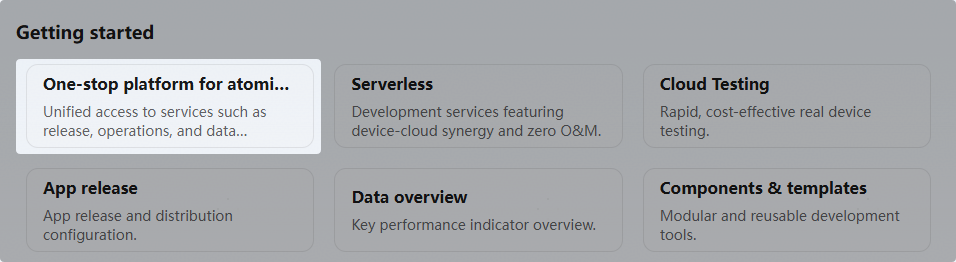
- Sign in to AppGallery Connect and click the One-stop platform for atomic services card below Getting started.
- Select the atomic service with which you want to associate a QR code link from the drop-down list in the upper left corner.
- In the navigation pane on the left, choose Basic services > Atomic service links. On the displayed Atomic service links page, click New in the upper right corner.

If you have not enabled App Linking, the App Linking introduction page will be displayed. Click Use now and set data processing locations.

- After creating an atomic service link, click Save or Release.
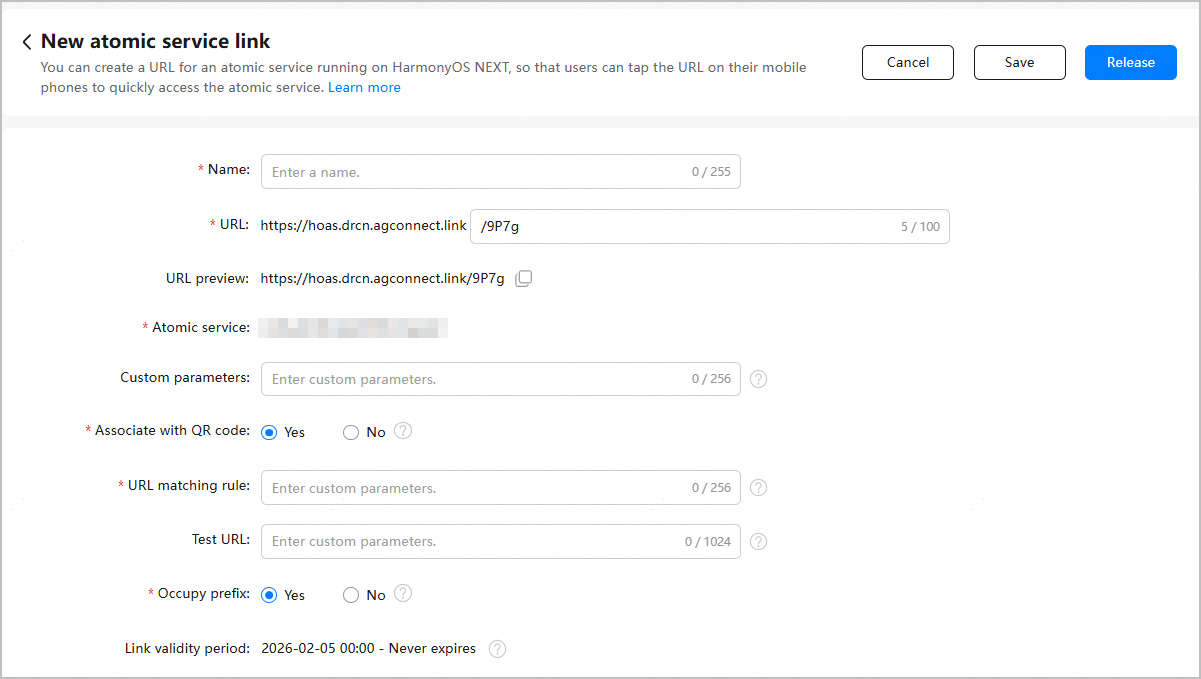
Parameter
Description
Name
Name of the atomic service link.
URL
Atomic service link.
The prefix is the fixed domain name of AppGallery Connect. You cannot modify or customize it. The suffix is automatically generated by AppGallery Connect by default. If you want to customize it, ensure that it is unique and contains a maximum of 100 characters.
NOTE:The suffix can contain only uppercase or lowercase letters, digits (0–9), underscores (_), and hyphens (-).
URL preview
Preview of the complete link of your atomic service. The link can be copied.
NOTE:(Optional) When using an atomic service link, you can append dynamic custom parameters to the URL to precisely redirect users to a specified page of your atomic service. No additional configuration is required in AppGallery Connect. Use ? followed by key-value pairs in the format of key=value, and separate multiple key-value pairs with an ampersand (&).
URL example: https://hoas.drcn.agconnect.link/9P7g?key1=value1&key2=value2
For details, please refer to (Optional) Using Dynamic Custom Parameters to Access a Specified Page.
Atomic service
Name of the atomic service for which a link needs to be configured. The name can be copied.
Custom parameters
(Optional) Static custom parameters configured for precisely redirecting users to a specified page of your atomic service. Enter key-value pairs in the format of key=value. Separate multiple key-value pairs with an ampersand (&). Example: key1=value1&key2=value2&key3=value3...
For details, please refer to (Optional) Using Static Custom Parameters to Access a Specified Page.
Associate with QR code
Whether to associate your atomic service with a basic URL QR code.
This section describes how to use a basic URL QR code for atomic service redirection, so please select Yes.
NOTE:If you select No, please refer to Using an Atomic Service Link for Atomic Service Redirection.
URL matching rule
Matching rule for the QR code link which can redirect users to your atomic service (required only when Associate with QR code is set to Yes).
CAUTION:Associate a domain name with your atomic service in advance. Otherwise, the URL matching rule verification will fail, and the atomic service link cannot be released.
URL matching rule components:- (Mandatory) Protocol: Only HTTP or HTTPS is allowed, and exact matching is enforced.
- (Mandatory) Domain name: Exact matching is enforced.
- (Optional) Subpath:
- If the URL matching rule ends with a slash (/), any subpath that starts with the rule is matched.
- If the URL matching rule does not end with a slash (/), subpath matching is not supported.
- If the {Protocol+Domain name+Subpath} is exactly the same as the URL matching rule, the matching is successful.
- If the {Protocol+Domain name+Subpath} is inconsistent with the URL matching rule, the matching fails.
- (Optional) Dynamic parameter: It appears following the question mark (?) in the URL. Prefix matching is applied (that is, the parameter string must begin with the dynamic parameter configured in the URL matching rule).
Examples of URL matching rules:
- Example 1: https://www.example.com/a
The QR code link can be https://www.example.com/a or https://www.example.com/a?t=2, but https://www.example.com/a/b is not supported.
- Example 2: https://www.example.com/a/
The QR code link can be https://www.example.com/a/b, https://www.example.com/a/b?t=1, or https://www.example.com/a/b?t=1&f=2.
- Example 3: https://www.example.com/a?t=1
The QR code link must start with https://www.example.com/a?t=1, for example, https://www.example.com/a?t=1 or https://www.example.com/a?t=1&f=2. https://www.example.com/a?t=12 is not supported.
Restrictions on URL matching rules:
- URL matching rules must be globally unique, and duplicate configurations of the same rule are not permitted.
- Each atomic service can be associated with a maximum of 100 URL matching rules.
Test URL
(Optional) Complete QR code link for testing. If the test URL does not match the URL matching rule, a message is displayed indicating that the configuration is incorrect.
This URL is used to verify the configured matching rules in advance to ensure that the QR code link can correctly redirect users to your atomic service.
Separate multiple test URLs with a semicolon (;), for example, https://www.example.com/a/b;https://www.example.com/a/b?t=1.
Occupy prefix
Whether to occupy all sub-rules that match the URL matching rule.
The default value is Yes, indicating that the sub-rules of the prefix matching rule set for the atomic service cannot be configured for other atomic services.
Link validity period
The link is permanently valid by default.

- If you click Save, the atomic service link will be in draft state. You can view, modify, or delete the link in draft state.

If you have configured a test URL, you can scan the QR code that contains this URL to verify whether it successfully redirects to your atomic service. This ensures that the routing logic of the atomic service page works correctly.

- If you click Release, the atomic service link takes effect immediately. You can view or modify the released link, but cannot delete it.



[h2]Modifying an Atomic Service Link in Draft State
Click Edit in the Operation column. After modifying the information, click Save or Release.

[h2]Modifying a Released Atomic Service Link
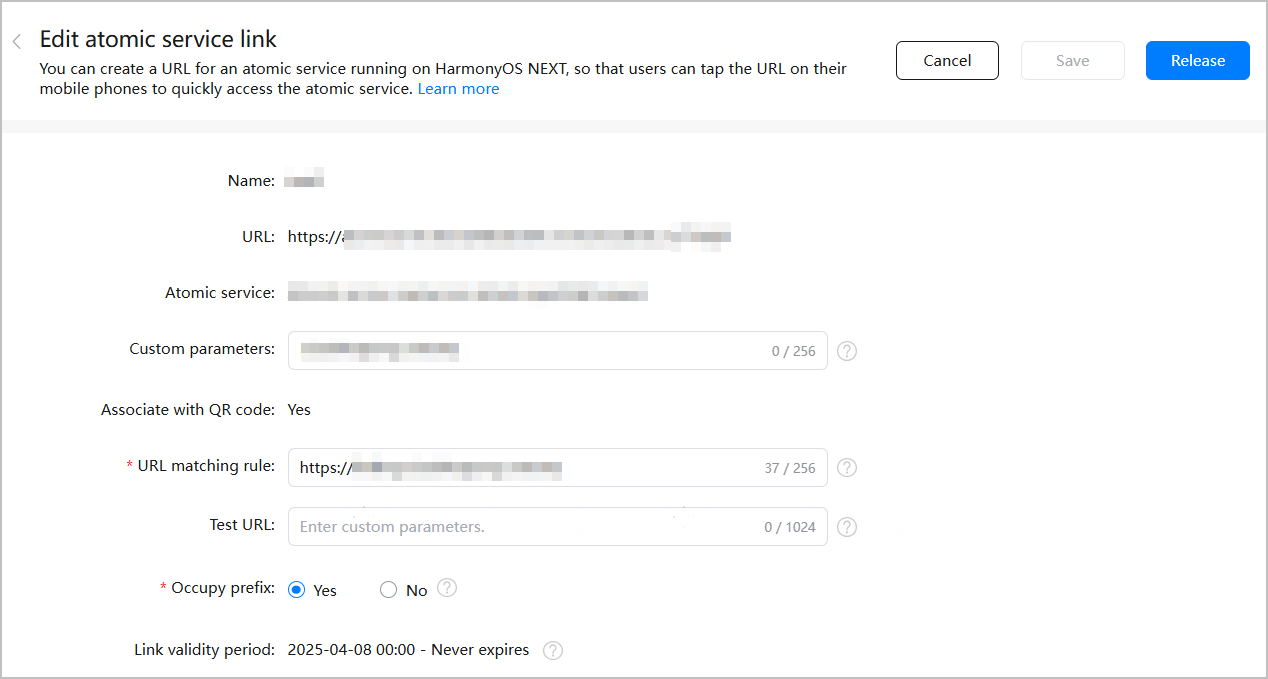
If the status of your atomic service link is Effective, you can edit the link.
- Click Edit in the Operation column. The Edit atomic service link page is displayed.

- Modify the related content. After the modification is complete, you can only click Release. The modification takes effect immediately after being released.

Only Custom parameters, URL matching rule, Test URL, and Occupy prefix can be modified.
[h2]Deleting an Atomic Service Link
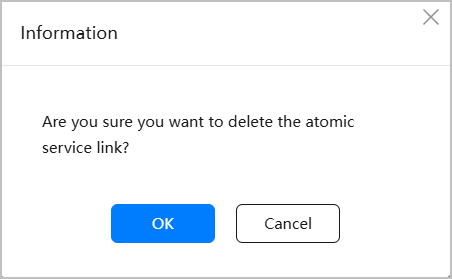
Only atomic service links in draft state can be deleted. Click Delete in the Operation column. In the displayed dialog box, click OK.
Using a Basic URL QR Code to Start the Atomic Service
After an atomic service link is associated with a basic URL QR code, users can scan the QR code to start the target atomic service.
(Optional) Obtaining the QR Code Value
When a user scans the basic URL QR code, the QR code value is passed to the atomic service. Based on the QR code value, you can redirect users to different atomic service pages or provide them with different services, such as ordering food and registering as a member by scanning a QR code.
The QR code value can be read from the orgScanCode parameter of want. The sample code is as follows:
import { AbilityConstant, UIAbility, Want } from '@kit.AbilityKit';
import { hilog } from '@kit.PerformanceAnalysisKit';
import { url } from '@kit.ArkTS';
export default class EntryAbility extends UIAbility {
  onCreate(want: Want, launchParam: AbilityConstant.LaunchParam): void {
    // Obtain the passed code value information from want.
    // For example, the passed URL is https://www.example.com/programs?action=showall.
    let orgScanCode = want?.parameters?.orgScanCode as string;
    if (orgScanCode) {
      // Parse the query parameter from the link. You can perform subsequent processing based on your service requirements.
      try {
        let urlObject = url.URL.parseURL(orgScanCode);
        let action = urlObject.params.get('action');
        // For example, if action is set to showall, all programs are displayed.
        if (action === "showall"){
          // ...
        }
        // ...
      } catch (error) {
        hilog.error(0x0000, 'testTag', `Failed to parse orgScanCode.`);
      }
    }
  }
}