Since API version 20, ArkWeb provides the text segmentation and recognition feature on HTML5 pages, enabling segmented-text highlighting, long-press preview, and text-selection menus extension. To use this feature, set enableDataDetector to true. The default value is false.
This feature is mainly used to automatically identify entities such as phone numbers and URLs on HTML5 pages and provide convenient interaction operations. For example, a user can click a phone number to make a call or click a URL to view the address on the map, improving user experience.
The recognizable entity types include phone numbers, URLs, email addresses, addresses, and time. For details, see TextDataDetectorType.
Segmented Text Highlighting
After the HTML5 page in the Web component is loaded, the special entities on the page are automatically identified and highlighted. Entities that appear after the page changes are not highlighted.
The filtering rules for highlighting special entities are as follows:
- Text entities in the text box and editable area are not processed.
- Text entities in the <a></a> tag are not processed.
- Text entities in cross-domain iframes and nested iframes are not processed.
- Text entities that cross nodes are not highlighted, for example, <p>Sa<span>turday</span></p>.
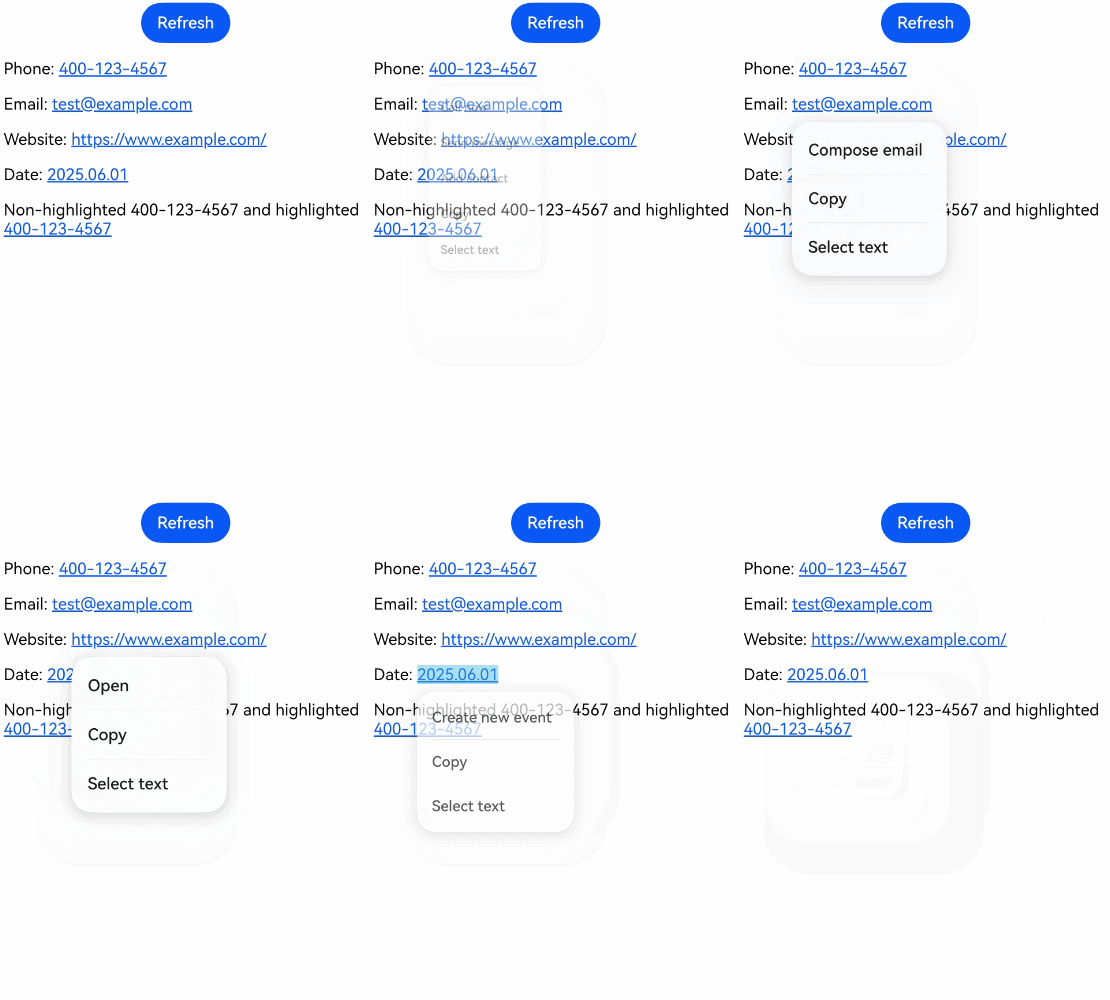
After being highlighted, text entities on the page are converted into hyperlinks. When they are touched or left-clicked, the operation menu is displayed based on the entity type.
import { webview } from '@kit.ArkWeb';

@Entry
@Component
struct Index {
  webController: webview.WebviewController = new webview.WebviewController();

  build() {
    Column() {
      Row() {
        Button('Refresh')
          .onClick(() => {
            this.webController.refresh();
          })
      }

      Web({
        src: $rawfile('index.html'),
        controller: this.webController
      })
        .enableDataDetector(true)
        .dataDetectorConfig({
          types: []  // Entity recognition type. If this parameter is left empty, all types are recognized.
        })
    }
    .height('100%')
    .width('100%')
  }
}
HTML file to be loaded:
<!-- index.html -->
<!DOCTYPE html>
<html>
<head>
    <title>Test</title>
    <meta name="viewport" content="width=device-width, initial-scale=1.0">
</head>
<body>
    <p>Telephone: 400-123-4567</p>
    <p>Email address: test@example.com</p>
    <p>URL: https://www.example.com/</p>
    <p>Date: 2025.06.01</p>
    <p>Address: Zhongguancun, Haidian District, Beijing</p>
    <p>Sa<span>turday</span> will not be highlighted and Saturday will be highlighted</p>
</body>
</html>
Click a text entity to display the corresponding operation menu, as shown in the following figure.
Right-clicking or dragging the mouse triggers the default behavior of the hyperlink.
When the dataDetectorConfig API is not used or enablePreviewMenu of the TextDataDetectorConfig attribute is set to false, long-pressing or dragging triggers the default behavior of the hyperlink, as shown in the following figure.

If the computed style of the text element on the page contains user-select:none, the Select text option in the entity menu is invalid. However, the entity text can still be copied when copyOptions is not CopyOptions.None.
Long Press Preview
To use the long-press preview functionality, you need to configure dataDetectorConfig as follows:
Web({
src: $rawfile('index.html'),
controller: this.webController
})
.enableDataDetector(true)
.dataDetectorConfig({
  enablePreviewMenu: true,  // Enable the long-press preview functionality.
  types: []
})
If copyOptions is not set to CopyOptions.None, a preview menu is displayed when you long-press the highlighted entity text, as shown in the following figure.

The custom menu bound through bindSelectionMenu does not affect the data detection long-press preview menu. Long-pressing a highlighted data detection hyperlink does not bring up the custom hyperlink menu, and long-pressing a regular hyperlink does not bring up the data detection preview menu either.
Text Selection Menu Extension
Since API version 22, the enableSelectedDataDetector can be used to configure whether to enable the AI option in the text selection menu.
In a non-editing area, when the selected text meets the following conditions, the text selection menu displays the corresponding AI menu item:
- The UTF-8-encoded selected text does not exceed 255 bytes.
- The selected text contains only one entity that matches a detection type (the supported detection types can be configured through dataDetectorConfig).
- The text is not in the Select all operation state.

The AI menu item is displayed as long as the preceding conditions are met, regardless of whether the highlighted entity text is selected.