To integrate Live View Kit into your app and complete the debugging, you need to enable Live View Kit in advance.
Procedure
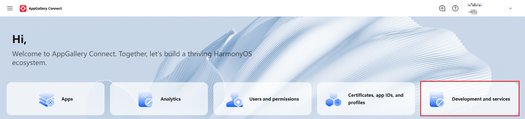
Sign in to AppGallery Connect and click Development and services.
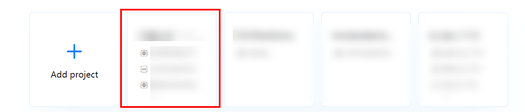
Find your project and click the app for which you want to enable Live View Kit.
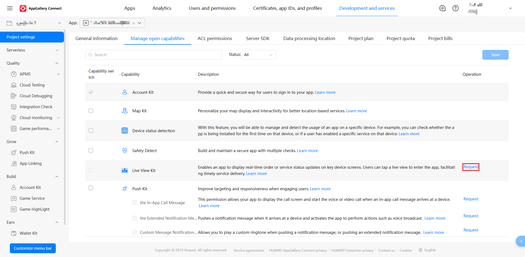
Go to Project settings > Manage open capabilities, and click Request next to Live View Kit.
Provide the required information, including the scenarios, scenario description, and attachment, according to the template in Request reason, and click Submit.
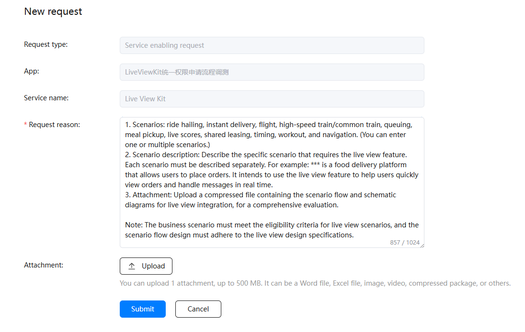

- You can use the LiveViewDevelopmentAssistant to design the scenario nodes and solution view based on the Live View Design Specifications. After the design is complete, archive and submit the solution as an attachment to apply for the relevant permission.
You will receive the Live View Kit request result within five working days. Please check the service enabling request information in the interaction center.


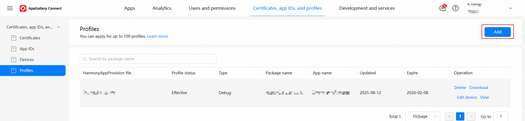
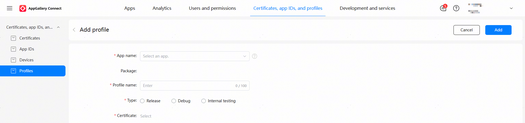
After your Live View Kit request is approved, sign in to AppGallery Connect, go to the Certificates, app IDs, and profiles page, click Profiles on the left, click Add in the upper right corner of the page to generate a new profile, and download the profile to the local path. When releasing your app, you need to package the profile into the app package.

For details about how to generate a profile, please refer to Managing Profiles. For details about how to package the profile into the app package, please refer to Configuring Signature Information.