Overview
Special text recognition involves automatically identifying specific formats or semantic information in text content, such as links, dates, and phone numbers, and making them interactive. This allows users to efficiently complete tasks like visiting web pages, adding calendar events, or making phone calls, without the need to copy and paste.
For example, in a social app, when users receive messages containing special text during a chat, the system recognizes these and turns them into clickable links. Tapping these links can open web pages, jump to app details, make phone calls, or write emails, significantly enhancing user experience and efficiency.
This topic describes how to identify special text in a social app and mark the text as clickable links to enable interactive capabilities. Common types of special text include:
- HTTP/HTTPS links: When such a link is tapped, the URL is open in the system browser.
- App Linking links: When such a link is tapped, the details page is displayed if the target app is installed; otherwise, users are redirected to a web page or the AppGallery.
- Dates: When such a link is tapped, a new calendar event is created.
- Phone numbers: When such a link is tapped, the user can choose to make a call, send a text message, or save as a contact.
- Addresses: When such a link is tapped, the installed map app is started for navigation.
- Emails: When such a link is tapped, the email app is started for writing an email.
After the special texts are tapped, the system displays an action panel and performs the corresponding action based on the type of text.
Typical Scenarios
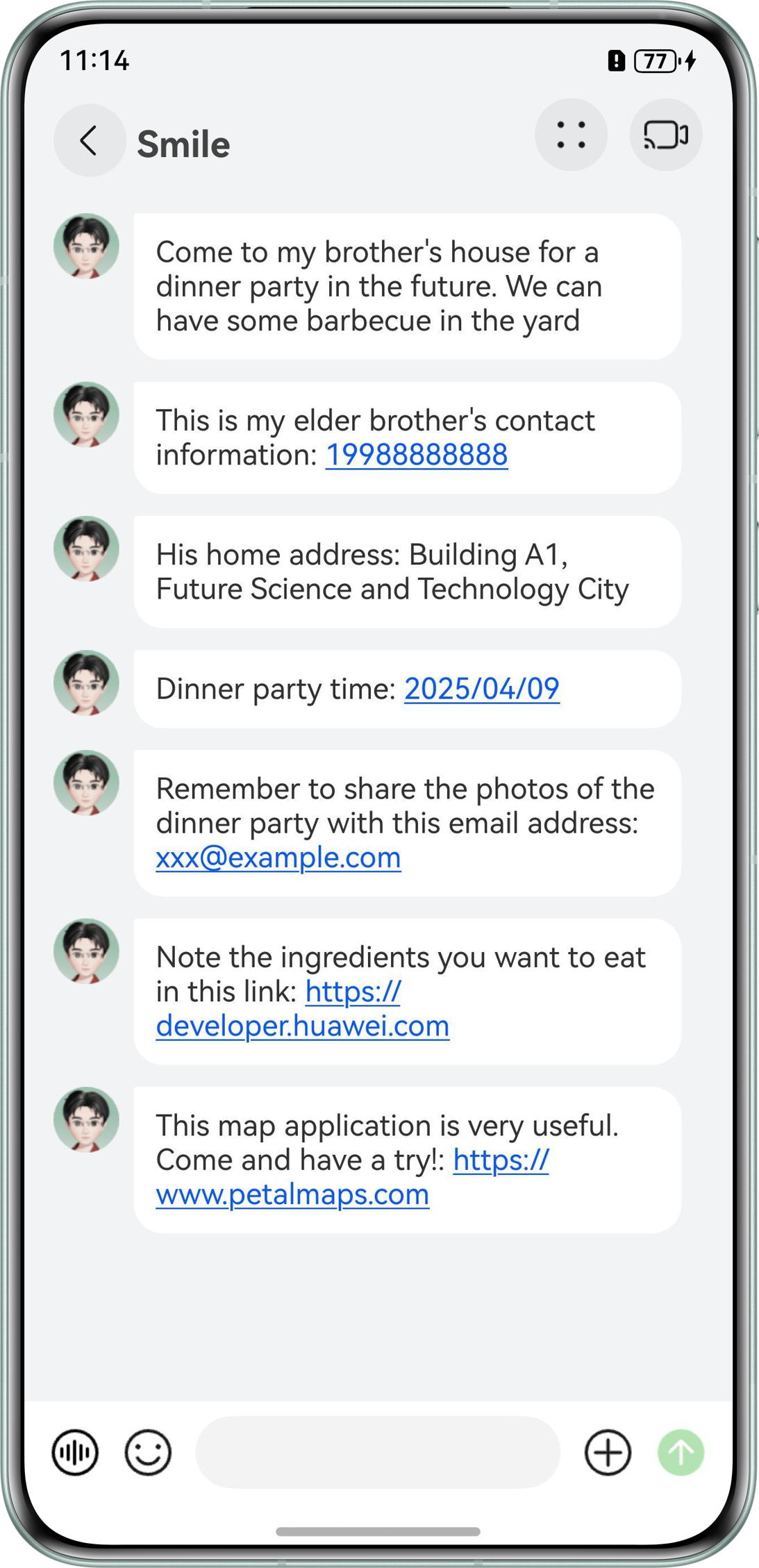
In a social app, friends may send messages to each other. These messages may contain standard HTTP/HTTPS links, App Linking links, dates, phone numbers, addresses, and email addresses. These special texts are identified as clickable links.
When users tap these links, an action menu appears, allowing them to perform actions. The effects of tapping these links are shown in the figures below.
| Type | Standard HTTP/HTTPS link | App Linking link | Date |
|---|---|---|---|
| Final Effect |
|
|
|
| Type | Phone number | Address | Email address |
| Final Effect |
|
|
|


All phone numbers in this document are for reference only.
[h2]Key Technologies
The Text component provides the enableDataDetector attribute. Setting this attribute to true allows the component to automatically identify special entities in the text, such as standard HTTP/HTTPS links, App Linking links, dates, phone numbers, addresses, or email addresses, and render them as clickable links. When users tap these entities with gestures or right-click them, a corresponding action menu appears. Left-clicking an entity directly triggers the first option in the menu.
The following table lists whether the common text and input components support the enableDataDetector attribute.
| Component | Support for enableDataDetector |
|---|---|
| Text | Yes |
| TextArea | No |
| TextInput | No |
| RichEditor | Yes |
| RichText | No |
[h2]How to Develop
- Customize a component with an avatar and text information.
Encapsulate a component such as TextLink, with parameters for the avatar resource (img) and text content (text).
@Component export default struct TextLink { @State enableDataDetector: boolean = true; public img: string | PixelMap | Resource = $r('app.media.Public_avatar'); public text: ResourceStr = ''; // ... } - Set the component style.
Apply appropriate UI styles to elements like the avatar and text to enhance the display in chats or content streams.
Row() {
  Image(this.img)
    .width(36)
    .height(36)
  Row() {
    Text(this.text)
      .enableDataDetector(this.enableDataDetector)
  }
  .borderRadius({
    topLeft: 2,
    topRight: 16,
    bottomLeft: 16,
    bottomRight: 16
  })
  .margin({ left: 8 })
  .padding({
    left: 12,
    right: 12,
    top: 12,
    bottom: 12
  })
  .backgroundColor(Color.White)
  .constraintSize({ maxWidth: 300 })
  .width('100%')
}
.alignItems(VerticalAlign.Top)
.margin({
  left: 16,
  right: 16,
  bottom: 12
})
.width('100%')
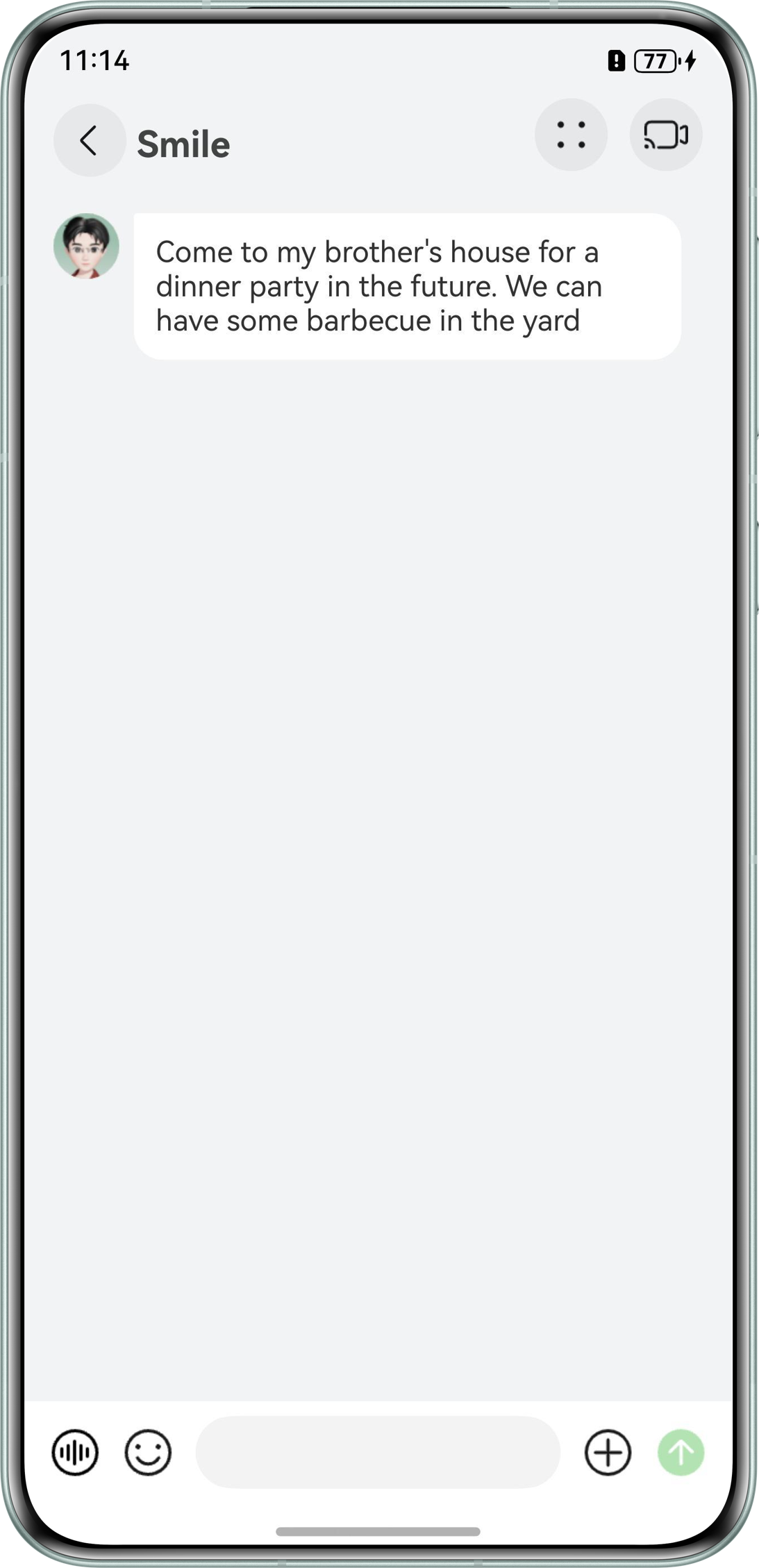
The implementation effect is shown in the figure below.
- Enable special text recognition.
Enable the enableDataDetector attribute on the Text component to automatically identify and mark special texts such as links, dates, phone numbers, addresses, and email addresses.
Text(this.text)
  .enableDataDetector(this.enableDataDetector)
- Verify the recognition effect.
Pass text content containing standard HTTP/HTTPS links, App Linking links, dates, phone numbers, addresses, and email addresses to the TextLink component. Verify that they are displayed in an interactive format.