Overview
PCs play an important role in daily life and are also indispensable to the all-scenario experience of HarmonyOS 1+8 devices.
PCs have the following features:
- PCs are equipped with high-resolution large screens and large aspect ratio, which are ideal for displaying more content and enhancing efficiency in learning, entertainment, and work.
- PCs support three window modes: full-screen, split-screen, and free-form.
- PCs support interaction with the touchpad, mouse, and keyboard.
Currently, the main PC products include the MateBook Pro series.
Product Name | Image |
|---|---|
MateBook Pro series |
|


This topic provides the development guidelines for improving user experience of PC apps. For details about the basic common capabilities of multi-device development, see Overview.
Product Hardware Information
This topic describes the screen size and camera hardware parameters of PCs.
[h2]Screen Specification Information
The following uses MateBook Pro as an example to describe the effect, resolution, and horizontal and vertical breakpoints. For details, see the following table.
MateBook Pro (Laptop) | External Display | |
Effect |
|
|
Display ID | 0 | Main display: 0 External display: depending on the connected MateBook Pro port |
Landscape (LANDSCAPE) | NA | |
Resolution (px) | 3120*2080 | Main display: 3120 × 2080 External display: depending on the resolution of the external display |
Resolution (vp, Rounded Down) | 1642*1094 | Main display: 1642 × 1094 External display: depending on the resolution of the external display |
Available Display Width and Height (px) | 3120*1955 | Main display: 3120 × 1955 External display: depending on the resolution of the external display |
Available Screen Width and Height (vp, Rounded Down) | 1642*1028 | Main display: 1642 × 1028 External display: depending on the resolution of the external display |
xl for horizontal breakpoints and sm for vertical breakpoints | Main display: xl for horizontal breakpoints and sm for vertical breakpoints External display: depending on the resolution of the external display |


[h2]Camera Hardware Information
The default camera lens installation angle is preset for the camera of PCs. When using the camera, you need to consider the lens angle and device rotation angle. For details, see Preview Rotation Angle. When the screen orientation is the same, the angle of the front camera and the rotation angle of the preview stream to be set are as follows. Currently, the camera of PCs (for example, MateBook Pro) cannot be rotated.
0 (0°) | 1 (90°) | 2 (180°) | 3 (270°) | |
Effect |
| NA | NA | NA |
Front Camera Lens Installation Angle | 270° | NA | NA | NA |
Preview Rotation Angle | 270°+0°=270° | NA | NA | NA |
Rear Camera Lens Installation Angle | No rear camera | |||

[h2]Performance Optimization
Performance optimization for PC apps directly impacts user experience, running efficiency, and hardware resource utilization. HarmonyOS provides the DevEco Profiler tool to support full-dimension performance monitoring (CPU, GPU, memory, frame rate, power consumption, and network) and code-level issue locating and analysis, helping you quickly detect and optimize performance bottlenecks. For details about how to use the performance tools, see Introduction to Performance Optimization Tools. For details about the performance optimization cases, see Performance Optimization Cases.
For critical threads in your PC app, you can increase their task scheduling priority to ensure that they have sufficient contiguous execution time and resources. This helps maintain smooth app performance and optimizes user experience. For details, see Setting Thread Priority in Heavy-Load Scenarios.
[h2]Focus Navigation
PCs are equipped with keyboards. Your app must support focus navigation through the keyboard and configure visual effects for focus to clearly indicate the current focus position, ensuring a smooth interaction experience. For details about the development solution, see Focus Events.
[h2]Audio Focus Adaptation
Foreground and background apps on PCs need to handle audio focus in four key areas: Process of Preempting Audio Focus, Correctly Configuring the Audio Stream Type, Customizing the Focus Strategy, and Correctly Handling Focus Interrupt Events.
The management mechanism on PCs is similar to that on other devices, with the main difference being the default system strategies. You can refer to Customizing the Focus Strategy to learn the differences between PCs and other devices.
[h2]Floating Window
A floating window is a special app window on PCs, with the window type being WindowType.TYPE_FLOAT. You can create a floating window based on an existing task to keep it always on top of all app windows in the foreground. Even if the app that created the floating window is sent to the background, the floating window can still remain in the foreground.
- Launching a floating window in the background
After calling minimize() the main window is minimized by, call the API for creating a floating window after a delay, so that the floating window can be launched in the background (the following is used as an example).
async createFloatWindowBackground() { let context = this.getUIContext().getHostContext() as common.UIAbilityContext; try { window.getLastWindow(context, (err: BusinessError, topWindow) => { const errCode: number = err.code; if (errCode) { hilog.error(DOMAIN, TAG, '%{public}s', `Failed to obtain the top window. Cause code: ${err.code}, message: ${err.message}`); return; } topWindow.minimize().catch((err: BusinessError) => { hilog.error(DOMAIN, TAG, '%{public}s', `Failed to minimize the window. Code: ${err.code}, message: ${err.message}`); }); hilog.info(DOMAIN, TAG, '%{public}s', `Succeeded in obtaining the top window. Window id: ${topWindow.getWindowProperties().id}`); setTimeout(() => { this.createFloatWindow(); }, 5000); }); } catch (err) { hilog.error(DOMAIN, TAG, '%{public}s', `Failed to obtain the top window. Cause code: ${err.code}, message: ${err.message}`); } } async createFloatWindow() { let context = this.getUIContext().getHostContext() as common.UIAbilityContext; let floatWindowName = 'floatWindow'; let config: window.Configuration = { name: floatWindowName, windowType: window.WindowType.TYPE_FLOAT, ctx: context }; try { let floatWindow: window.Window = await window.createWindow(config); let storage: LocalStorage = new LocalStorage(); await floatWindow.moveWindowTo(250, 200); await floatWindow.resize(1800, 600); await floatWindow.setWindowCornerRadius(50); floatWindow.setWindowShadowRadius(50); await floatWindow.loadContent('pages/Index', storage); floatWindow.showWindow().catch((err: BusinessError) => { hilog.error(DOMAIN, TAG, '%{public}s', `Failed to show the window. Code: ${err.code}, message: ${err.message}`); }); this.floatWindow = floatWindow; storage.setOrCreate('name', floatWindowName); } catch (err) { hilog.error(DOMAIN, TAG, '%{public}s', `Failed to create the window. Cause code: ${err.code}, message: ${err.message}`); } } - Moving a floating window
Call startMoving() to drag and move a floating window.
.onTouch((event: TouchEvent) => { if (event.type === TouchType.Down) { try { let windowClass: window.Window = window.findWindow('floatWindow'); if (!windowClass) { hilog.error(DOMAIN, TAG, '%{public}s', 'Failed to find window.'); return; } windowClass.startMoving().then(() => { hilog.info(DOMAIN, TAG, '%{public}s', 'Succeeded in starting moving window.') }).catch((err: BusinessError) => { hilog.error(DOMAIN, TAG, '%{public}s', `Failed to start moving. Cause code: ${err.code}, message: ${err.message}`); }); } catch (err) { hilog.error(DOMAIN, TAG, '%{public}s', `Failed to start moving window. Cause code: ${err.code}, message: ${err.message}`); } } }) - Launch the main window in the floating window.
Use startAbility() to specify the want content to launch the main window.
Compatibility Mode
This topic describes the running rules, release configuration, and debugging methods of the compatibility mode on the PC, as well as the adaptation key points of the camera, APIs, file access, and hardware capabilities.
[h2]Compatibility Running
Compatibility running allows you to port mobile/tablet apps for PC deployment.
Window mode for compatibility running on the PC
When a mobile/tablet app runs on the PC in compatibility mode, the default display rules of the window are as follows:
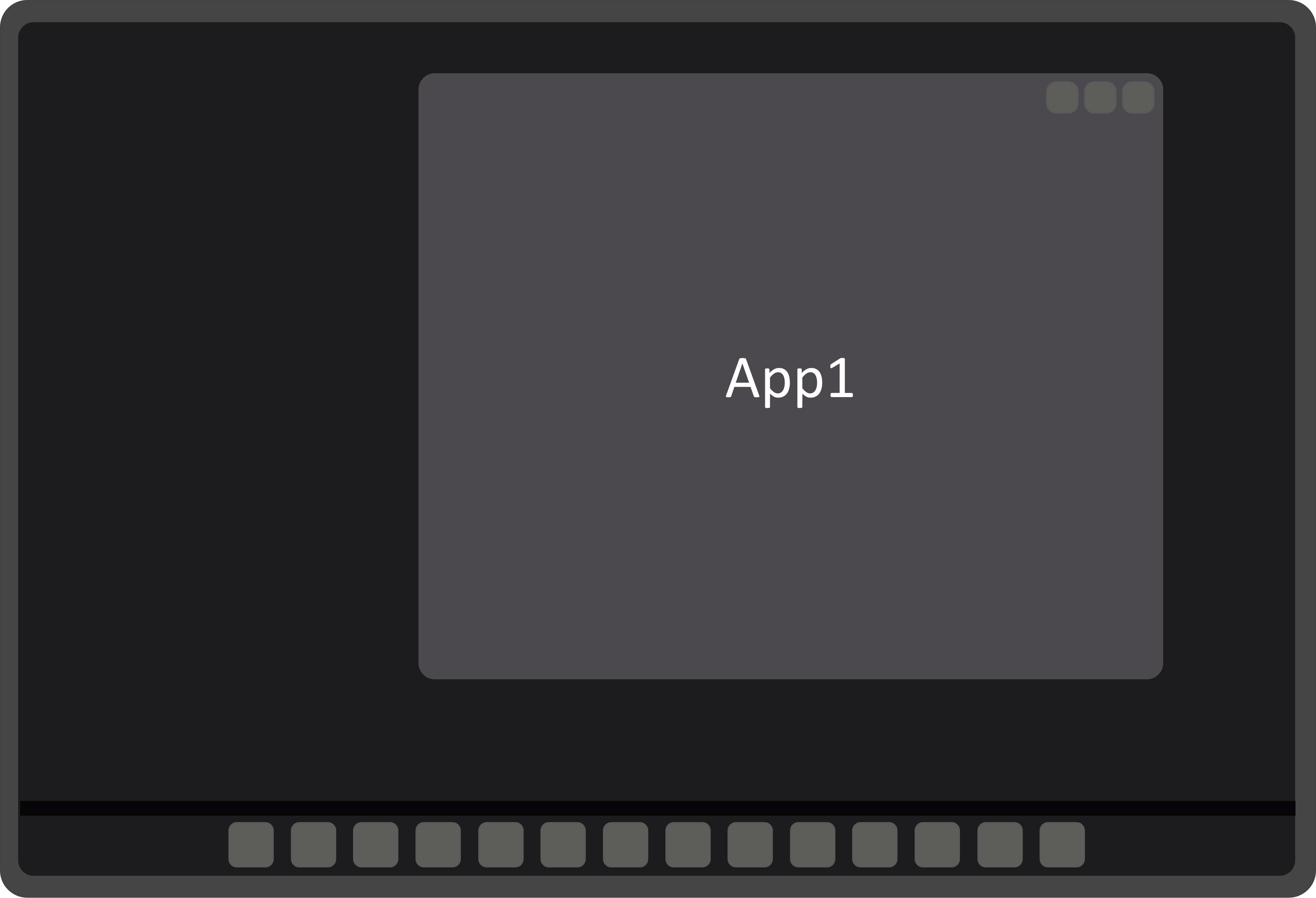
- If the app supports landscape mode, it is displayed in a fixed-size landscape window (the window height is 2/3 of the display height, and the width-to-height ratio is 1:1).
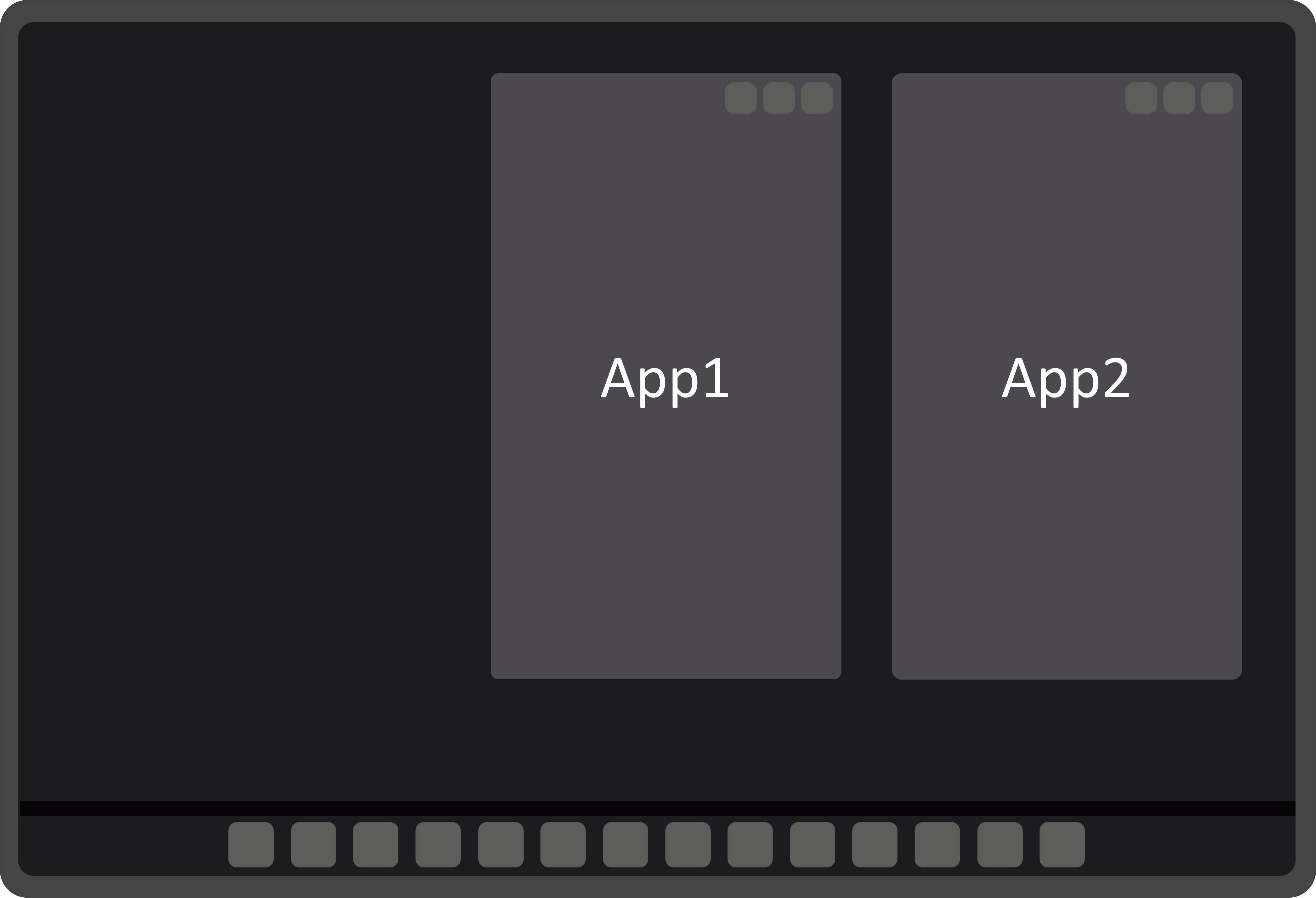
- If the app supports only portrait mode, it is displayed in a fixed-size portrait window (the window height is 2/3 of the display height, and the width-to-height ratio is 9:18).

Compatible apps cannot be maximized.
Trustlist policy in window mode
The operating system has a built-in trustlist function to manage the default display ratio of apps, including 18:9, 1:1, and full-screen.
[h2]Project Configuration for Compatibility Running
To ensure that an app adapted for mobile phones/tablets can run on a PC, remove support for 2-in-1 devices from the module.json5 file of the app's entry module.
"deviceTypes": [
    "default",
    "tablet",
    "2in1" (removed)
] 
The configuration file with the same name of the module on which the entry module depends also needs to be modified.
[h2]App Compatibility Test
In the early stage of ecosystem development, PC apps are mainly released in compatibility mode. As the ecosystem gradually matures, the system provides corresponding settings to manage compatibility policies, facilitating continuous adaptation to the landscape mode on PCs.
After installing the app, go to Settings > Display & brightness > App scaling options and adjust the app display ratio to the original ratio to exit the compatibility mode, facilitating debugging.
[h2]Check or Adaptation Items
In principle, apps capable of compatibility running only require small adaption on some differences. For details about the adaptation requirements, see the following description.
- Camera display issues
It is recommended to strictly follow the specifications to complete camera adaptation and ensure the image orientation and angle are normal, preventing image distortion. For details, see Camera Kit.
PCs do not come equipped with rear cameras. Therefore, adaptation is required in scenarios such as photo taking, video recording, and scanning. Otherwise, the functions may be abnormal or the app may crash.
Adaptation Item
Adaptation Guide
Scanning function
Solution 1: Disable the scanning function on PCs.
Solution 2: Invoke the front camera lens by default to implement the scanning function.
Taking photos/videos
By default, the front camera is used. Use getSupportedCameras() to obtain the list of available cameras in the system. If no rear camera (CameraDevice whose CameraPosition is CAMERA_POSITION_BACK) is found, switch to the front camera (CameraDevice whose CameraPosition is CAMERA_POSITION_FRONT).
Facial recognition
When using a third-party facial recognition kit, you need to adapt the image angle according to the camera specifications to ensure that the image is normal, and then perform algorithm training as required to improve the accuracy of facial recognition.
- API behavior differences
Item
API Behavior Differences
Affected Scenarios
Display size
In compatibility mode, the Display.width, Display.height, and DPI obtained using display.getAllDisplays(), display.getDisplayByIdSync(), and display.getDefaultDisplaySync() are not the actual resolution and DPI of the device.
PCs in free-form multi-window mode: free-form window and window maximization.
Orientation request
In compatibility mode, when an app uses window.setPreferredOrientation() to request landscape/portrait mode switching, the window switches between landscape full-screen and portrait center modes. However, the actual screen orientation remains unchanged.
PCs in free-from multi-window mode: free-form window and window maximization
PiP
In versions earlier than API version 20, PCs do not support the PiP function. Since API version 20, PCs support the PiP function. You can use the PiPWindow.isPiPEnabled() API to check whether the current system supports this function.
Before API version 20, when a mobile app running on a PC calls the PiP API, it will not crash, but the PiP window will not be displayed.
- Back button differences
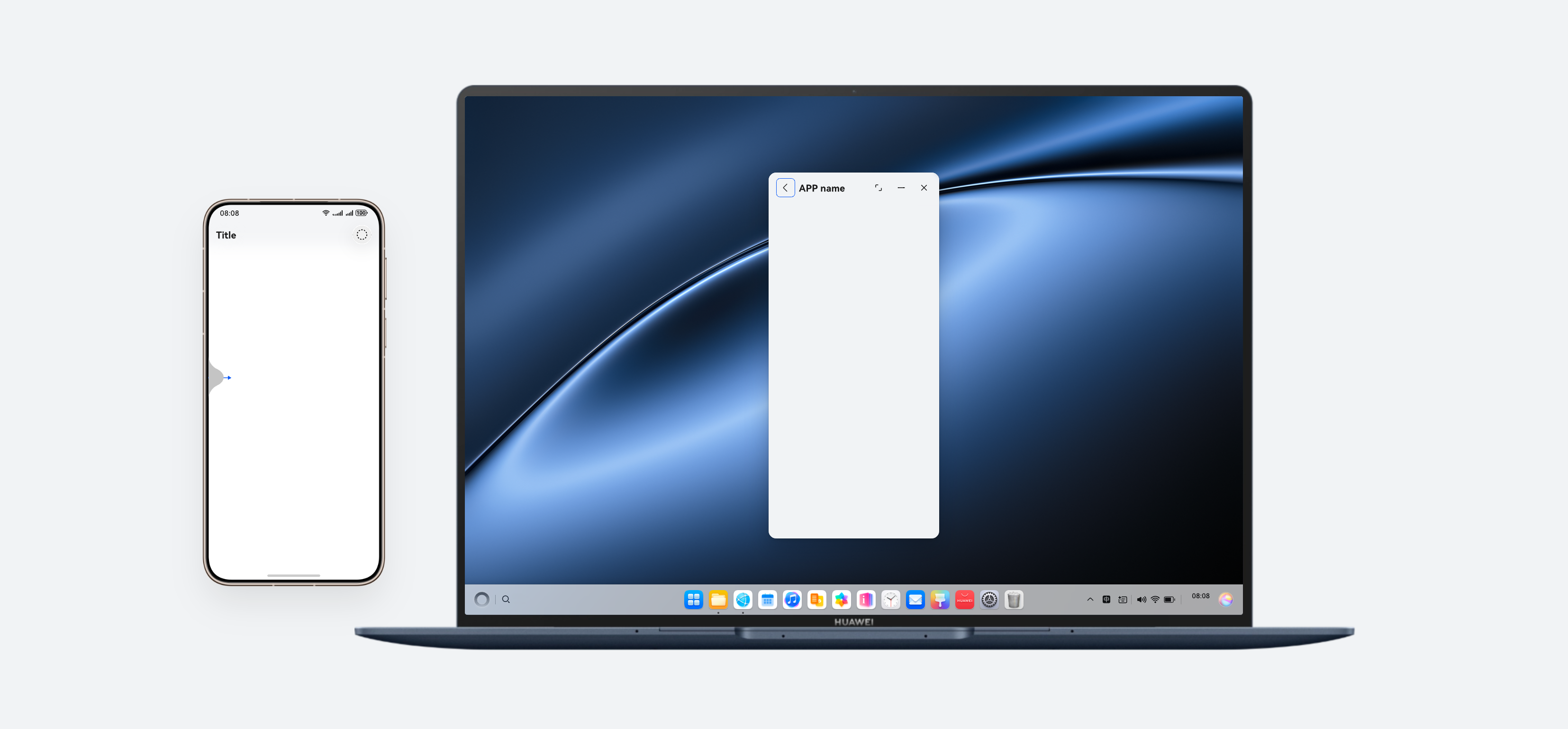
Due to differences in operation methods between mobile phones and PCs, some pages do not provide a back button. On mobile phones, users can swipe inward from the screen edge to return to the previous page, but this gesture is not available on PCs. To address this issue, the PC system adds a back button on the app window screen to simulate the interaction effect of swiping from the edge to return to the previous page, as shown in the following figure.
- Differences in secure keyboard
PCs come with a physical keyboard. In secure login scenarios, if an app is developed based on the private security keyboard SDK, issues such as plaintext password display, password input failure, and submission failure after password input may occur when a user enters a password using the physical keyboard. To address the preceding issues, you are advised to use the following solutions:
- Solution 1: If the password box uses input components such as TextInput in ArkUI, set InputType to Password, that is, the password input mode.
- Solution 2: For apps that use the private security keyboard, you can bind the onKeyPreIme() method to the password component and return true to directly intercept the input from the physical keyboard.
- Differences in file sandbox
The file access permissions vary depending on the device, and mobile apps can run on multiple devices such as tablets and PCs through proactive distribution or compatibility mode. During development, pay special attention to the following points:
- Follow the application sandbox directory development specifications and store files in the correct directories.
- Encrypt and store sensitive data to ensure app security, protect user privacy, and prevent data disclosure.
- PhotoPicker differences
PCs can use the PhotoPicker component to access images and videos. The following table lists the accessible range of different Picker components.
Picker
Accessible Range
PhotoPicker(Class (PhotoViewPicker))
Allows users to access images and videos in the media library and store images and videos to the media library.
FilePicker(DocumentViewPicker)
Allows users to access files in the public directory and save images, videos, and files to the public directory.
To adapt to the experience differences of PhotoPicker, you are advised to use the following solutions.
When an app needs to access in the media library or save files to the media library, it can continue to use PhotoPicker. If the app needs to access or save files outside the media library, it is recommended that FilePicker be used.- Viewing files: FilePicker can access files in the public directory and images and videos in the media library (gallery).
- Saving files: If an app saves files using the save mode of FilePicker, files are saved to the user-specified public directory.
Scenario
Recommended Method
Implementation Mechanism
The user taps the save button or option when creating a text or document within an app
Use FilePicker to select the save path and file name.
Create a DocumentViewPicker instance and call save() to start the FilePicker to save the file. If the app needs to access the file later, call the file persistence API to persist the authorized file.
The user taps the open file button within the app to view or edit the file.
Use FilePicker to select a file to open.
Create a DocumentViewPicker instance and call select() to open the FilePicker for the user to select files. After the user selects a file, the system grants the read and write permissions on the file to the app.
Open a file in the preset 3D directories within an app (only for tablets and PCs).
Use pre-authorization of the 3D directories, after the user consents, the app can access files in the corresponding folder.
Call the corresponding system APIs. The ohos.permission.READ_WRITE_DOWNLOAD_DIRECTORY permission is required for the download directory and the ohos.permission.READ_WRITE_DOCUMENTS_DIRECTORY permission is required for the document directory.
Request the authorization of a single file or folder (only for tablets and PCs) when the app obtains a file or folder URI but lacks the access permission.
Use FilePicker to select an authorization mode and pass the URI.
Create a DocumentViewPicker instance, call select(), and pass the authMode and defaultFilePathUri parameters to start the FilePicker for file selection. This authorization is temporary, and the app needs to additionally request the permission to persist files or folders.
Save a file to a specified directory.
Use FilePicker to select a file to open.
Create a DocumentViewPicker instance, call select(), set DocumentSelectMode to FOLDER, and start the FilePicker to select a folder. This authorization is temporary. The app needs to proactively request the permission to persist folders.
- Checking the kits and sensors
The hardware specifications of PCs are different from those of phones, such as the modem, GPS, and rear camera specifications. As a result, the following differences occur when some kit capabilities are used on PCs compared with phones:
- Not supported but compatible: The app can use the canIUse() API to check whether a kit is available and execute logic or disable functions as required. If no adaptation is performed, related APIs can be called but will not take effect, ensuring stable running of the app.
- Simulated support (sensor): The app can enumerate such sensors. The API can be called normally and fixed data is returned.
- Limited support: For example, Wi-Fi positioning is used instead of GPS positioning for navigation and positioning, which will cause positioning accuracy loss.
Kit/Sensor
PC Specification
Suggestion
Phone call/SMS
Not supported, but compatible
The APIs can be called but do not take effect. You are advised to hide the related feature entries.
Gyroscope/Accelerator
Simulated support
The simulated device is still. You are advised to hide the related feature entries.
Location Kit
Limited support, with reduced accuracy
Wi-Fi positioning is supported. No modification is required unless there are special requirements.
Scan Kit
Not supported, but compatible
The APIs can be called but do not take effect. You are advised to hide the related feature entries.
AR Engine
Not supported, but compatible
The APIs can be called but do not take effect. You are advised to hide the related feature entries.
XEngine Kit
Not supported, but compatible
The APIs can be called but do not take effect. You are advised to hide the related feature entries.
Device Security Kit
Secure geographical location proof not supported, but compatible
The APIs can be called but cannot return values. You are advised to hide the related feature entries.
Account Kit
Not supported in youth mode, but compatible
The APIs can be called but do not take effect. You are advised to hide the related feature entries.
Live View Kit
Not supported, but compatible
The APIs can be called but do not take effect. You are advised to hide the related feature entries.
Car Kit
Not supported, but compatible
The APIs can be called but do not take effect. You are advised to hide the related feature entries.
Graphics Accelerate Kit
Not supported, but compatible
The APIs can be called but do not take effect. You are advised to hide the related feature entries.
NFC
Not supported, and not compatible
NFC cannot be called. You are advised to check whether the device supports NFC before use.
Camera
Only supported by front cameras
You are advised to hide the features related to the rear camera and preferentially use the front camera.
Vision Kit
Not supported, but compatible
The APIs can be called but cannot return values. You are advised to hide the related feature entries.
[h2]Device Type Differentiation
How to distinguish between MateBook Pro and MateBook Fold?
- Page layout issues: The page layout is determined by the window form, window width and height, and aspect ratio, regardless of the product model or device type. For example, the layout of the MateBook Fold in the horizontal unfolded state must be the same as that of the MateBook Pro. Other states of the MateBook Fold correspond to the lg horizontal breakpoints. The layout must be the same as that of the tablet. Therefore, layout adaptation only needs to determine breakpoints and implement responsive layout. For details, see the usage of breakpoints.
- Non-page layout or function issues: The deviceType of both the MateBook Pro and MateBook Fold is 2-in-1 device. Therefore, you need to use display.isFoldable() to determine whether the device is foldable. For the MateBook Fold, true is returned; for the MateBook Pro, false is returned.
[h2]Package Management Policy
The management policy of the HAP on the PC needs to be flexibly selected based on the application scenario to balance the consistency and personalization, and ensure development efficiency and user experience. The specific solutions are as follows:
- Unified HAP deployment: For apps with similar page structures and interaction logic (which can be adapted through responsive layout and consistent core functions), it is recommended to use a unified HAP. With the multi-device adaptation and responsive layout capabilities of HarmonyOS, the HAP can be deployed on multiple devices, such as mobile phones, tablets, and PCs, effectively reducing maintenance costs and improving app release and iteration efficiency.
- Independent HAP precise adaptation: If the apps on PCs and tablets differ significantly in terms of UI layout and interaction functions (for example, the mobile app has rich interaction elements, while the PC app focuses on image and text display, and the function scopes are different), it is recommended to create independent HAPs and build modular components that adapt to mobile phones/tablets and PCs, respectively, to implement device-specific UX design, resource optimization, and experience customization.
For details, see the content related to the product customization layer in Layered Architecture Design.
[h2]Window Adaptation
What should I do if the app cannot detect the available area change in a timely manner when the window changes?
Problem description: The app cannot detect the available area change in a timely manner or there is a delay in detecting the change. As a result, the app directly calls moveWindowTo() or resize() to adjust the window size or position, causing abnormal window size or position.
Solution: Use any of the following methods to solve the problem:
- Use display.getDisplayByIdSync() to obtain the display object of the corresponding available area based on displayId.
- Use display.getAvailableArea() to obtain the available area of the current device screen.
- Register the on('availableAreaChange') listener to listen for changes in the available area of the device screen in real time.
What should I do if an exception occurs when the free-from multi-window adapts to the PC window?
Problem description: When the free-from multi-window is adapted to PCs, the following issues may occur:
- The window size is inappropriate.
- The page layout is disordered after the window is dragged to an excessively small size.
- The logic of the window dragging scenario is unclear, and the implementation is difficult.
Solution
- If the window dimensions are not properly adapted, you can proactively configure the window size. For details, see the solution for adjusting the window size.
- To resolve the layout exception caused by dragging a window to an excessively small size, see the solution for limiting the size of a freeform window to ensure normal page display.
- On the PC, the free-from multi-window can be dragged by clicking the mouse or touching. By default, the system provides the high-performance dragging capability for windows with the title bar. For windows without a title bar or with a custom title bar, you need to call the system dragging capability API. For details, see How to Set the Dragging Hotspot of a Window?
What should I do if the app flickers when the window is started?
Possible cause: The window position and size set in the metadata tag in the module.json5 configuration file are inconsistent with the window parameters set in the layout of onWindowStageCreate().
Solution: Ensure that the metadata configuration in module.json5 is the same as the window position and size in onWindowStageCreate().
"abilities": [
  {
    "name": "EntryAbility",
    "srcEntry": "./ets/entryability/EntryAbility.ets",
    "supportWindowMode": [
      "fullscreen"
    ],
    "metadata": [
      {
        "name": "ohos.ability.window.height",
        "value": "600"
      },
      {
        "name": "ohos.ability.window.width",
        "value": "600"
      },
      {
        "name": "ohos.ability.window.left",
        "value": "left"
      },
      {
        "name": "ohos.ability.window.top",
        "value": "top"
      }
    ],
    // ...
  },
  // ...
],
onWindowStageCreate(windowStage: window.WindowStage): void {
// Main window is created, set main page for this ability
hilog.info(DOMAIN, TAG, '%{public}s', 'Ability onWindowStageCreate');
try {
let mainWindow = windowStage.getMainWindowSync();
let displayId = mainWindow.getWindowProperties().displayId;
let displayClass = display.getDisplayByIdSync(displayId);
displayClass.getAvailableArea().then(() => {
mainWindow.resize(mainWindow.getUIContext().px2vp(600), mainWindow.getUIContext().px2vp(600))
.catch((err: BusinessError) => {
hilog.error(DOMAIN, TAG, '%{public}s',
`Failed to change the window size. Code: ${err.code}, message: ${err.message}`);
});
mainWindow.moveWindowTo(0, 0).catch((err: BusinessError) => {
hilog.error(DOMAIN, TAG, '%{public}s',
`Failed to move the window. Code: ${err.code}, message: ${err.message}`);
});
}).catch((err: BusinessError) => {
hilog.error(DOMAIN, TAG, '%{public}s',
`Failed to get the available area in this display. Code: ${err.code}, message: ${err.message}`);
})
} catch (err) {
hilog.error(DOMAIN, TAG, '%{public}s',
`Failed to move the window. Cause code: ${err.code}, message: ${err.message}`);
}
windowStage.loadContent('pages/Index', (err) => {
if (err.code) {
hilog.error(DOMAIN, TAG, 'Failed to load the content. Cause: %{public}s', err);
return;
}
hilog.info(DOMAIN, TAG, 'Succeeded in loading the content.');
});
}